Dashboard
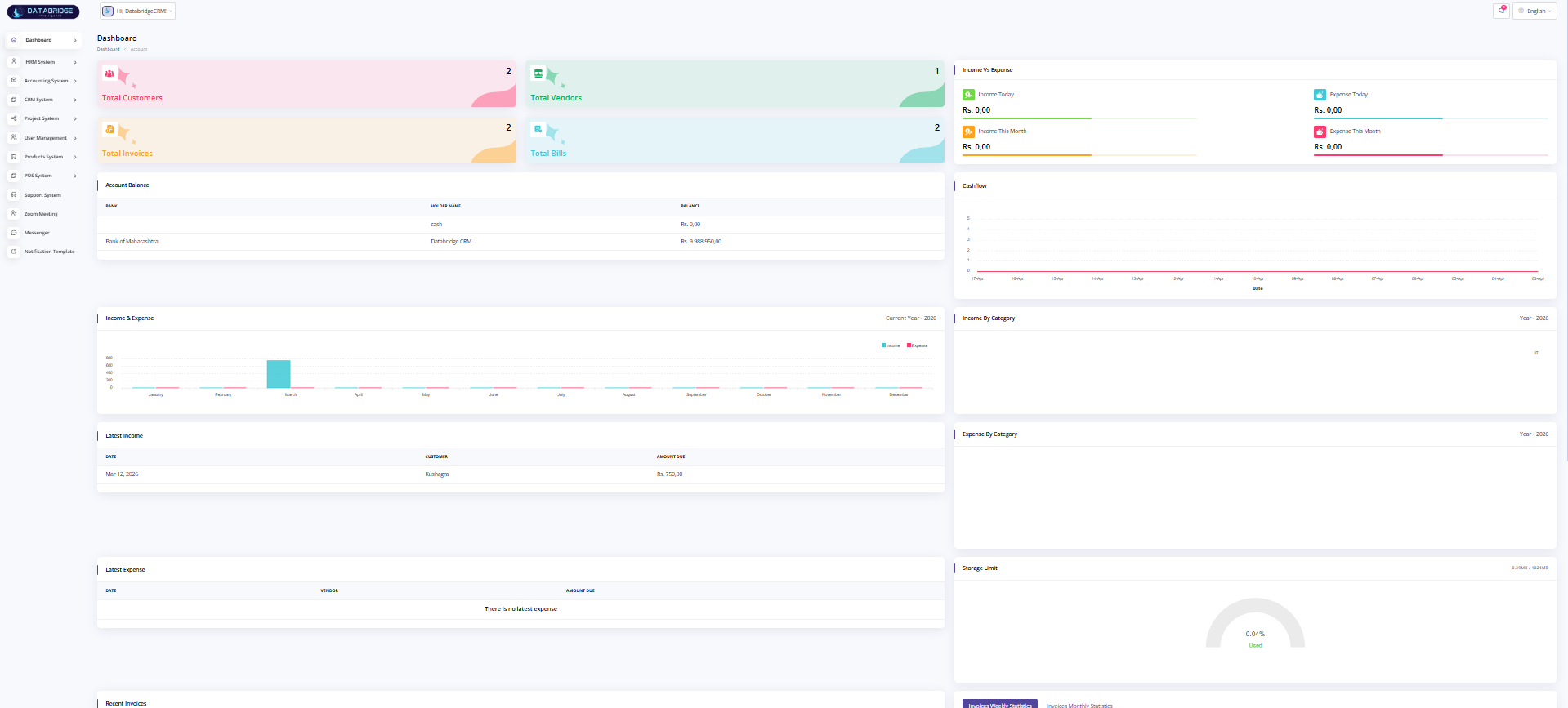
The Dashboard serves as the central overview screen of the application, providing users with a summarized view of key business metrics such as customers, vendors, invoices, bills, income, and expenses. It helps users quickly understand the current financial and operational status through visual charts and data panels. This screen acts as a decision-making hub by presenting real-time insights in a clear and structured manner.
Features:
-Displays key summary cards such as Total Customers, Total Vendors, Total Invoices, and Total Bills
-Shows Income and Expense data for today and the current month
-Provides Account Balance details with bank and holder information
-Includes graphical representation of Cashflow and Income vs Expense trends
-Displays Income and Expense categorized charts for better analysis
-Shows latest income and expense records for quick tracking
-Includes storage usage indicator for system monitoring
-Displays key summary cards such as Total Customers, Total Vendors, Total Invoices, and Total Bills
-Shows Income and Expense data for today and the current month
-Provides Account Balance details with bank and holder information
-Includes graphical representation of Cashflow and Income vs Expense trends
-Displays Income and Expense categorized charts for better analysis
-Shows latest income and expense records for quick tracking
-Includes storage usage indicator for system monitoring
Functionality:
-Automatically fetches and displays real-time data from the database
-Calculates totals for customers, vendors, invoices, and bills dynamically
-Tracks income and expenses based on daily and monthly filters
-Generates charts (Cashflow, Income vs Expense) for visual analysis
-Displays account balances by integrating bank and ledger data
-Updates latest transaction sections when new income or expense is added
-Monitors storage usage and visually represents it for the user
-Allows users to quickly analyze financial performance without navigating to multiple modules
-Automatically fetches and displays real-time data from the database
-Calculates totals for customers, vendors, invoices, and bills dynamically
-Tracks income and expenses based on daily and monthly filters
-Generates charts (Cashflow, Income vs Expense) for visual analysis
-Displays account balances by integrating bank and ledger data
-Updates latest transaction sections when new income or expense is added
-Monitors storage usage and visually represents it for the user
-Allows users to quickly analyze financial performance without navigating to multiple modules
Total Customers (KPI Card):
This KPI card displays the total number of customers registered in the system. It provides a quick overview of the customer base growth and helps in tracking user engagement.
Features:
-Shows total customer count
-Real-time updated value
-Highlighted in a visual card format
Functionality:
-Fetches data from the customer database
-Counts total active customers
-Updates automatically when a new customer is added
Total Vendors (KPI Card):
This card represents the total number of vendors associated with the system. It helps in monitoring supplier relationships and vendor network size.
Features:
-Displays total vendor count
-Clean and minimal UI card
-Real-time data update
Functionality:
-Retrieves vendor records from database
-Counts all registered vendors
-Updates instantly on vendor addition
Total Invoices (KPI Card):
This KPI shows the total number of invoices generated in the system. It reflects the overall billing activity.
Features:
-Displays total invoices count
-Easy-to-read summary card
-Helps track billing volume
Functionality
-Fetches invoice records
-Counts all generated invoices
-Updates dynamically on invoice creation
Total Bills (KPI Card):
This card shows the total number of bills recorded, helping track expenses and payable transactions.
Features:
-Displays total bills
-Quick financial overview
-Highlighted card UI
Functionality:
-Fetches bill entries from system
-Counts all bills
-Updates automatically when new bills are added
Income vs Expense (Summary Section):
This section provides a comparison of income and expenses for today and the current month, helping users understand financial performance.
Features:
-Displays income today & this month
-Displays expense today & this month
-Color-coded indicators
Functionality:
-Filters transactions by date (today/month)
-Calculates total income and expense
-Displays values in real-time
Account Balance:
This section shows the available balance across different accounts or banks, providing a clear financial position.
Features:
-Displays bank name and holder
-Shows current balance
-Tabular format for clarity
Functionality
-Fetches account data from system
-Calculates current balance
-Updates after every transaction
Cashflow Graph:
The Cashflow graph visually represents the movement of money over time, helping users track inflow and outflow trends.
Features:
-Line graph representation
-Time-based tracking
-Easy trend visualization
Functionality:
-Collects transaction data by date
-Plots income and expense flow
-Updates dynamically based on records
Income vs Expense Chart (Monthly):
This graph compares income and expenses across different months, helping in financial analysis and planning.
Features:
-Bar chart format
-Monthly comparison
-Visual financial insights
Functionality:
-Groups data by months
-Calculates monthly totals
-Displays comparison graph
Income by Category:
This section shows how income is distributed across different categories, giving insight into revenue sources.
Features:
-Category-wise breakdown
-Visual chart representation
-Easy analysis of income sources
Functionality
-Fetches categorized income data
-Groups by category
-Displays distribution in chart format
Expense by Category:
This graph represents expenses categorized into different types, helping track spending patterns.
Features:
-Category-based expense tracking
-Visual representation
-Helps in cost control
Functionality:
-Fetches expense data
-Groups by category
-Displays chart for analysis
Latest Income:
This section displays the most recent income entries, allowing quick access to recent transactions.
Features:
-Shows latest records
-Includes date, customer, amount
-Simple table format
Functionality
-Fetches latest income data
-Sorts by recent date
-Updates on new entry
Latest Expense:
This section shows the most recent expense transactions for quick tracking.
Features:
-Displays latest expenses
-Simple and clean layout
-Quick visibility
Functionality:
-Fetches recent expense records
-Displays latest entries
-Updates dynamically
Storage Limit:
This section shows the system storage usage, helping users monitor available space.
Features:
-Displays storage usage percentage
-Visual gauge representation
-Easy monitoring
Functionality:
-Calculates used vs total storage
-Displays usage percentage
-Updates automatically
This KPI card displays the total number of customers registered in the system. It provides a quick overview of the customer base growth and helps in tracking user engagement.
Features:
-Shows total customer count
-Real-time updated value
-Highlighted in a visual card format
Functionality:
-Fetches data from the customer database
-Counts total active customers
-Updates automatically when a new customer is added
Total Vendors (KPI Card):
This card represents the total number of vendors associated with the system. It helps in monitoring supplier relationships and vendor network size.
Features:
-Displays total vendor count
-Clean and minimal UI card
-Real-time data update
Functionality:
-Retrieves vendor records from database
-Counts all registered vendors
-Updates instantly on vendor addition
Total Invoices (KPI Card):
This KPI shows the total number of invoices generated in the system. It reflects the overall billing activity.
Features:
-Displays total invoices count
-Easy-to-read summary card
-Helps track billing volume
Functionality
-Fetches invoice records
-Counts all generated invoices
-Updates dynamically on invoice creation
Total Bills (KPI Card):
This card shows the total number of bills recorded, helping track expenses and payable transactions.
Features:
-Displays total bills
-Quick financial overview
-Highlighted card UI
Functionality:
-Fetches bill entries from system
-Counts all bills
-Updates automatically when new bills are added
Income vs Expense (Summary Section):
This section provides a comparison of income and expenses for today and the current month, helping users understand financial performance.
Features:
-Displays income today & this month
-Displays expense today & this month
-Color-coded indicators
Functionality:
-Filters transactions by date (today/month)
-Calculates total income and expense
-Displays values in real-time
Account Balance:
This section shows the available balance across different accounts or banks, providing a clear financial position.
Features:
-Displays bank name and holder
-Shows current balance
-Tabular format for clarity
Functionality
-Fetches account data from system
-Calculates current balance
-Updates after every transaction
Cashflow Graph:
The Cashflow graph visually represents the movement of money over time, helping users track inflow and outflow trends.
Features:
-Line graph representation
-Time-based tracking
-Easy trend visualization
Functionality:
-Collects transaction data by date
-Plots income and expense flow
-Updates dynamically based on records
Income vs Expense Chart (Monthly):
This graph compares income and expenses across different months, helping in financial analysis and planning.
Features:
-Bar chart format
-Monthly comparison
-Visual financial insights
Functionality:
-Groups data by months
-Calculates monthly totals
-Displays comparison graph
Income by Category:
This section shows how income is distributed across different categories, giving insight into revenue sources.
Features:
-Category-wise breakdown
-Visual chart representation
-Easy analysis of income sources
Functionality
-Fetches categorized income data
-Groups by category
-Displays distribution in chart format
Expense by Category:
This graph represents expenses categorized into different types, helping track spending patterns.
Features:
-Category-based expense tracking
-Visual representation
-Helps in cost control
Functionality:
-Fetches expense data
-Groups by category
-Displays chart for analysis
Latest Income:
This section displays the most recent income entries, allowing quick access to recent transactions.
Features:
-Shows latest records
-Includes date, customer, amount
-Simple table format
Functionality
-Fetches latest income data
-Sorts by recent date
-Updates on new entry
Latest Expense:
This section shows the most recent expense transactions for quick tracking.
Features:
-Displays latest expenses
-Simple and clean layout
-Quick visibility
Functionality:
-Fetches recent expense records
-Displays latest entries
-Updates dynamically
Storage Limit:
This section shows the system storage usage, helping users monitor available space.
Features:
-Displays storage usage percentage
-Visual gauge representation
-Easy monitoring
Functionality:
-Calculates used vs total storage
-Displays usage percentage
-Updates automatically
Account Statement Summary:
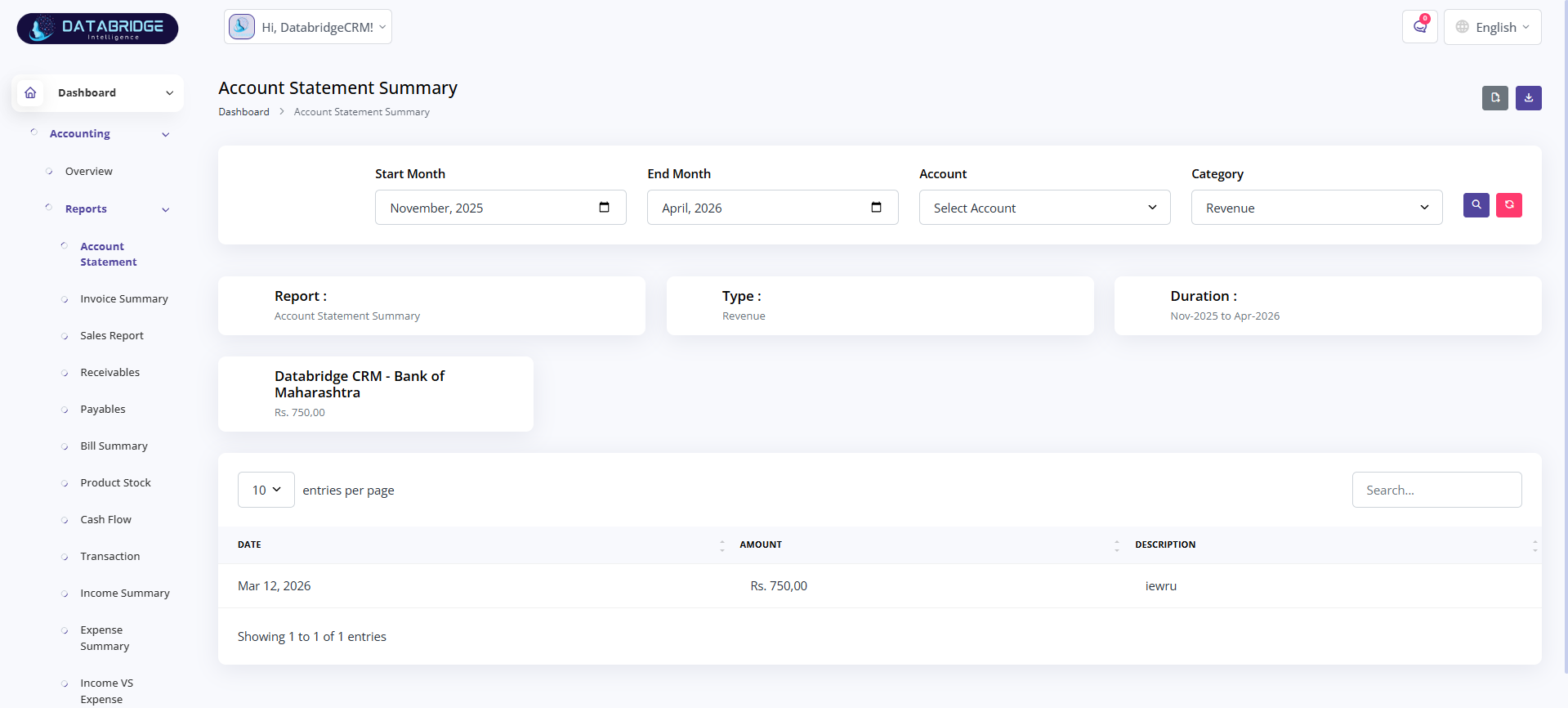
Displays account-wise transaction details for a selected time period.
Helps track financial activity and account balance movement.
Features:
-Date range filter
-Account selection
-Category filter
-Transaction table view
-Search option
Functionality:
-Filters transactions by input values
-Fetches account-wise records
-Displays amount and description
-Updates data dynamically
-Supports quick search
Displays account-wise transaction details for a selected time period.
Helps track financial activity and account balance movement.
Features:
-Date range filter
-Account selection
-Category filter
-Transaction table view
-Search option
Functionality:
-Filters transactions by input values
-Fetches account-wise records
-Displays amount and description
-Updates data dynamically
-Supports quick search
1
Accounting
2
Reports
3
Account Statement Summary
Invoice Summary:
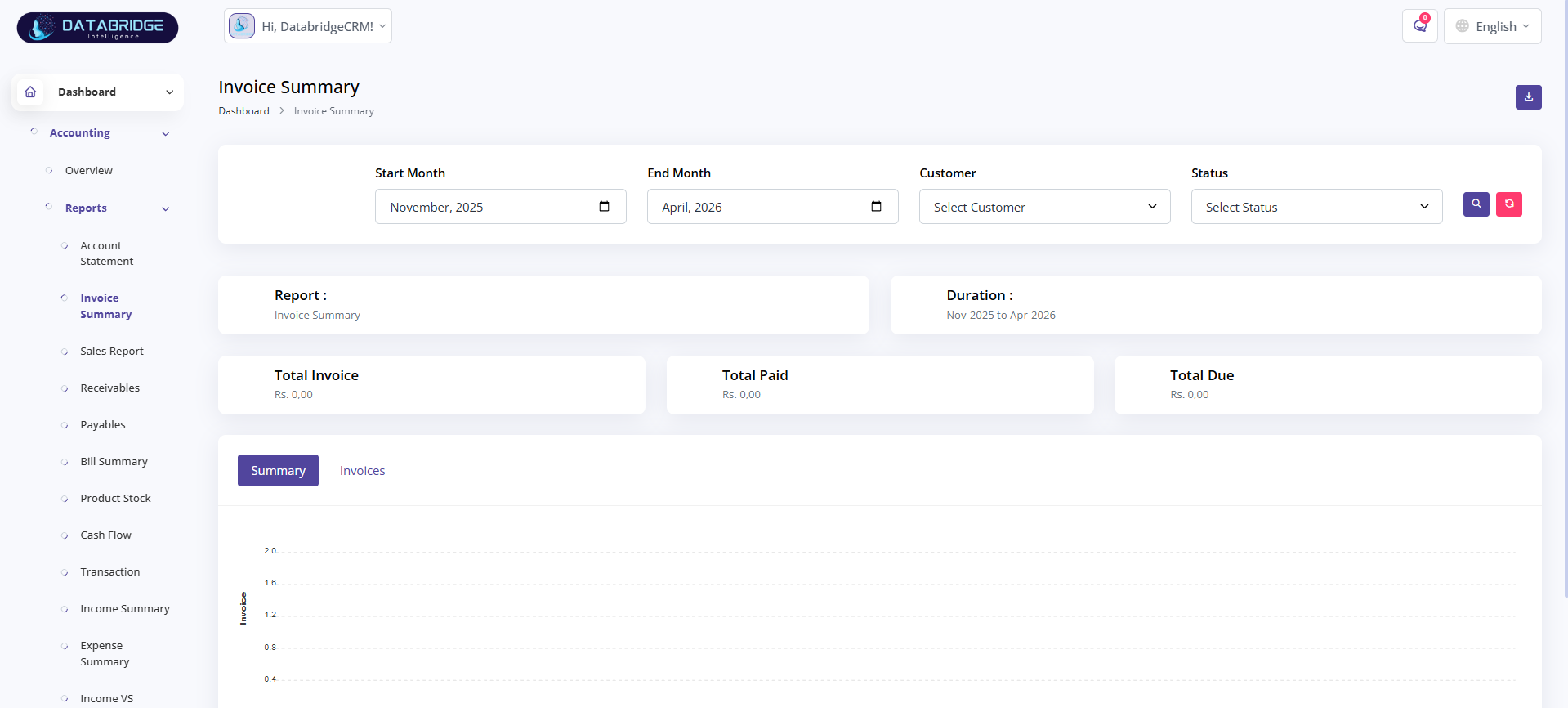
Provides a summary of all invoices within a selected period.
Helps track total invoice, paid, and due amounts.
Features:
-Date filter
-Customer filter
-Status filter
-Summary cards (Total, Paid, Due)
-Tab view (Summary/Invoices)
Functionality:
-Fetches invoice data
-Calculates totals
-Filters by customer/status
-Updates summary dynamically
-Displays invoice list
Provides a summary of all invoices within a selected period.
Helps track total invoice, paid, and due amounts.
Features:
-Date filter
-Customer filter
-Status filter
-Summary cards (Total, Paid, Due)
-Tab view (Summary/Invoices)
Functionality:
-Fetches invoice data
-Calculates totals
-Filters by customer/status
-Updates summary dynamically
-Displays invoice list
1
Accounting
2
Reports
3
Invoice Summary
Sales Report:
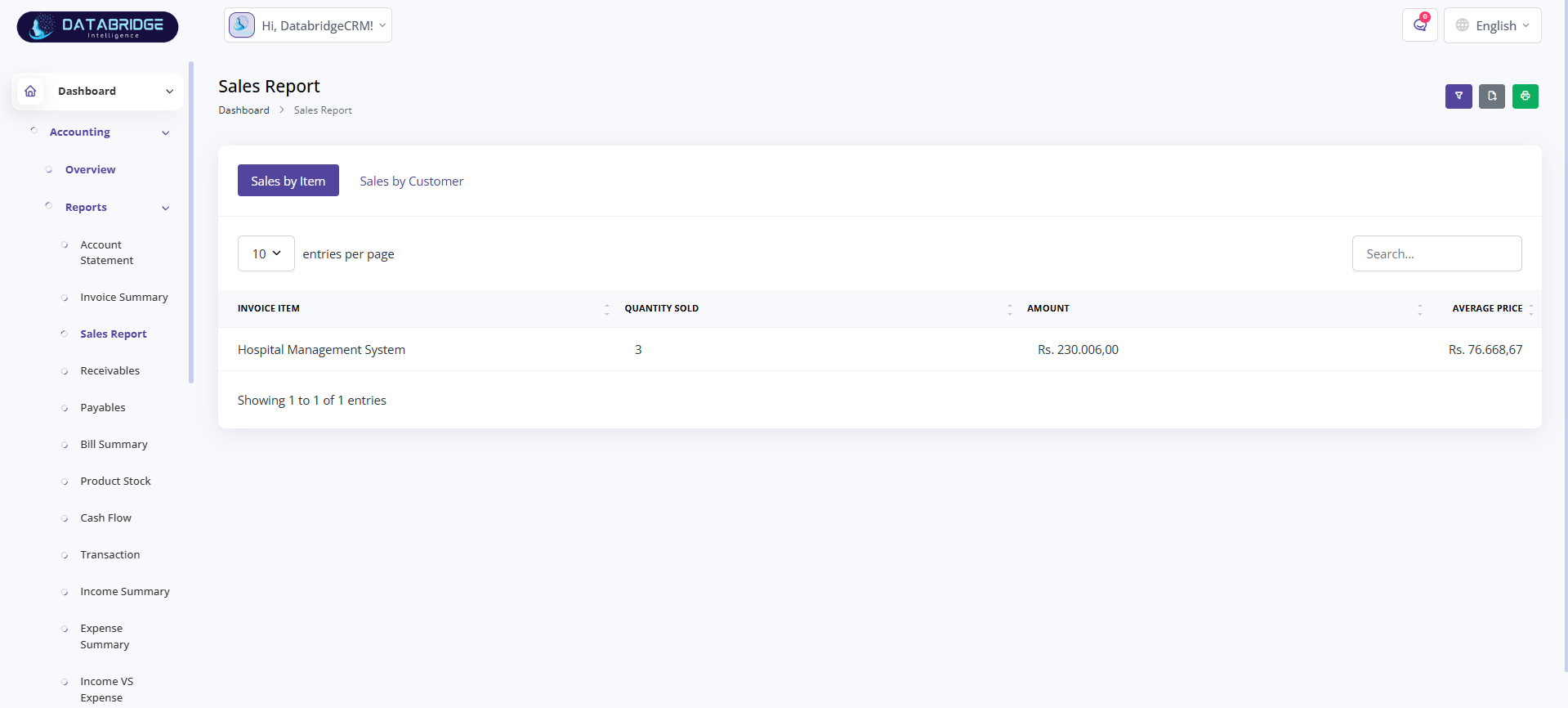
Shows sales performance based on items or customers.
Helps analyze revenue and product performance.
Features:
-Sales by item/customer
-Quantity sold
-Amount & average price
-Table view
-Search option
Functionality:
-Groups sales data
-Calculates totals
-Computes average price
-Updates based on selection
-Displays filtered results
Shows sales performance based on items or customers.
Helps analyze revenue and product performance.
Features:
-Sales by item/customer
-Quantity sold
-Amount & average price
-Table view
-Search option
Functionality:
-Groups sales data
-Calculates totals
-Computes average price
-Updates based on selection
-Displays filtered results
1
Accounting
2
Reports
3
Sales Report
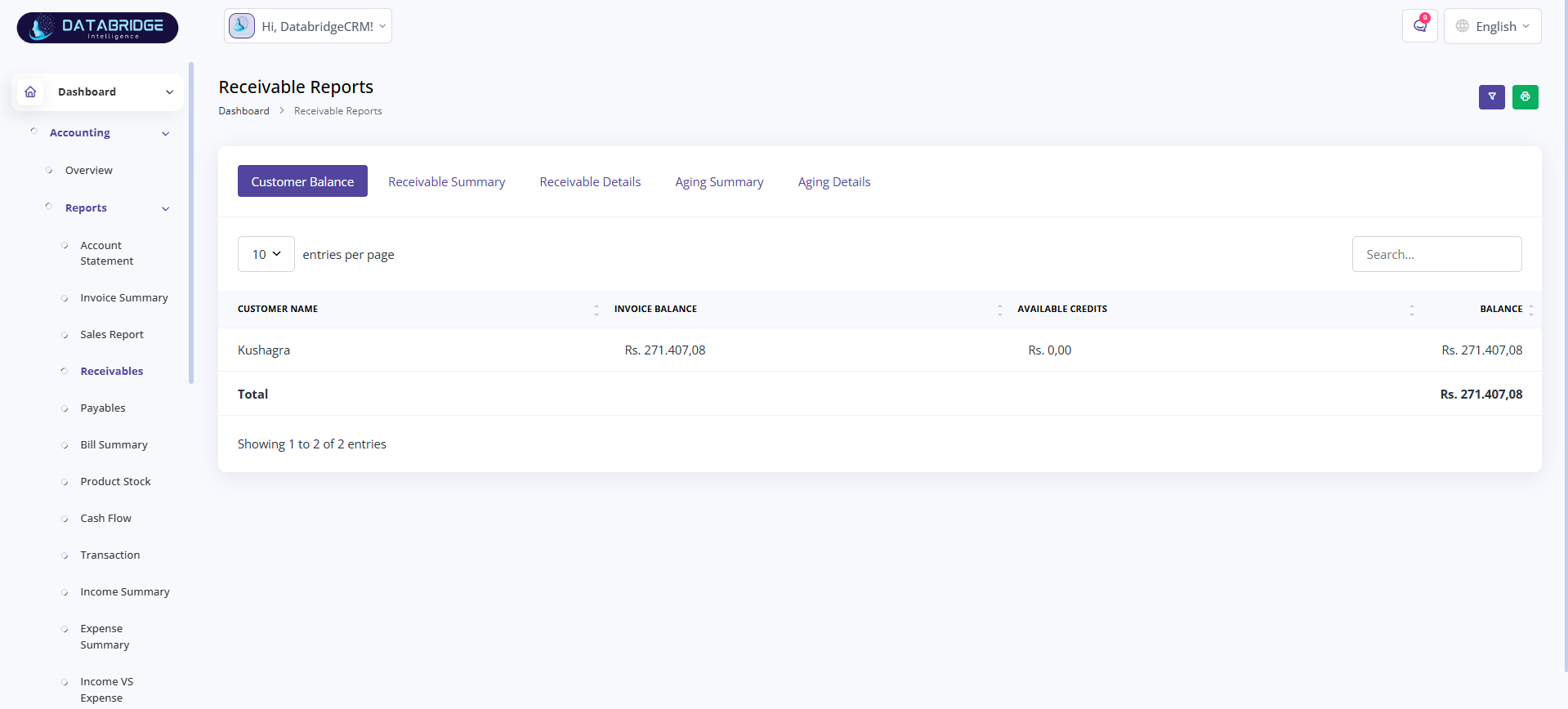
Receivable Reports:
Displays customer pending payments and balances.
Helps manage receivables and track dues.
Features:
-Customer balance view
-Receivable summary
-Aging summary
-Aging details
-Search option
Functionality:
-Fetches customer data
-Calculates due amounts
-Groups by customer
-Tracks aging of payments
-Updates data dynamically
Displays customer pending payments and balances.
Helps manage receivables and track dues.
Features:
-Customer balance view
-Receivable summary
-Aging summary
-Aging details
-Search option
Functionality:
-Fetches customer data
-Calculates due amounts
-Groups by customer
-Tracks aging of payments
-Updates data dynamically
1
Accounting
2
Reports
3
Receivable Reports
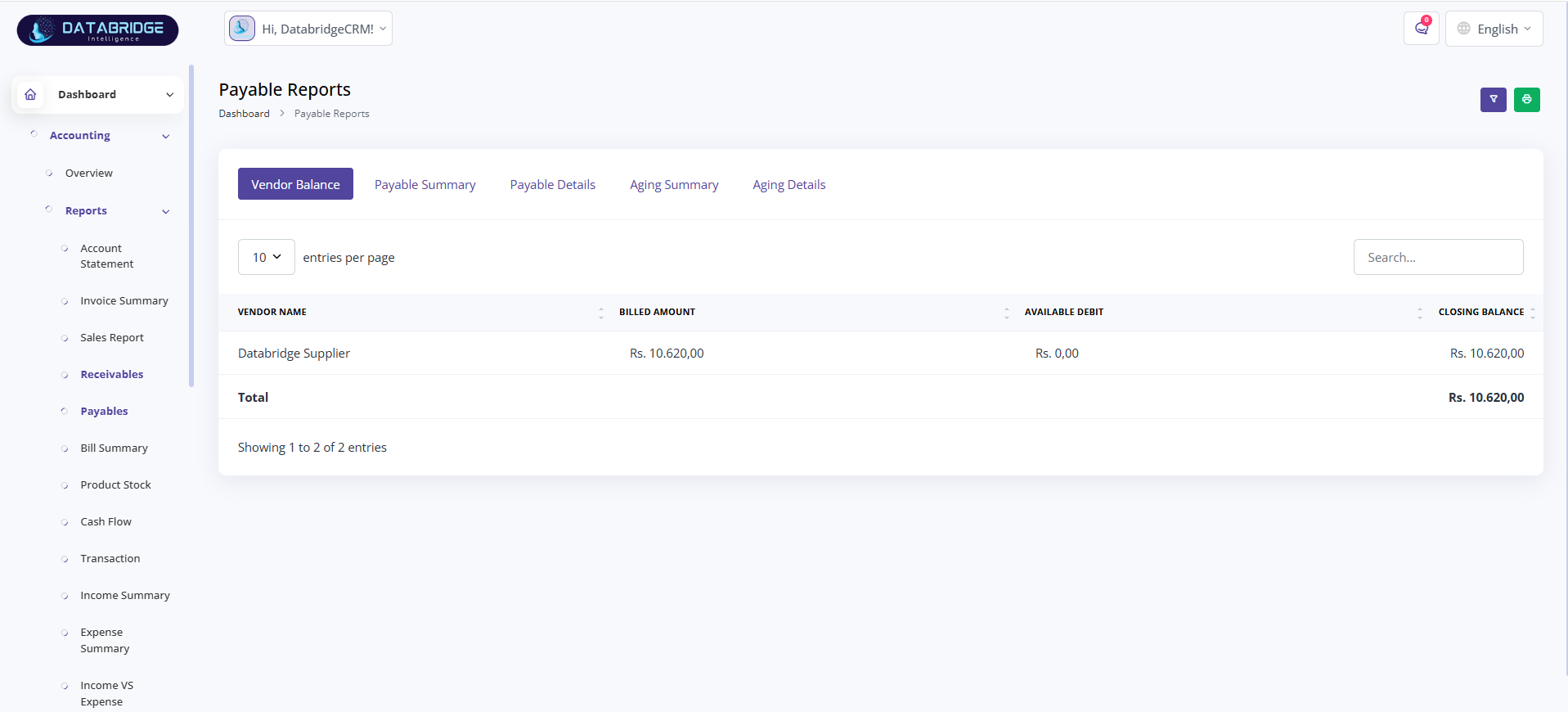
Payable Reports:
Shows vendor dues and payable balances.
Helps track outgoing payments and liabilities.
Features:
-Vendor balance
-Payable summary
-Payable details
-Aging reports
-Search option
Functionality:
-Fetches vendor records
-Calculates payable amounts
-Groups by vendor
-Tracks payment aging
-Updates in real-time
Shows vendor dues and payable balances.
Helps track outgoing payments and liabilities.
Features:
-Vendor balance
-Payable summary
-Payable details
-Aging reports
-Search option
Functionality:
-Fetches vendor records
-Calculates payable amounts
-Groups by vendor
-Tracks payment aging
-Updates in real-time
1
Accounting
2
Reports
3
Payable Reports
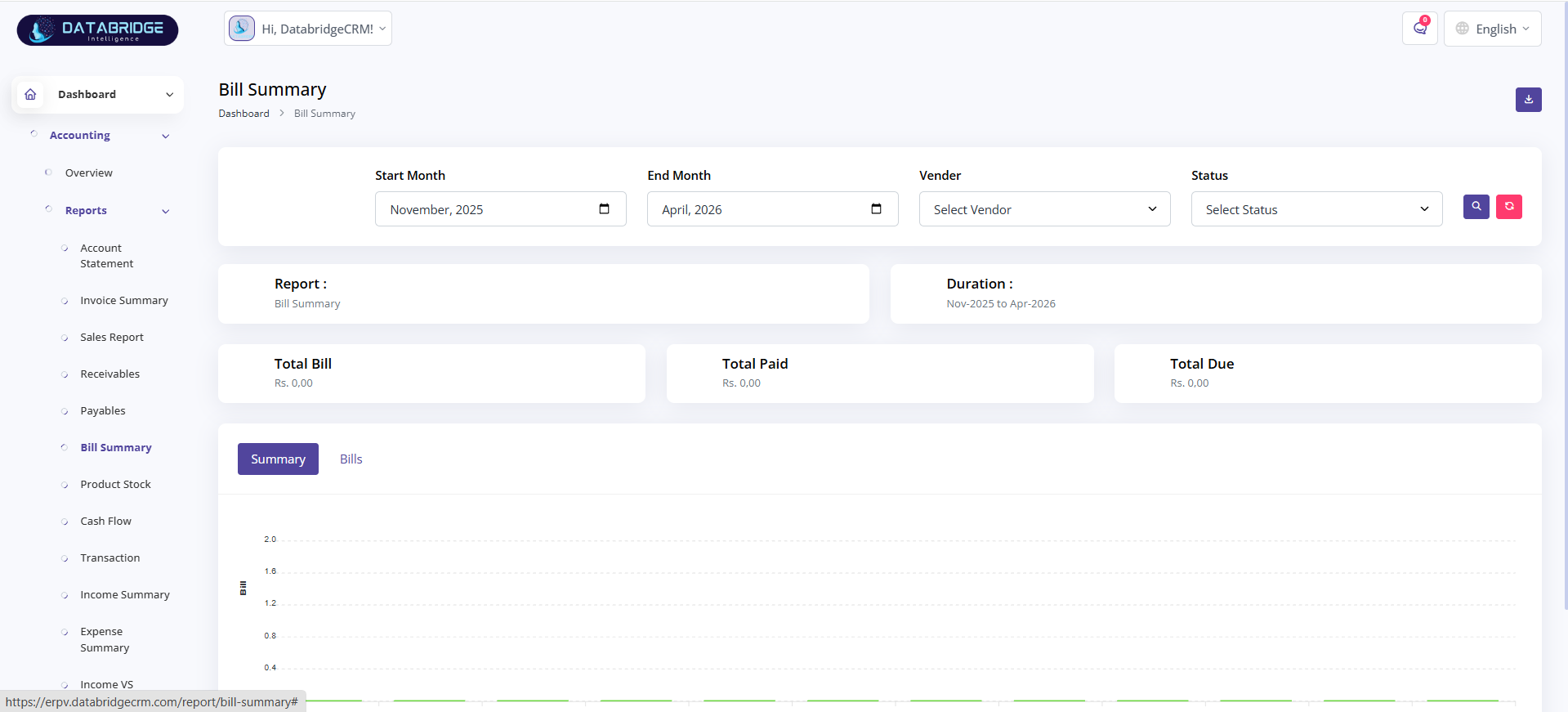
Bill Summary:
Provides a summary of all bills within a selected period.
Helps track total bills, paid, and outstanding amounts.
Features:
-Date filter
-Vendor filter
-Status filter
-Total bill summary
-Tab view
Functionality:
-Fetches bill data
-Calculates totals
-Filters by vendor/status
-Updates summary dynamically
-Displays bill list
Provides a summary of all bills within a selected period.
Helps track total bills, paid, and outstanding amounts.
Features:
-Date filter
-Vendor filter
-Status filter
-Total bill summary
-Tab view
Functionality:
-Fetches bill data
-Calculates totals
-Filters by vendor/status
-Updates summary dynamically
-Displays bill list
1
Accounting
2
Reports
3
Bill Summary
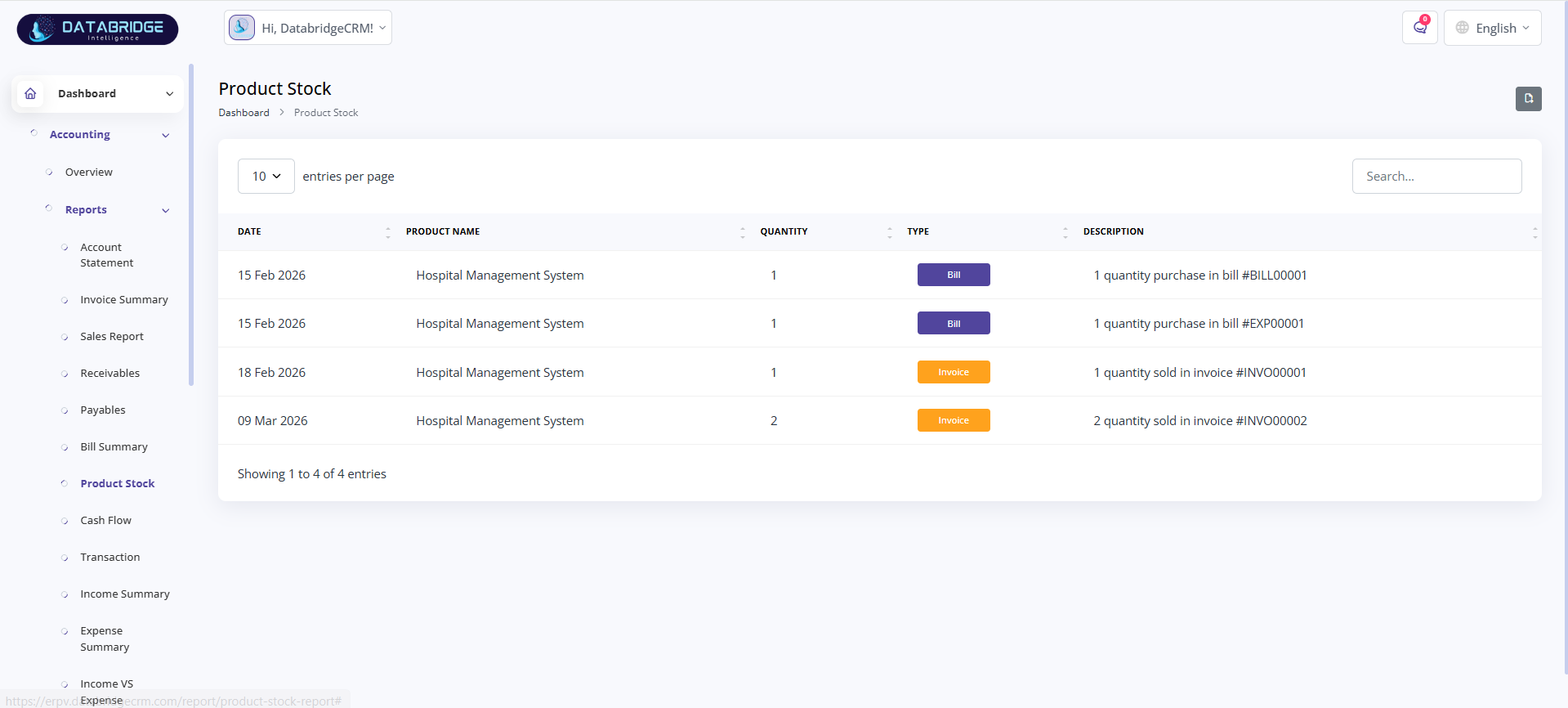
Product Stock:
Displays product stock movement and quantity details.
Helps monitor inventory and stock transactions.
Features:
-Product name
-Quantity tracking
-Type (Bill/Invoice)
-Date-wise records
-Search option
Functionality:
-Fetches stock data
-Tracks stock in/out
-Updates quantity automatically
-Displays transaction history
-Supports search filtering
Displays product stock movement and quantity details.
Helps monitor inventory and stock transactions.
Features:
-Product name
-Quantity tracking
-Type (Bill/Invoice)
-Date-wise records
-Search option
Functionality:
-Fetches stock data
-Tracks stock in/out
-Updates quantity automatically
-Displays transaction history
-Supports search filtering
1
Accounting
2
Reports
3
Product Stock
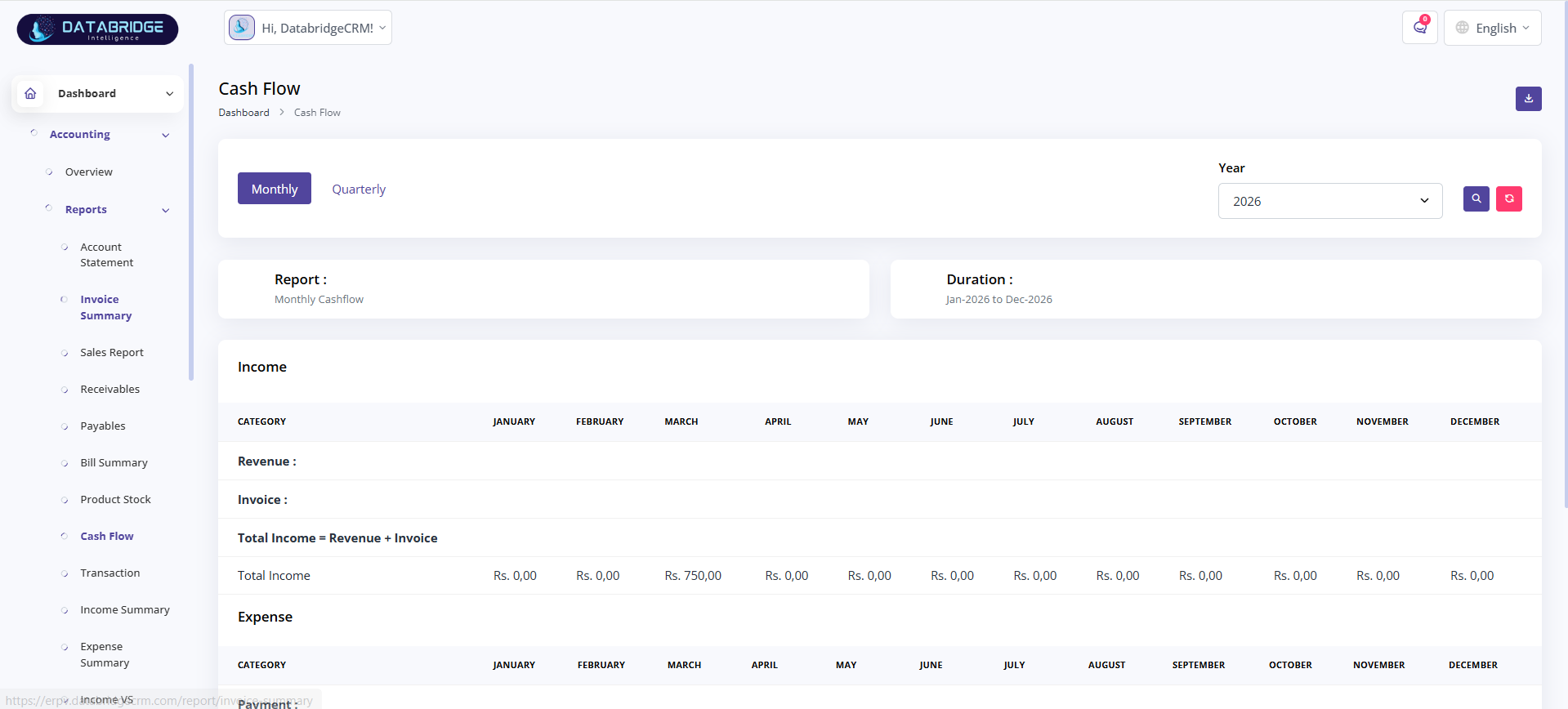
Cash Flow:
Shows monthly or quarterly cash flow of income and expenses.
Helps analyze financial movement over time.
Features:
-Monthly/Quarterly view
-Year filter
-Income & expense table
-Duration display
-Report summary
Functionality:
-Fetches financial data
-Groups by time period
-Calculates totals
-Displays income vs expense
-Updates based on filters
Shows monthly or quarterly cash flow of income and expenses.
Helps analyze financial movement over time.
Features:
-Monthly/Quarterly view
-Year filter
-Income & expense table
-Duration display
-Report summary
Functionality:
-Fetches financial data
-Groups by time period
-Calculates totals
-Displays income vs expense
-Updates based on filters
1
Accounting
2
Reports
3
Cash Flow
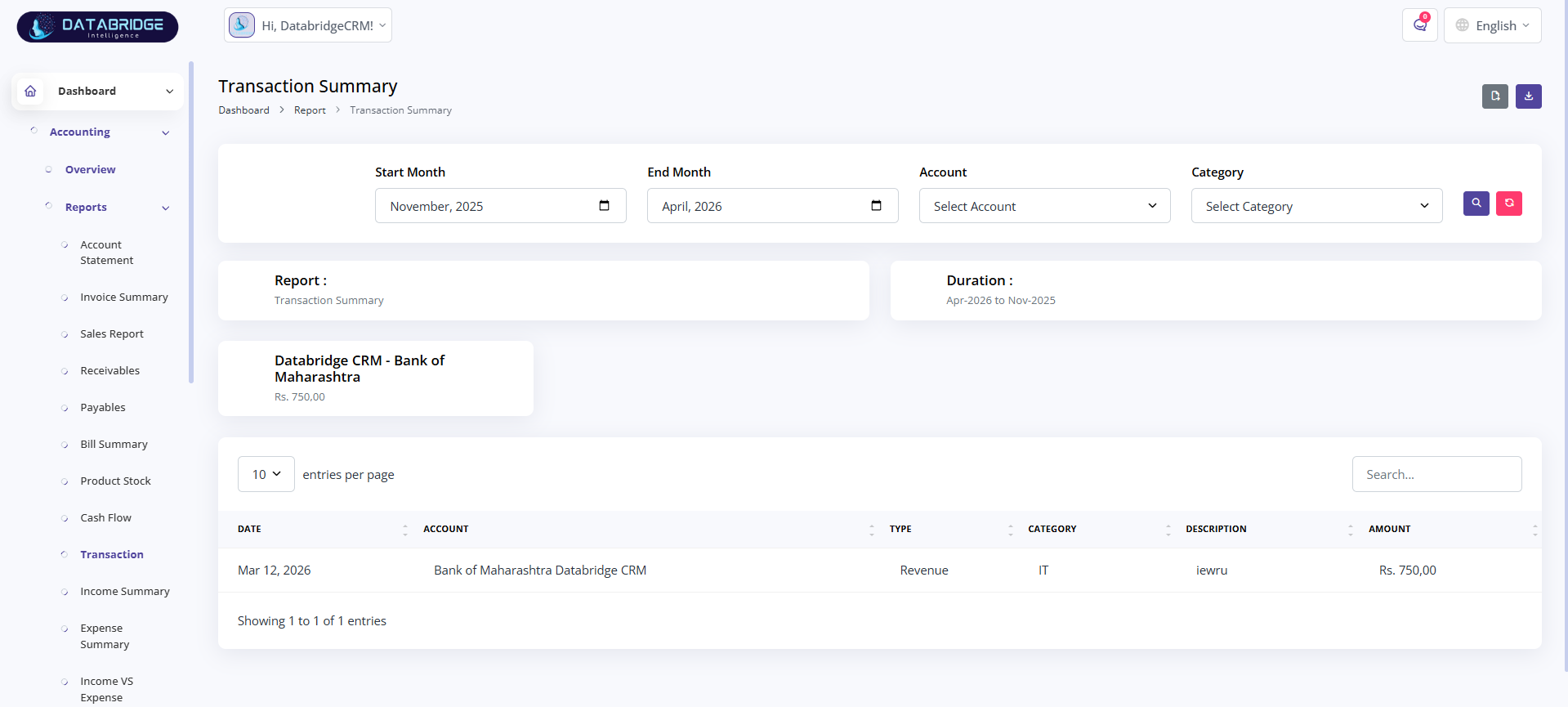
Transaction Summary:
Displays all financial transactions in a structured format.
Helps track income and expense entries.
Features:
-Date filter
-Account selection
-Category filter
-Transaction table
-Search option
Functionality:
-Fetches transaction data
-Filters based on input
-Displays type & category
-Updates dynamically
-Supports quick search
Displays all financial transactions in a structured format.
Helps track income and expense entries.
Features:
-Date filter
-Account selection
-Category filter
-Transaction table
-Search option
Functionality:
-Fetches transaction data
-Filters based on input
-Displays type & category
-Updates dynamically
-Supports quick search
1
Accounting
2
Reports
3
Transaction Summary
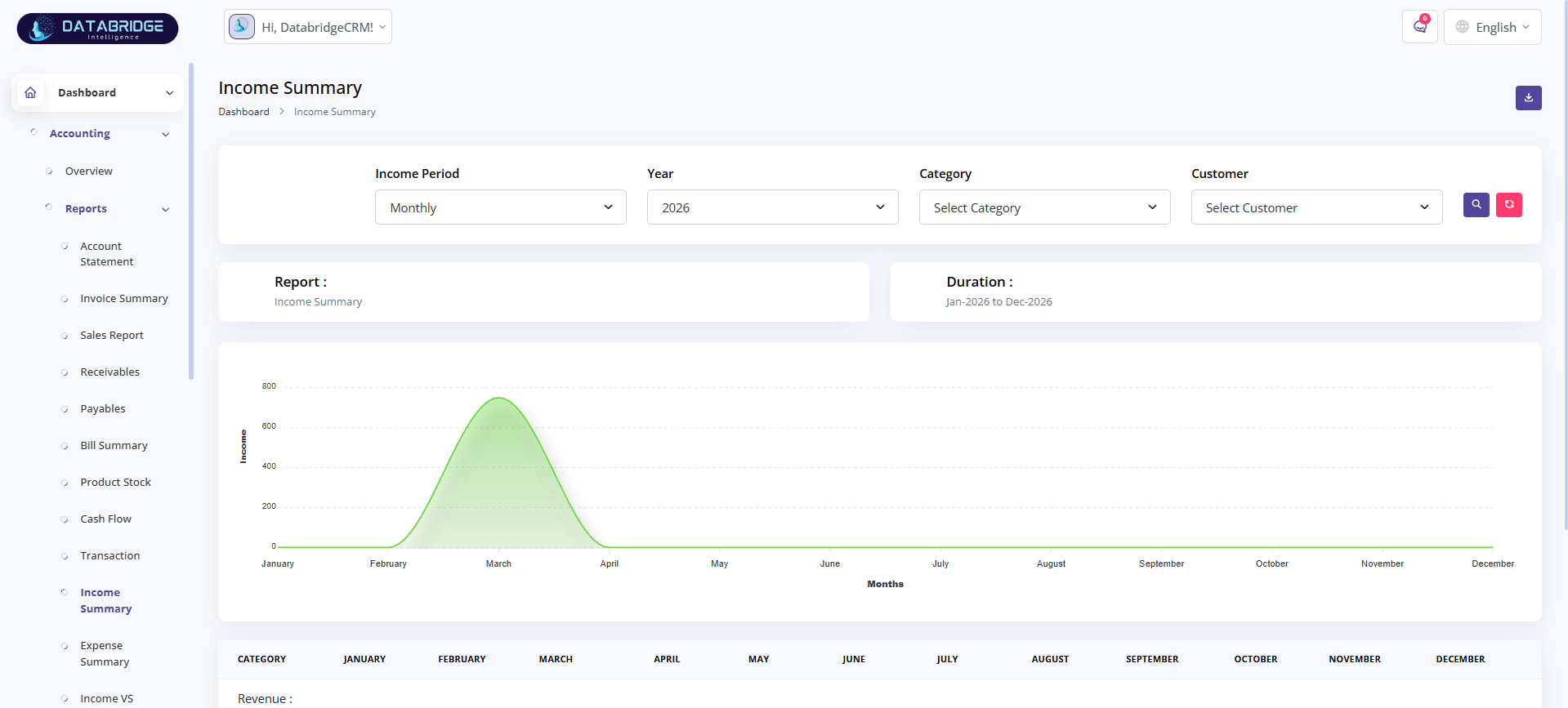
Income Summary:
Shows income data based on period and category.
Helps analyze revenue trends over time.
Features:
-Period filter (Monthly/Yearly)
-Category filter
-Customer filter
-Graph view
-Data table
Functionality:
-Fetches income data
-Groups by month/year
-Displays graphical trend
-Filters by category/customer
-Updates dynamically
Shows income data based on period and category.
Helps analyze revenue trends over time.
Features:
-Period filter (Monthly/Yearly)
-Category filter
-Customer filter
-Graph view
-Data table
Functionality:
-Fetches income data
-Groups by month/year
-Displays graphical trend
-Filters by category/customer
-Updates dynamically
1
Accounting
2
Reports
3
Income Summary
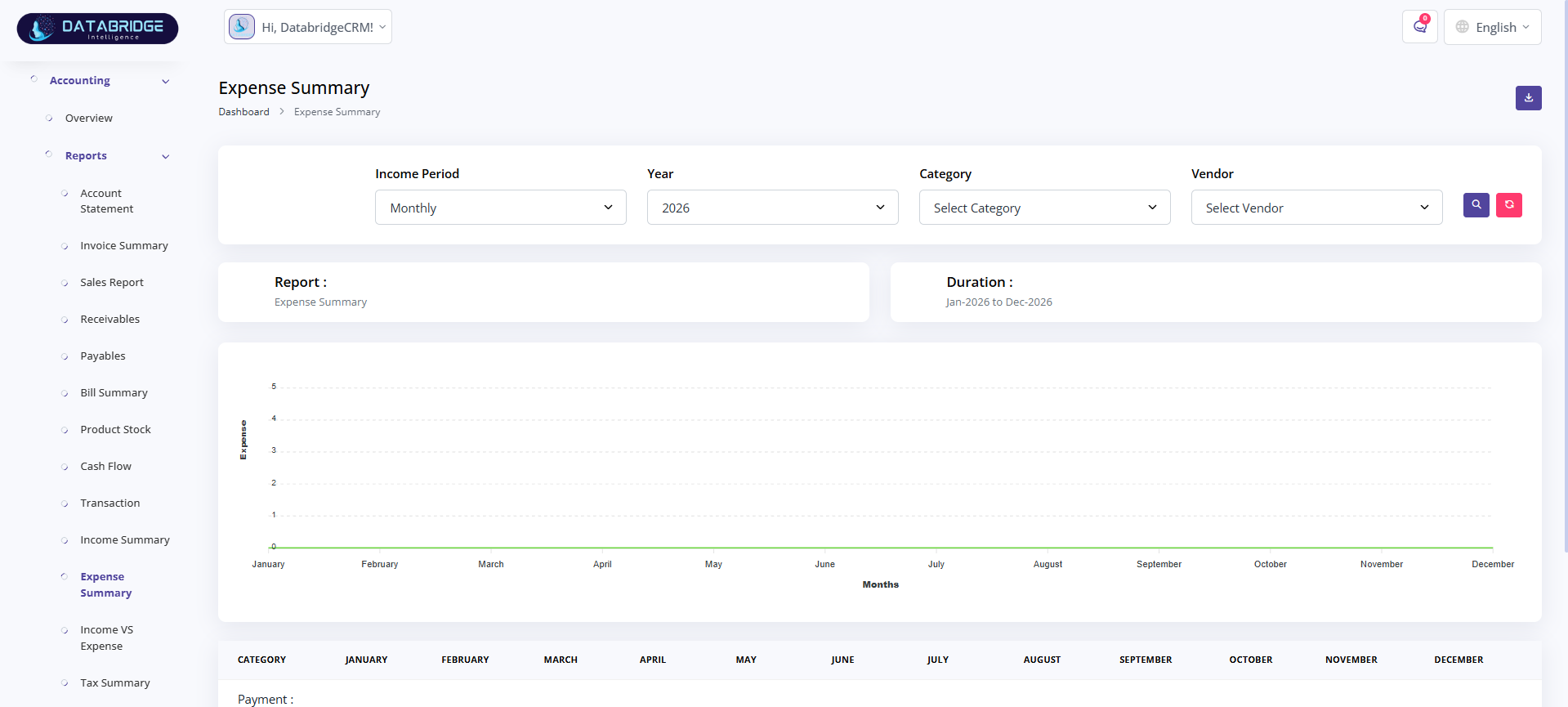
Expense Summary:
Displays expense data across selected periods.
Helps monitor spending patterns and control costs.
Features:
-Period filter
-Category filter
-Vendor filter
-Graph view
-Data table
Functionality:
-Fetches expense data
-Groups by period
-Displays expense trends
-Filters by category/vendor
-Updates in real-time
Displays expense data across selected periods.
Helps monitor spending patterns and control costs.
Features:
-Period filter
-Category filter
-Vendor filter
-Graph view
-Data table
Functionality:
-Fetches expense data
-Groups by period
-Displays expense trends
-Filters by category/vendor
-Updates in real-time
1
Accounting
2
Reports
3
Expense Summary
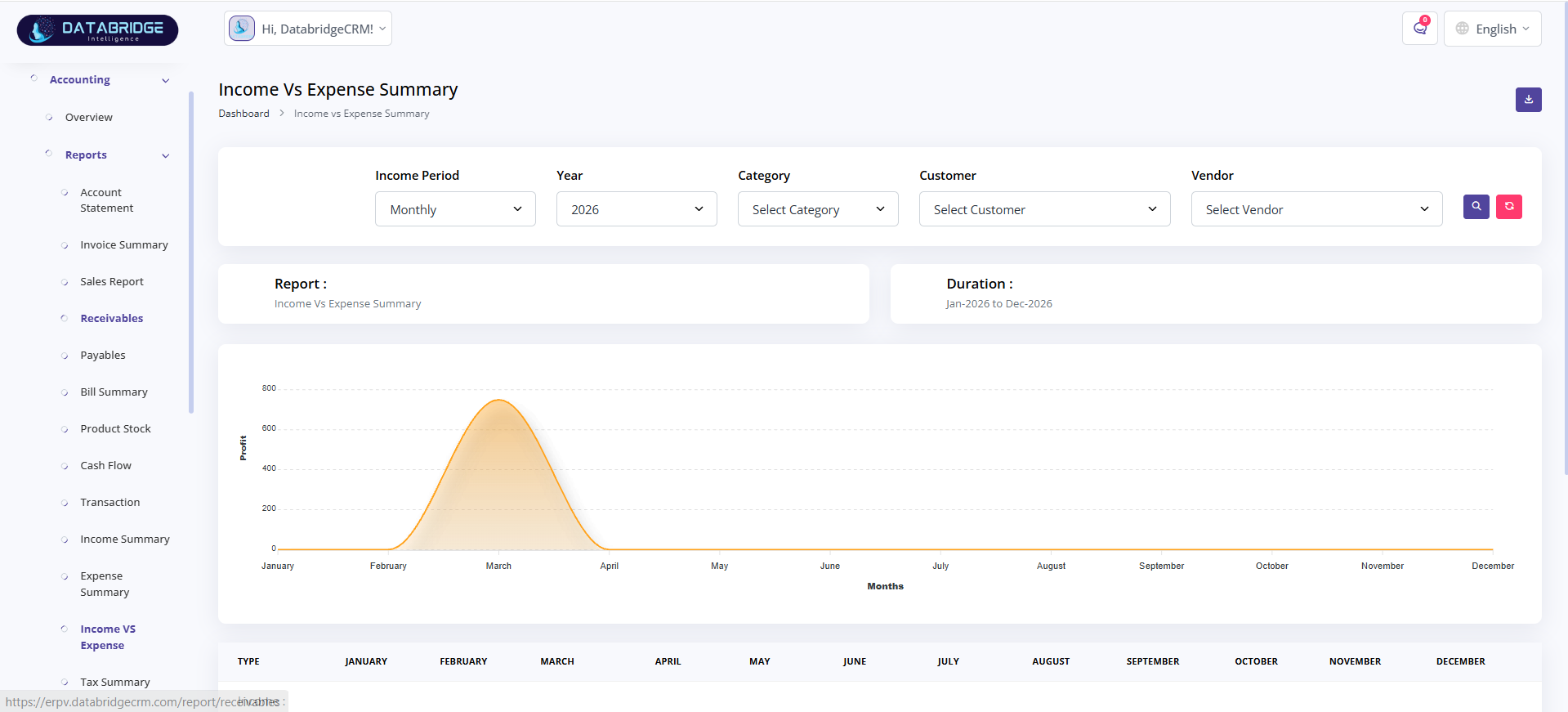
Income vs Expense Summary:
Compares income and expense for selected periods.
Helps evaluate profit and financial performance.
Features:
-Period filter
-Category filter
-Customer & vendor filter
-Graph comparison
-Data table
Functionality:
-Fetches income & expense data
-Calculates difference
-Displays comparison graph
-Filters dynamically
-Updates results instantly
Compares income and expense for selected periods.
Helps evaluate profit and financial performance.
Features:
-Period filter
-Category filter
-Customer & vendor filter
-Graph comparison
-Data table
Functionality:
-Fetches income & expense data
-Calculates difference
-Displays comparison graph
-Filters dynamically
-Updates results instantly
1
Accounting
2
Reports
3
Income vs Expense Summary
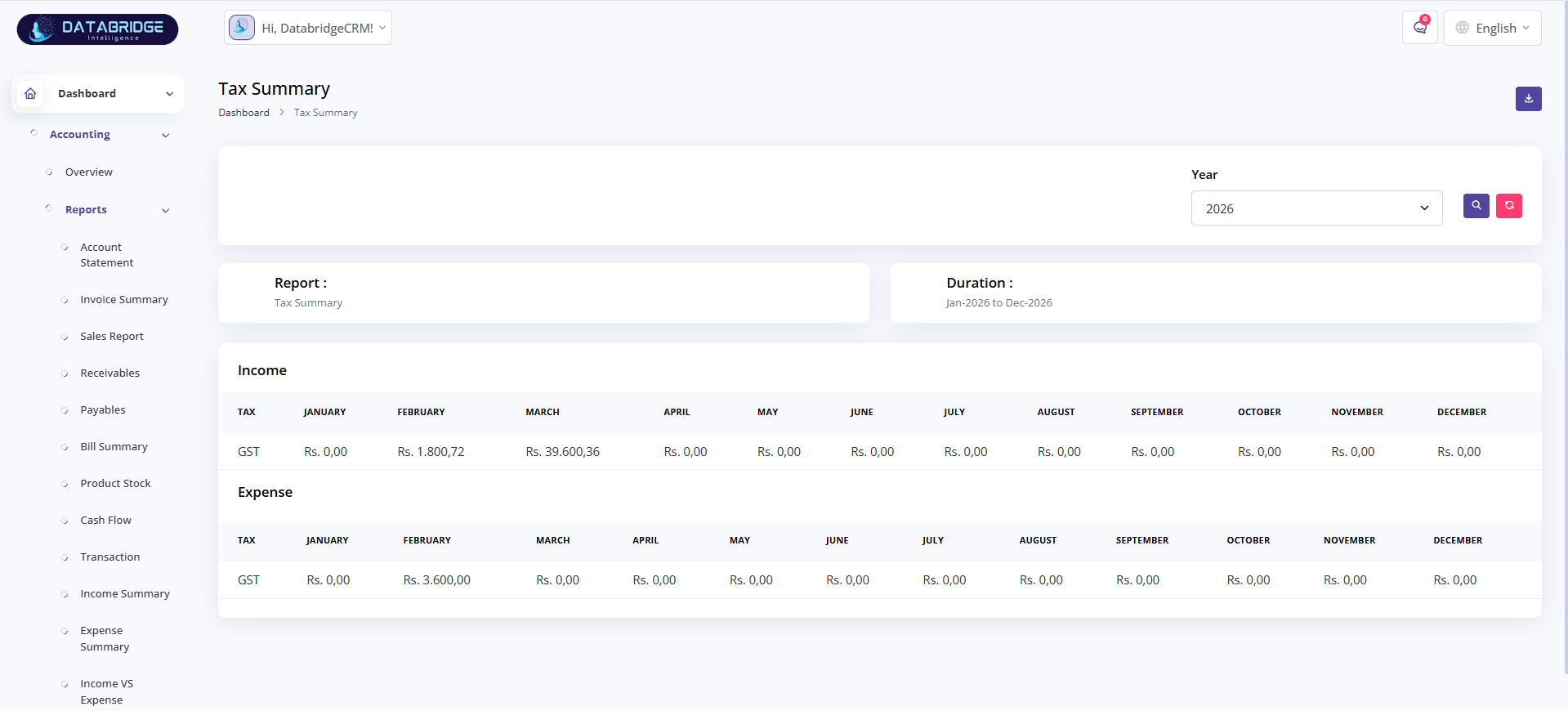
Tax Summary:
Displays tax details for income and expenses.
Helps track GST and other tax values.
Features:
-Year filter
-Tax breakdown
-Income tax view
-Expense tax view
-Monthly data table
Functionality:
-Fetches tax data
-Calculates tax values
-Groups by month
-Displays income vs expense tax
-Updates based on year
Displays tax details for income and expenses.
Helps track GST and other tax values.
Features:
-Year filter
-Tax breakdown
-Income tax view
-Expense tax view
-Monthly data table
Functionality:
-Fetches tax data
-Calculates tax values
-Groups by month
-Displays income vs expense tax
-Updates based on year
1
Accounting
2
Reports
3
Tax Summary
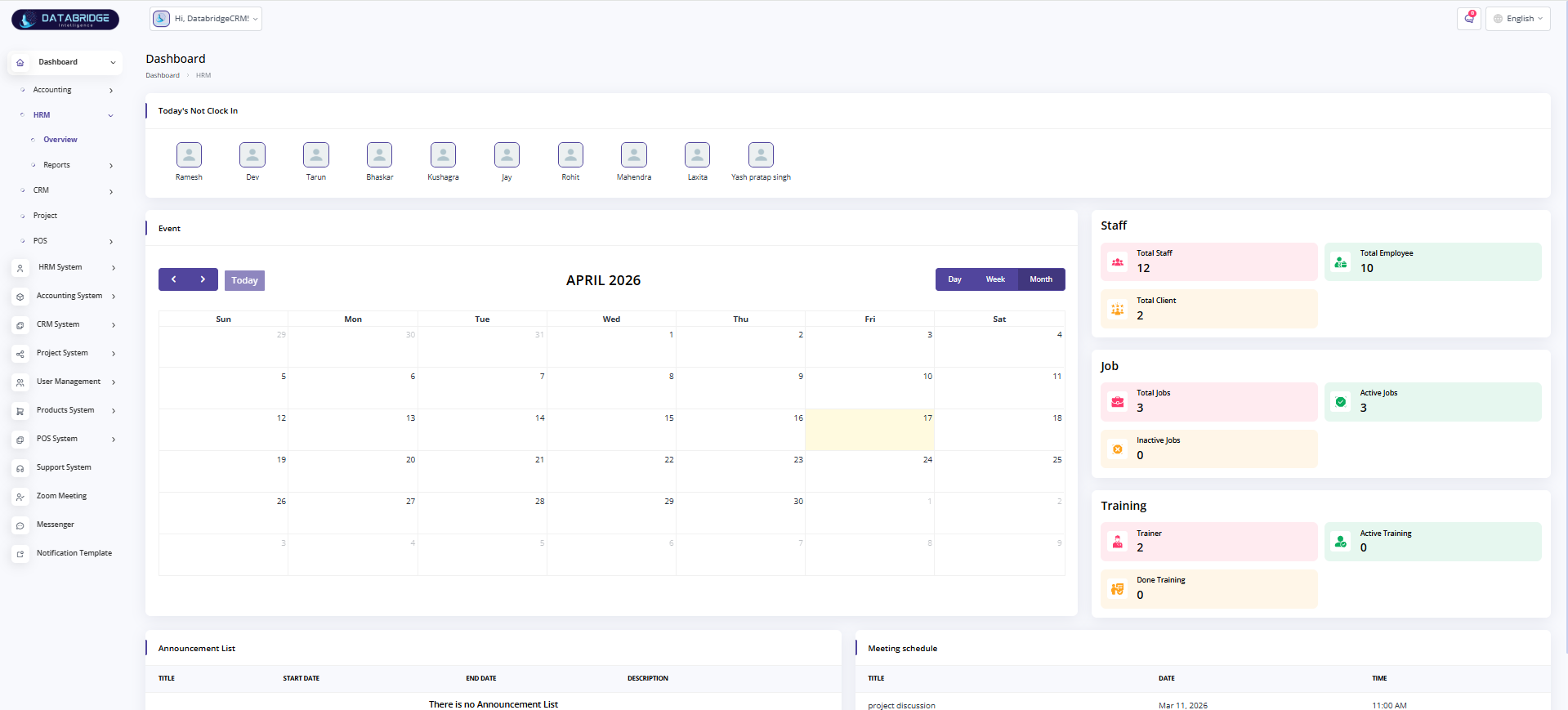
HRM Module:
Provides an overview of HR activities including attendance, events, staff, jobs, and training.
Helps monitor employee status and daily operations from a single screen.
Features:
-Today’s Not Clock-In employee list
-Event calendar (Day/Week/Month view)
-Staff summary (Total staff, employees, clients)
-Job summary (Total, active, inactive jobs)
-Training summary (Trainer, active, completed)
Functionality:
-Displays employees who have not clocked in today
-Shows events in calendar format
-Fetches and displays staff statistics
-Tracks job status (active/inactive)
-Monitors training progress
Provides an overview of HR activities including attendance, events, staff, jobs, and training.
Helps monitor employee status and daily operations from a single screen.
Features:
-Today’s Not Clock-In employee list
-Event calendar (Day/Week/Month view)
-Staff summary (Total staff, employees, clients)
-Job summary (Total, active, inactive jobs)
-Training summary (Trainer, active, completed)
Functionality:
-Displays employees who have not clocked in today
-Shows events in calendar format
-Fetches and displays staff statistics
-Tracks job status (active/inactive)
-Monitors training progress
1
Dashboard
2
HRM
3
Overview
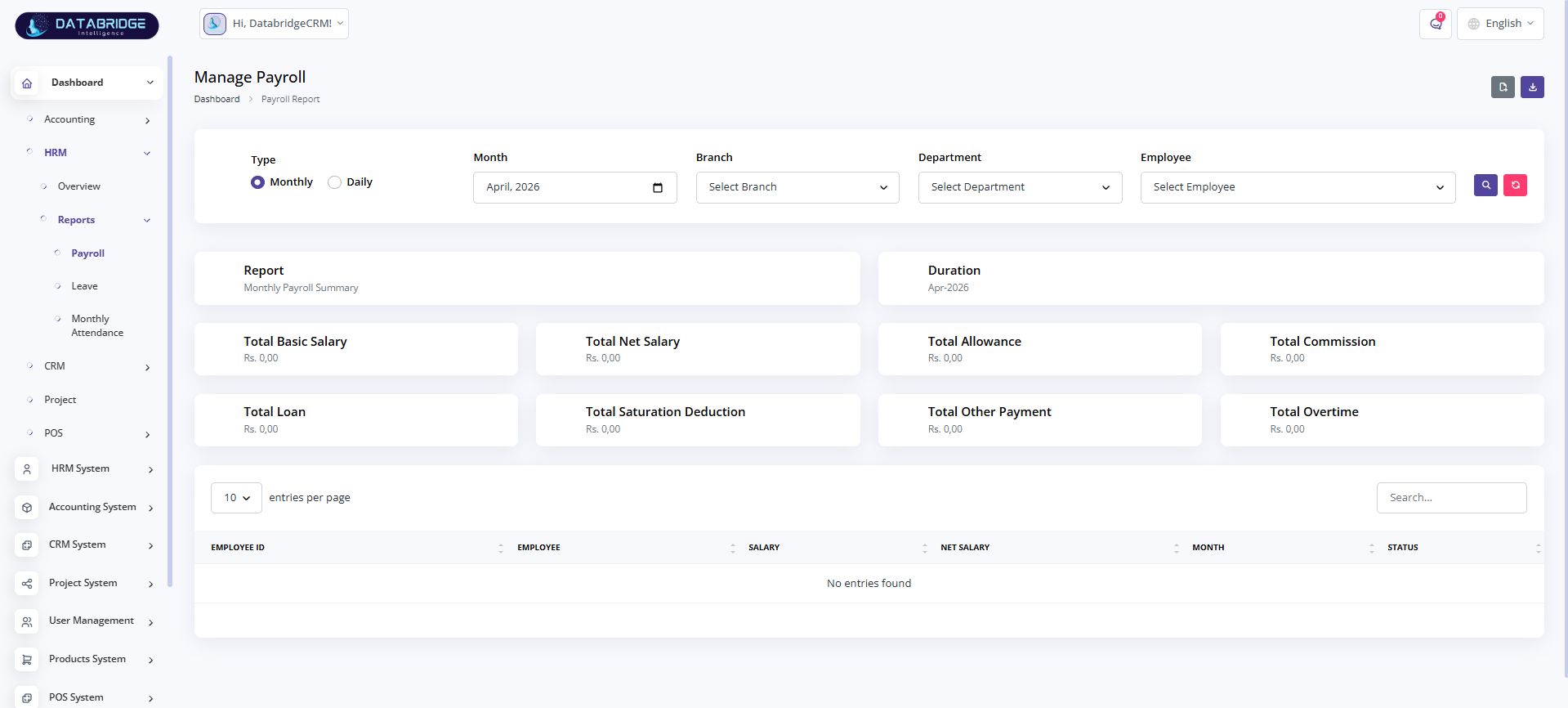
Manage Payroll:
Displays employee payroll details for selected period and filters.
Helps manage salary components and payroll summaries.
Features:
-Monthly/Daily type selection
-Month, branch, department filter
-Salary summary cards
-Employee payroll table
-Search option
Functionality:
-Fetches payroll data
-Calculates salary components
-Filters by employee/branch
-Displays net salary details
-Updates dynamically
Displays employee payroll details for selected period and filters.
Helps manage salary components and payroll summaries.
Features:
-Monthly/Daily type selection
-Month, branch, department filter
-Salary summary cards
-Employee payroll table
-Search option
Functionality:
-Fetches payroll data
-Calculates salary components
-Filters by employee/branch
-Displays net salary details
-Updates dynamically
1
Dashboard
2
HRM
3
Reports
4
Payroll
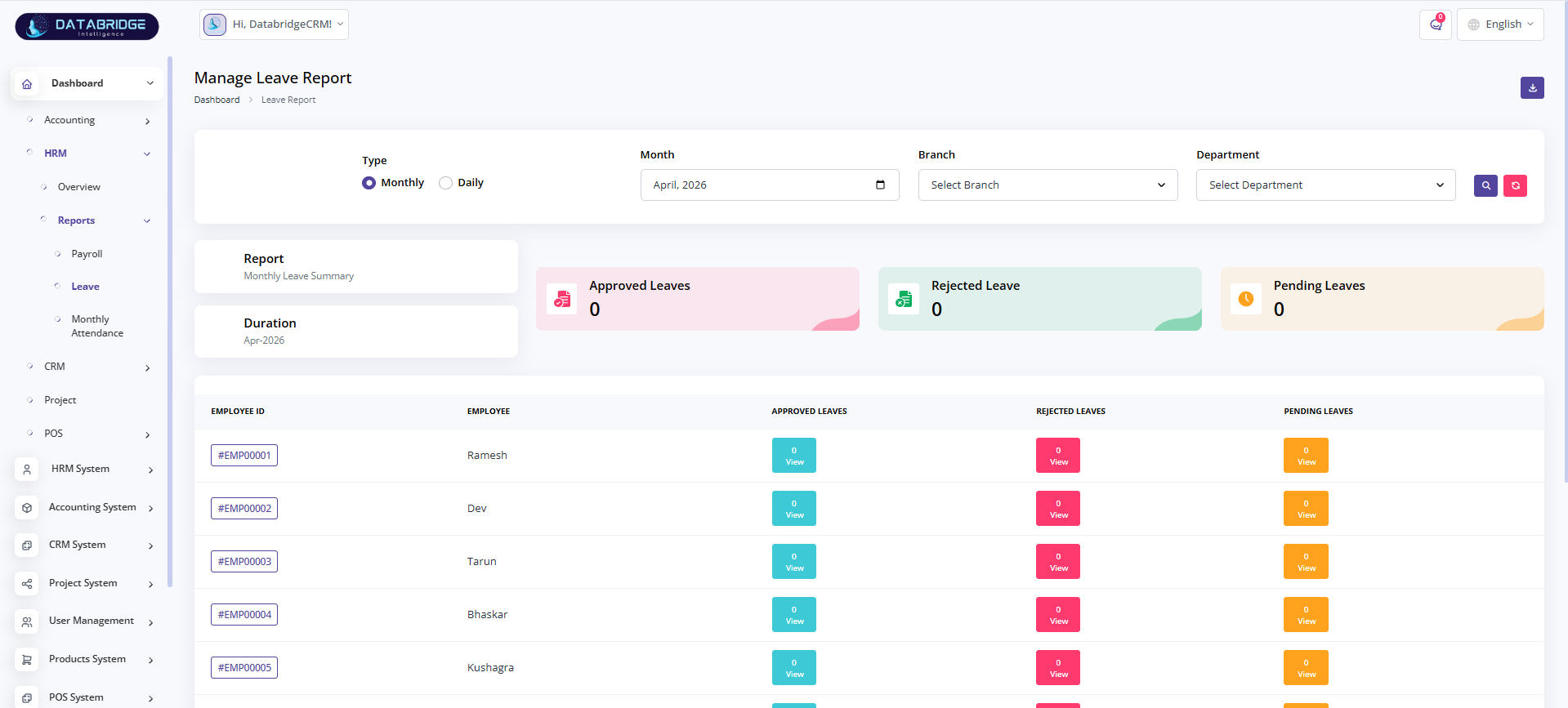
Manage Leave Report:
Shows employee leave status including approved, rejected, and pending.
Helps track leave records and employee availability.
Features:
-Monthly/Daily filter
-Branch & department filter
-Leave summary cards
-Employee-wise leave table
-View button for details
Functionality:
-Fetches leave data
-Categorizes leave status
-Displays employee records
-Updates based on filters
-Supports detail view
Shows employee leave status including approved, rejected, and pending.
Helps track leave records and employee availability.
Features:
-Monthly/Daily filter
-Branch & department filter
-Leave summary cards
-Employee-wise leave table
-View button for details
Functionality:
-Fetches leave data
-Categorizes leave status
-Displays employee records
-Updates based on filters
-Supports detail view
1
Dashboard
2
HRM
3
Reports
4
Leave
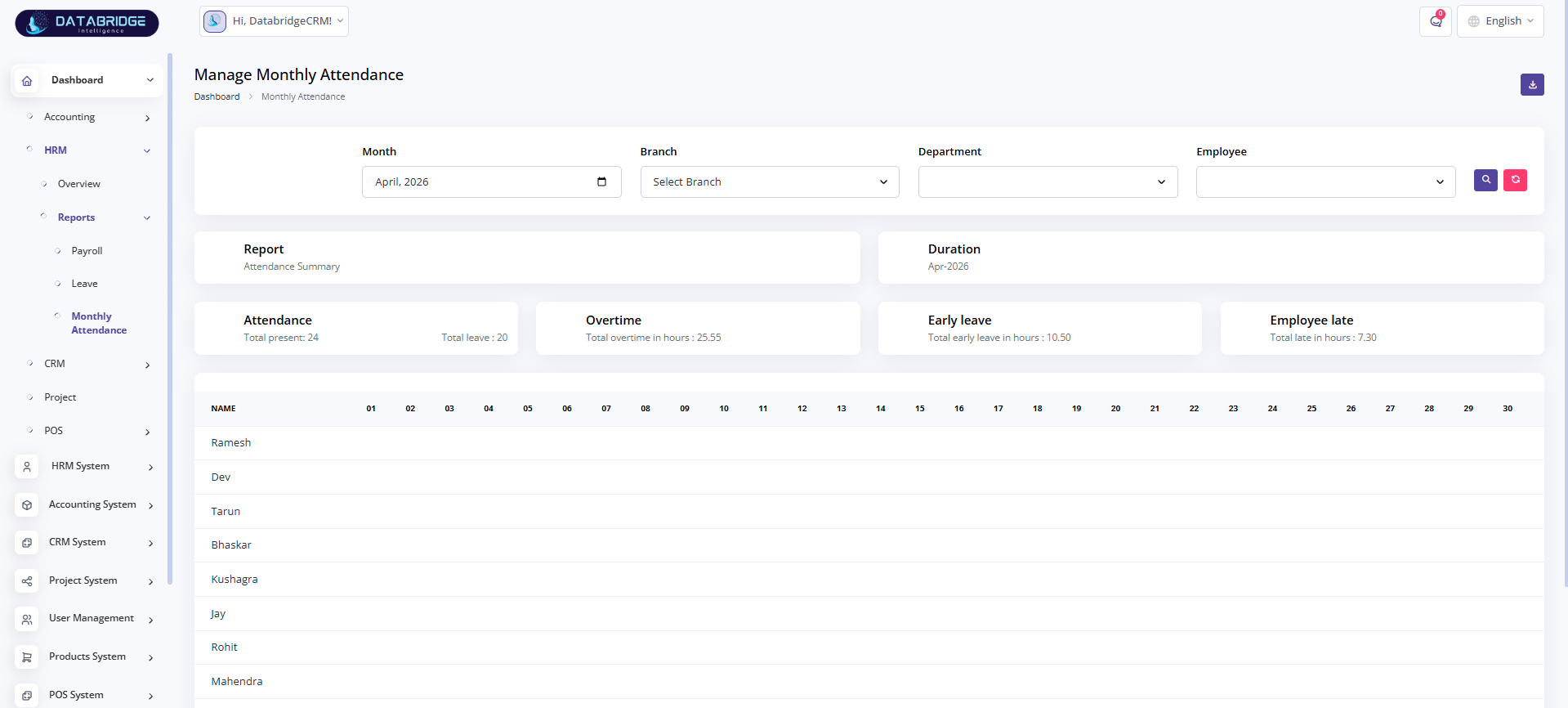
Manage Monthly Attendance:
Displays employee attendance records for a selected month.
Helps monitor presence, leaves, and working hours.
Features:
-Month filter
-Branch & department filter
-Attendance summary cards
-Employee-wise attendance table
-Overtime & late tracking
Functionality:
-Fetches attendance data
-Calculates present/leave
-Tracks overtime & late hours
-Displays monthly records
-Updates dynamically
Displays employee attendance records for a selected month.
Helps monitor presence, leaves, and working hours.
Features:
-Month filter
-Branch & department filter
-Attendance summary cards
-Employee-wise attendance table
-Overtime & late tracking
Functionality:
-Fetches attendance data
-Calculates present/leave
-Tracks overtime & late hours
-Displays monthly records
-Updates dynamically
1
Dashboard
2
HRM
3
Reports
4
Manage Monthly Attendance
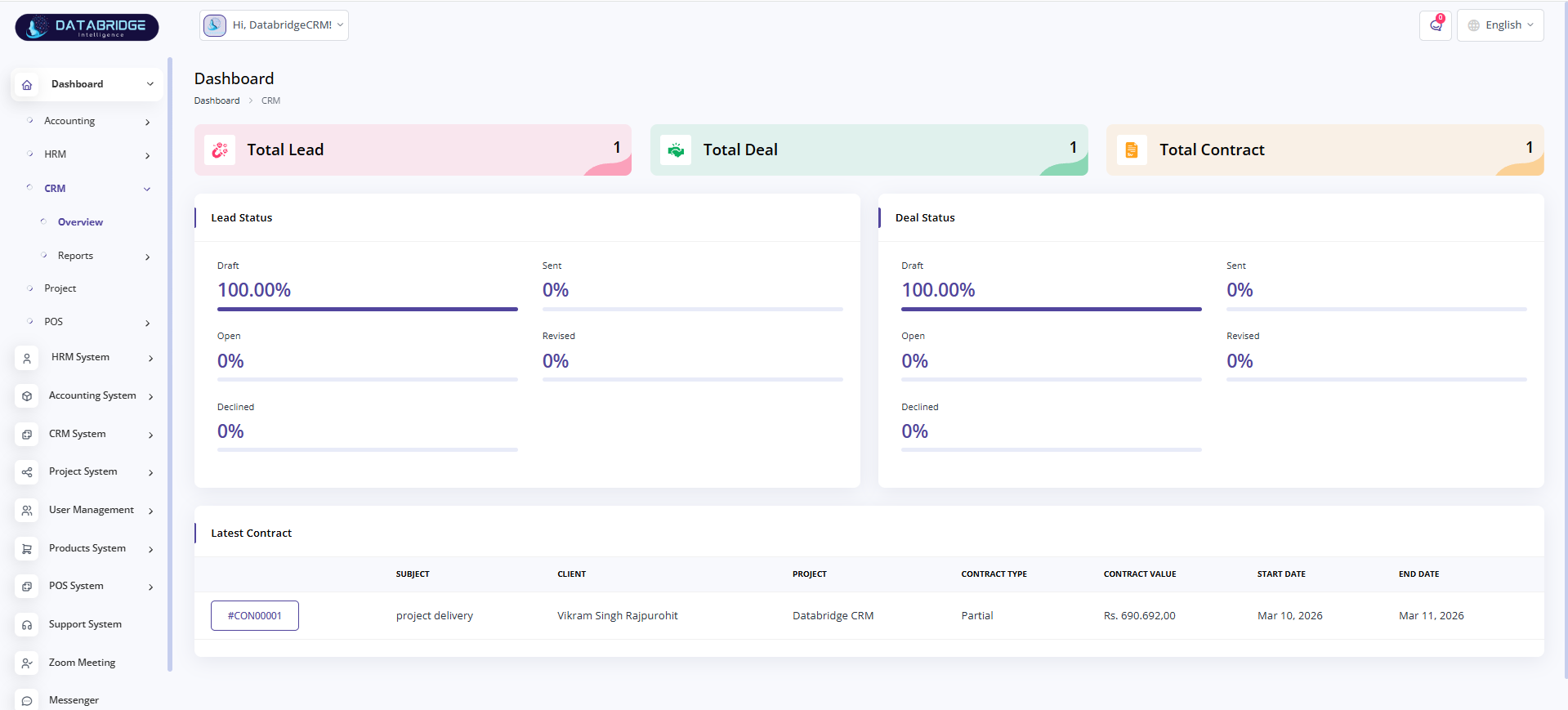
CRM Dashboard:
Provides an overview of CRM activities like leads, deals, and contracts.
Helps track sales pipeline and customer engagement.
Features:
-Total leads, deals, contracts cards
-Lead status overview
-Deal status overview
-Latest contract list
-Visual progress indicators
Functionality:
-Fetches CRM data
-Displays lead & deal status
-Tracks contract details
-Updates dashboard in real-time
-Provides quick insights
Provides an overview of CRM activities like leads, deals, and contracts.
Helps track sales pipeline and customer engagement.
Features:
-Total leads, deals, contracts cards
-Lead status overview
-Deal status overview
-Latest contract list
-Visual progress indicators
Functionality:
-Fetches CRM data
-Displays lead & deal status
-Tracks contract details
-Updates dashboard in real-time
-Provides quick insights
1
Dashboard
2
CRM
3
Overview
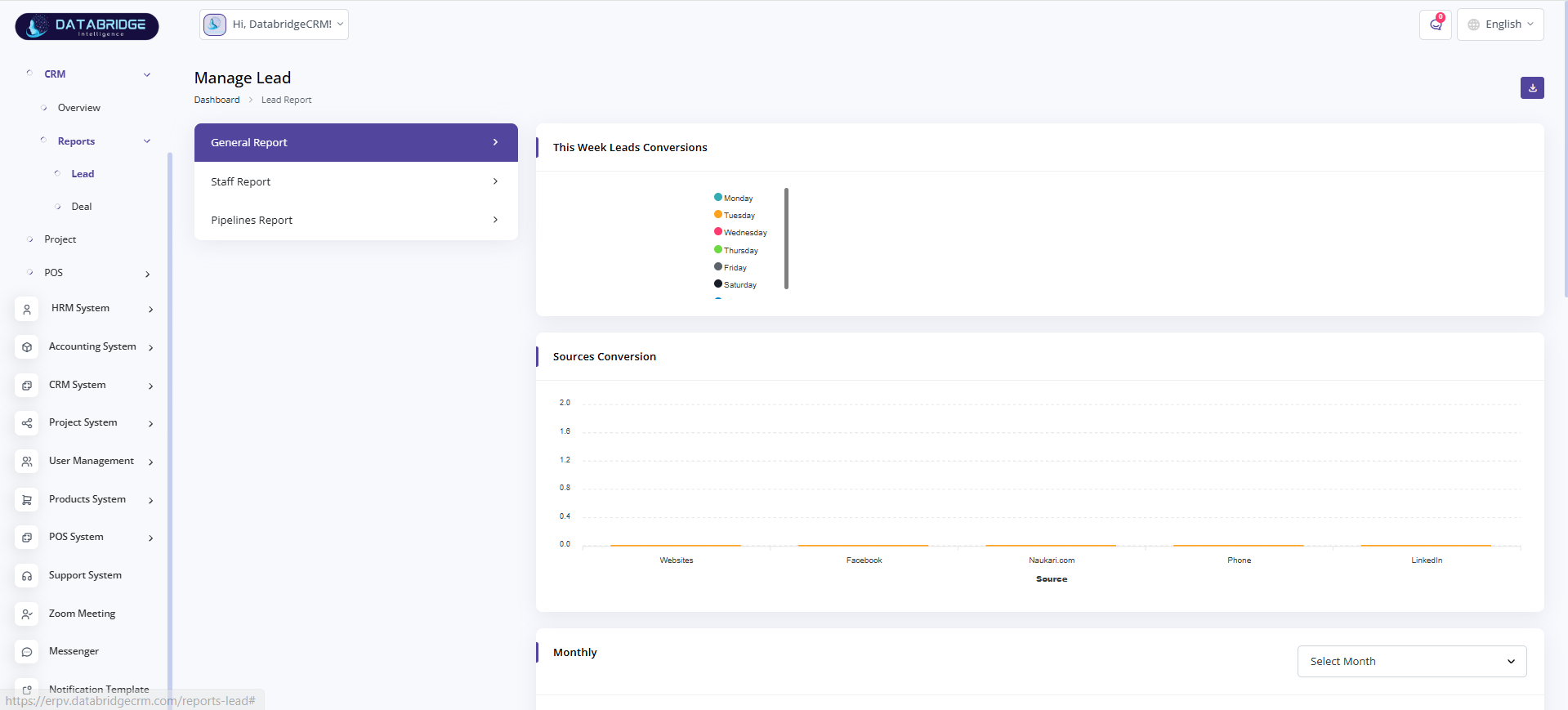
Manage Lead (General Report):
Displays lead conversion data and source analysis.
Helps track lead performance and conversion trends.
Features:
-Lead conversion chart
-Source-wise conversion
-Weekly data view
-Report selection options
-Graphical representation
Functionality:
-Fetches lead data
-Groups by source/time
-Calculates conversions
-Displays charts
-Updates dynamically
Displays lead conversion data and source analysis.
Helps track lead performance and conversion trends.
Features:
-Lead conversion chart
-Source-wise conversion
-Weekly data view
-Report selection options
-Graphical representation
Functionality:
-Fetches lead data
-Groups by source/time
-Calculates conversions
-Displays charts
-Updates dynamically
1
Dashboard
2
CRM
3
Reports
4
Lead
5
General Report
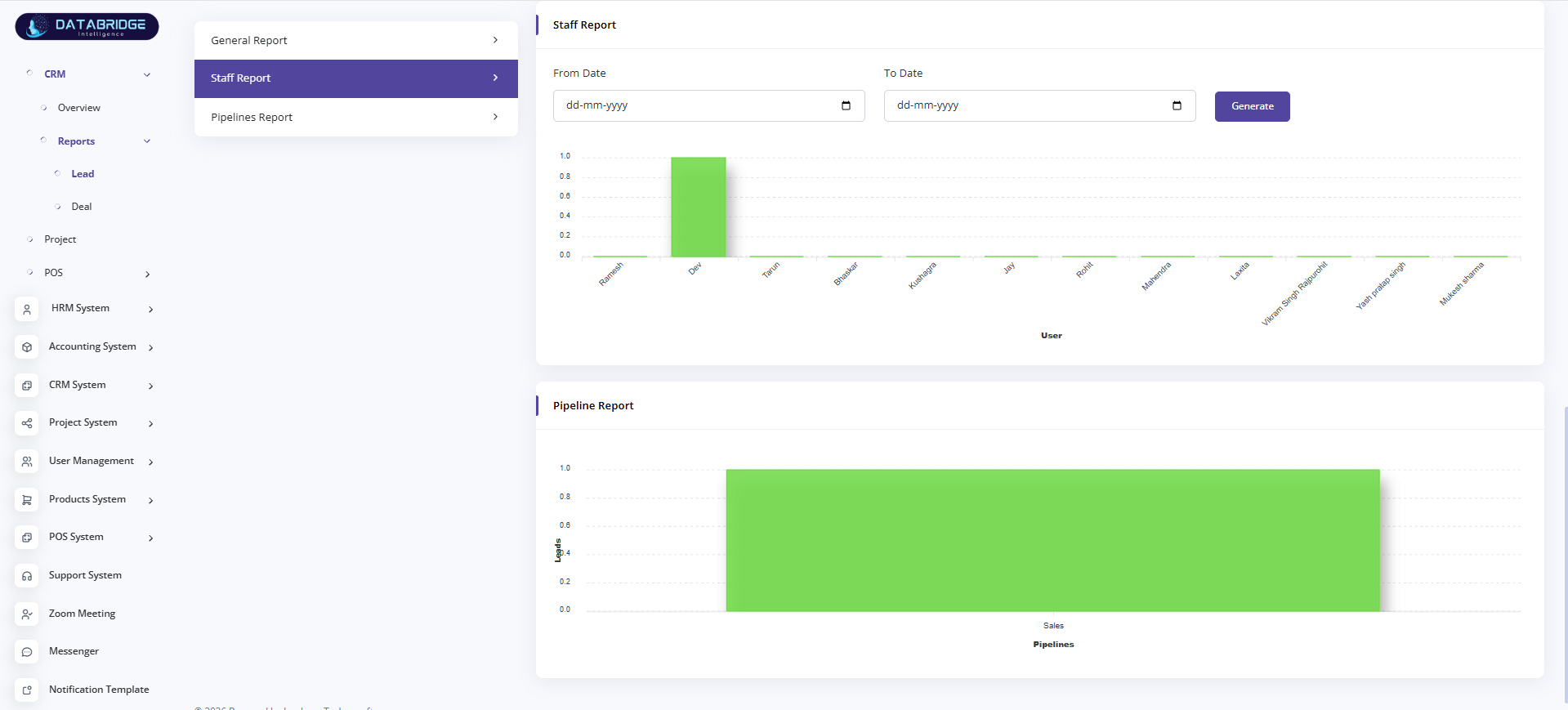
Staff Report:
Displays staff-wise performance based on selected date range.
Helps analyze employee contribution in CRM activities.
Features:
-Date range filter
-Staff performance chart
-Generate report button
-User-wise data
-Graph view
Functionality:
-Fetches staff data
-Filters by date
-Calculates performance
-Displays chart
-Updates on generate
Displays staff-wise performance based on selected date range.
Helps analyze employee contribution in CRM activities.
Features:
-Date range filter
-Staff performance chart
-Generate report button
-User-wise data
-Graph view
Functionality:
-Fetches staff data
-Filters by date
-Calculates performance
-Displays chart
-Updates on generate
1
Dashboard
2
CRM
3
Reports
4
Lead
5
Staff Report
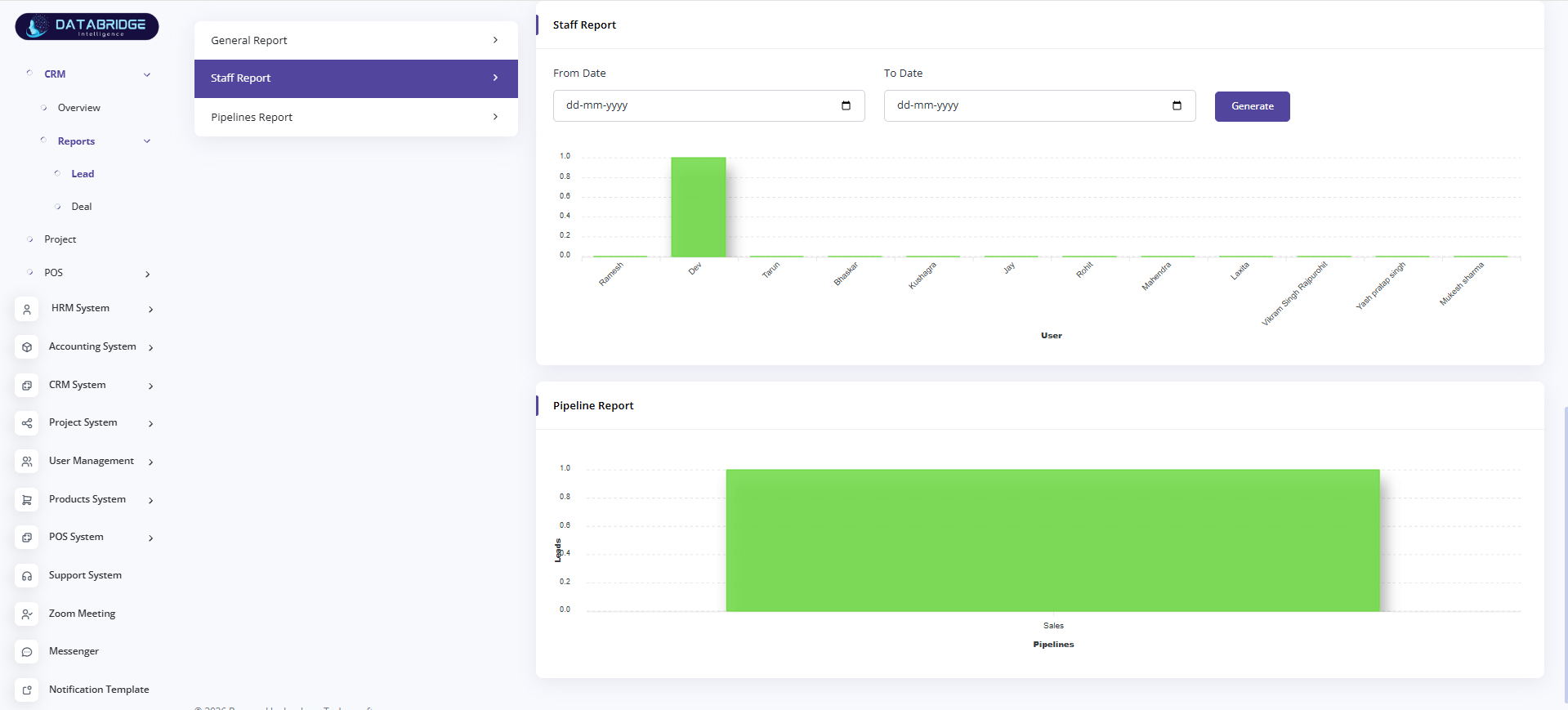
Pipeline Report:
Displays pipeline-wise lead distribution and sales stages.
Helps track progress across different sales pipelines.
Features:
-Pipeline chart view
-Lead distribution
-Visual representation
-Simple overview
-Report section
Functionality:
-Fetches pipeline data
-Groups leads by stage
-Displays chart
-Calculates totals
-Updates dynamically
Displays pipeline-wise lead distribution and sales stages.
Helps track progress across different sales pipelines.
Features:
-Pipeline chart view
-Lead distribution
-Visual representation
-Simple overview
-Report section
Functionality:
-Fetches pipeline data
-Groups leads by stage
-Displays chart
-Calculates totals
-Updates dynamically
1
Dashboard
2
CRM
3
Reports
4
Lead
5
Pipeline Report
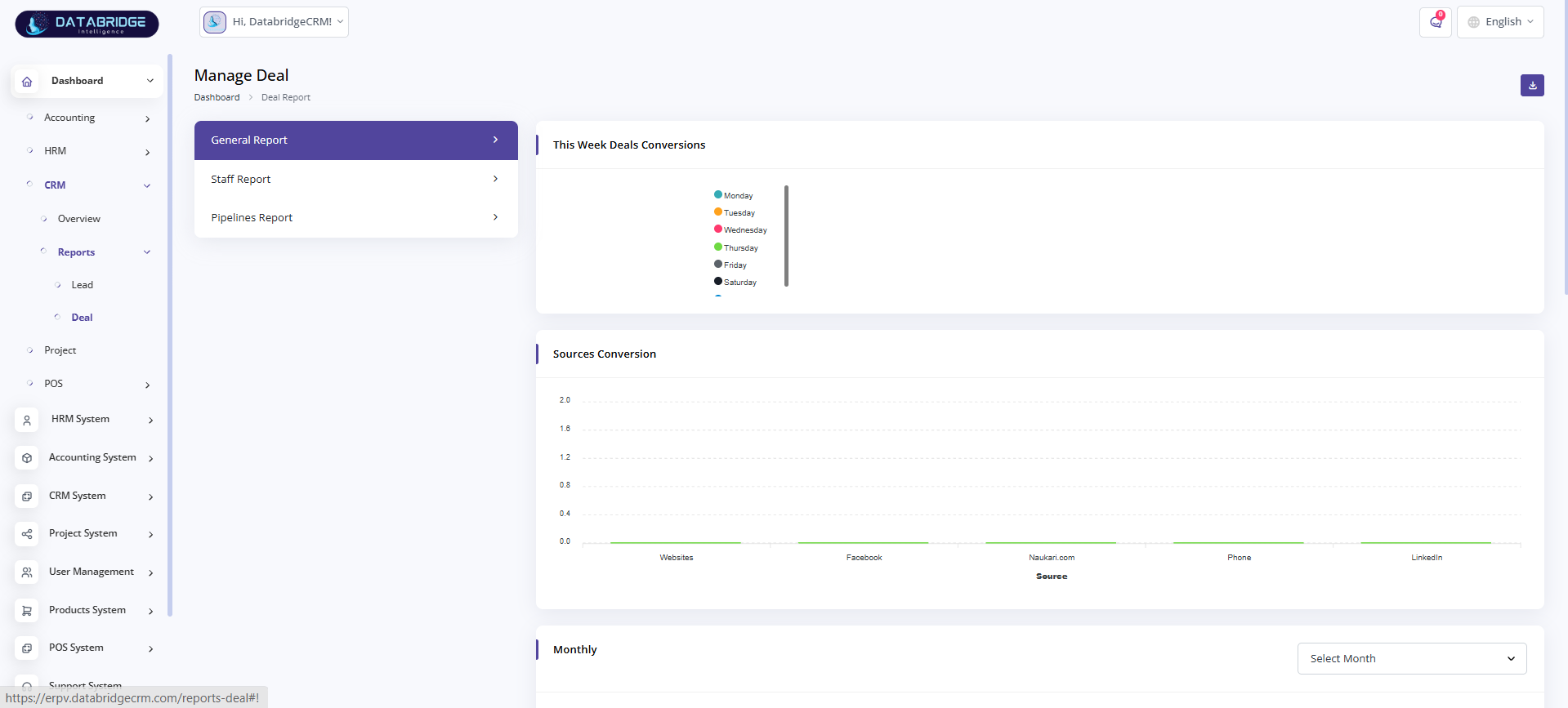
Manage Deal (General Report):
Displays deal conversion data and performance trends.
Helps analyze deal progress and conversion rate.
Features:
-Weekly deal conversion chart
-Source-wise conversion
-Graphical view
-Report selection (General/Staff/Pipeline)
-Simple dashboard layout
Functionality:
-Fetches deal data
-Groups by time/source
-Calculates conversions
-Displays charts
-Updates dynamically
Displays deal conversion data and performance trends.
Helps analyze deal progress and conversion rate.
Features:
-Weekly deal conversion chart
-Source-wise conversion
-Graphical view
-Report selection (General/Staff/Pipeline)
-Simple dashboard layout
Functionality:
-Fetches deal data
-Groups by time/source
-Calculates conversions
-Displays charts
-Updates dynamically
1
Dashboard
2
CRM
3
Reports
4
Deal
5
General Report
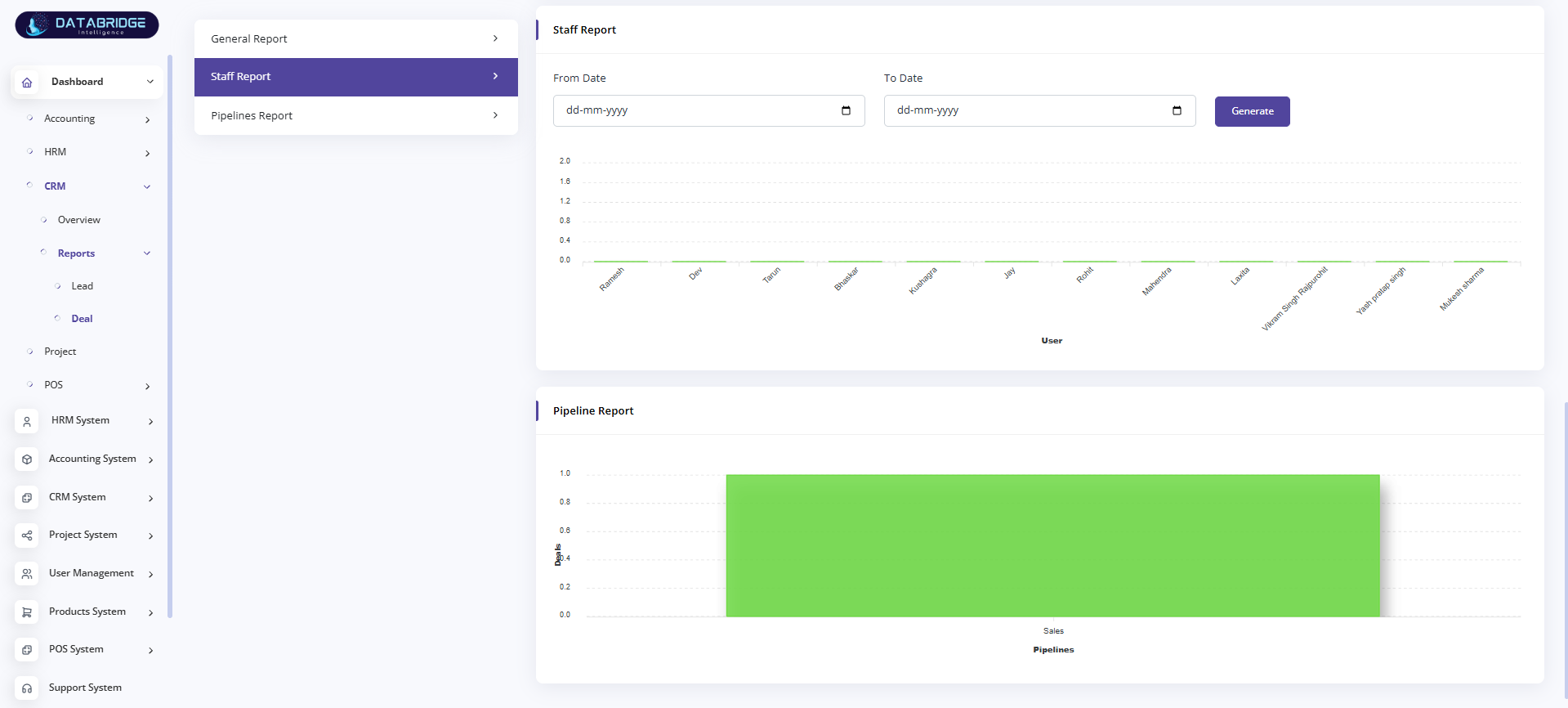
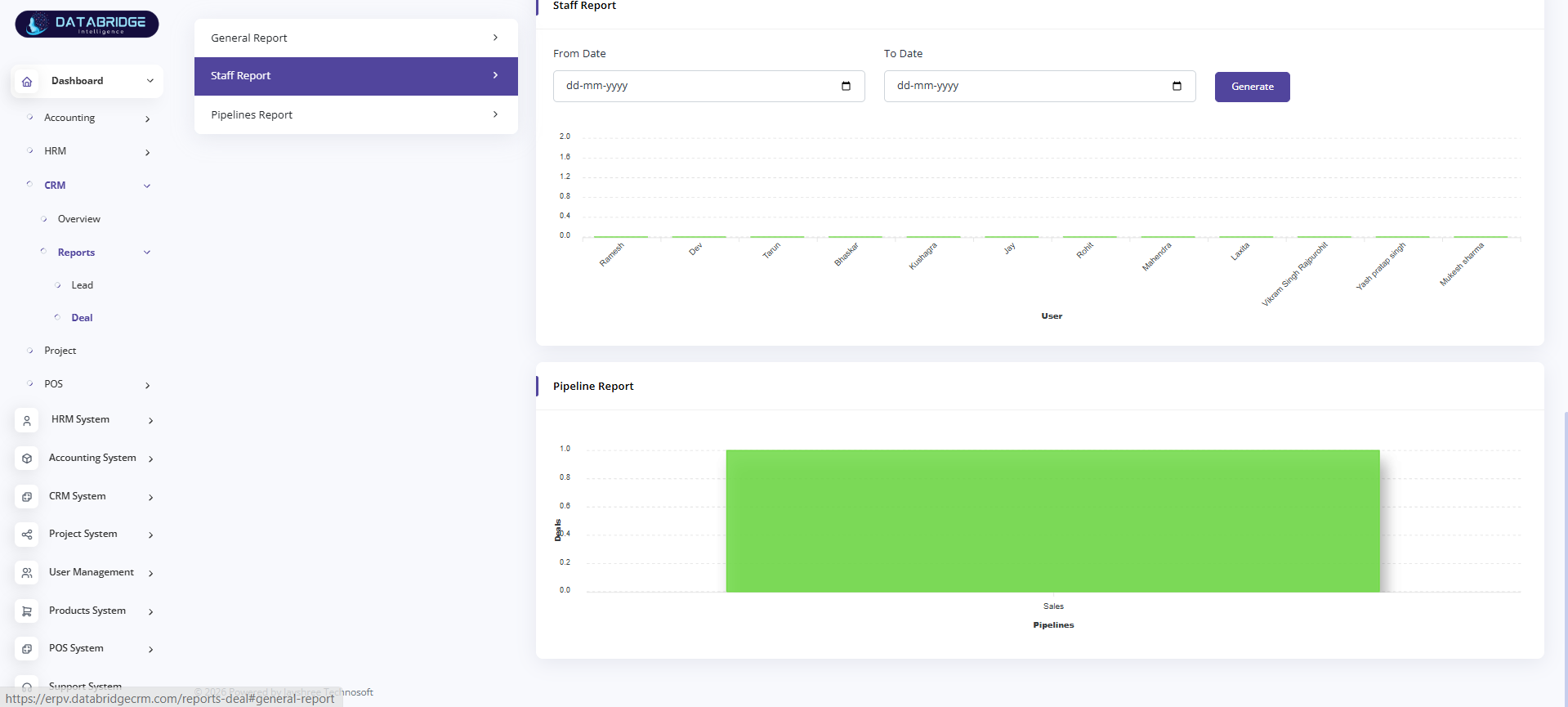
Staff Report:
Displays staff-wise deal performance based on date range.
Helps track employee contribution in deal conversions.
Features:
-From/To date filter
-Staff performance chart
-Generate report button
-User-wise data
-Graph view
Functionality:
-Fetches staff deal data
-Filters by date
-Calculates performance
-Displays chart
-Updates on generate
Displays staff-wise deal performance based on date range.
Helps track employee contribution in deal conversions.
Features:
-From/To date filter
-Staff performance chart
-Generate report button
-User-wise data
-Graph view
Functionality:
-Fetches staff deal data
-Filters by date
-Calculates performance
-Displays chart
-Updates on generate
1
Dashboard
2
CRM
3
Reports
4
Deal
5
Staff Report
Pipeline Report:
Displays pipeline-wise deal distribution and stages.
Helps track deal flow across different pipelines.
Features:
-Pipeline chart view
-Deal distribution
-Visual representation
-Simple layout
-Report section
Functionality:
-Fetches pipeline data
-Groups deals by stage
-Calculates totals
-Displays chart
-Updates dynamically
Displays pipeline-wise deal distribution and stages.
Helps track deal flow across different pipelines.
Features:
-Pipeline chart view
-Deal distribution
-Visual representation
-Simple layout
-Report section
Functionality:
-Fetches pipeline data
-Groups deals by stage
-Calculates totals
-Displays chart
-Updates dynamically
1
Dashboard
2
CRM
3
Reports
4
Deal
5
Pipeline Report
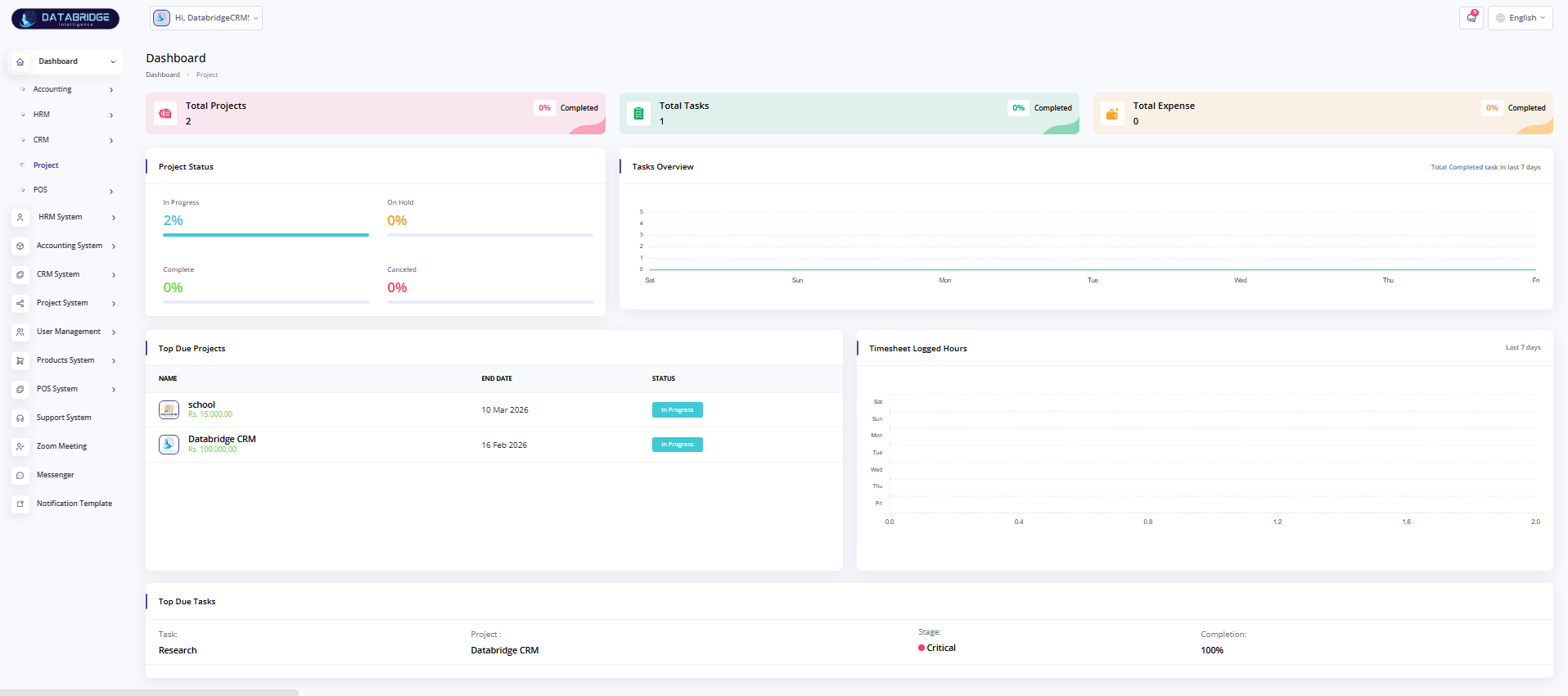
Project Dashboard:
Displays overall project performance, tasks, and expense summary.
Helps users monitor project progress and track key metrics in one place.
Features:
-Total Projects, Tasks & Expense summary
-Project status (In Progress, On Hold, Completed, Cancelled)
-Tasks overview chart
-Timesheet logged hours graph
-Top due projects and tasks list
Functionality:
-Fetches project and task data
-Calculates status percentages
-Displays charts and summaries
-Tracks deadlines and progress
-Updates dashboard dynamically
Displays overall project performance, tasks, and expense summary.
Helps users monitor project progress and track key metrics in one place.
Features:
-Total Projects, Tasks & Expense summary
-Project status (In Progress, On Hold, Completed, Cancelled)
-Tasks overview chart
-Timesheet logged hours graph
-Top due projects and tasks list
Functionality:
-Fetches project and task data
-Calculates status percentages
-Displays charts and summaries
-Tracks deadlines and progress
-Updates dashboard dynamically
1
Dashboard
2
Project
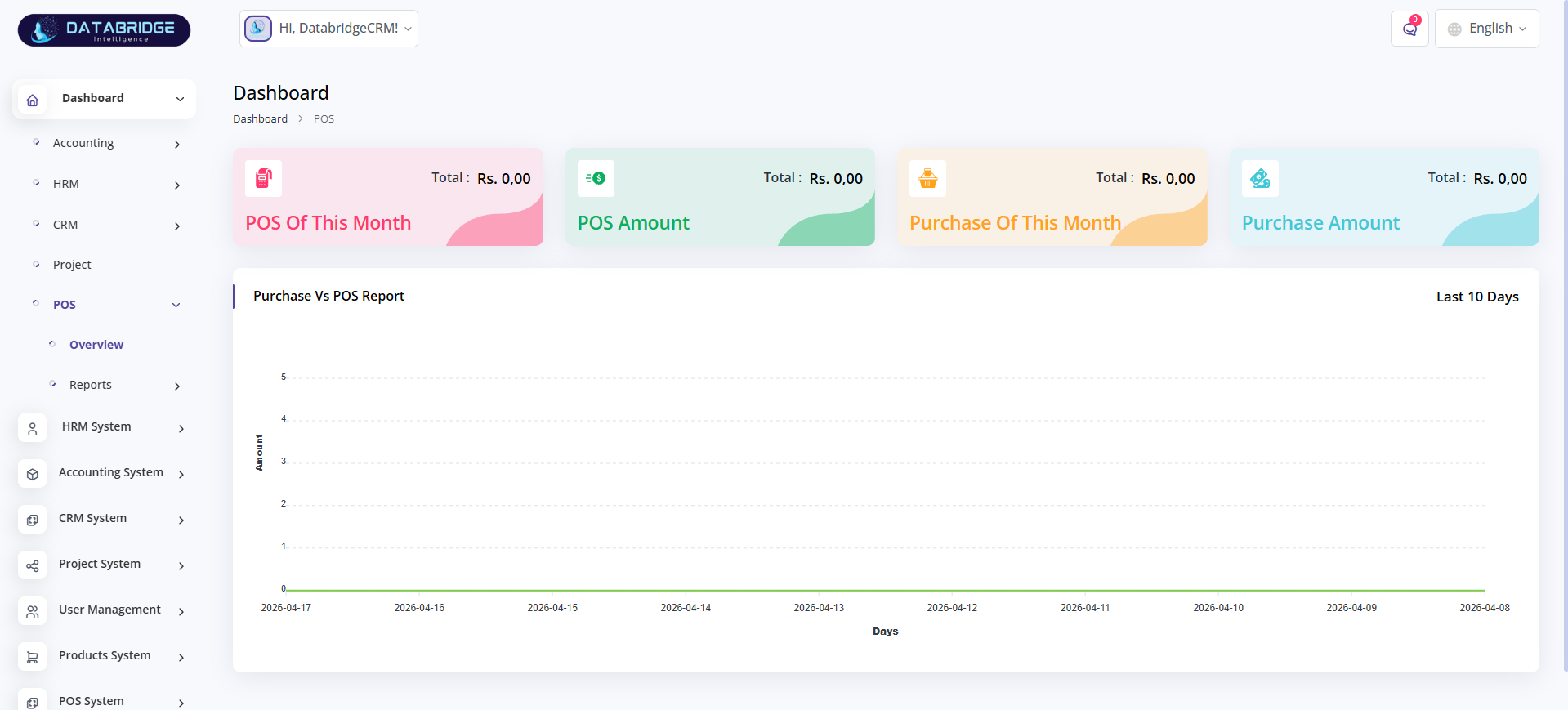
POS Dashboard:
Displays overall POS and purchase performance for the current period.
Helps users track sales, purchases, and financial insights in one view.
Features:
-POS of this month summary
-Total POS amount
-Purchase of this month
-Total purchase amount
-Purchase vs POS comparison chart
Functionality:
-Fetches POS and purchase data
-Calculates monthly totals
-Displays comparison chart
-Updates dashboard dynamically
-Provides real-time insights
Displays overall POS and purchase performance for the current period.
Helps users track sales, purchases, and financial insights in one view.
Features:
-POS of this month summary
-Total POS amount
-Purchase of this month
-Total purchase amount
-Purchase vs POS comparison chart
Functionality:
-Fetches POS and purchase data
-Calculates monthly totals
-Displays comparison chart
-Updates dashboard dynamically
-Provides real-time insights
1
Dashboard
2
POS
3
Overview
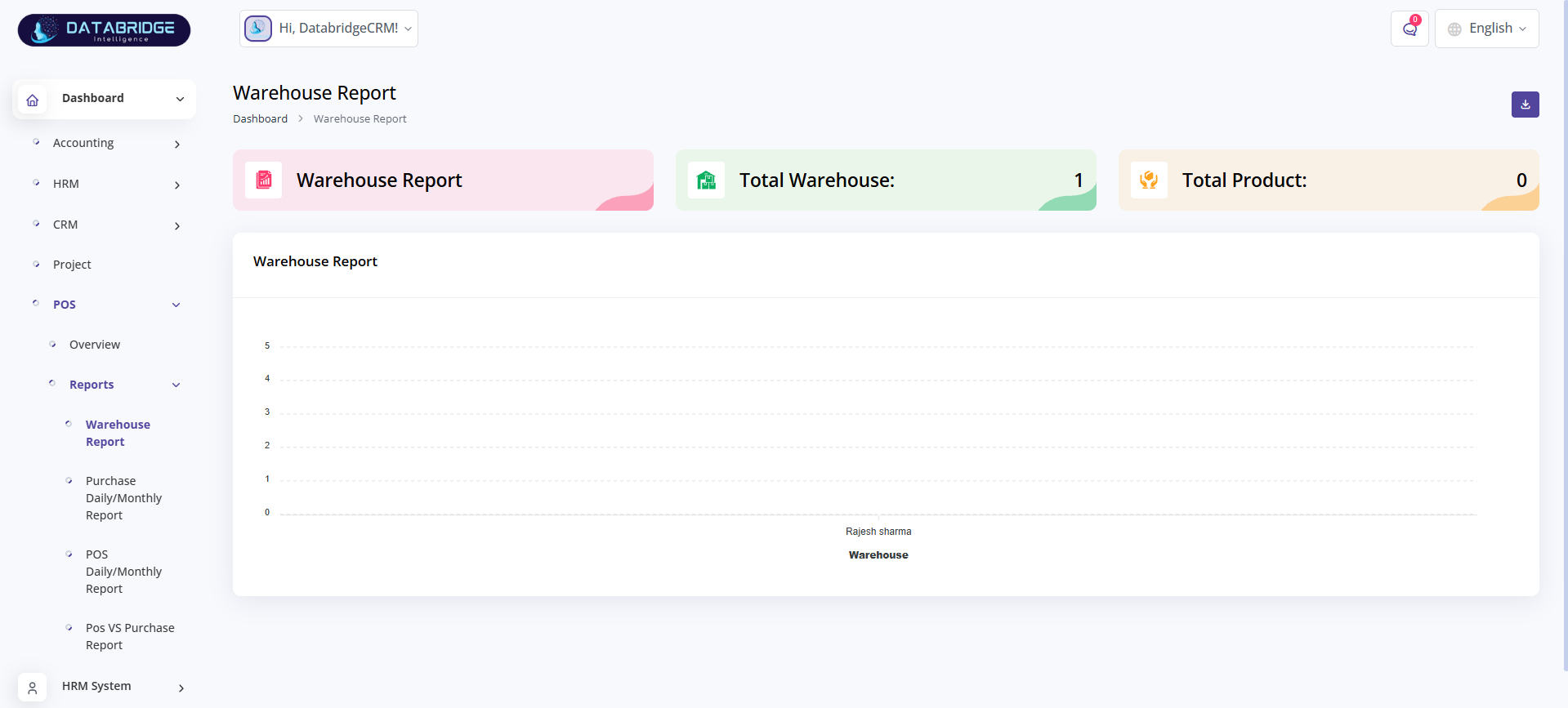
Warehouse Report:
Displays warehouse-related data including total warehouses and products.
Helps monitor inventory distribution and warehouse performance.
Features:
-Total warehouse count
-Total product count
-Warehouse performance chart
-Simple summary cards
-Clean UI
Functionality:
-Fetches warehouse data
-Counts total warehouses/products
-Displays graphical report
-Updates dynamically
-Supports real-time tracking
Displays warehouse-related data including total warehouses and products.
Helps monitor inventory distribution and warehouse performance.
Features:
-Total warehouse count
-Total product count
-Warehouse performance chart
-Simple summary cards
-Clean UI
Functionality:
-Fetches warehouse data
-Counts total warehouses/products
-Displays graphical report
-Updates dynamically
-Supports real-time tracking
1
Dashboard
2
POS
3
Reports
4
Warehouse Report
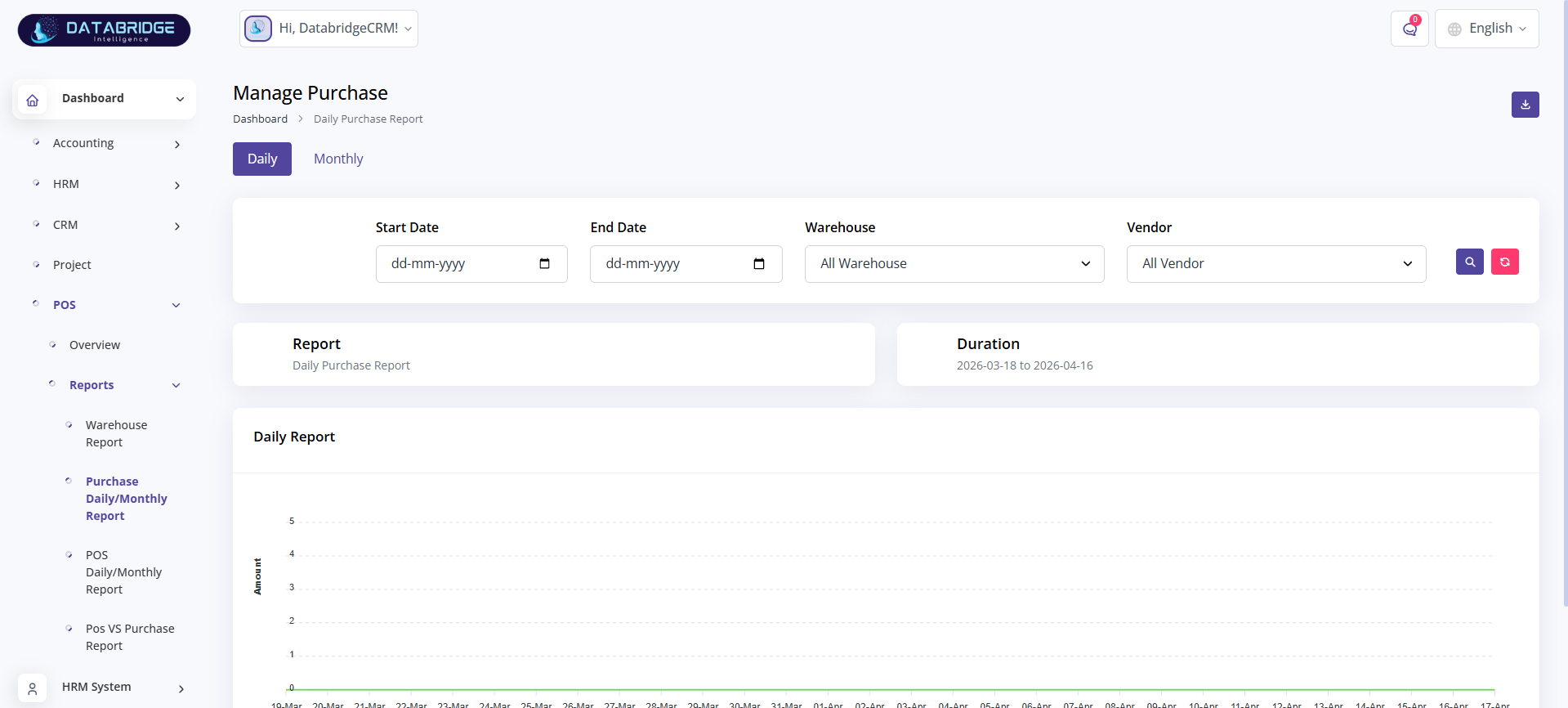
Purchase Daily/Monthly Report:
Displays purchase data based on selected date range and filters.
Helps users analyze purchase trends daily or monthly.
Features:
-Daily and monthly view toggle
-Date range filter
-Warehouse filter
-Vendor filter
-Purchase chart report
Functionality:
-Filters data based on inputs
-Fetches purchase records
-Displays graphical report
-Updates based on filters
-Provides trend insights
Displays purchase data based on selected date range and filters.
Helps users analyze purchase trends daily or monthly.
Features:
-Daily and monthly view toggle
-Date range filter
-Warehouse filter
-Vendor filter
-Purchase chart report
Functionality:
-Filters data based on inputs
-Fetches purchase records
-Displays graphical report
-Updates based on filters
-Provides trend insights
1
Dashboard
2
POS
3
Reports
4
Purchase Daily/Monthly Report
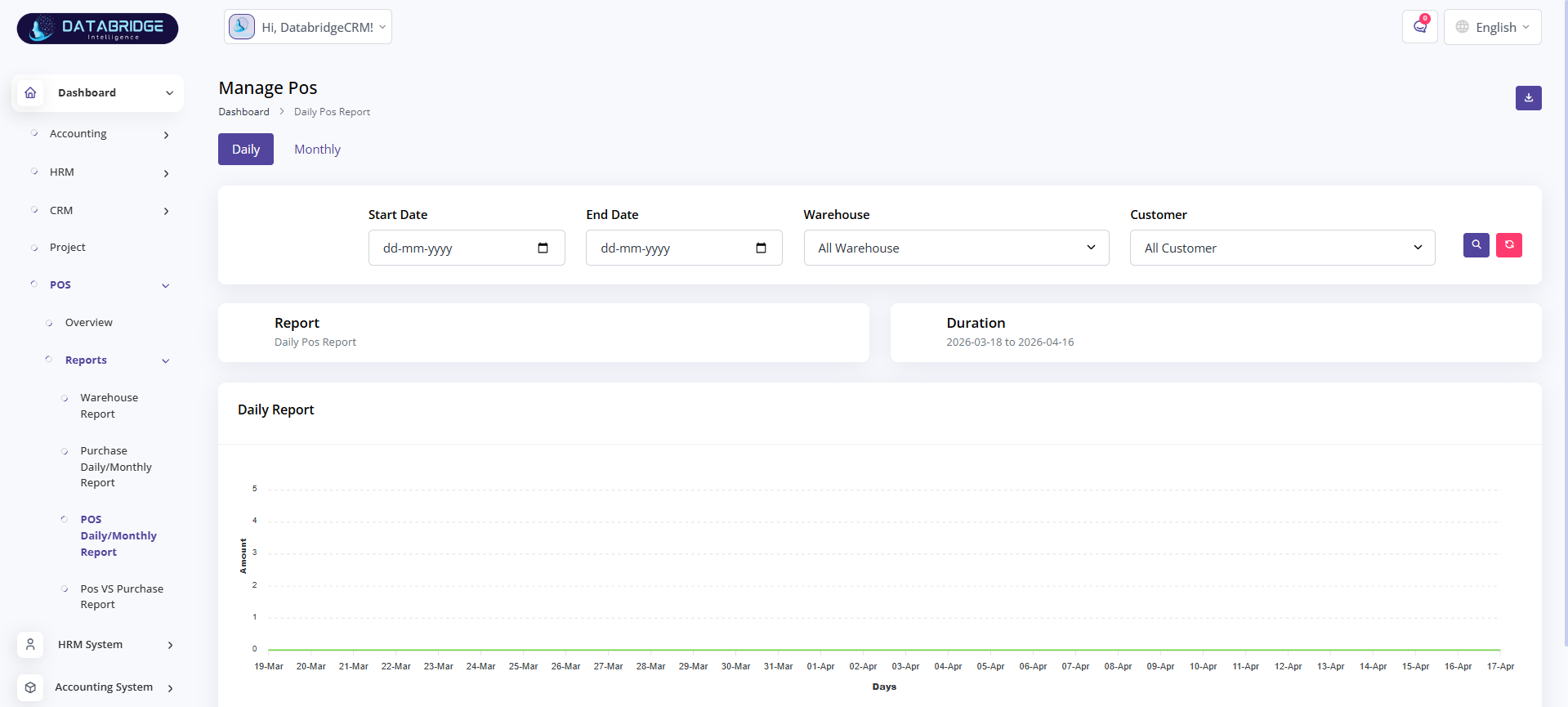
POS Daily/Monthly Report:
Displays POS (sales) data based on selected filters and date range.
Helps users track daily and monthly sales performance.
Features:
-Daily/monthly toggle
-Date filter
-Warehouse filter
-Customer filter
-Sales chart
Functionality:
-Fetches POS data
-Applies filters
-Displays sales trends
-Updates dynamically
-Provides insights
Displays POS (sales) data based on selected filters and date range.
Helps users track daily and monthly sales performance.
Features:
-Daily/monthly toggle
-Date filter
-Warehouse filter
-Customer filter
-Sales chart
Functionality:
-Fetches POS data
-Applies filters
-Displays sales trends
-Updates dynamically
-Provides insights
1
Dashboard
2
POS
3
Reports
4
POS Daily/Monthly Report
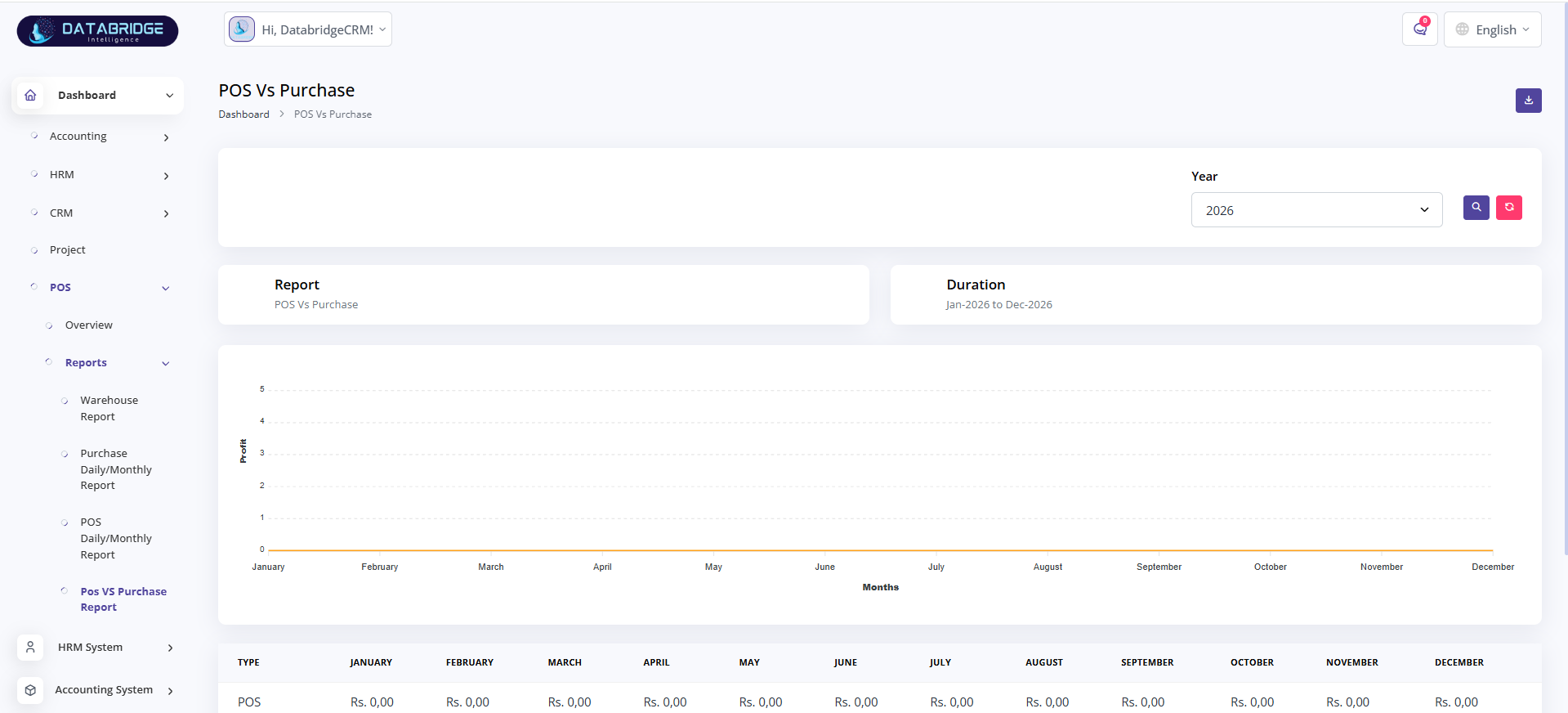
POS vs Purchase Report:
Displays comparison between POS (sales) and purchase data over time.
Helps analyze profit trends and business performance.
Features:
-Year-wise filter
-Monthly comparison chart
-POS vs purchase data table
-Summary section
-Trend visualization
Functionality:
-Fetches yearly data
-Compares POS and purchase
-Displays graph and table
-Updates based on selected year
-Provides analytical insights
Displays comparison between POS (sales) and purchase data over time.
Helps analyze profit trends and business performance.
Features:
-Year-wise filter
-Monthly comparison chart
-POS vs purchase data table
-Summary section
-Trend visualization
Functionality:
-Fetches yearly data
-Compares POS and purchase
-Displays graph and table
-Updates based on selected year
-Provides analytical insights
1
Dashboard
2
POS
3
Reports
4
POS vs Purchase Report
HRM System
The HRM (Human Resource Management) System is designed to streamline and automate all employee-related processes within an organization. It helps manage employee records, attendance, payroll, leave, and performance in a centralized platform. The system improves efficiency, reduces manual work, and ensures accurate data management. It also provides real-time insights to support better decision-making and effective workforce management.
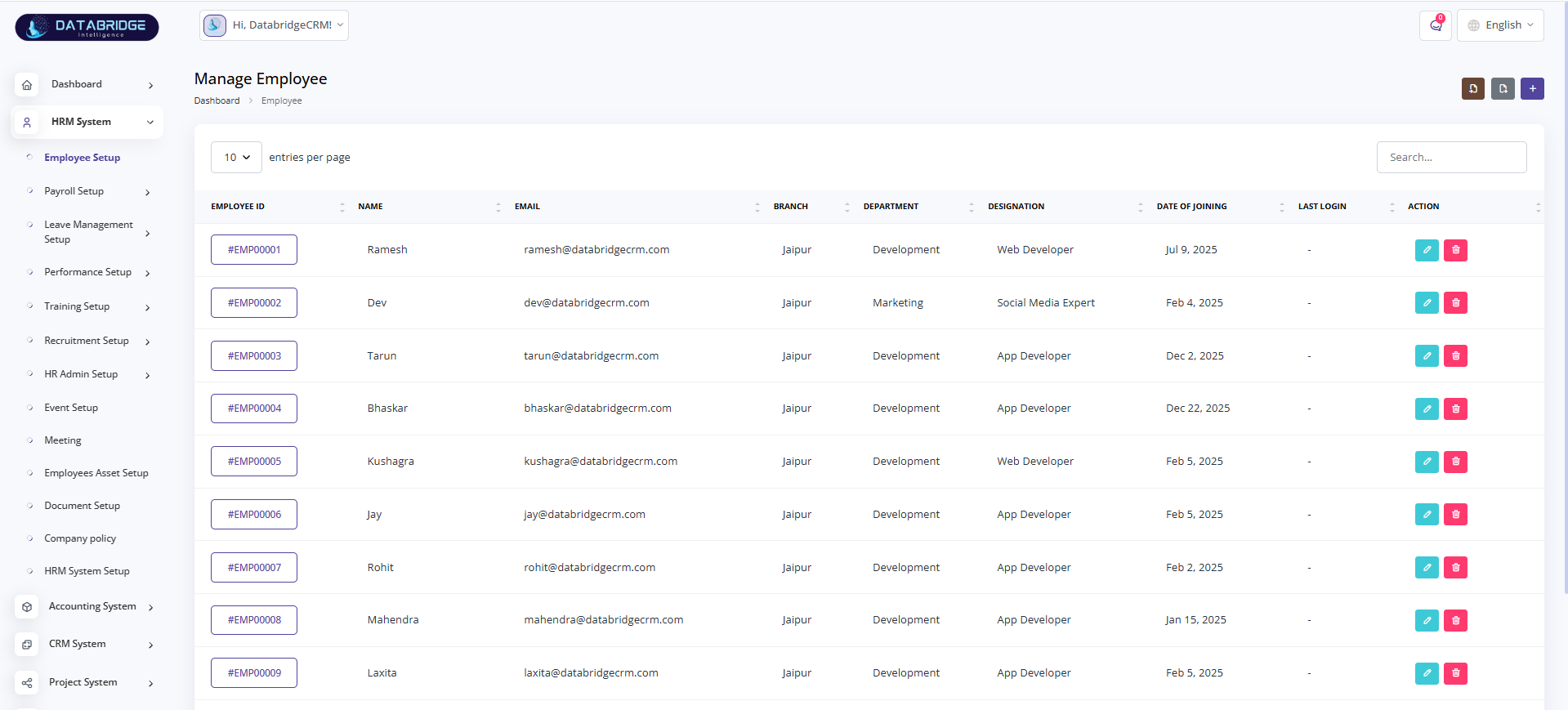
Manage Employee:
Displays a list of all employees with their details such as department, designation, and joining date.
Helps HR manage employee records efficiently from a centralized interface.
Features:
-Employee list with ID, name, email
-Department and designation details
-Date of joining and last login
-Search and pagination
-Edit and delete actions
Functionality:
-Fetches employee data from database
-Displays records in tabular format
-Allows searching and filtering
-Enables edit/delete operations
-Updates records in real-time
Displays a list of all employees with their details such as department, designation, and joining date.
Helps HR manage employee records efficiently from a centralized interface.
Features:
-Employee list with ID, name, email
-Department and designation details
-Date of joining and last login
-Search and pagination
-Edit and delete actions
Functionality:
-Fetches employee data from database
-Displays records in tabular format
-Allows searching and filtering
-Enables edit/delete operations
-Updates records in real-time
1
HRM System
2
Employee Setup
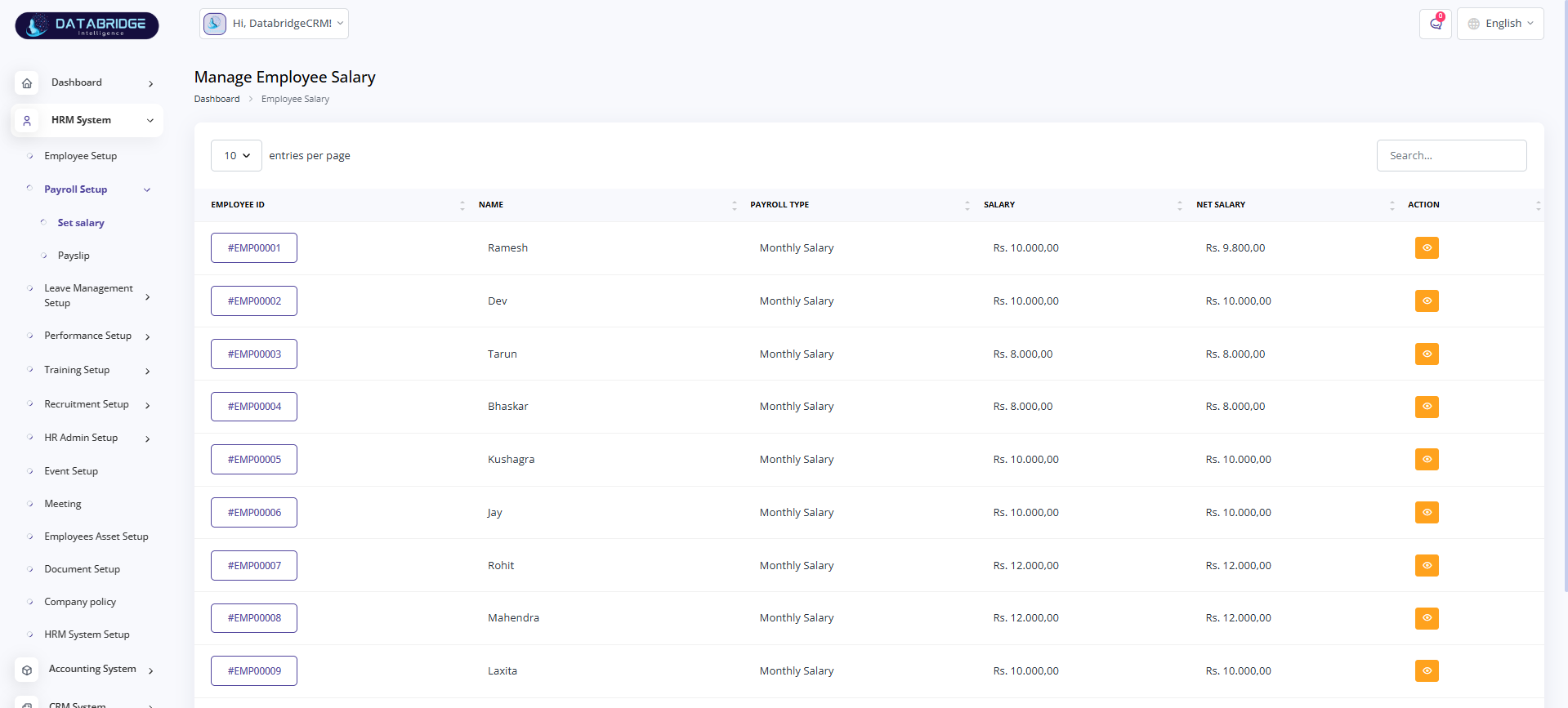
Manage Employee Salary:
Displays salary details of employees including payroll type and net salary.
Helps HR manage and review salary structure.
Features:
-Employee salary list
-Payroll type (monthly, etc.)
-Salary and net salary
-View salary details
-Search functionality
Functionality:
-Fetches salary data
-Displays payroll details
-Calculates net salary
-Allows viewing records
-Updates dynamically
Displays salary details of employees including payroll type and net salary.
Helps HR manage and review salary structure.
Features:
-Employee salary list
-Payroll type (monthly, etc.)
-Salary and net salary
-View salary details
-Search functionality
Functionality:
-Fetches salary data
-Displays payroll details
-Calculates net salary
-Allows viewing records
-Updates dynamically
1
HRM System
2
Payroll Setup
3
Set Salary
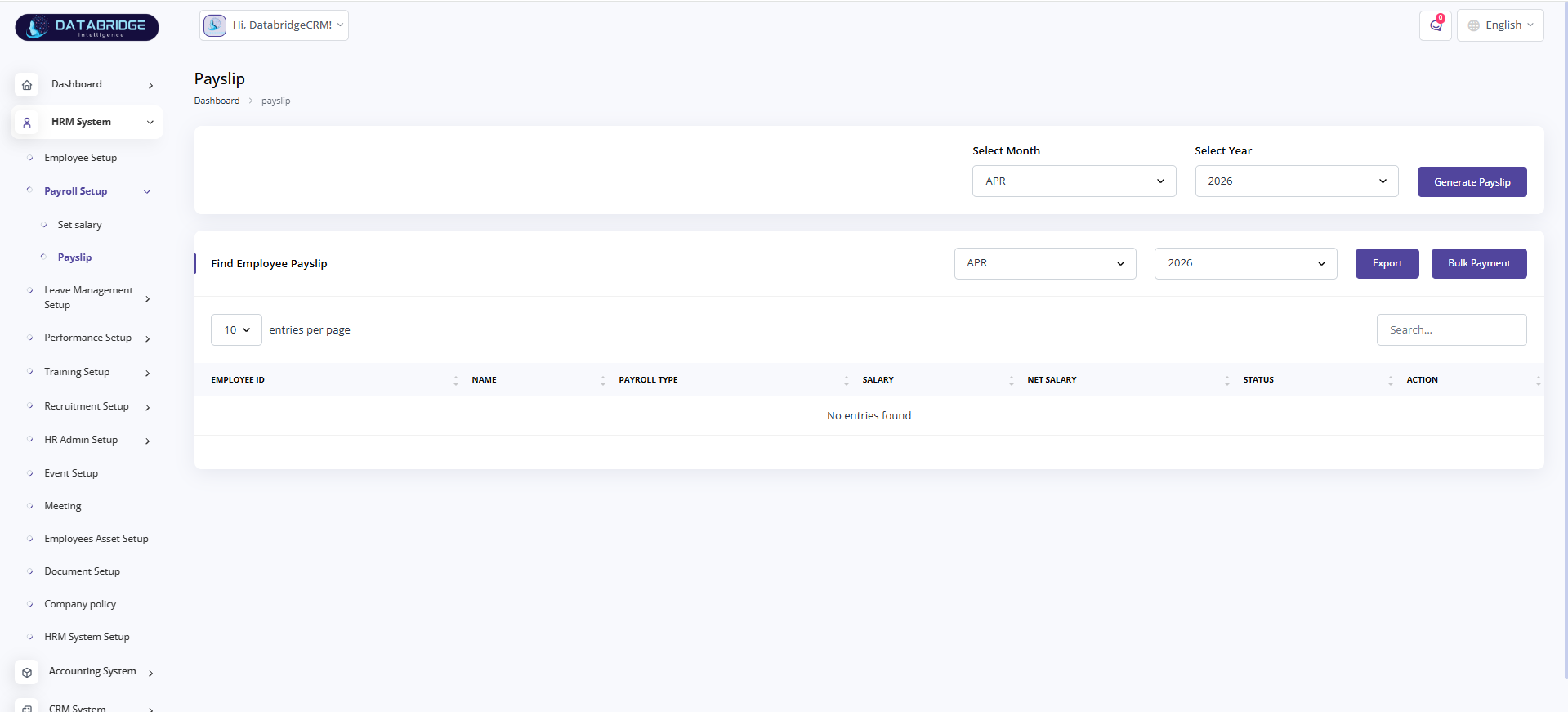
Payslip:
Allows generating payslips for employees based on selected month and year.
Helps HR manage salary disbursement records.
Features:
-Select month and year
-Generate payslip
-Export payslip
-Bulk payment option
-Employee payslip list
Functionality:
-Filters data based on inputs
-Generates payslip records
-Displays employee salary data
-Supports export and bulk payment
-Updates dynamically
Allows generating payslips for employees based on selected month and year.
Helps HR manage salary disbursement records.
Features:
-Select month and year
-Generate payslip
-Export payslip
-Bulk payment option
-Employee payslip list
Functionality:
-Filters data based on inputs
-Generates payslip records
-Displays employee salary data
-Supports export and bulk payment
-Updates dynamically
1
HRM System
2
Payroll Setup
3
Payslip
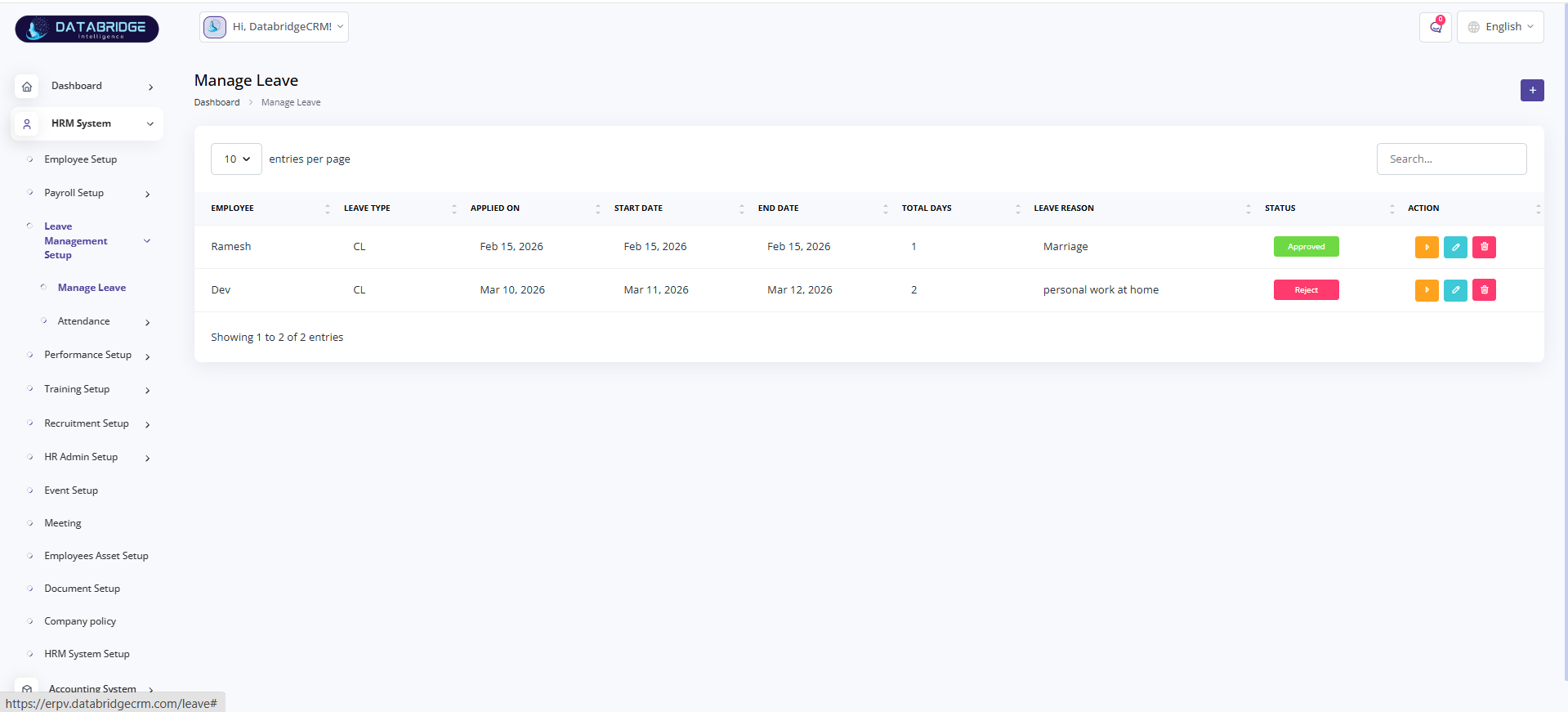
Manage Leave:
Displays employee leave requests with details such as leave type, duration, and status.
Helps HR manage and approve/reject leave applications.
Features:
-Leave request list
-Leave type and dates
-Total days calculation
-Status (approved/rejected)
-Action buttons
Functionality:
-Fetches leave data
-Displays leave records
-Calculates leave duration
-Allows approve/reject
-Updates status in real-time
Displays employee leave requests with details such as leave type, duration, and status.
Helps HR manage and approve/reject leave applications.
Features:
-Leave request list
-Leave type and dates
-Total days calculation
-Status (approved/rejected)
-Action buttons
Functionality:
-Fetches leave data
-Displays leave records
-Calculates leave duration
-Allows approve/reject
-Updates status in real-time
1
HRM System
2
Leave Management Setup
3
Manage Leave
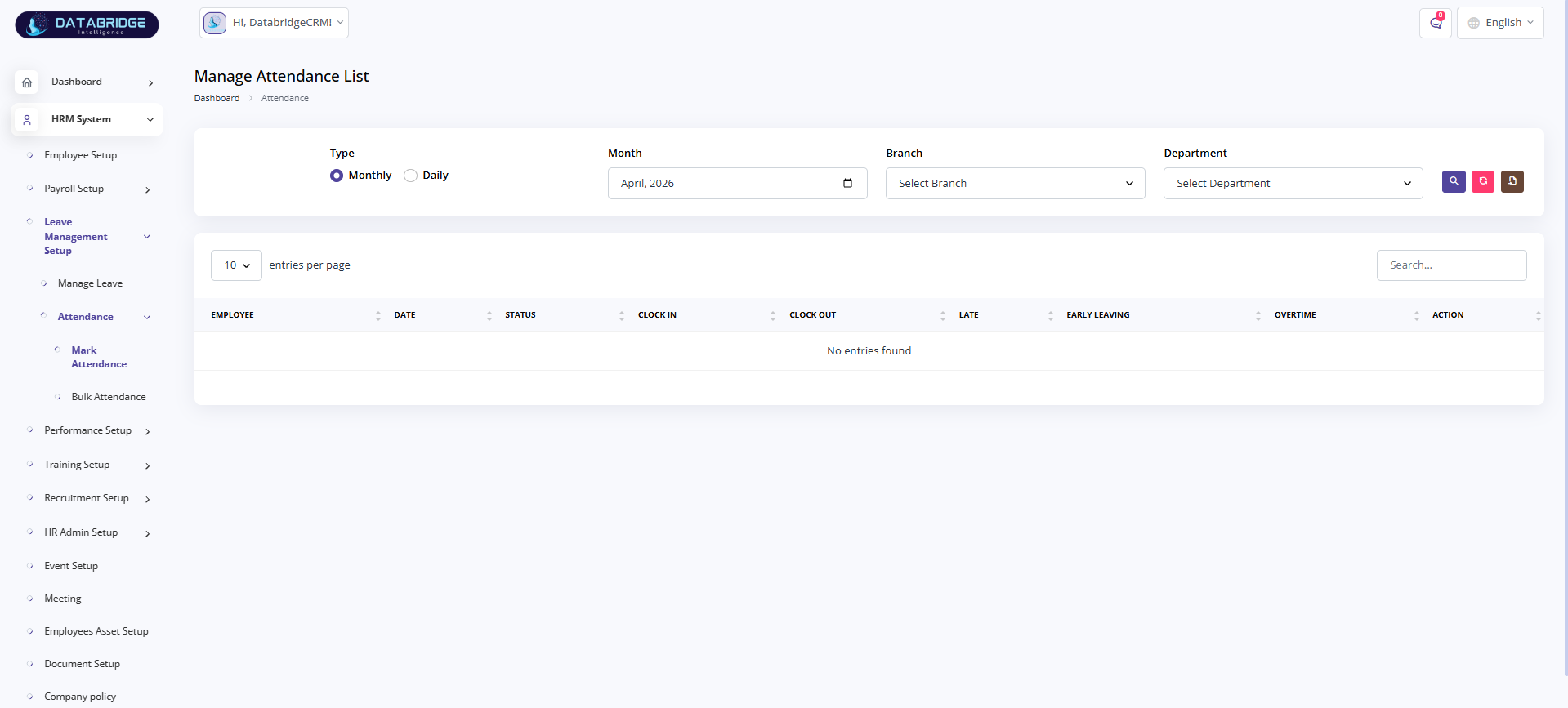
Manage Attendance List:
Displays employee attendance records based on selected filters such as date, branch, and department.
Helps HR track employee presence and working hours.
Features:
-Monthly/Daily attendance view
-Date and filter options
-Branch and department filter
-Attendance status
-Search functionality
Functionality:
-Fetches attendance data
-Applies filters
-Displays attendance records
-Tracks working hours
-Updates dynamically
Displays employee attendance records based on selected filters such as date, branch, and department.
Helps HR track employee presence and working hours.
Features:
-Monthly/Daily attendance view
-Date and filter options
-Branch and department filter
-Attendance status
-Search functionality
Functionality:
-Fetches attendance data
-Applies filters
-Displays attendance records
-Tracks working hours
-Updates dynamically
1
HRM System
2
Leave Management Setup
3
Attendence
4
Mark Attendence
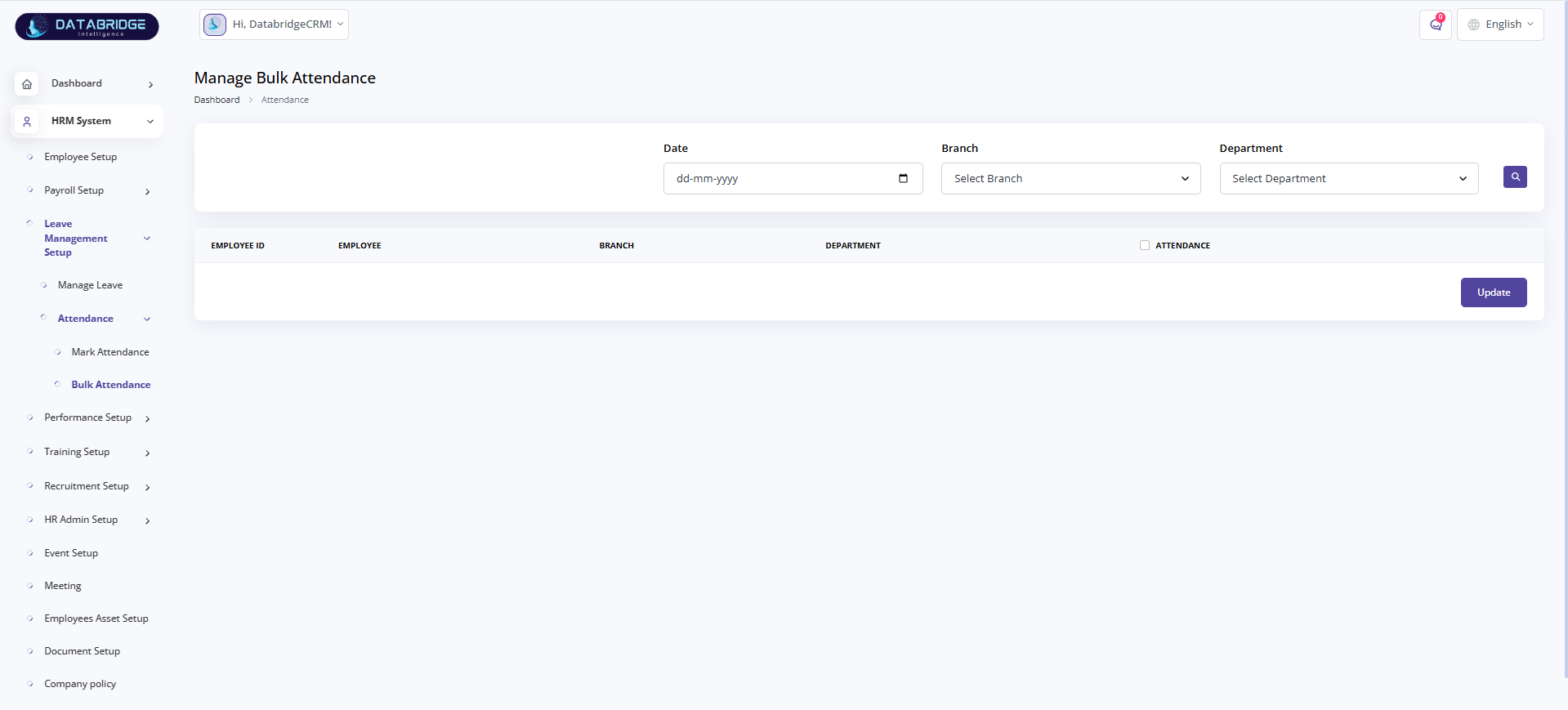
Manage Bulk Attendance:
Allows marking attendance for multiple employees at once.
Helps HR save time by updating attendance in bulk.
Features:
-Date selection
-Branch and department filter
-Employee list
-Bulk attendance checkbox
-Update button
Functionality:
-Fetches employee list
-Applies filters
-Allows bulk selection
-Updates attendance records
-Saves data in database
Allows marking attendance for multiple employees at once.
Helps HR save time by updating attendance in bulk.
Features:
-Date selection
-Branch and department filter
-Employee list
-Bulk attendance checkbox
-Update button
Functionality:
-Fetches employee list
-Applies filters
-Allows bulk selection
-Updates attendance records
-Saves data in database
1
HRM System
2
Leave Management Setup
3
Attendence
4
Bulk Attendence
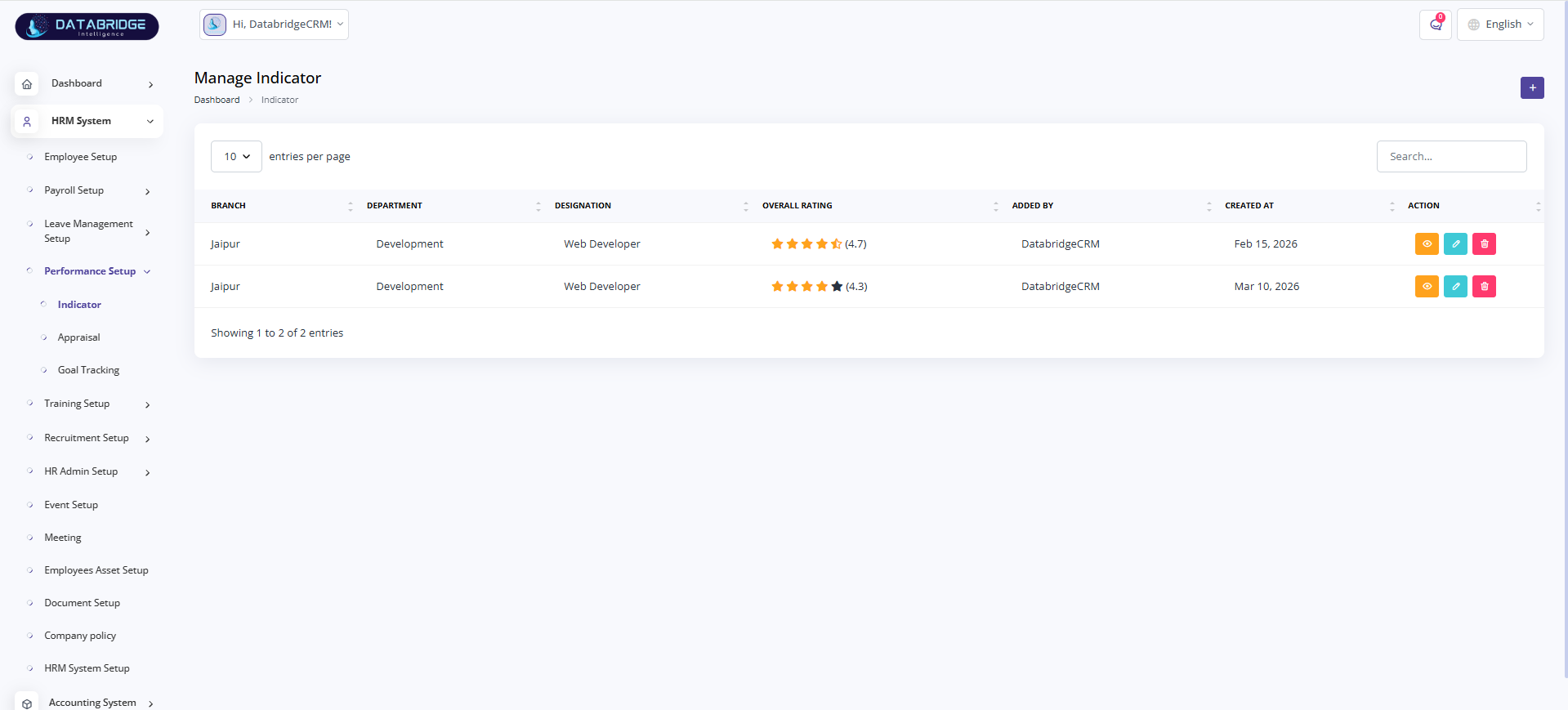
Manage Indicator:
This screen is used to define and manage performance indicators based on branch, department, and designation.
It helps organizations set measurable criteria for evaluating employee performance.
Features:
-Indicator list with branch and department
-Designation-based performance indicators
-Overall rating display
-Search and pagination
-View, edit, and delete actions
Functionality:
-Fetches indicator data from database
-Displays indicators in tabular format
-Allows adding new indicators
-Enables editing and deleting records
-Stores rating criteria for evaluation
This screen is used to define and manage performance indicators based on branch, department, and designation.
It helps organizations set measurable criteria for evaluating employee performance.
Features:
-Indicator list with branch and department
-Designation-based performance indicators
-Overall rating display
-Search and pagination
-View, edit, and delete actions
Functionality:
-Fetches indicator data from database
-Displays indicators in tabular format
-Allows adding new indicators
-Enables editing and deleting records
-Stores rating criteria for evaluation
1
HRM System
2
Performance Setup
3
Indicator

Manage Appraisal:
Displays employee appraisal details including target ratings, overall ratings, and appraisal dates.
Helps HR evaluate employee performance based on predefined indicators.
Features:
-Employee appraisal list
-Target vs actual rating
-Department and designation details
-Appraisal date tracking
-View, edit, delete actions
Functionality:
-Fetches appraisal data
-Compares target and achieved ratings
-Displays performance scores
-Allows updating appraisal records
-Stores evaluation history
Displays employee appraisal details including target ratings, overall ratings, and appraisal dates.
Helps HR evaluate employee performance based on predefined indicators.
Features:
-Employee appraisal list
-Target vs actual rating
-Department and designation details
-Appraisal date tracking
-View, edit, delete actions
Functionality:
-Fetches appraisal data
-Compares target and achieved ratings
-Displays performance scores
-Allows updating appraisal records
-Stores evaluation history
1
HRM System
2
Performance Setup
3
Appraisal
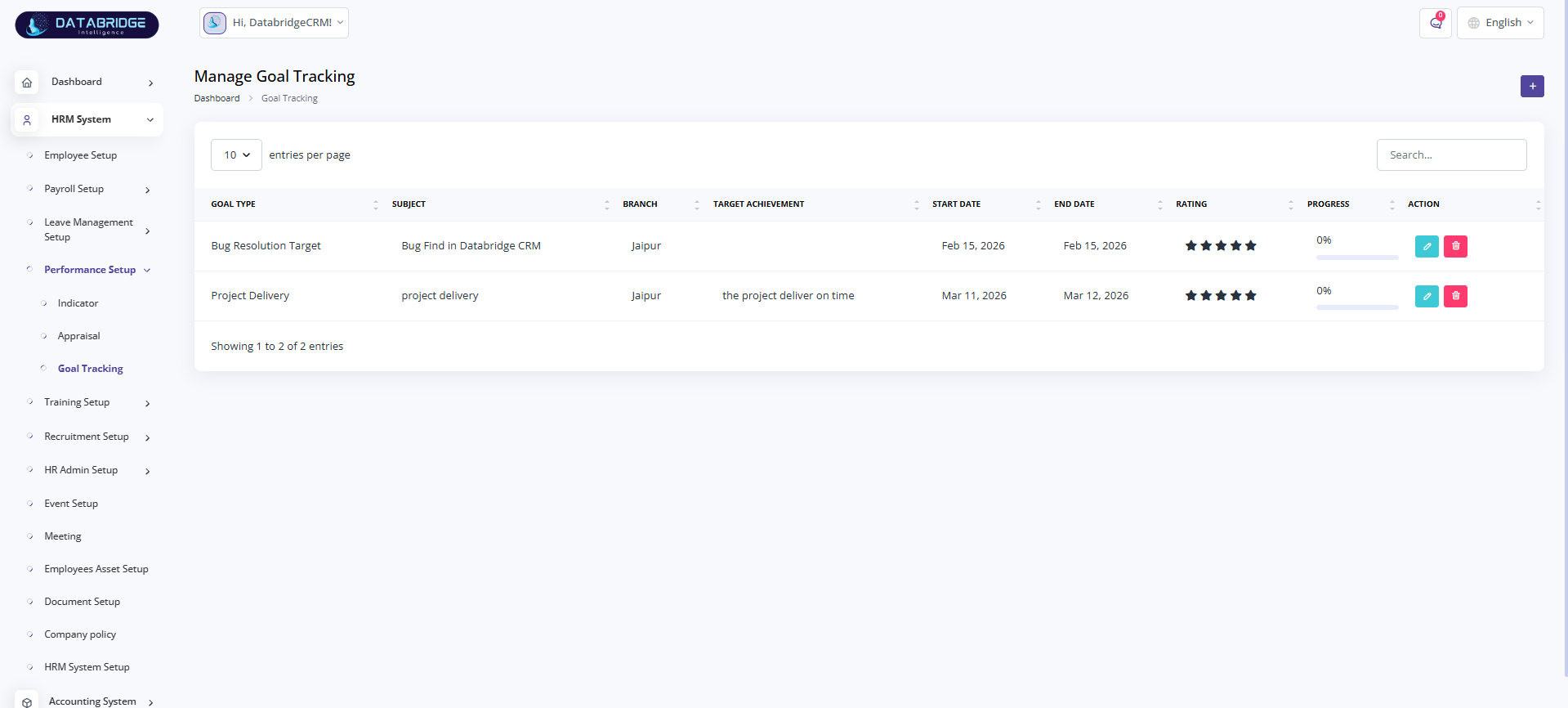
Manage Goal Tracking:
Used to track employee or project-related goals including target achievements, timelines, and progress.
Helps organizations monitor performance goals and ensure timely completion.
Features:
-Goal type and subject
-Branch-based goal tracking
-Target achievement details
-Start and end date
-Rating and progress indicator
-Edit and delete actions
Functionality:
-Fetches goal data
-Displays goals in structured format
-Tracks progress percentage
-Allows updating goal status
-Stores performance metrics
Used to track employee or project-related goals including target achievements, timelines, and progress.
Helps organizations monitor performance goals and ensure timely completion.
Features:
-Goal type and subject
-Branch-based goal tracking
-Target achievement details
-Start and end date
-Rating and progress indicator
-Edit and delete actions
Functionality:
-Fetches goal data
-Displays goals in structured format
-Tracks progress percentage
-Allows updating goal status
-Stores performance metrics
1
HRM System
2
Performance Setup
3
Goal Tracking
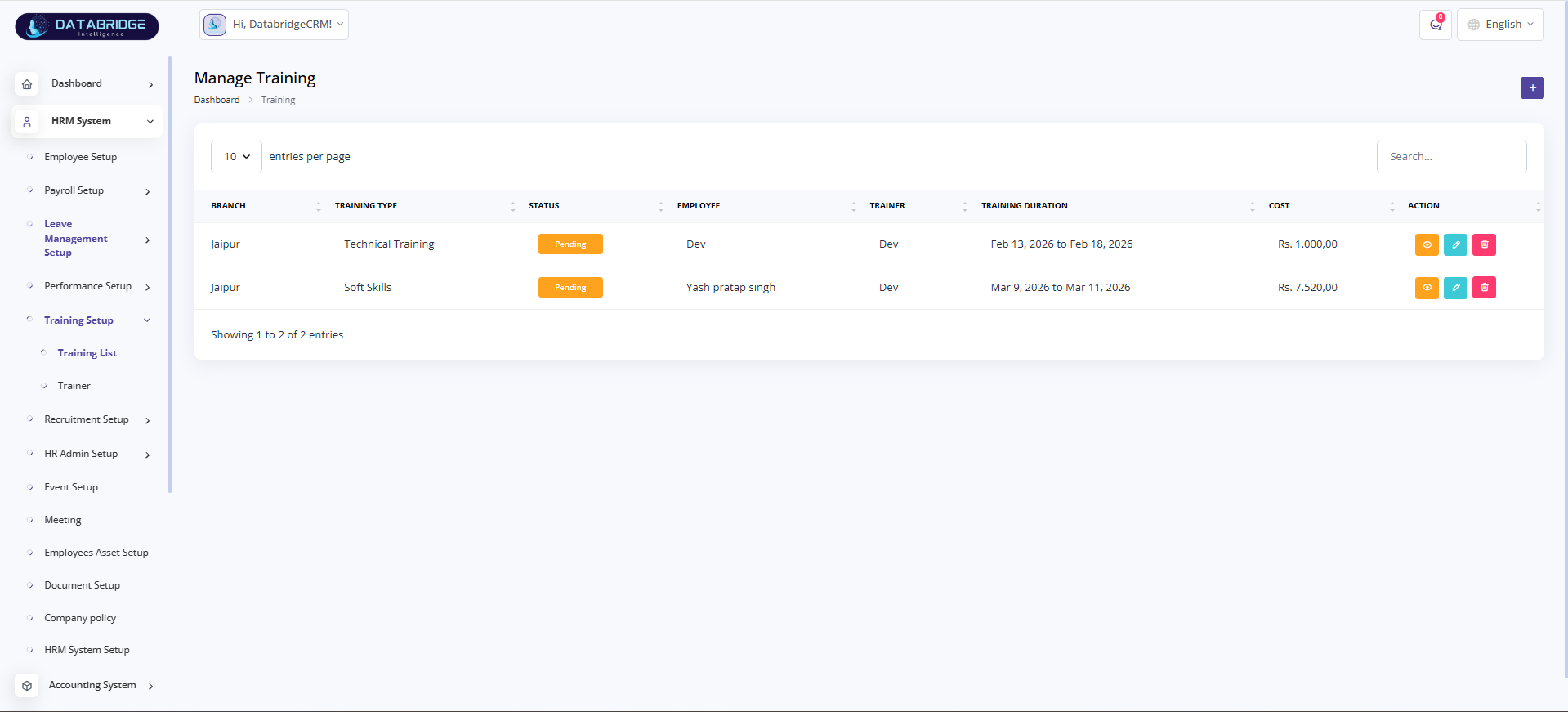
Manage Training:
This screen is used to manage and track employee training programs within the organization.
It helps HR assign training sessions, monitor progress, and manage training costs effectively.
Features:
-Training list with branch and training type
-Employee and trainer assignment
-Training status (e.g., Pending, Completed)
-Training duration tracking
-Cost management for each training
-Search and pagination
-View, edit, and delete actions
Functionality:
-Fetches training records from database
-Displays training details in tabular format
-Allows adding new training sessions
-Assigns trainers and employees
-Tracks training status and duration
-Stores training cost and updates records
This screen is used to manage and track employee training programs within the organization.
It helps HR assign training sessions, monitor progress, and manage training costs effectively.
Features:
-Training list with branch and training type
-Employee and trainer assignment
-Training status (e.g., Pending, Completed)
-Training duration tracking
-Cost management for each training
-Search and pagination
-View, edit, and delete actions
Functionality:
-Fetches training records from database
-Displays training details in tabular format
-Allows adding new training sessions
-Assigns trainers and employees
-Tracks training status and duration
-Stores training cost and updates records
1
HRM System
2
Training Setup
3
Training List
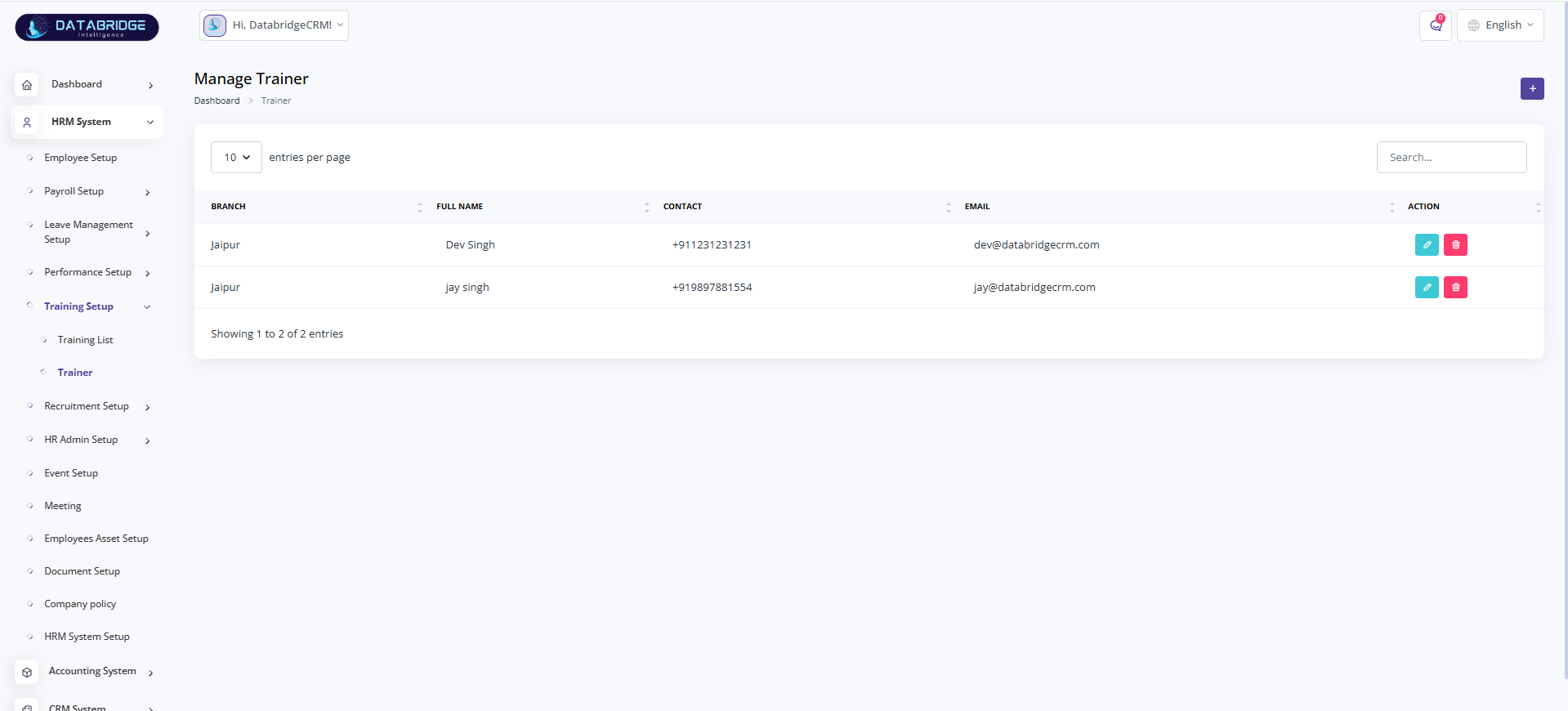
Manage Trainer:
This screen is used to manage trainer details including their contact information and assigned branches.
It helps maintain a centralized list of trainers for different training programs.
Features:
-Trainer list with branch details
-Trainer name, contact, and email
-Search and pagination
-Add, edit, and delete trainer
-Organized trainer management
Functionality:
-Fetches trainer data from database
-Displays trainer records in table format
-Allows adding new trainers
-Enables editing and deleting trainer details
-Stores trainer contact information
This screen is used to manage trainer details including their contact information and assigned branches.
It helps maintain a centralized list of trainers for different training programs.
Features:
-Trainer list with branch details
-Trainer name, contact, and email
-Search and pagination
-Add, edit, and delete trainer
-Organized trainer management
Functionality:
-Fetches trainer data from database
-Displays trainer records in table format
-Allows adding new trainers
-Enables editing and deleting trainer details
-Stores trainer contact information
1
HRM System
2
Training Setup
3
Trainer
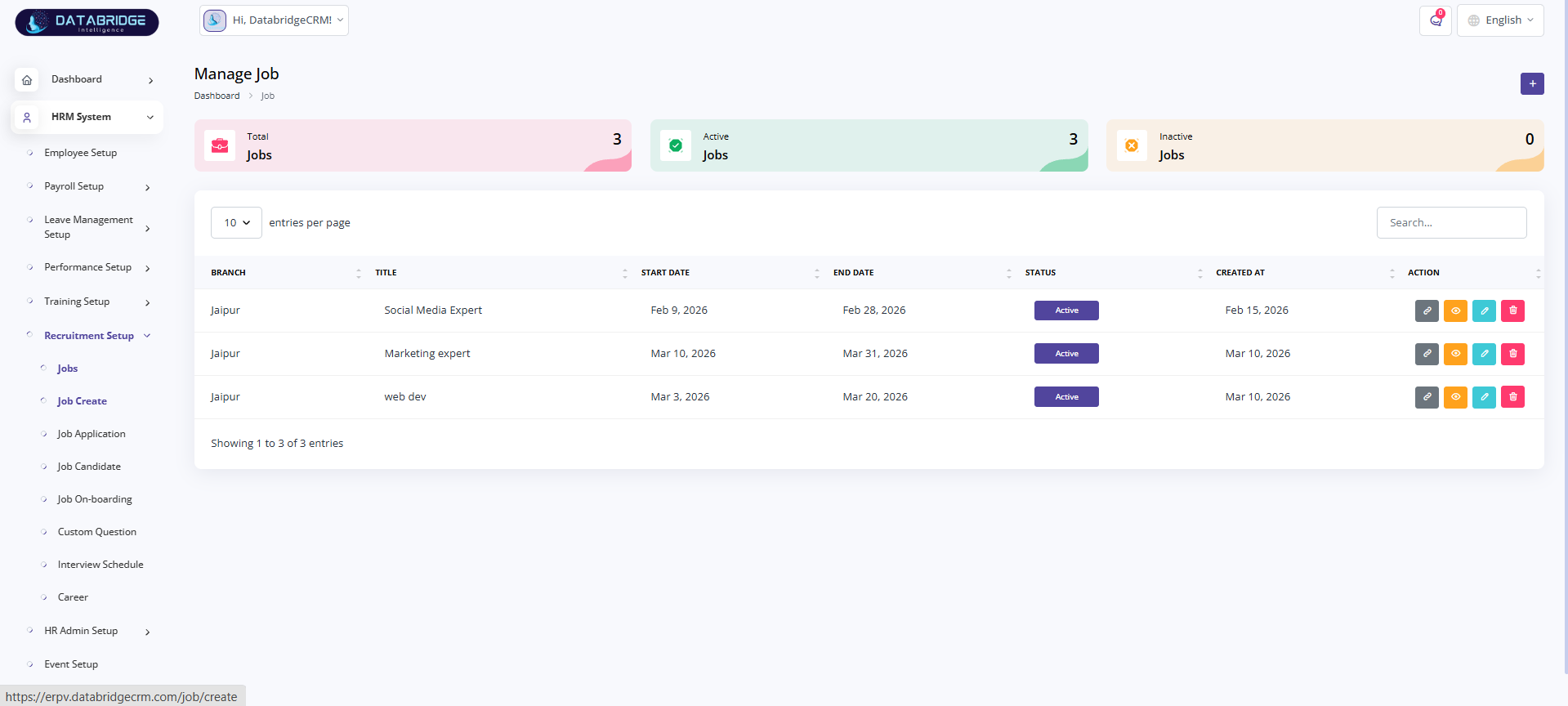
Manage Job:
This screen displays all created job postings along with their status such as active or inactive.
It provides a quick overview of total jobs and allows HR to manage, edit, or delete job listings efficiently.
Features:
-Job summary cards (Total, Active, Inactive)
-Job listing table with details
-Status indicator (Active/Inactive)
-Search and pagination
-Action buttons (view, edit, delete, copy link)
Functionality:
-Fetches all job records from the system
-Displays job details with filters
-Allows updating job status
-Enables editing and deletion of jobs
-Provides quick access to job links
This screen displays all created job postings along with their status such as active or inactive.
It provides a quick overview of total jobs and allows HR to manage, edit, or delete job listings efficiently.
Features:
-Job summary cards (Total, Active, Inactive)
-Job listing table with details
-Status indicator (Active/Inactive)
-Search and pagination
-Action buttons (view, edit, delete, copy link)
Functionality:
-Fetches all job records from the system
-Displays job details with filters
-Allows updating job status
-Enables editing and deletion of jobs
-Provides quick access to job links
1
HRM System
2
Recruitment Setup
3
Jobs
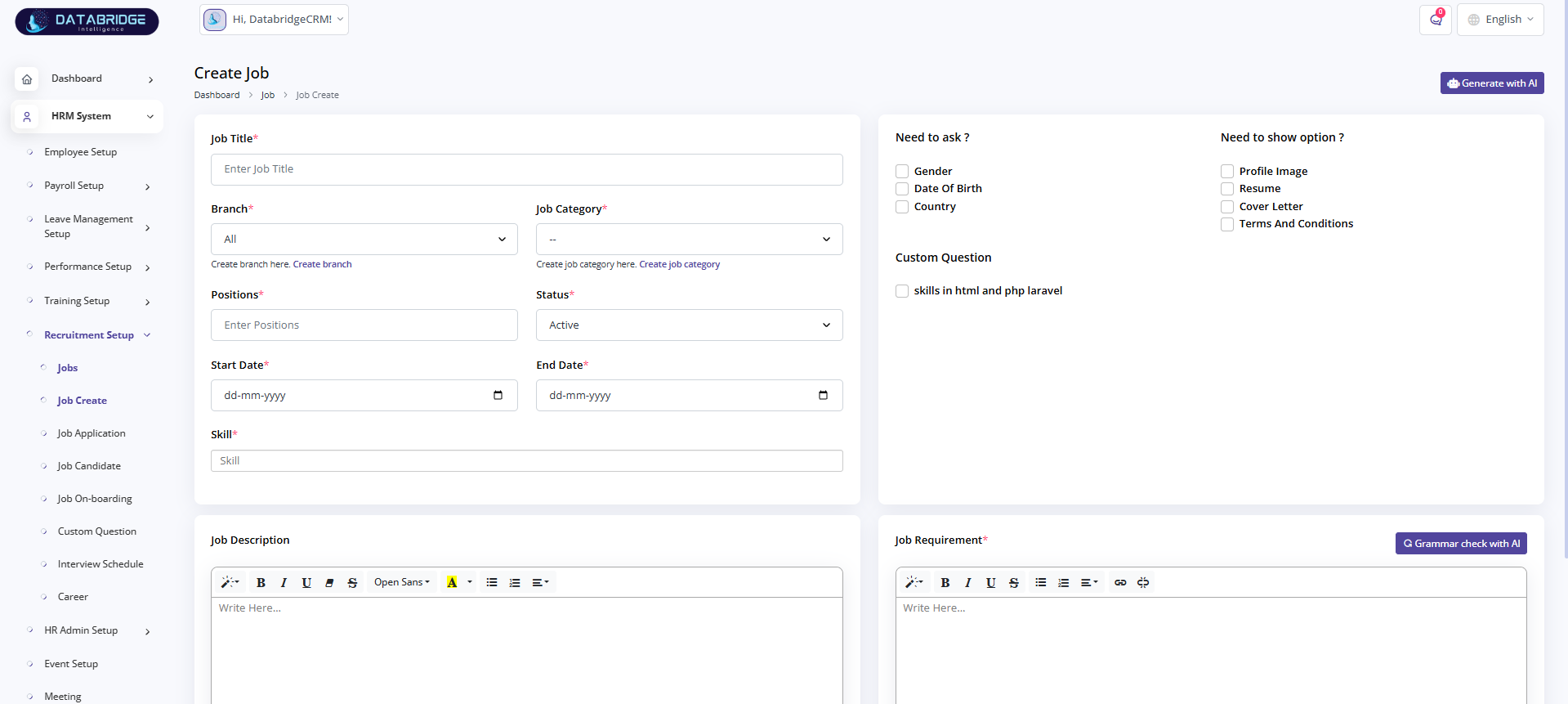
Create Job:
This screen allows HR to create new job openings with detailed requirements and customizable fields.
Features:
-Job title, branch, category
-Position and status
-Date selection
-Skill input
-Custom questions
-Rich text editor
Functionality:
-Captures job data
-Validates inputs
-Saves job posting
-Publishes job
This screen allows HR to create new job openings with detailed requirements and customizable fields.
Features:
-Job title, branch, category
-Position and status
-Date selection
-Skill input
-Custom questions
-Rich text editor
Functionality:
-Captures job data
-Validates inputs
-Saves job posting
-Publishes job
1
HRM System
2
Recruitment Setup
3
Jobs
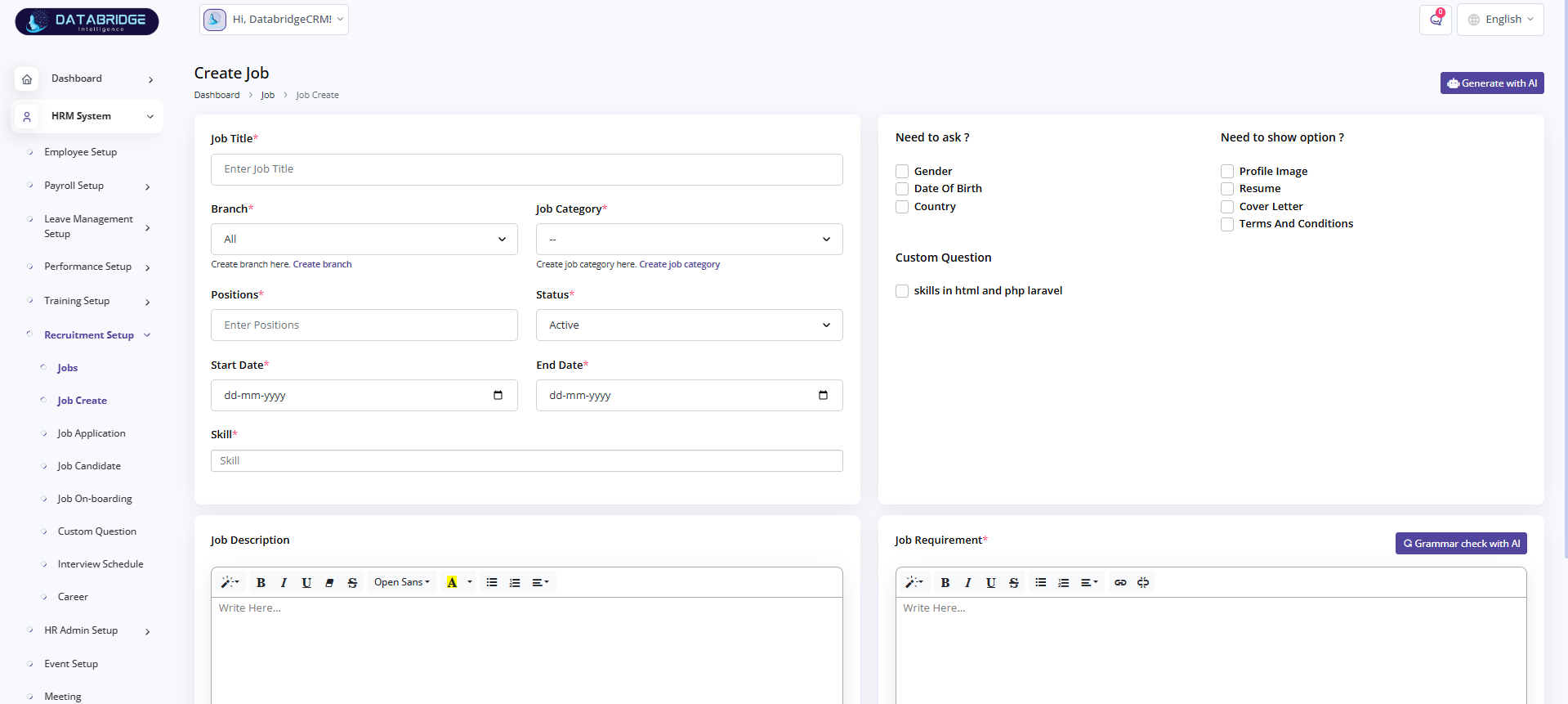
Create Job:
This screen allows HR to create new job openings with detailed requirements and customizable fields.
Features:
-Job title, branch, category
-Position and status
-Date selection
-Skill input
-Custom questions
-Rich text editor
Functionality:
-Captures job data
-Validates inputs
-Saves job posting
-Publishes job
This screen allows HR to create new job openings with detailed requirements and customizable fields.
Features:
-Job title, branch, category
-Position and status
-Date selection
-Skill input
-Custom questions
-Rich text editor
Functionality:
-Captures job data
-Validates inputs
-Saves job posting
-Publishes job
1
HRM System
2
Recruitment Setup
3
Job Create
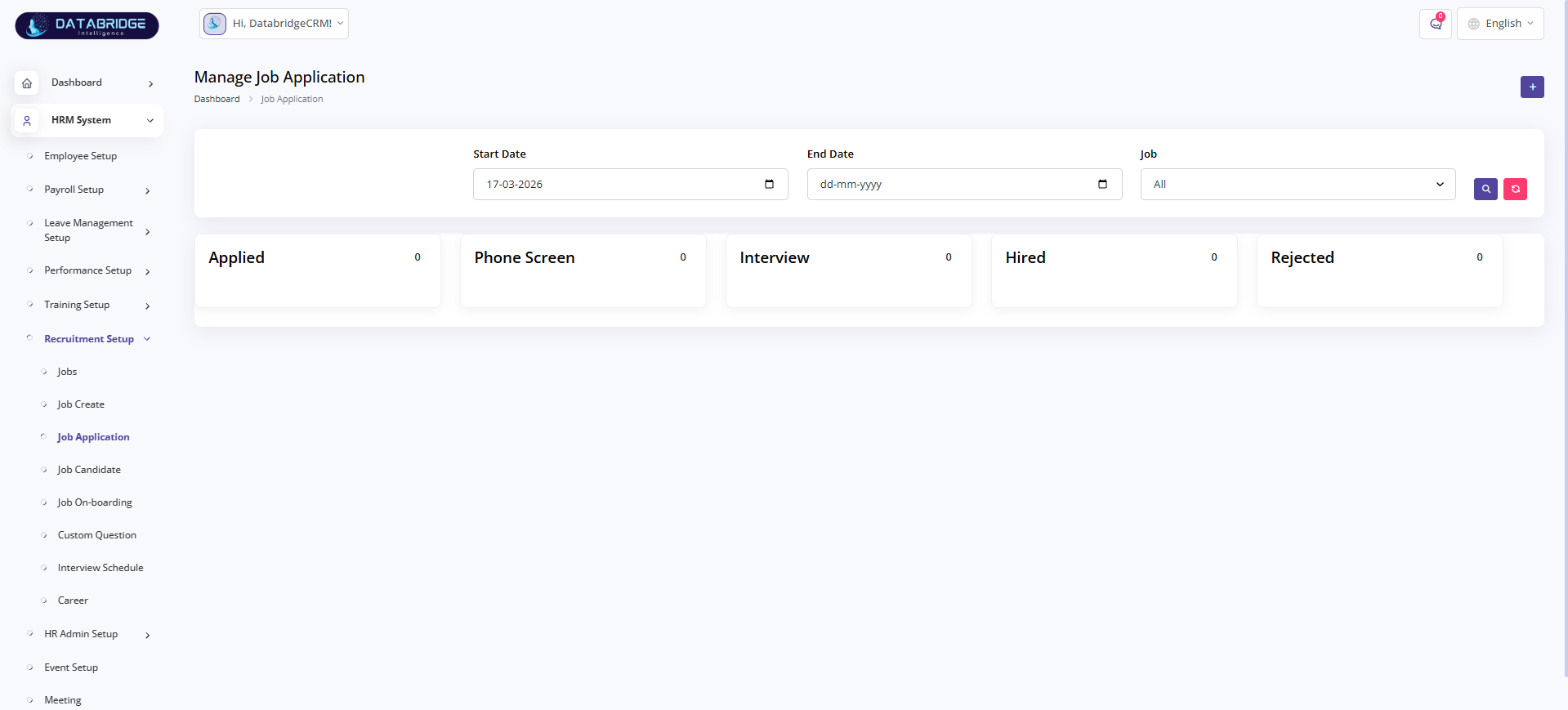
Manage Job Application:
This screen manages all job applications and tracks candidates across different hiring stages.
Features:
-Stage-wise tracking (Applied, Interview, Hired, Rejected)
-Filters (date, job)
-Status summary cards
-Candidate pipeline
Functionality:
-Fetches application data
-Categorizes candidates
-Updates recruitment stages
-Filters and displays results
This screen manages all job applications and tracks candidates across different hiring stages.
Features:
-Stage-wise tracking (Applied, Interview, Hired, Rejected)
-Filters (date, job)
-Status summary cards
-Candidate pipeline
Functionality:
-Fetches application data
-Categorizes candidates
-Updates recruitment stages
-Filters and displays results
1
HRM System
2
Recruitment Setup
3
Job Application
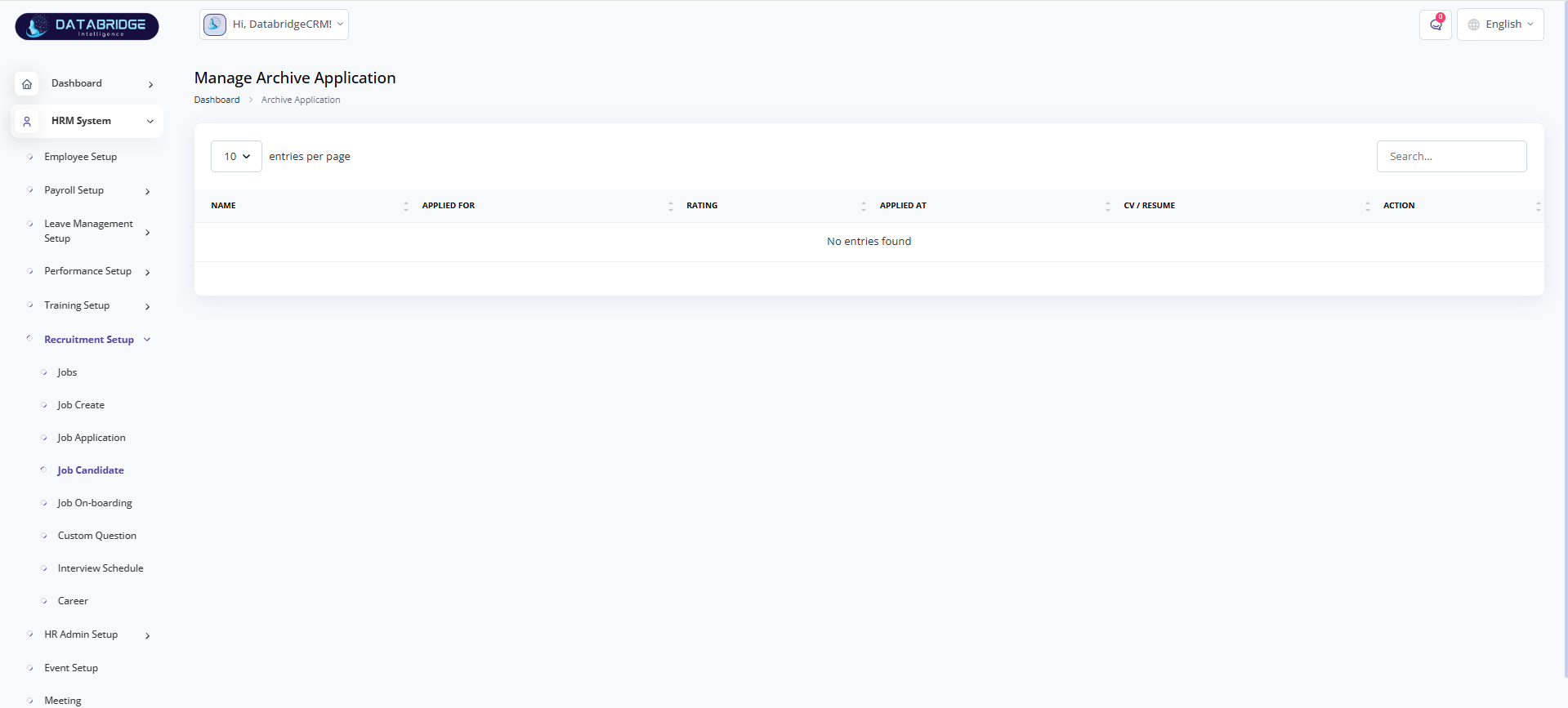
Manage Archive Application:
This screen stores rejected or inactive applications for record-keeping and future reference.
Features:
-Archived candidate list
-Resume access
-Search and pagination
-Candidate rating
Functionality:
-Fetches archived data
-Displays candidate details
-Maintains historical records
This screen stores rejected or inactive applications for record-keeping and future reference.
Features:
-Archived candidate list
-Resume access
-Search and pagination
-Candidate rating
Functionality:
-Fetches archived data
-Displays candidate details
-Maintains historical records
1
HRM System
2
Recruitment Setup
3
Job Candidate
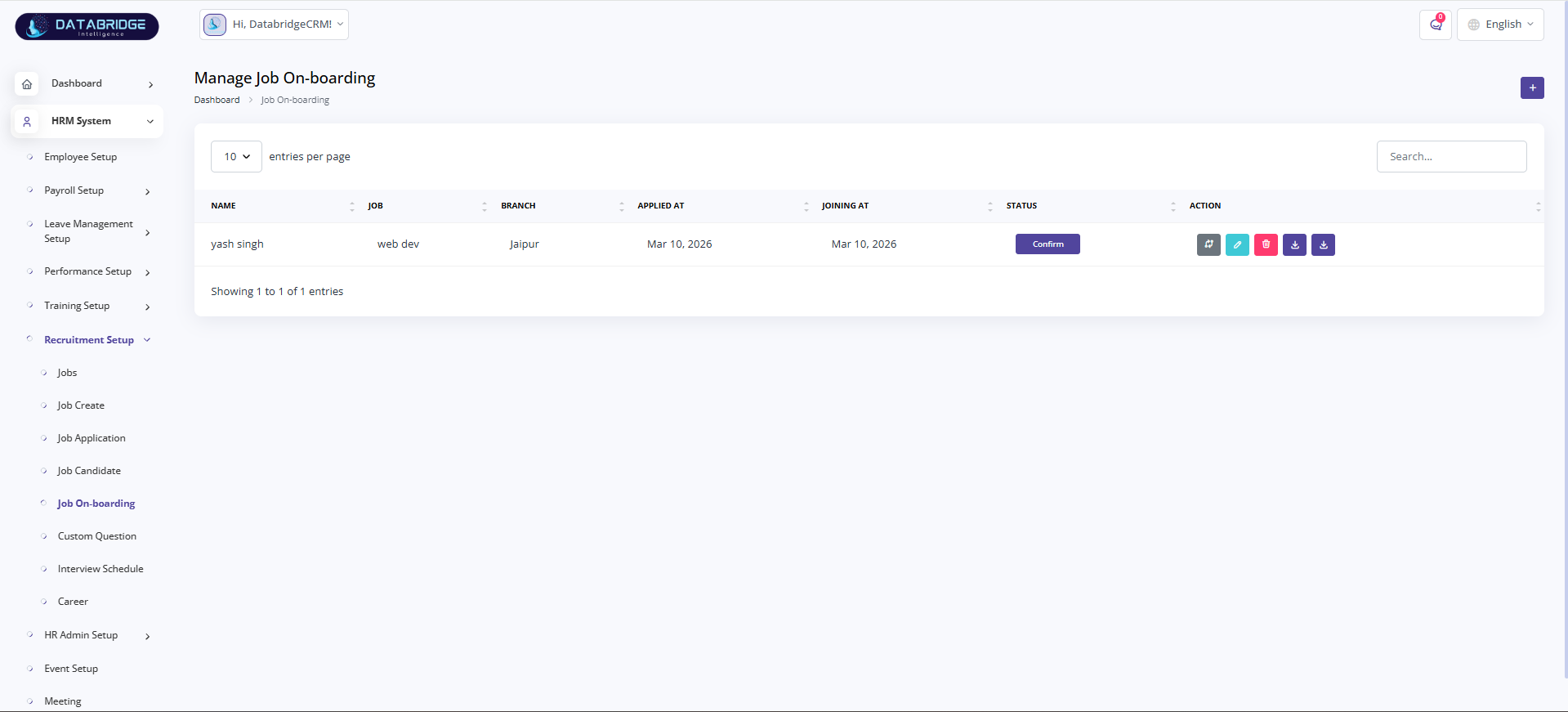
Manage Job On-boarding:
This screen manages selected candidates and tracks their onboarding process within the organization.
Features:
-Candidate onboarding list
-Joining date tracking
-Status confirmation
-Action buttons
Functionality:
-Fetches selected candidates
-Updates onboarding status
-Confirms joining process
-Stores onboarding data
This screen manages selected candidates and tracks their onboarding process within the organization.
Features:
-Candidate onboarding list
-Joining date tracking
-Status confirmation
-Action buttons
Functionality:
-Fetches selected candidates
-Updates onboarding status
-Confirms joining process
-Stores onboarding data
1
HRM System
2
Recruitment Setup
3
Job On-boarding
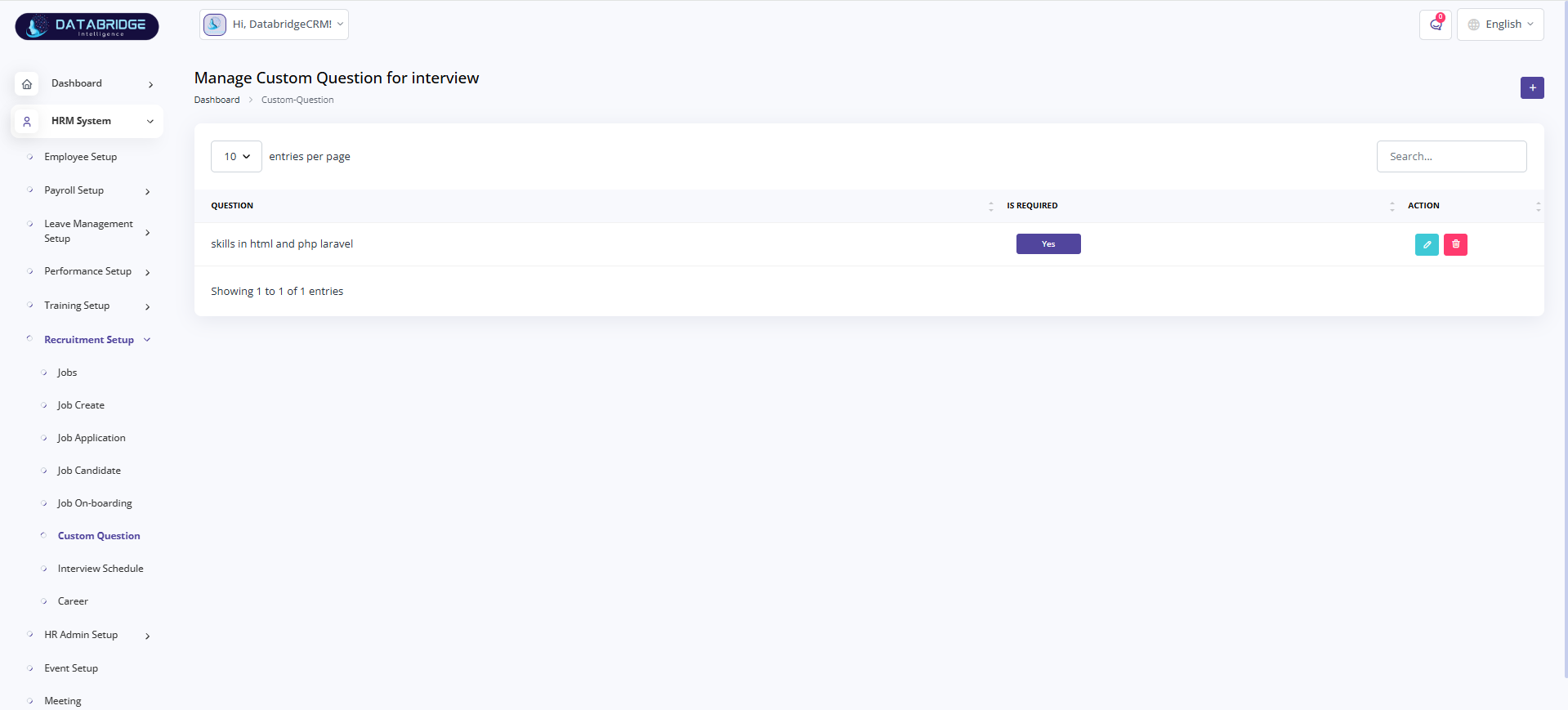
Manage Custom Questions:
This screen allows HR to manage interview questions used during recruitment.
Features:
-Question list
-Required toggle
-Add/edit/delete options
-Search functionality
Functionality:
-Stores custom questions
-Assigns questions to jobs
-Updates requirement status
-Manages question records
This screen allows HR to manage interview questions used during recruitment.
Features:
-Question list
-Required toggle
-Add/edit/delete options
-Search functionality
Functionality:
-Stores custom questions
-Assigns questions to jobs
-Updates requirement status
-Manages question records
1
HRM System
2
Recruitment Setup
3
Custom Questions
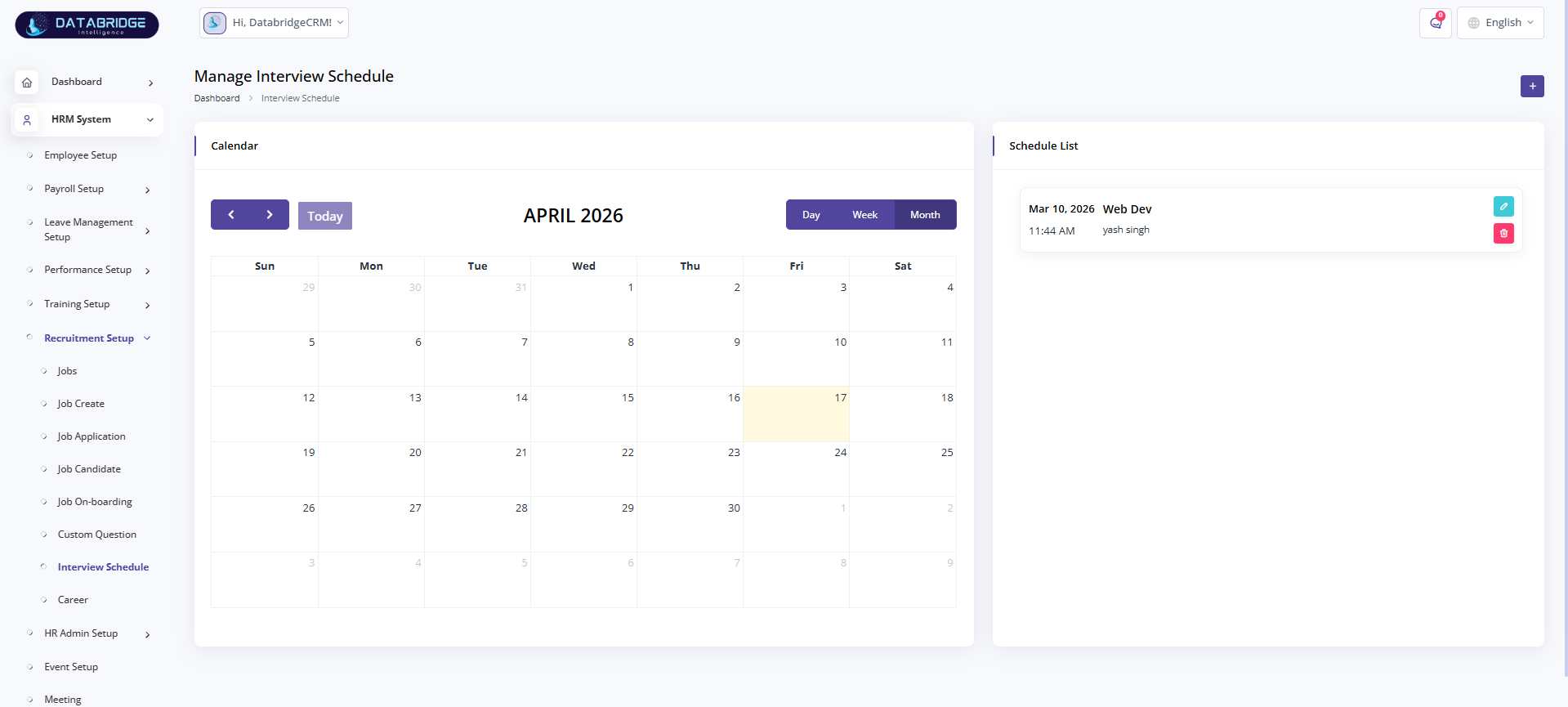
Manage Interview Schedule:
This screen helps HR schedule and manage interviews using a calendar interface.
Features:
-Calendar view (Day/Week/Month)
-Interview schedule list
-Date and time tracking
-Edit/delete options
Functionality:
-Fetches interview data
-Displays calendar events
-Schedules interviews
-Updates and deletes schedules
This screen helps HR schedule and manage interviews using a calendar interface.
Features:
-Calendar view (Day/Week/Month)
-Interview schedule list
-Date and time tracking
-Edit/delete options
Functionality:
-Fetches interview data
-Displays calendar events
-Schedules interviews
-Updates and deletes schedules
1
HRM System
2
Recruitment Setup
3
Interview
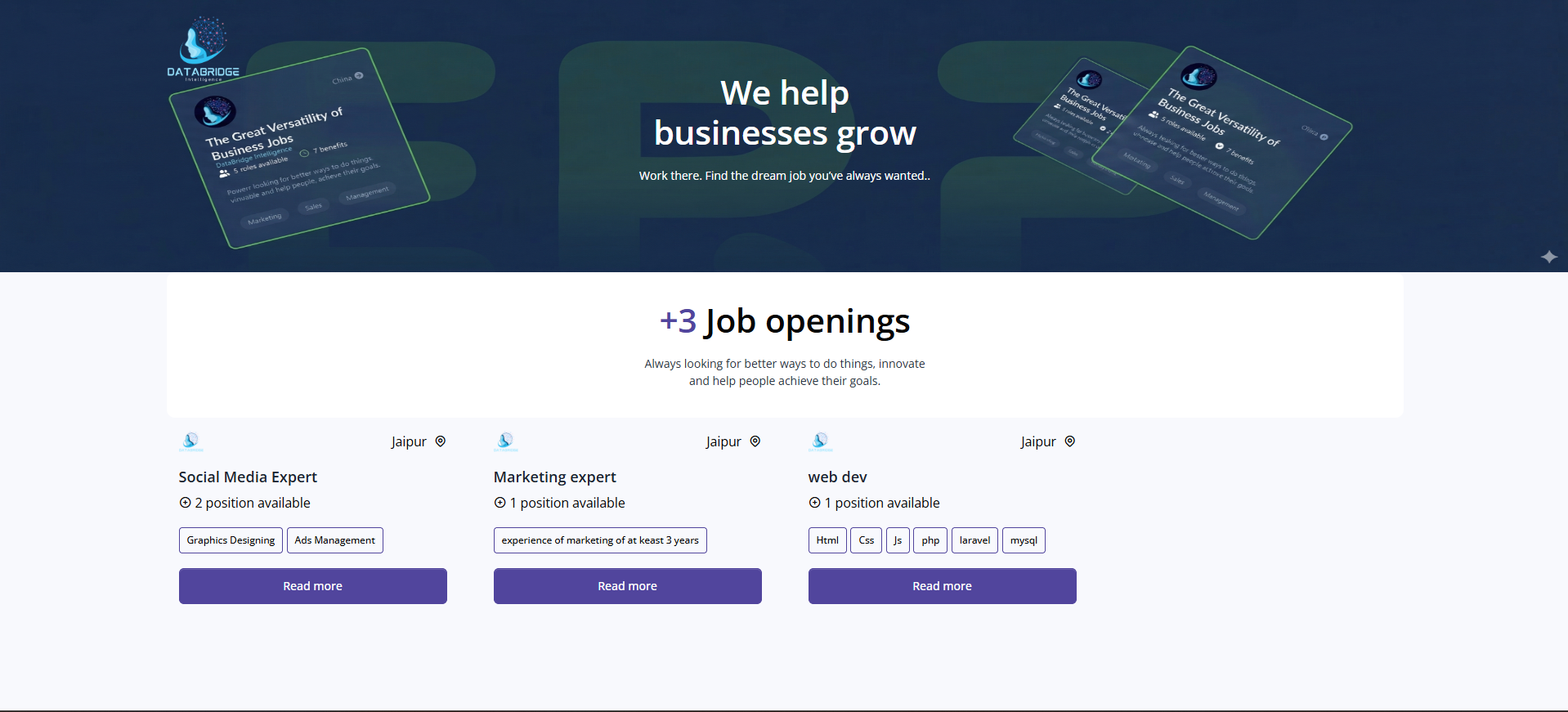
Career Page (Job Listings UI):
This is the public interface where job openings are displayed to candidates.
It allows users to browse available jobs and apply directly.
Features:
-Job cards with details
-Location and position info
-Skills/tags display
-“Read More” button
-Job count display
Functionality:
-Fetches active jobs
-Displays listings dynamically
-Redirects to job details
-Enables candidate applications
This is the public interface where job openings are displayed to candidates.
It allows users to browse available jobs and apply directly.
Features:
-Job cards with details
-Location and position info
-Skills/tags display
-“Read More” button
-Job count display
Functionality:
-Fetches active jobs
-Displays listings dynamically
-Redirects to job details
-Enables candidate applications
1
HRM System
2
Recruitment Setup
3
Career
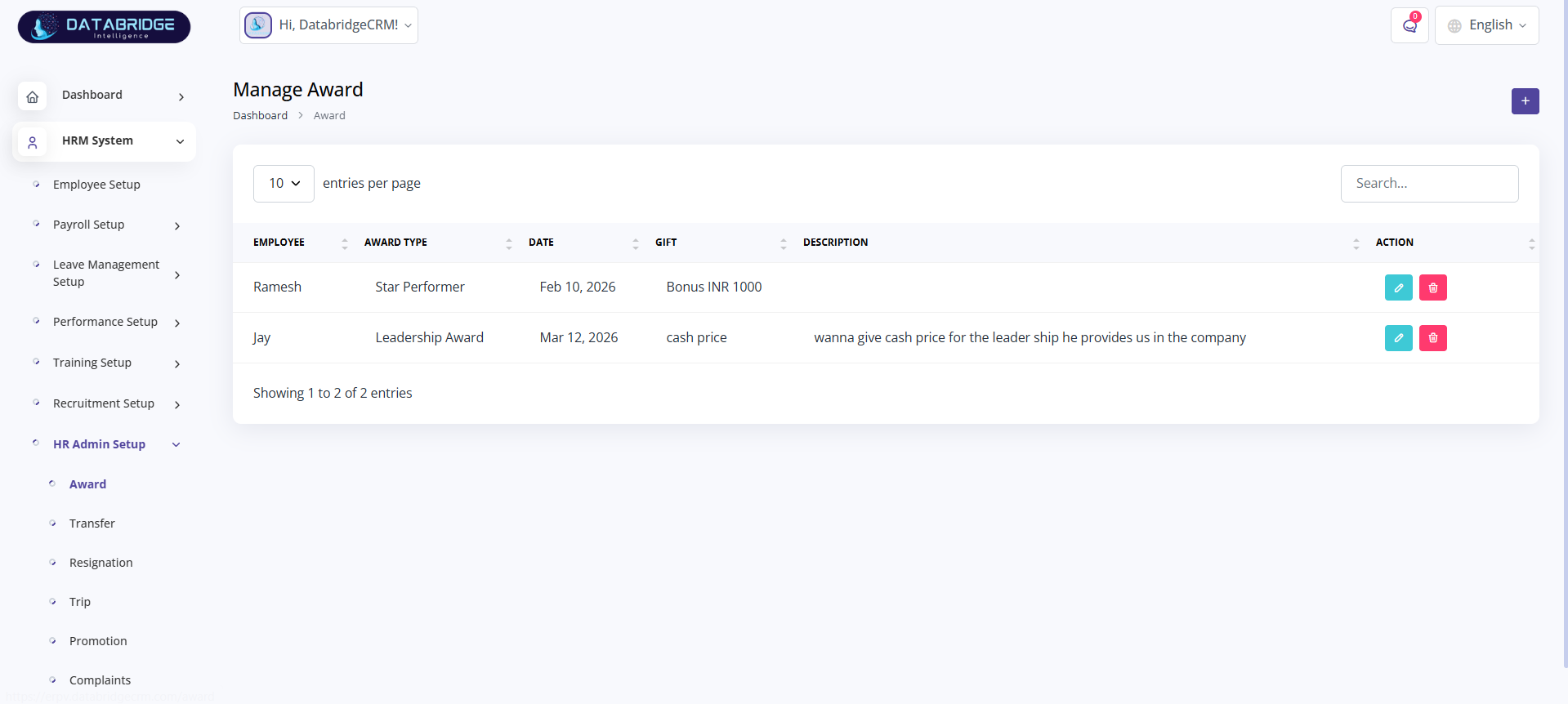
Manage Award:
This screen is used to manage employee awards and recognition within the organization.
It helps HR track achievements, bonuses, and appreciation given to employees.
Features:
-Employee award listing
-Award type and date tracking
-Gift/bonus details
-Description field
-Edit and delete actions
-Search and pagination
Functionality:
-Stores award details for employees
-Displays recognition records
-Allows updating and deleting awards
-Maintains employee performance history
This screen is used to manage employee awards and recognition within the organization.
It helps HR track achievements, bonuses, and appreciation given to employees.
Features:
-Employee award listing
-Award type and date tracking
-Gift/bonus details
-Description field
-Edit and delete actions
-Search and pagination
Functionality:
-Stores award details for employees
-Displays recognition records
-Allows updating and deleting awards
-Maintains employee performance history
1
HRM System
2
HRM Admin
3
Award
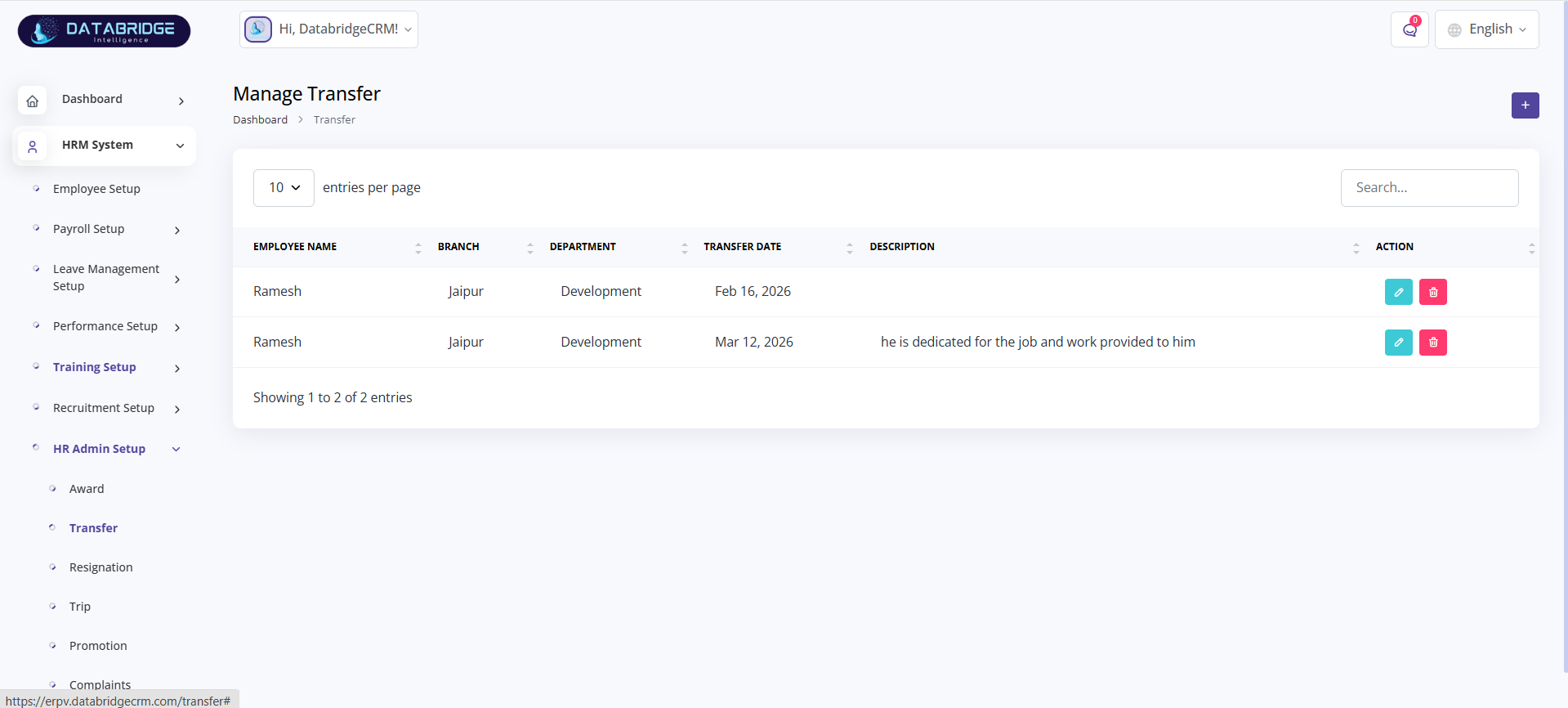
Manage Transfer:
This screen manages employee transfers between branches or departments.
It ensures proper tracking of employee movement within the organization.
Features:
-Employee transfer list
-Branch and department details
-Transfer date tracking
-Description field
-Edit/delete actions
Functionality:
-Records employee transfers
-Updates department/branch details
-Maintains transfer history
-Allows modifications
This screen manages employee transfers between branches or departments.
It ensures proper tracking of employee movement within the organization.
Features:
-Employee transfer list
-Branch and department details
-Transfer date tracking
-Description field
-Edit/delete actions
Functionality:
-Records employee transfers
-Updates department/branch details
-Maintains transfer history
-Allows modifications
1
HRM System
2
HRM Admin
3
Transfer
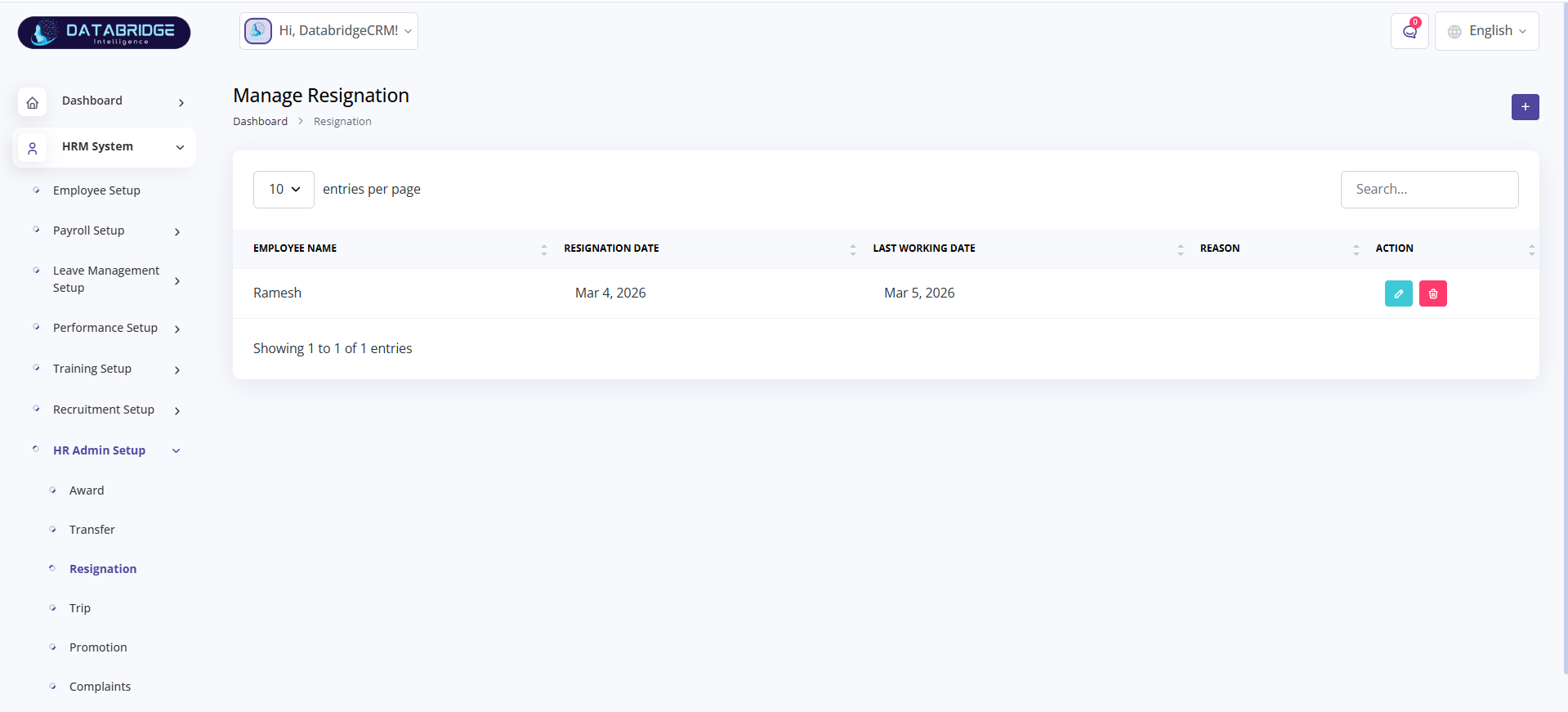
Manage Resignation:
This screen handles employee resignation records and tracks exit details.
It helps HR manage employee departures systematically.
Features:
-Employee resignation list
-Resignation and last working date
-Search functionality
-Edit/delete actions
Functionality:
-Stores resignation details
-Tracks exit timeline
-Updates resignation records
-Maintains employee exit history
This screen handles employee resignation records and tracks exit details.
It helps HR manage employee departures systematically.
Features:
-Employee resignation list
-Resignation and last working date
-Search functionality
-Edit/delete actions
Functionality:
-Stores resignation details
-Tracks exit timeline
-Updates resignation records
-Maintains employee exit history
1
HRM System
2
HRM Admin
3
Resignation

Manage Trip:
This screen manages official employee trips and travel details.
It tracks travel duration, purpose, and location.
Features:
-Employee trip records
-Start and end dates
-Purpose of trip
-Location (country/city)
-Edit/delete actions
Functionality:
-Stores trip details
-Tracks travel activities
-Updates trip records
-Maintains history
This screen manages official employee trips and travel details.
It tracks travel duration, purpose, and location.
Features:
-Employee trip records
-Start and end dates
-Purpose of trip
-Location (country/city)
-Edit/delete actions
Functionality:
-Stores trip details
-Tracks travel activities
-Updates trip records
-Maintains history
1
HRM System
2
HRM Admin
3
Trip
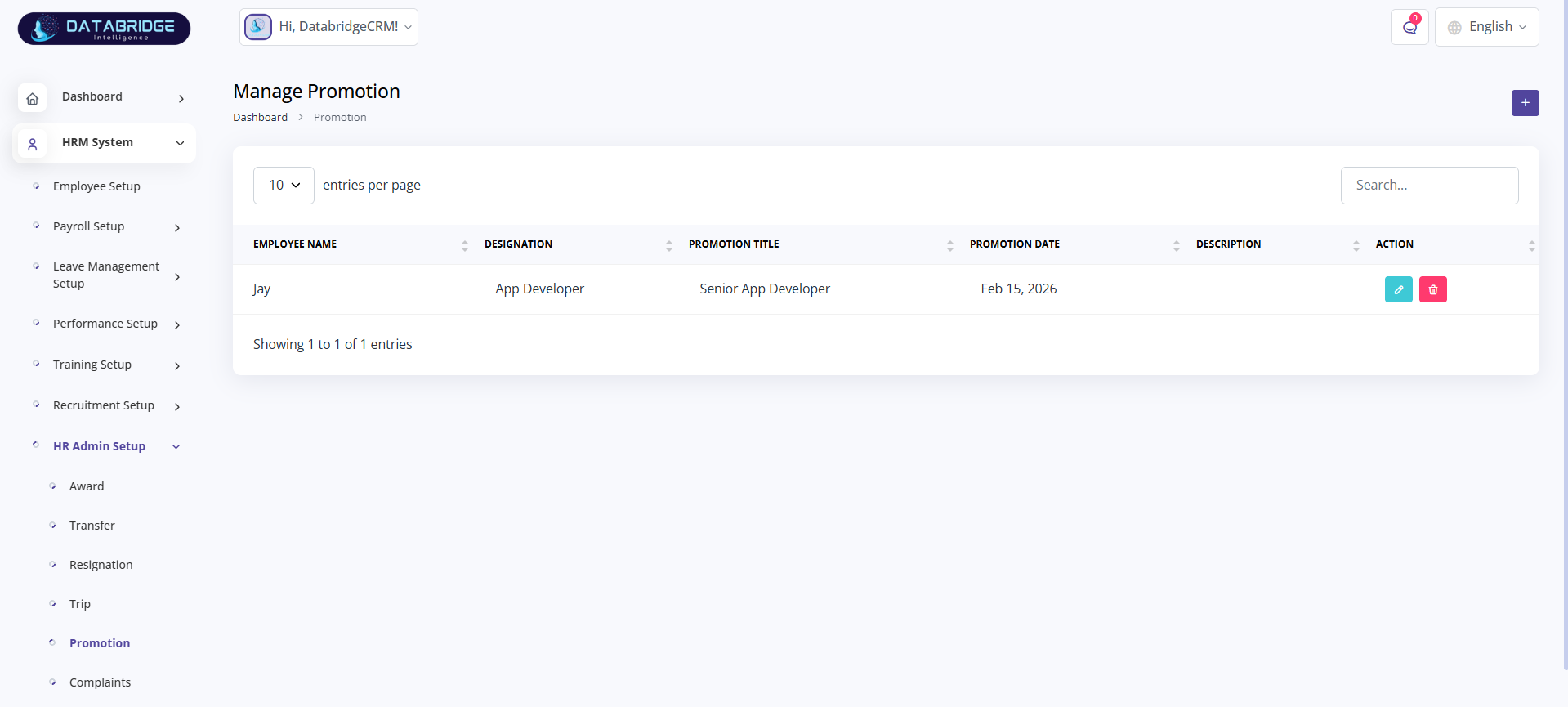
Manage Promotion:
This screen manages employee promotions and career growth within the organization.
It tracks designation changes and promotion details.
Features:
-Promotion records
-Old and new designation
-Promotion date
-Description field
-Edit/delete options
Functionality:
-Stores promotion details
-Updates employee designation
-Tracks career progression
-Maintains promotion history
This screen manages employee promotions and career growth within the organization.
It tracks designation changes and promotion details.
Features:
-Promotion records
-Old and new designation
-Promotion date
-Description field
-Edit/delete options
Functionality:
-Stores promotion details
-Updates employee designation
-Tracks career progression
-Maintains promotion history
1
HRM System
2
HRM Admin
3
Promotion
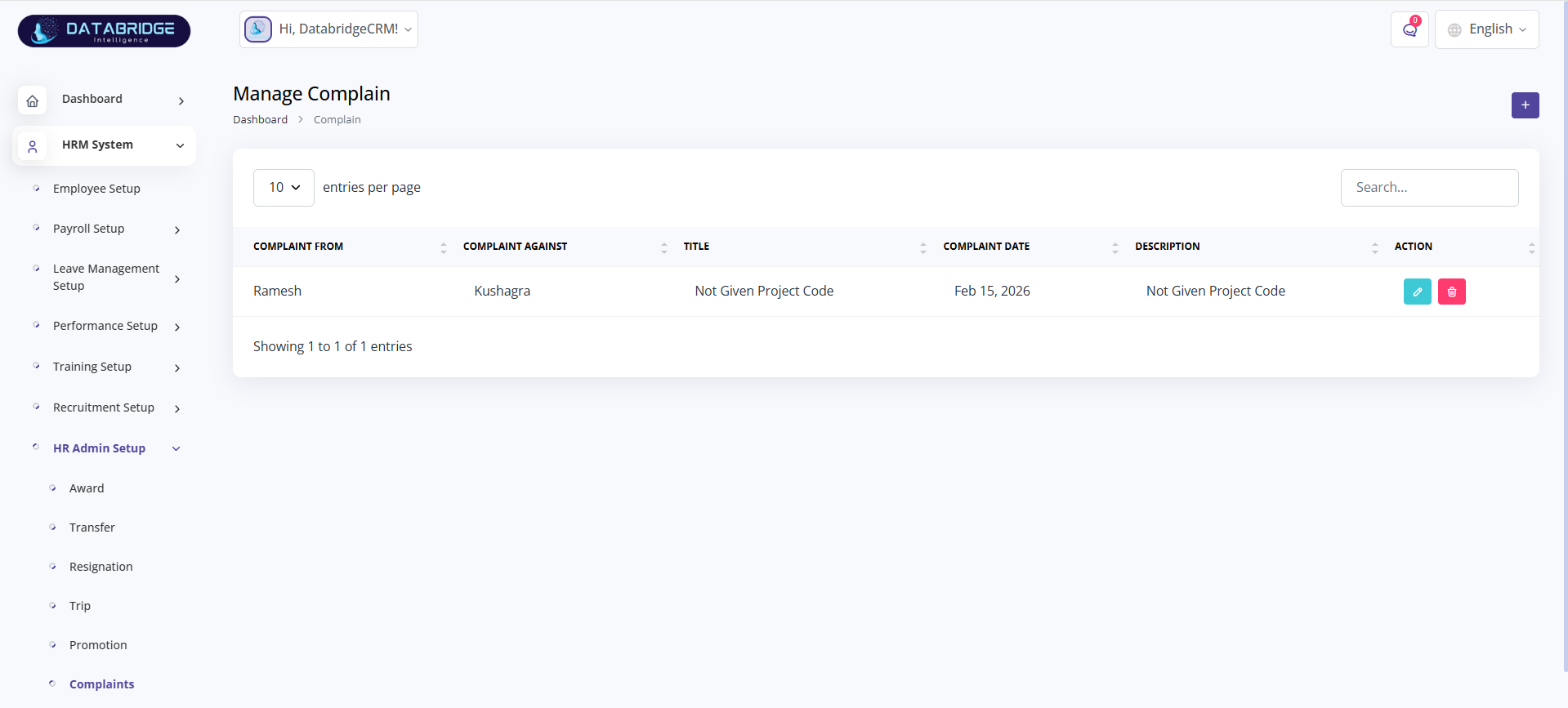
Manage Complaints:
This screen is used to manage employee complaints and grievances within the organization.
It ensures transparency and proper issue tracking.
Features:
-Complaint list
-Complaint from/to tracking
-Title and description
-Complaint date
-Edit/delete actions
Functionality:
-Stores complaint records
-Tracks issues between employees
-Updates complaint status
-Maintains grievance history
This screen is used to manage employee complaints and grievances within the organization.
It ensures transparency and proper issue tracking.
Features:
-Complaint list
-Complaint from/to tracking
-Title and description
-Complaint date
-Edit/delete actions
Functionality:
-Stores complaint records
-Tracks issues between employees
-Updates complaint status
-Maintains grievance history
1
HRM System
2
HRM Admin
3
Complaints
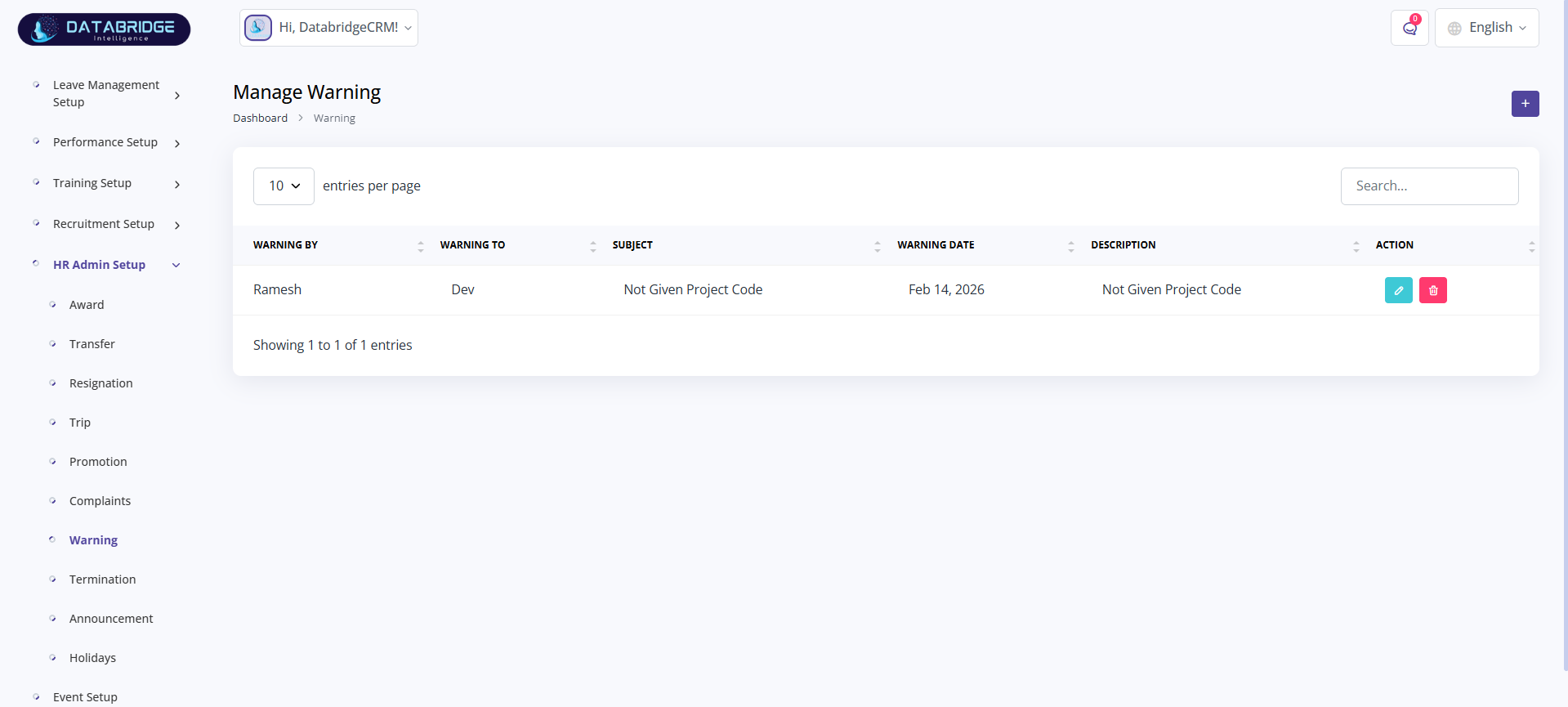
Manage Warning:
This screen manages warnings issued to employees for disciplinary reasons.
It helps maintain workplace discipline and documentation.
Features:
-Warning records
-Warning issued by/to
-Subject and description
-Warning date
-Edit/delete options
Functionality:
-Stores warning details
-Tracks disciplinary actions
-Updates warning records
-Maintains employee conduct history
This screen manages warnings issued to employees for disciplinary reasons.
It helps maintain workplace discipline and documentation.
Features:
-Warning records
-Warning issued by/to
-Subject and description
-Warning date
-Edit/delete options
Functionality:
-Stores warning details
-Tracks disciplinary actions
-Updates warning records
-Maintains employee conduct history
1
HRM System
2
HRM Admin
3
Warning
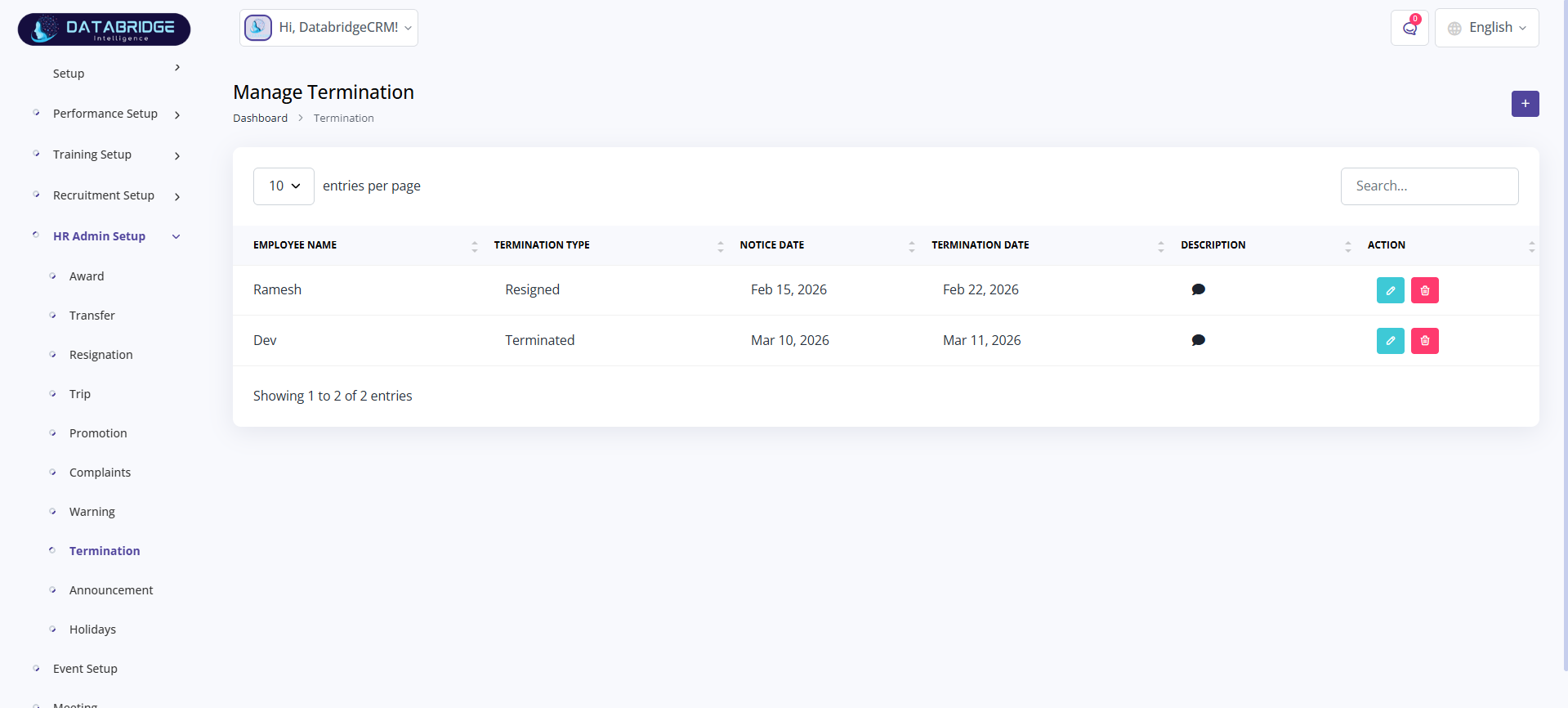
Manage Termination:
This screen manages employee termination records and exit processing.
It tracks termination type, notice period, and final exit details.
Features:
-Termination records
-Termination type
-Notice date and termination date
-Description field
-Edit/delete actions
Functionality:
-Stores termination data
-Tracks employee exit process
-Updates termination details
-Maintains exit records
This screen manages employee termination records and exit processing.
It tracks termination type, notice period, and final exit details.
Features:
-Termination records
-Termination type
-Notice date and termination date
-Description field
-Edit/delete actions
Functionality:
-Stores termination data
-Tracks employee exit process
-Updates termination details
-Maintains exit records
1
HRM System
2
HRM Admin
3
Termination
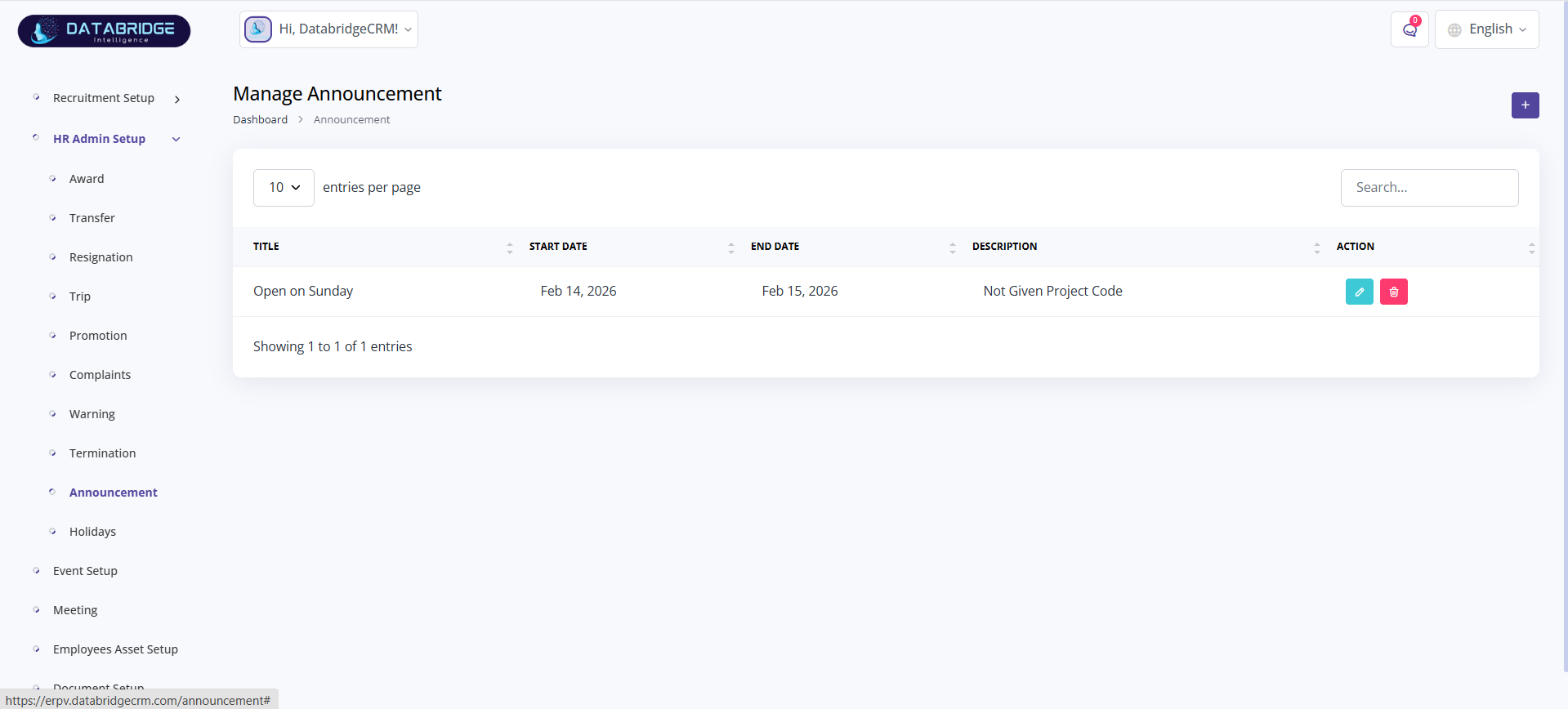
Manage Announcement:
This screen is used to create and manage company-wide announcements.
It helps communicate important updates to employees.
Features:
-Announcement list
-Title and description
-Start and end date
-Edit/delete options
Functionality:
-Stores announcements
-Displays active announcements
-Updates or removes announcements
This screen is used to create and manage company-wide announcements.
It helps communicate important updates to employees.
Features:
-Announcement list
-Title and description
-Start and end date
-Edit/delete options
Functionality:
-Stores announcements
-Displays active announcements
-Updates or removes announcements
1
HRM System
2
HRM Admin
3
Announcement
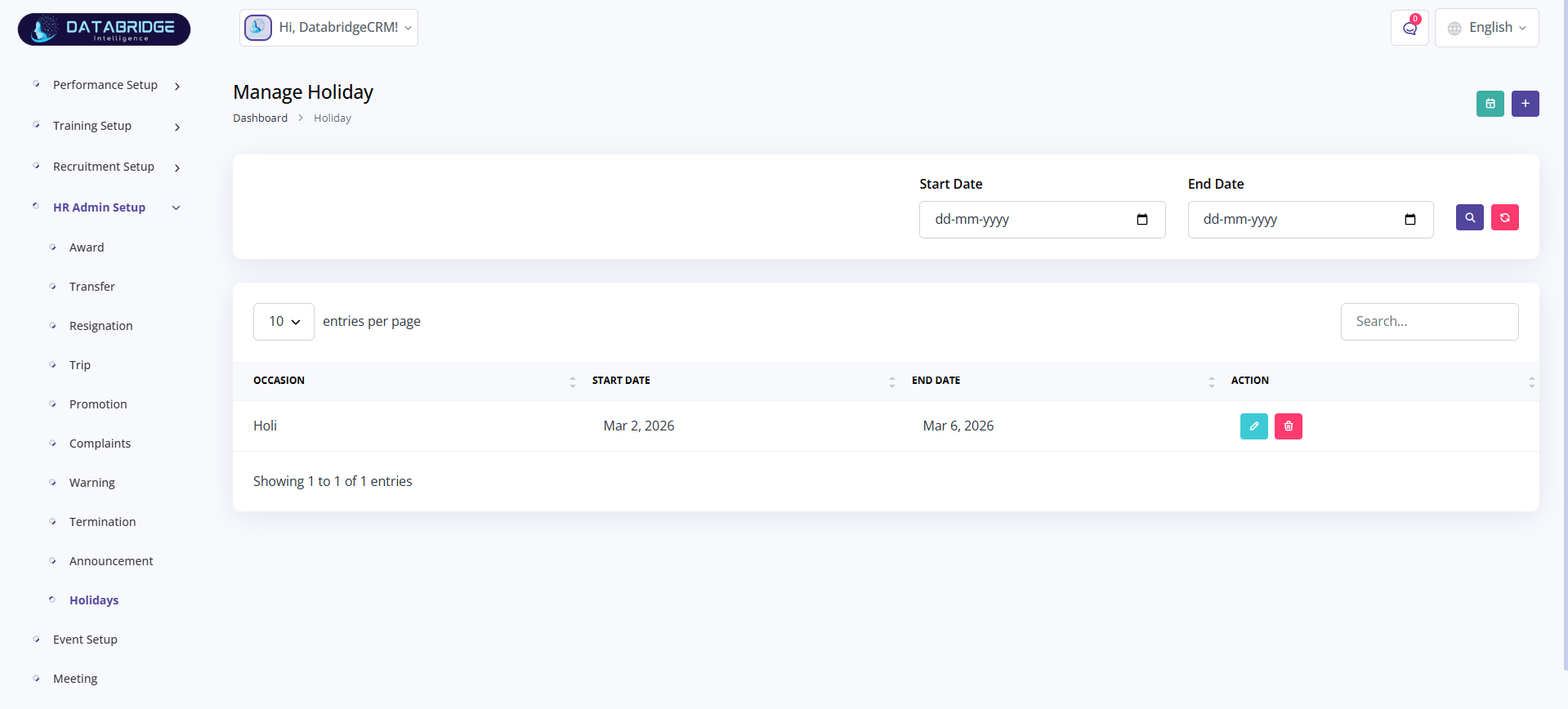
Manage Holiday:
This screen manages company holidays and leave schedules.
It helps employees stay informed about official holidays.
Features:
-Holiday list
-Occasion name
-Start and end date
-Date filter
-Edit/delete options
Functionality:
-Stores holiday data
-Filters holidays by date
-Displays holiday schedule
-Updates records
This screen manages company holidays and leave schedules.
It helps employees stay informed about official holidays.
Features:
-Holiday list
-Occasion name
-Start and end date
-Date filter
-Edit/delete options
Functionality:
-Stores holiday data
-Filters holidays by date
-Displays holiday schedule
-Updates records
1
HRM System
2
HRM Admin
3
Holiday
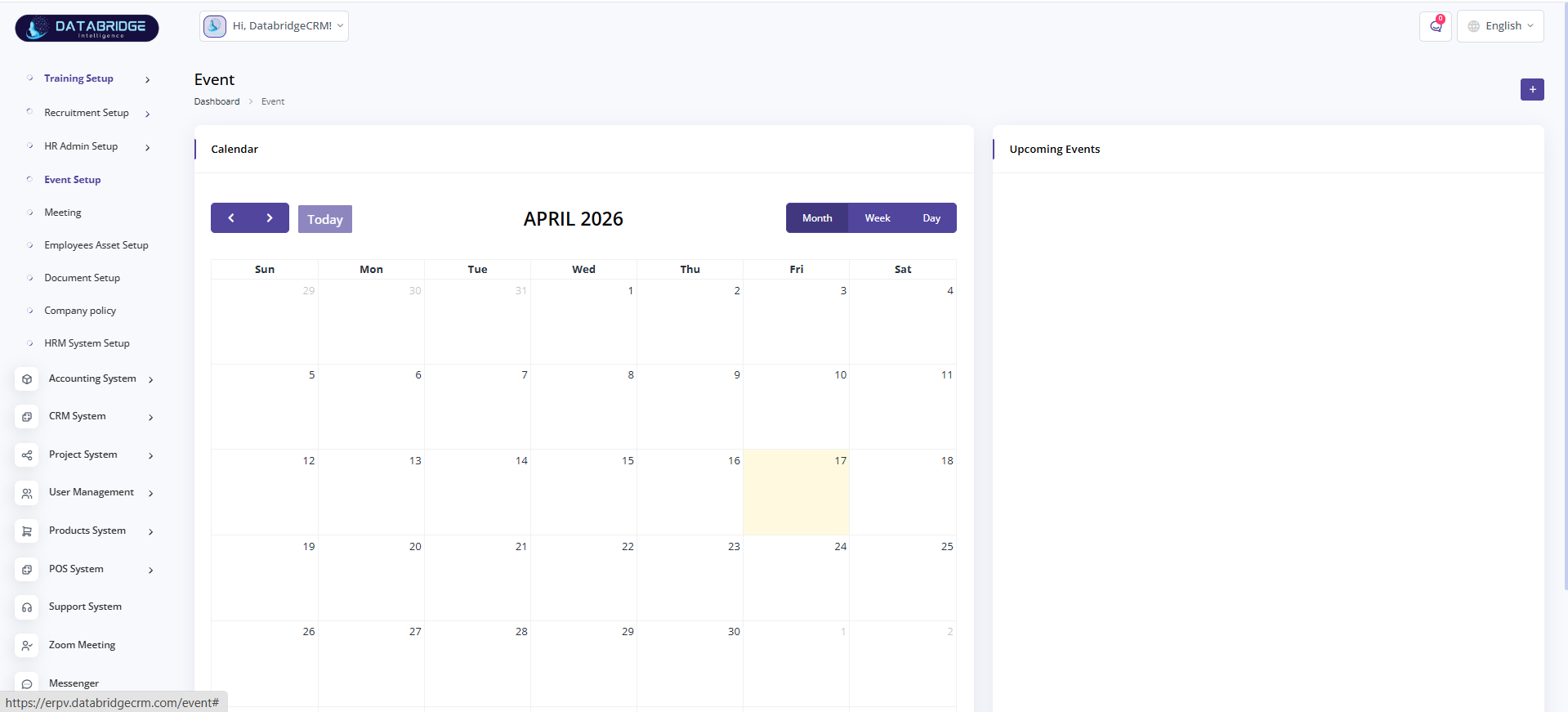
Event (Calendar):
This screen provides a calendar view to manage and track company events.
It helps users visualize events on specific dates and view upcoming activities.
Features
Calendar view (Month / Week / Day)
Navigation (Previous, Next, Today)
Upcoming events panel
Add event button
Date highlighting
Functionality
Displays events on selected dates
Allows switching between calendar views
Highlights current and selected dates
Shows upcoming events in side panel
This screen provides a calendar view to manage and track company events.
It helps users visualize events on specific dates and view upcoming activities.
Features
Calendar view (Month / Week / Day)
Navigation (Previous, Next, Today)
Upcoming events panel
Add event button
Date highlighting
Functionality
Displays events on selected dates
Allows switching between calendar views
Highlights current and selected dates
Shows upcoming events in side panel
1
HRM System
2
Event Setup
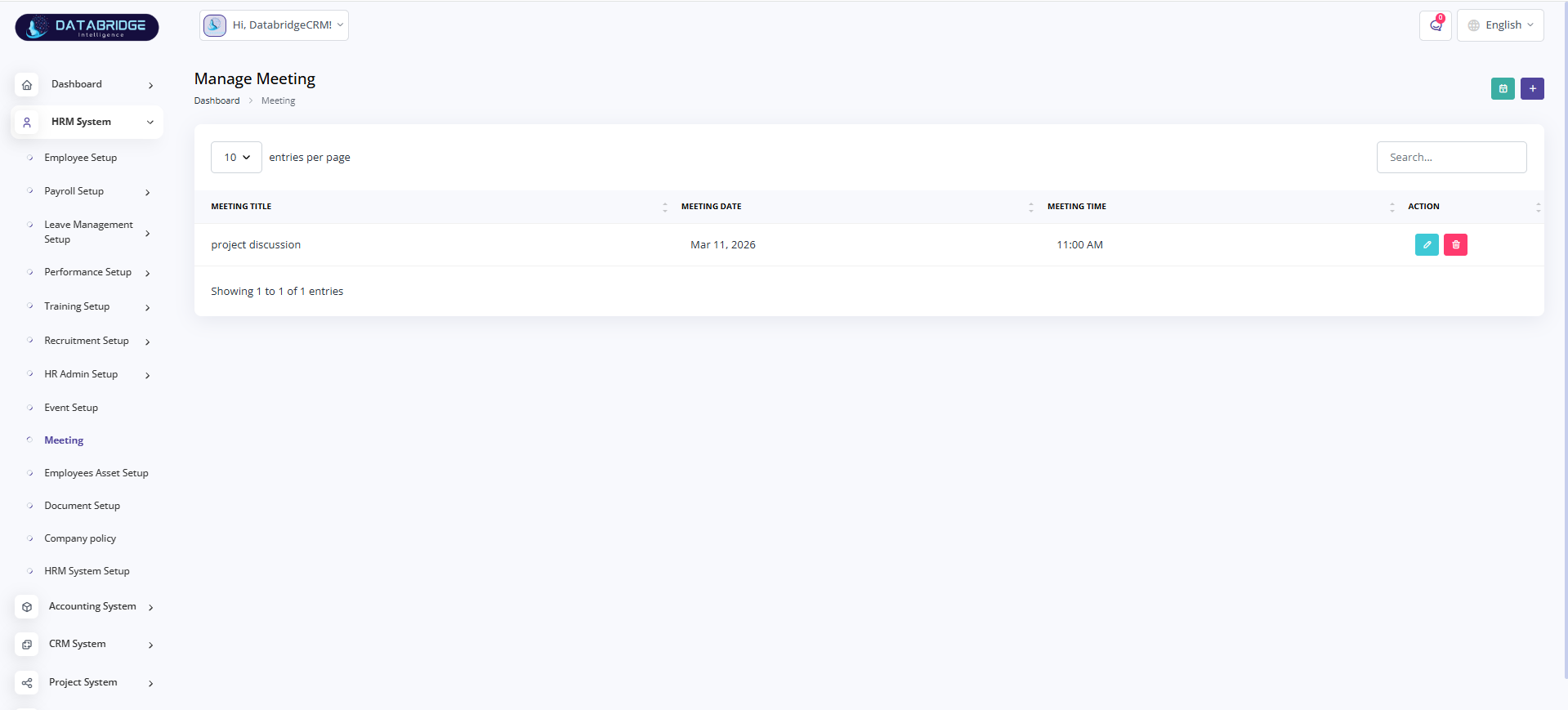
Manage Meeting:
This screen is used to manage internal meetings within the organization.
It tracks meeting schedules, timings, and discussion topics.
Features:
-Meeting list
-Meeting title, date, and time
-Search functionality
-Edit/delete actions
-Add meeting option
Functionality:
-Stores meeting details
-Displays scheduled meetings
-Updates or deletes meetings
-Maintains meeting history
This screen is used to manage internal meetings within the organization.
It tracks meeting schedules, timings, and discussion topics.
Features:
-Meeting list
-Meeting title, date, and time
-Search functionality
-Edit/delete actions
-Add meeting option
Functionality:
-Stores meeting details
-Displays scheduled meetings
-Updates or deletes meetings
-Maintains meeting history
1
HRM System
2
Meeting
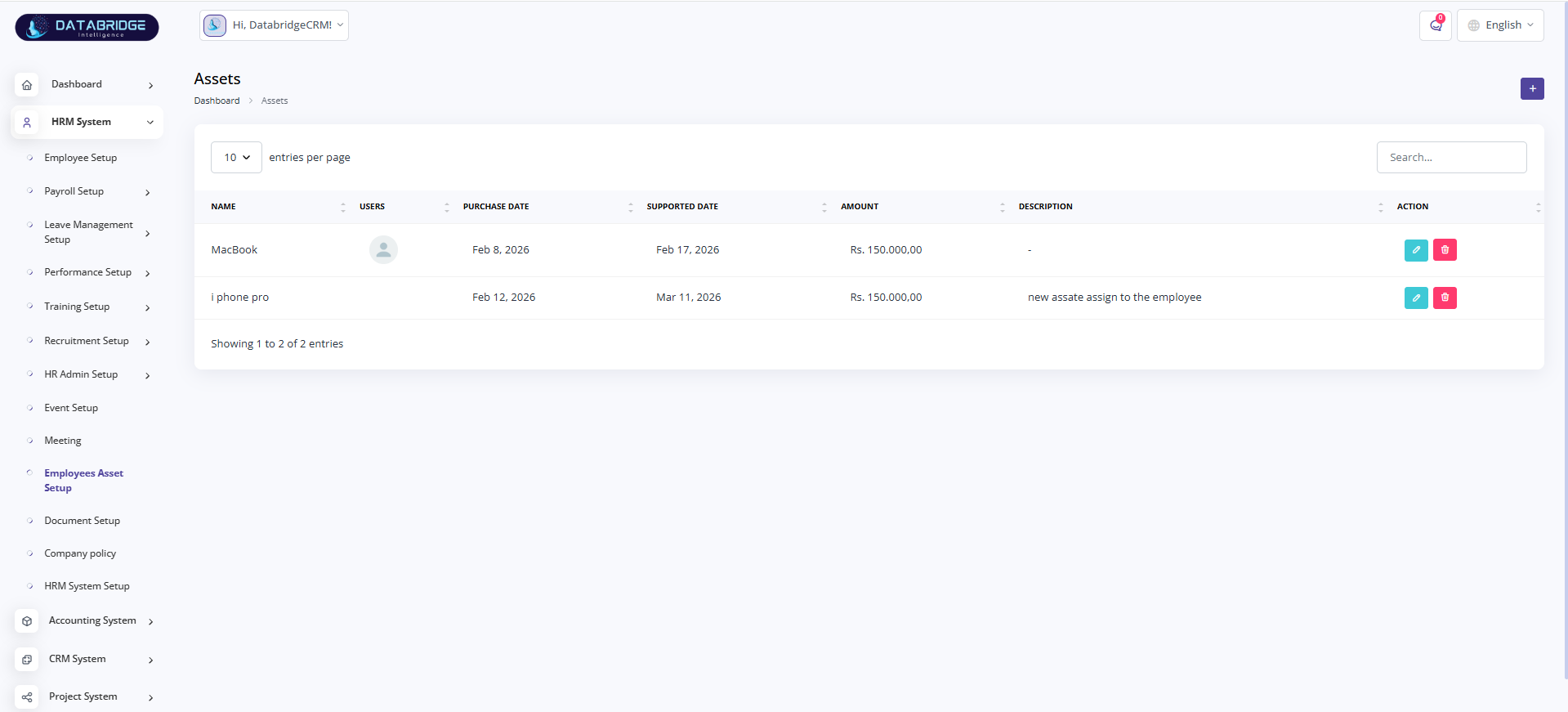
Employees Asset Setup (Assets):
This screen manages company assets assigned to employees such as laptops, phones, etc.
It helps track asset allocation and maintenance details.
Features:
-Asset listing
-Assigned user details
-Purchase and support dates
-Asset amount
-Description field
-Edit/delete actions
Functionality:
-Stores asset details
-Tracks asset assignment
-Updates asset records
-Maintains asset lifecycle history
This screen manages company assets assigned to employees such as laptops, phones, etc.
It helps track asset allocation and maintenance details.
Features:
-Asset listing
-Assigned user details
-Purchase and support dates
-Asset amount
-Description field
-Edit/delete actions
Functionality:
-Stores asset details
-Tracks asset assignment
-Updates asset records
-Maintains asset lifecycle history
1
HRM System
2
Employees Asset Setup
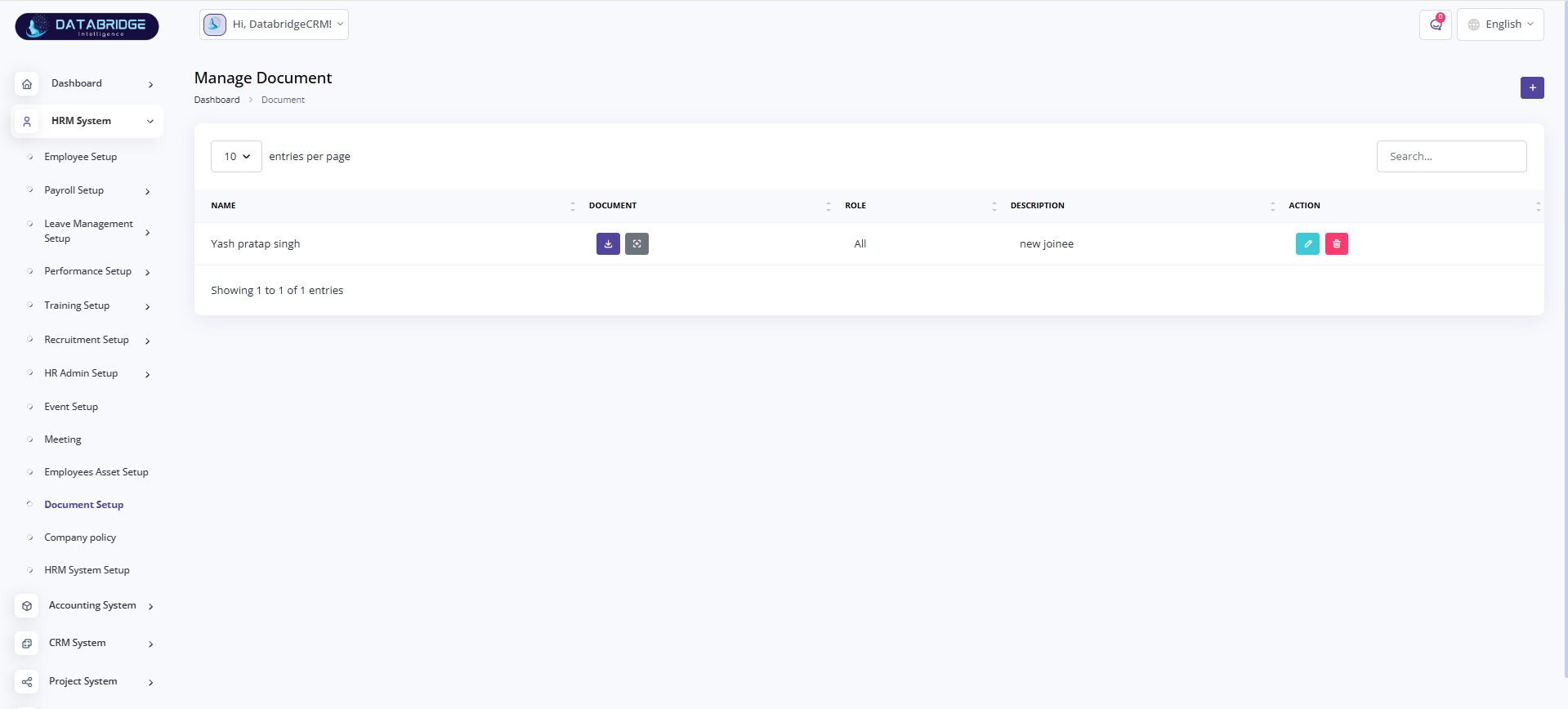
Manage Document:
This screen is used to manage employee-related documents and files.
It ensures proper storage and accessibility of important records.
Features:
-Document list
-Upload/download document
-Role-based access
-Description field
-Edit/delete actions
Functionality:
-Stores document records
-Allows file upload and download
-Assigns documents based on roles
-Maintains document history
This screen is used to manage employee-related documents and files.
It ensures proper storage and accessibility of important records.
Features:
-Document list
-Upload/download document
-Role-based access
-Description field
-Edit/delete actions
Functionality:
-Stores document records
-Allows file upload and download
-Assigns documents based on roles
-Maintains document history
1
HRM System
2
Document Setup
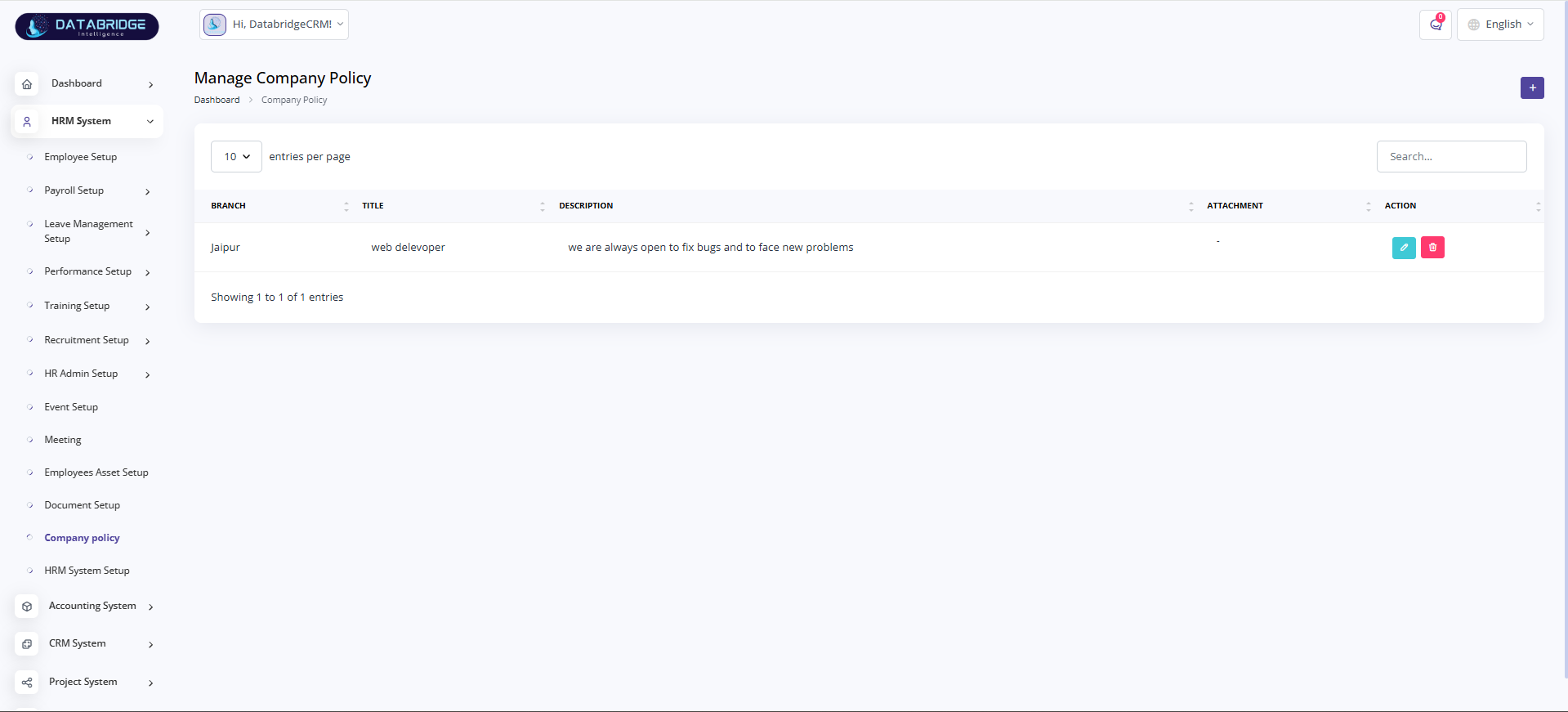
Manage Company Policy:
This screen is used to manage company policies and guidelines.
It ensures employees have access to important organizational rules.
Features:
-Policy list
-Branch-wise policies
-Title and description
-Attachment support
-Edit/delete actions
Functionality:
-Stores company policies
-Displays policy details
-Allows updates and deletions
-Maintains policy records
This screen is used to manage company policies and guidelines.
It ensures employees have access to important organizational rules.
Features:
-Policy list
-Branch-wise policies
-Title and description
-Attachment support
-Edit/delete actions
Functionality:
-Stores company policies
-Displays policy details
-Allows updates and deletions
-Maintains policy records
1
HRM System
2
Company Policy
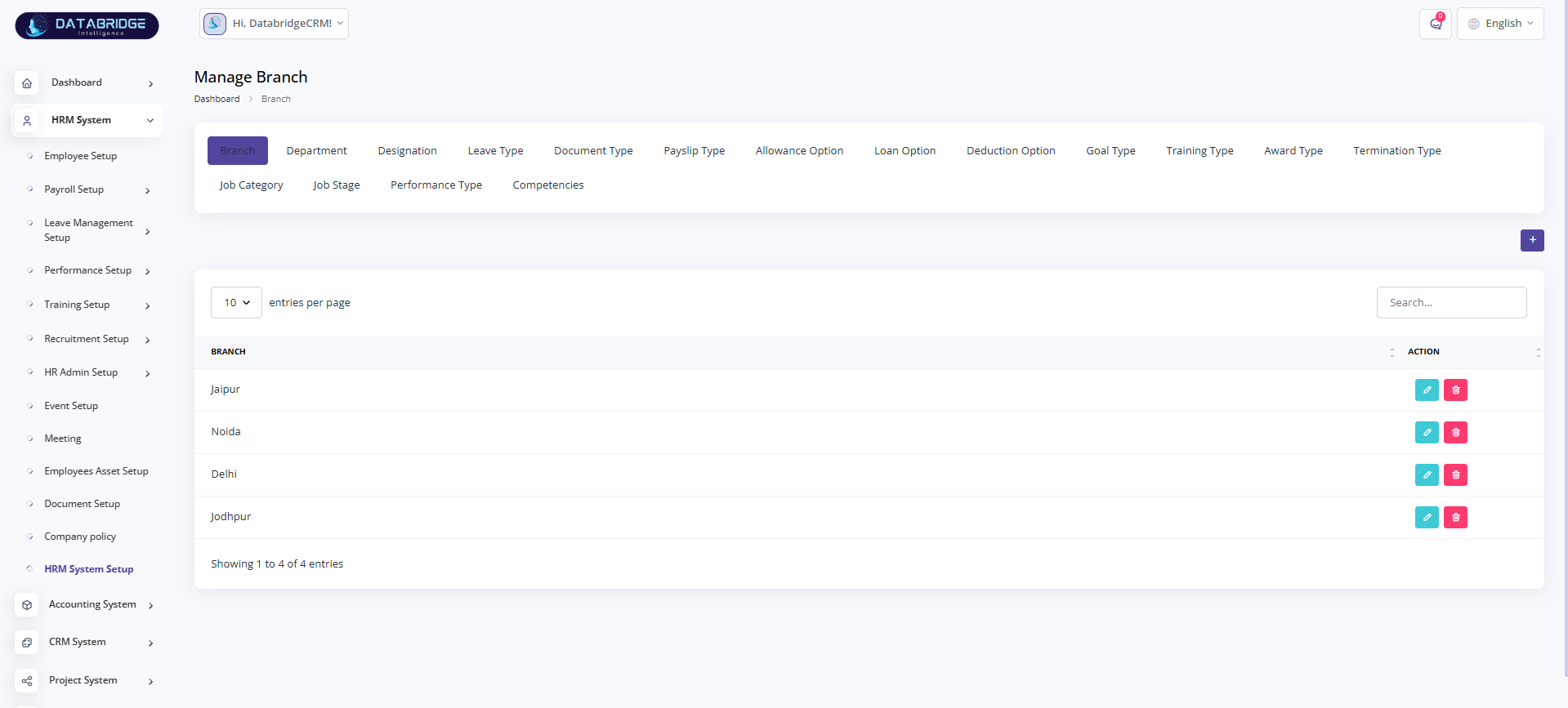
Manage Branch (HRM System Setup):
This screen is used to manage branches and other HR master data like departments, designations, leave types, etc.
It acts as a central configuration panel for HR system setup.
Features:
-Branch listing
-Multiple configuration tabs (Department, Designation, Leave Type, etc.)
-Add new branch
-Edit/delete actions
-Search functionality
Functionality:
-Stores branch details
-Manages HR master data
-Allows switching between configuration modules
-Updates and deletes records
This screen is used to manage branches and other HR master data like departments, designations, leave types, etc.
It acts as a central configuration panel for HR system setup.
Features:
-Branch listing
-Multiple configuration tabs (Department, Designation, Leave Type, etc.)
-Add new branch
-Edit/delete actions
-Search functionality
Functionality:
-Stores branch details
-Manages HR master data
-Allows switching between configuration modules
-Updates and deletes records
1
HRM System
2
HRM System Setup
Accounting System
The Accounting System is used to manage all financial activities of the organization, including accounts, transactions, sales, and expenses. It helps in maintaining accurate financial records, tracking cash flow, and generating reports for better decision-making.
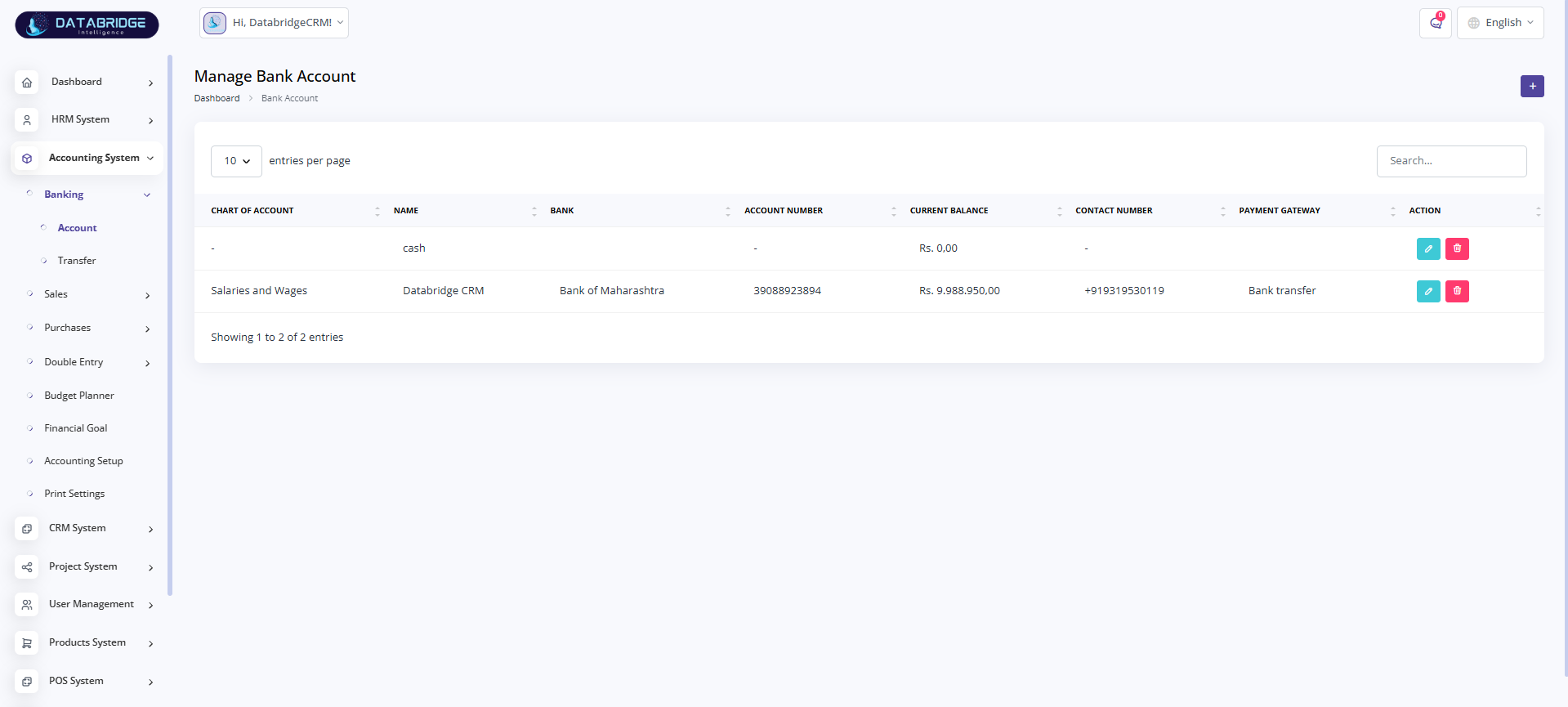
Manage Bank Account:
This screen is used to manage all company bank and cash accounts within the system.
It helps track account details, balances, and payment methods in a centralized manner.
Features:
-Bank account listing
-Chart of account mapping
-Account name and bank details
-Account number and contact info
-Current balance display
-Payment gateway type
-Search functionality
-Edit/delete actions
-Add new account option
Functionality:
-Stores bank and cash account details
-Displays real-time account balances
-Links accounts with chart of accounts
-Allows updating and deleting account records
-Supports multiple payment methods
This screen is used to manage all company bank and cash accounts within the system.
It helps track account details, balances, and payment methods in a centralized manner.
Features:
-Bank account listing
-Chart of account mapping
-Account name and bank details
-Account number and contact info
-Current balance display
-Payment gateway type
-Search functionality
-Edit/delete actions
-Add new account option
Functionality:
-Stores bank and cash account details
-Displays real-time account balances
-Links accounts with chart of accounts
-Allows updating and deleting account records
-Supports multiple payment methods
1
Accounting System
2
Banking
3
Account
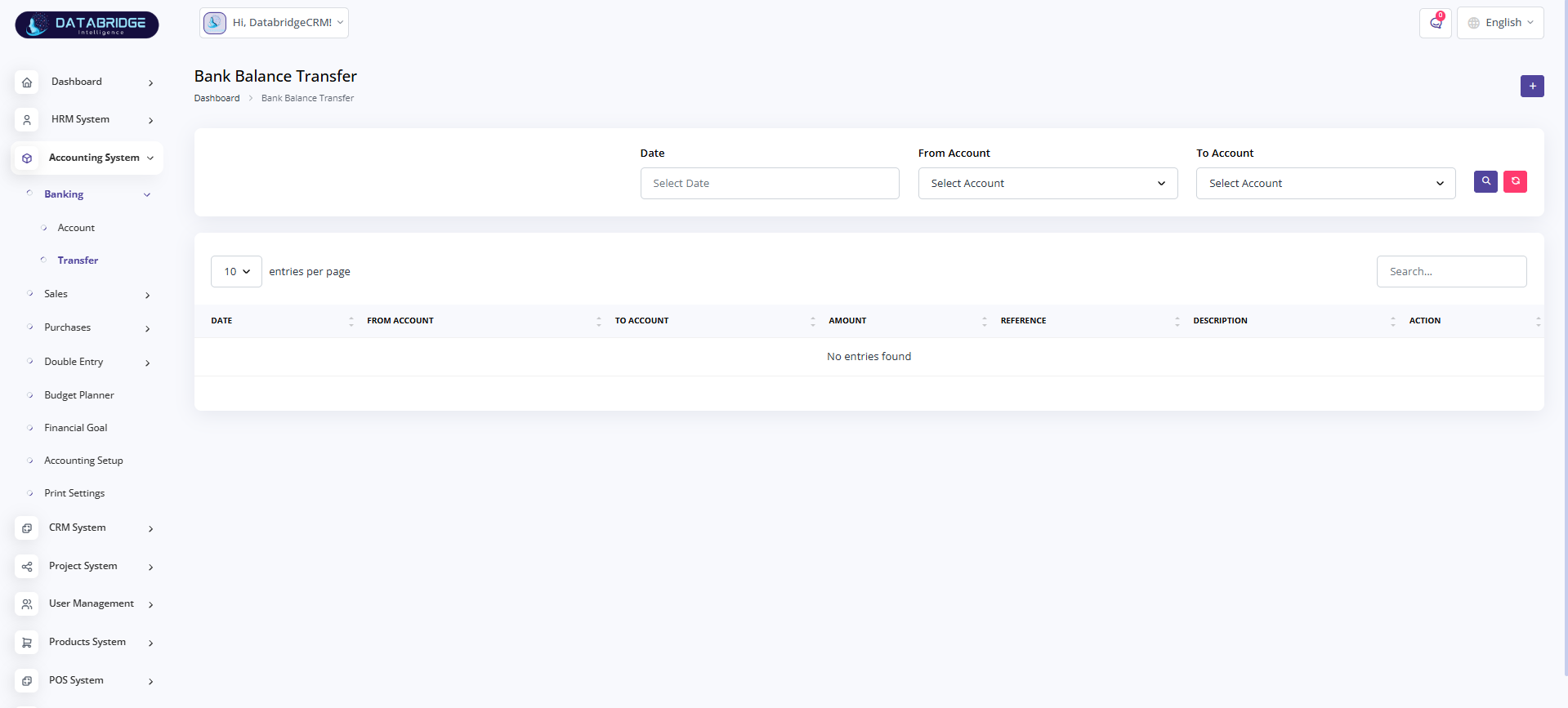
Bank Balance Transfer:
This screen is used to transfer funds between different bank or cash accounts.
It ensures proper tracking of internal financial transactions.
Features:
-Transfer form (Date, From Account, To Account)
-Transfer listing
-Amount and reference tracking
-Description field
-Search functionality
-Add transfer option
Functionality:
-Records fund transfers between accounts
-Updates balances of source and destination accounts
-Stores transaction reference and description
-Displays transfer history
-Filters transfers based on date and accounts
This screen is used to transfer funds between different bank or cash accounts.
It ensures proper tracking of internal financial transactions.
Features:
-Transfer form (Date, From Account, To Account)
-Transfer listing
-Amount and reference tracking
-Description field
-Search functionality
-Add transfer option
Functionality:
-Records fund transfers between accounts
-Updates balances of source and destination accounts
-Stores transaction reference and description
-Displays transfer history
-Filters transfers based on date and accounts
1
Accounting System
2
Banking
3
Transfer
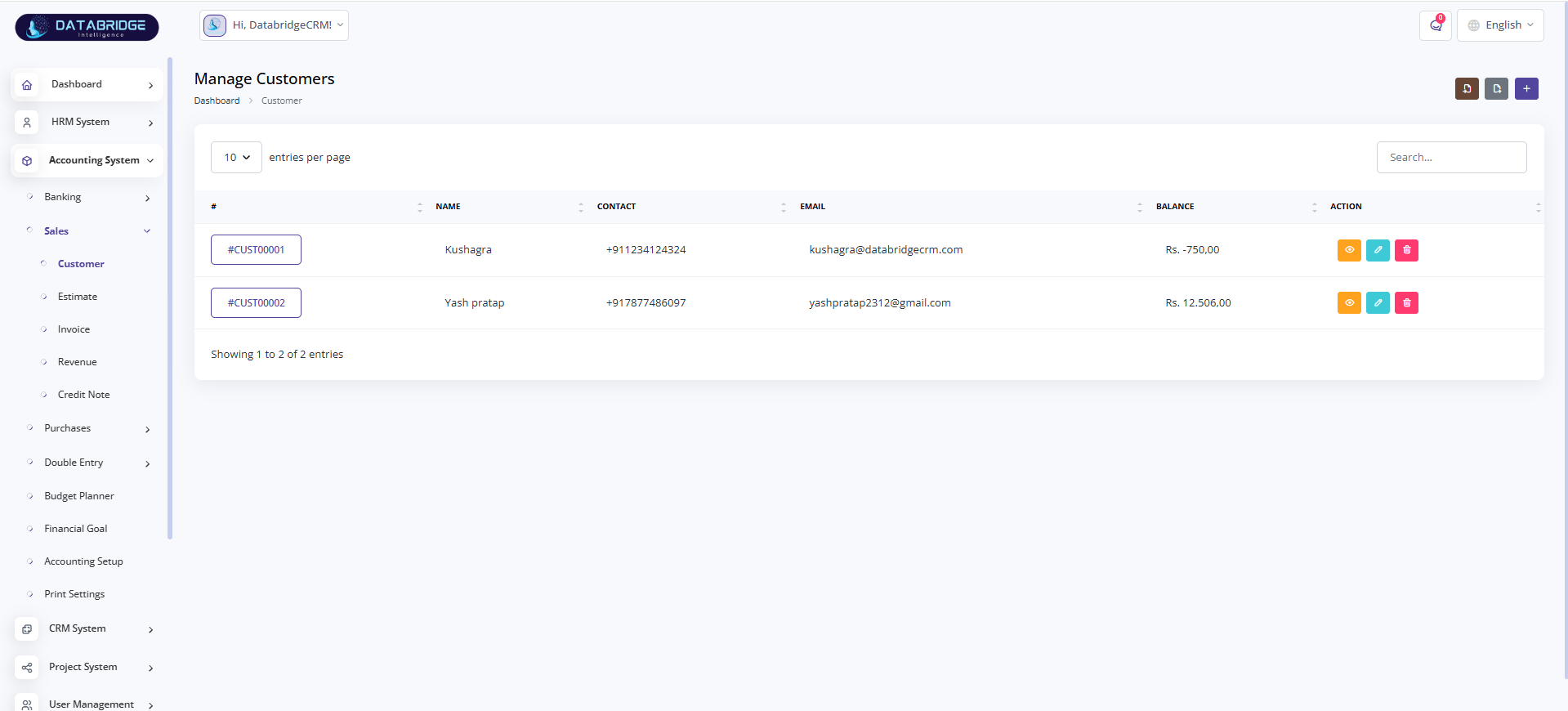
Manage Customers:
This screen is used to manage all customer details within the system.
It helps maintain customer records, contact information, and financial balances.
Features:
-Customer listing
-Unique customer ID
-Contact and email details
-Balance tracking
-Search functionality
-View, edit, delete actions
-Add new customer
Functionality:
-Stores customer information
-Tracks customer outstanding balance
-Allows updating and deleting records
-Provides quick access to customer data
This screen is used to manage all customer details within the system.
It helps maintain customer records, contact information, and financial balances.
Features:
-Customer listing
-Unique customer ID
-Contact and email details
-Balance tracking
-Search functionality
-View, edit, delete actions
-Add new customer
Functionality:
-Stores customer information
-Tracks customer outstanding balance
-Allows updating and deleting records
-Provides quick access to customer data
1
Accounting System
2
Sales
3
Customers
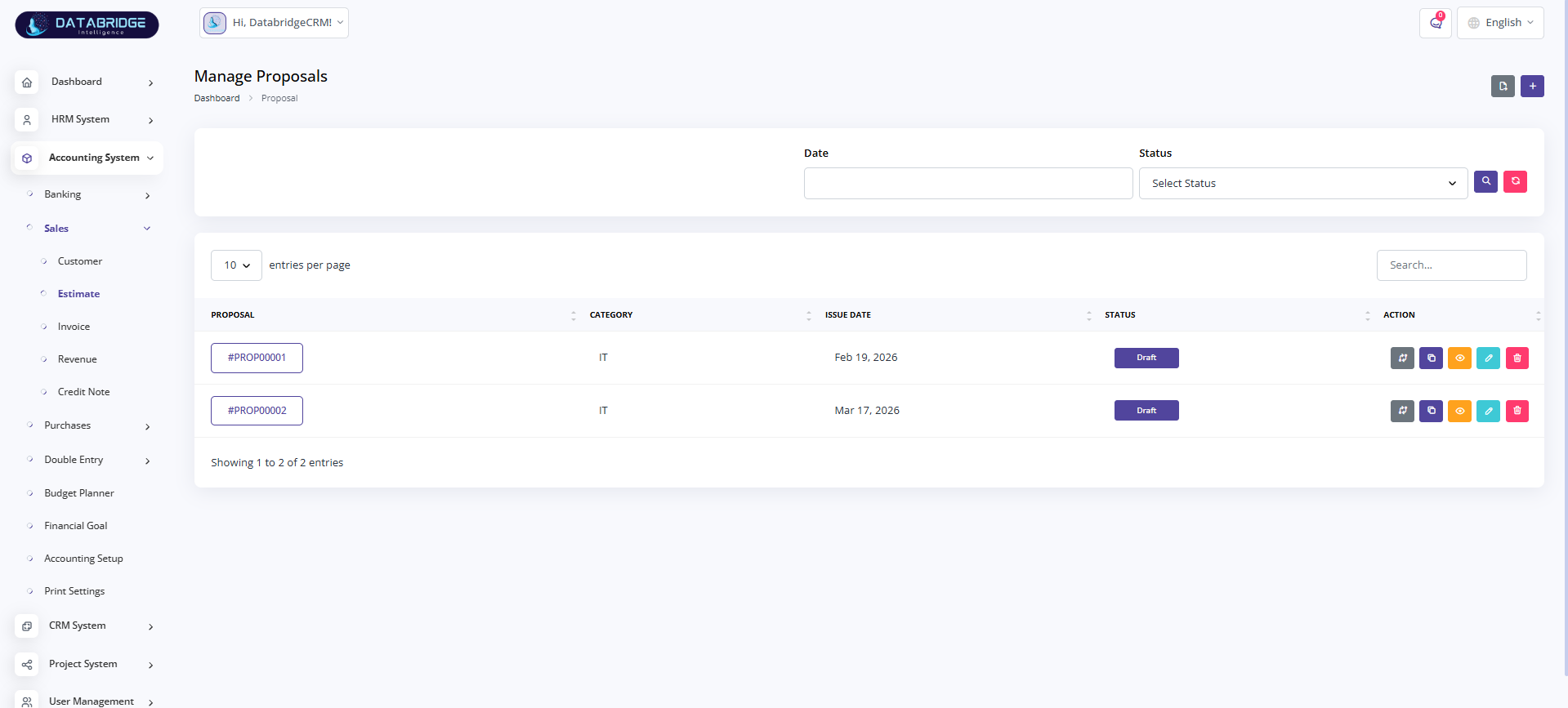
Manage Proposals (Estimate):
This screen is used to create and manage proposals/estimates for customers.
It helps track proposal status and maintain records before converting into invoices.
Features:
-Proposal listing
-Category selection
-Issue date tracking
-Status (Draft, etc.)
-Filter by date and status
-Multiple action buttons (view, edit, convert, delete)
Functionality:
-Creates and manages proposals
-Tracks proposal lifecycle
-Filters proposals based on status/date
-Supports conversion into invoices
This screen is used to create and manage proposals/estimates for customers.
It helps track proposal status and maintain records before converting into invoices.
Features:
-Proposal listing
-Category selection
-Issue date tracking
-Status (Draft, etc.)
-Filter by date and status
-Multiple action buttons (view, edit, convert, delete)
Functionality:
-Creates and manages proposals
-Tracks proposal lifecycle
-Filters proposals based on status/date
-Supports conversion into invoices
1
Accounting System
2
Sales
3
Estimate
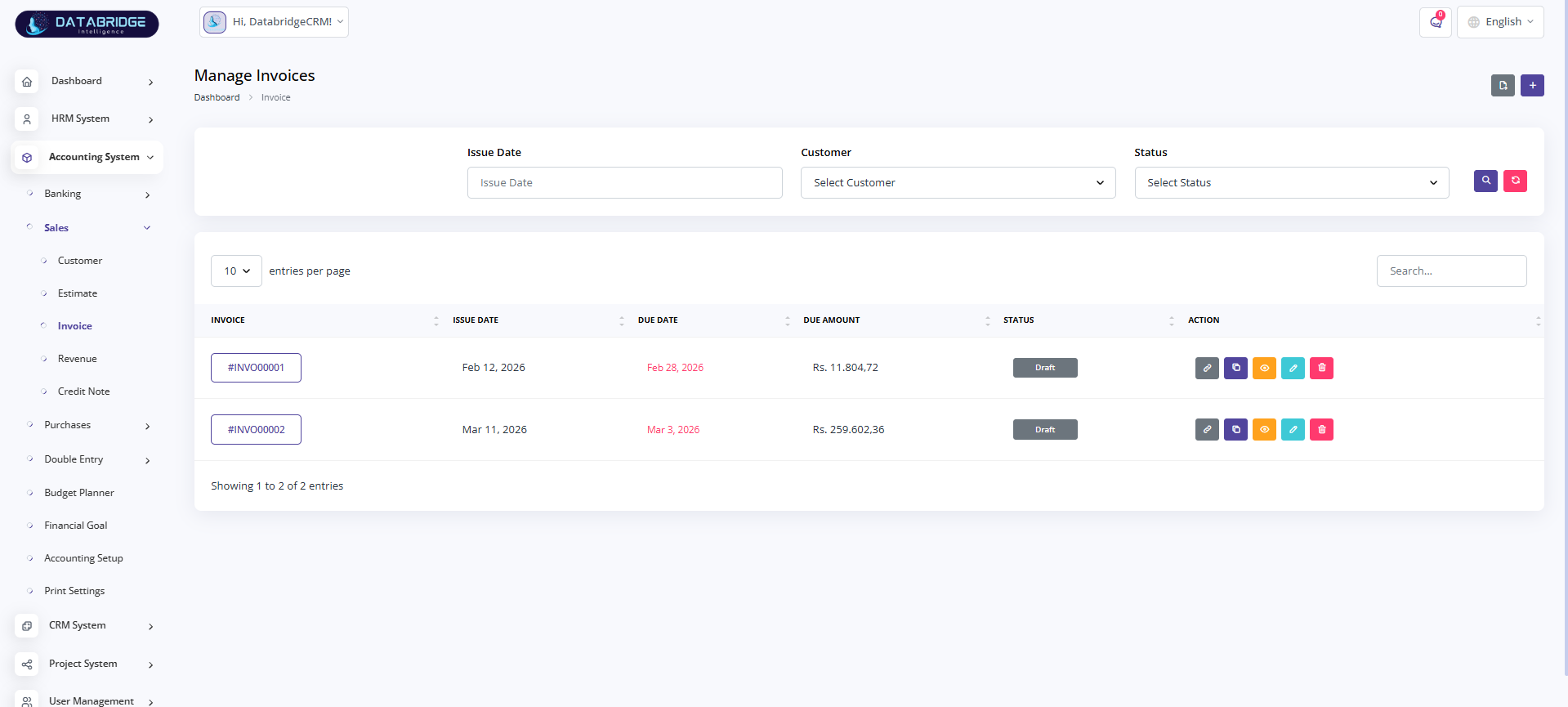
Manage Invoices:
This screen is used to generate and manage customer invoices.
It helps track billing, due dates, and payment status.
Features:
-Invoice listing
-Issue and due date
-Due amount tracking
-Status (Draft, Paid, etc.)
-Customer filter
-Action buttons (view, edit, download, delete)
Functionality:
-Generates invoices for customers
-Tracks payment status and pending dues
-Filters invoices based on customer/status/date
-Supports invoice management and updates
This screen is used to generate and manage customer invoices.
It helps track billing, due dates, and payment status.
Features:
-Invoice listing
-Issue and due date
-Due amount tracking
-Status (Draft, Paid, etc.)
-Customer filter
-Action buttons (view, edit, download, delete)
Functionality:
-Generates invoices for customers
-Tracks payment status and pending dues
-Filters invoices based on customer/status/date
-Supports invoice management and updates
1
Accounting System
2
Sales
3
Invoices
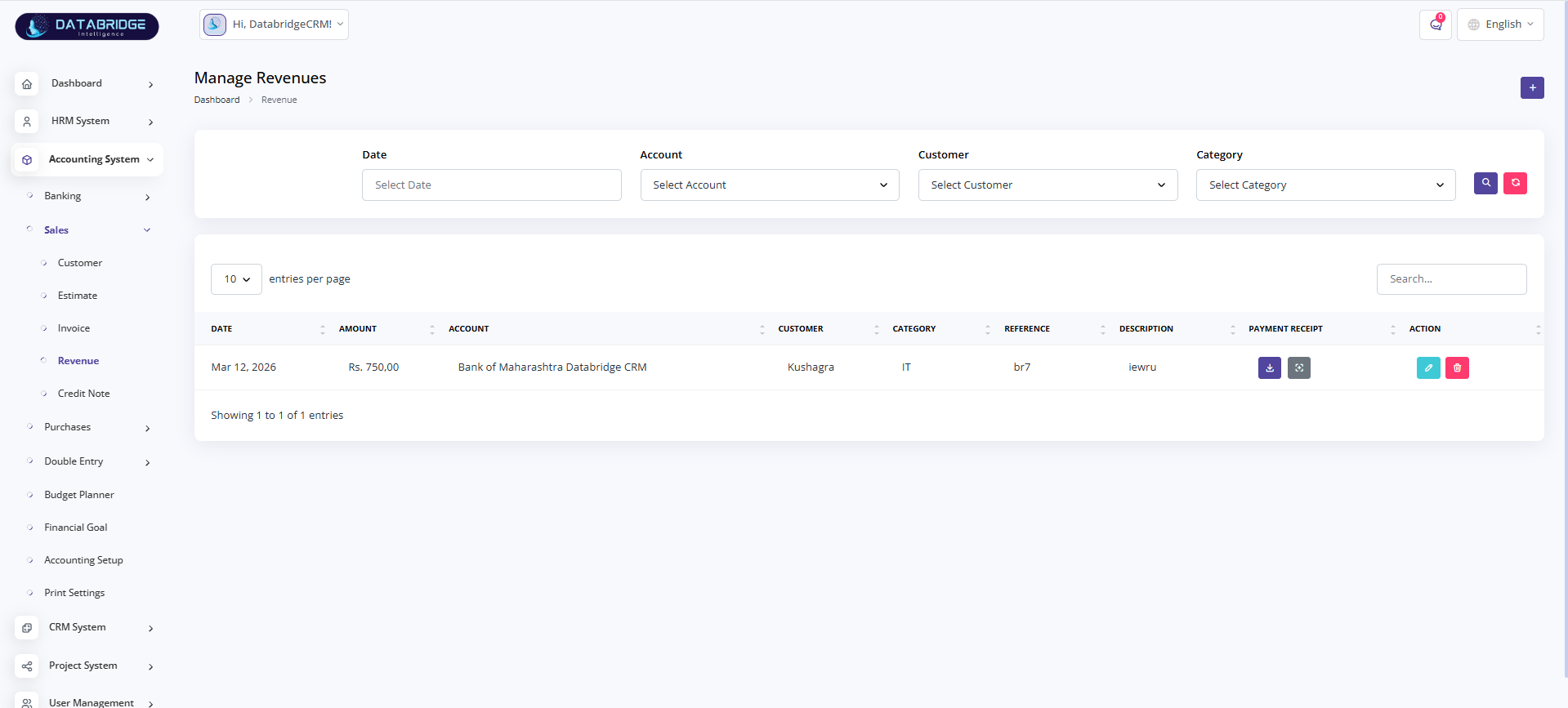
Manage Revenues:
This screen is used to record and manage incoming payments or revenue transactions.
It helps track all income sources and payment details.
Features:
-Revenue listing
-Date, amount, and account details
-Customer and category selection
-Reference and description
-Payment receipt upload/download
-Search and filter options
Functionality:
-Records incoming payments
-Links revenue with accounts and customers
-Stores transaction references
-Tracks income for reporting purposes
This screen is used to record and manage incoming payments or revenue transactions.
It helps track all income sources and payment details.
Features:
-Revenue listing
-Date, amount, and account details
-Customer and category selection
-Reference and description
-Payment receipt upload/download
-Search and filter options
Functionality:
-Records incoming payments
-Links revenue with accounts and customers
-Stores transaction references
-Tracks income for reporting purposes
1
Accounting System
2
Sales
3
Revenues
Manage Credit Notes:
This screen is used to manage credit notes issued to customers for refunds or adjustments.
It helps correct invoices and maintain financial accuracy.
Features:
-Credit note listing
-Invoice reference
-Date and amount
-Status tracking
-Search functionality
-Add new credit note option
Functionality:
-Creates credit notes against invoices
-Adjusts customer balances
-Tracks refund or adjustment records
-Maintains financial accuracy
This screen is used to manage credit notes issued to customers for refunds or adjustments.
It helps correct invoices and maintain financial accuracy.
Features:
-Credit note listing
-Invoice reference
-Date and amount
-Status tracking
-Search functionality
-Add new credit note option
Functionality:
-Creates credit notes against invoices
-Adjusts customer balances
-Tracks refund or adjustment records
-Maintains financial accuracy
1
Accounting System
2
Sales
3
Credit Note
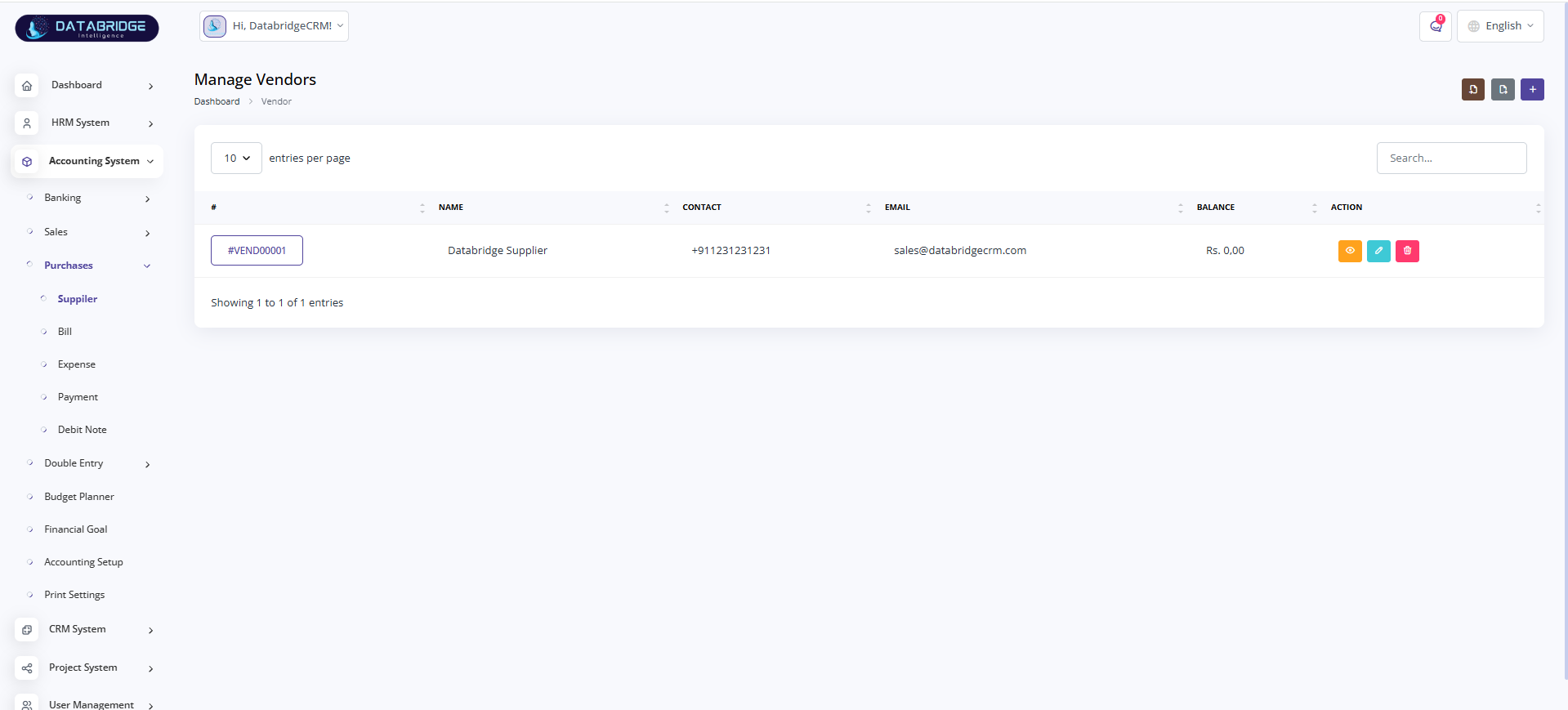
Manage Vendors (Supplier):
This screen is used to manage all vendor/supplier details in the system.
It helps maintain supplier information, contact details, and outstanding balances.
Features:
-Vendor listing with unique ID
-Name, contact, and email details
-Balance tracking
-Search functionality
-View, edit, delete actions
-Add new vendor
Functionality:
-Stores vendor/supplier information
-Tracks payable balances
-Allows updating and deleting vendor records
-Provides quick access to supplier data
This screen is used to manage all vendor/supplier details in the system.
It helps maintain supplier information, contact details, and outstanding balances.
Features:
-Vendor listing with unique ID
-Name, contact, and email details
-Balance tracking
-Search functionality
-View, edit, delete actions
-Add new vendor
Functionality:
-Stores vendor/supplier information
-Tracks payable balances
-Allows updating and deleting vendor records
-Provides quick access to supplier data
1
Accounting System
2
Purchase
3
Suppliers
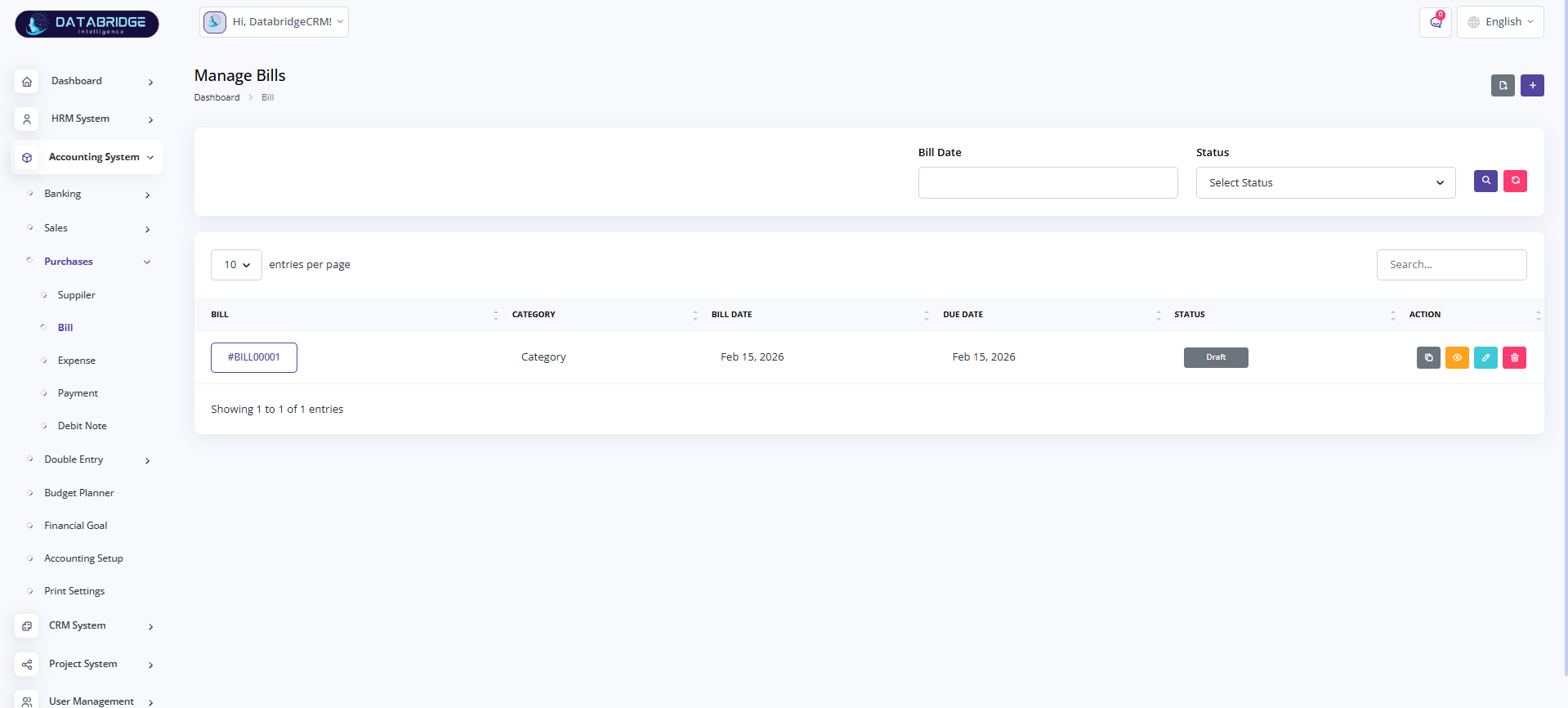
Manage Bills:
This screen is used to create and manage bills received from vendors.
It helps track payable amounts and due dates for purchases.
Features:
-Bill listing
-Category selection
-Bill date and due date
-Status tracking (Draft, Paid, etc.)
-Filter by date and status
-Action buttons (view, edit, delete)
Functionality:
-Records vendor bills
-Tracks payment due dates
-Updates bill status
-Helps manage accounts payable
This screen is used to create and manage bills received from vendors.
It helps track payable amounts and due dates for purchases.
Features:
-Bill listing
-Category selection
-Bill date and due date
-Status tracking (Draft, Paid, etc.)
-Filter by date and status
-Action buttons (view, edit, delete)
Functionality:
-Records vendor bills
-Tracks payment due dates
-Updates bill status
-Helps manage accounts payable
1
Accounting System
2
Purchase
3
Bill
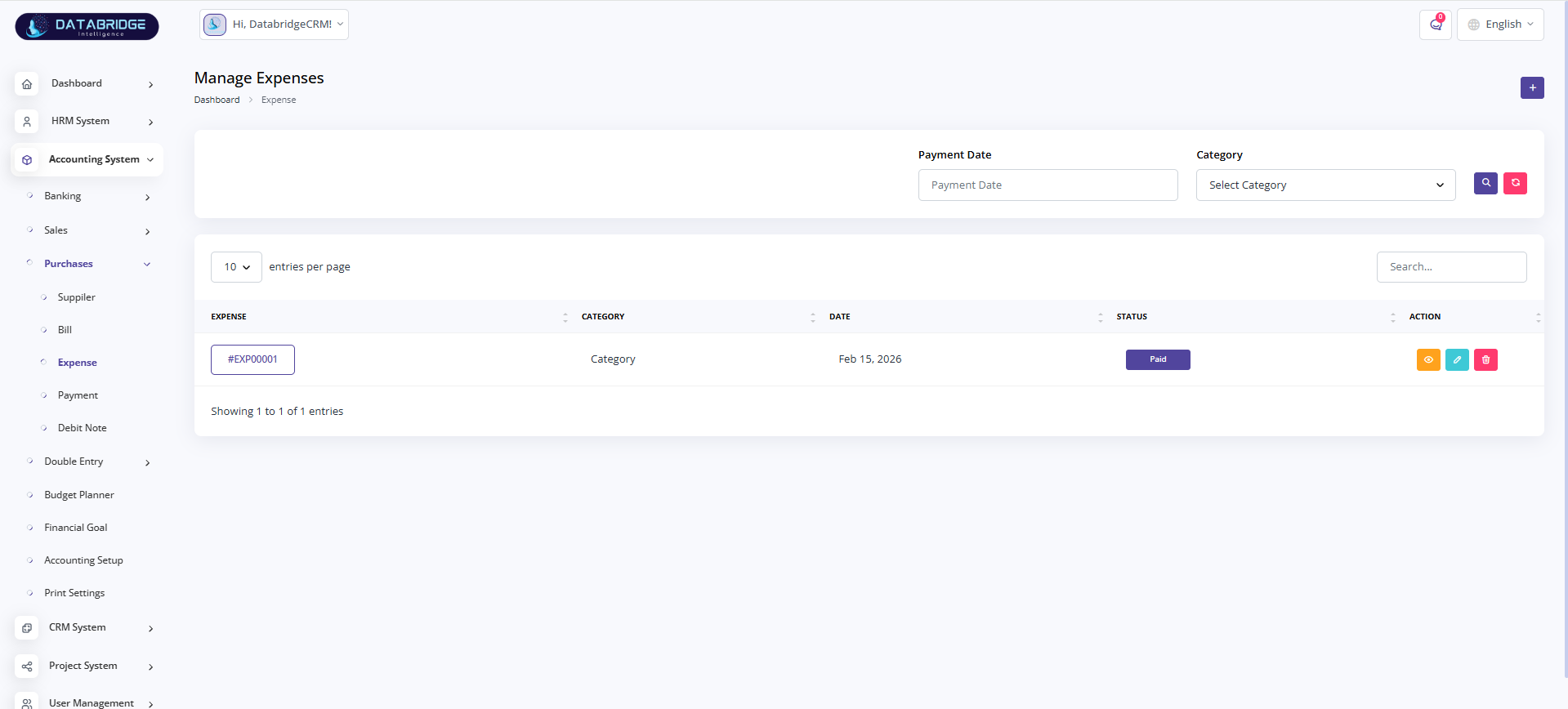
Manage Expenses:
This screen is used to record and manage company expenses.
It helps track spending across different categories.
Features:
-Expense listing
-Category selection
-Date tracking
-Status (Paid, Pending)
-Search and filter options
-Action buttons (view, edit, delete)
Functionality:
-Records expense transactions
-Categorizes expenses
-Tracks payment status
-Supports expense monitoring and reporting
This screen is used to record and manage company expenses.
It helps track spending across different categories.
Features:
-Expense listing
-Category selection
-Date tracking
-Status (Paid, Pending)
-Search and filter options
-Action buttons (view, edit, delete)
Functionality:
-Records expense transactions
-Categorizes expenses
-Tracks payment status
-Supports expense monitoring and reporting
1
Accounting System
2
Purchase
3
Expense
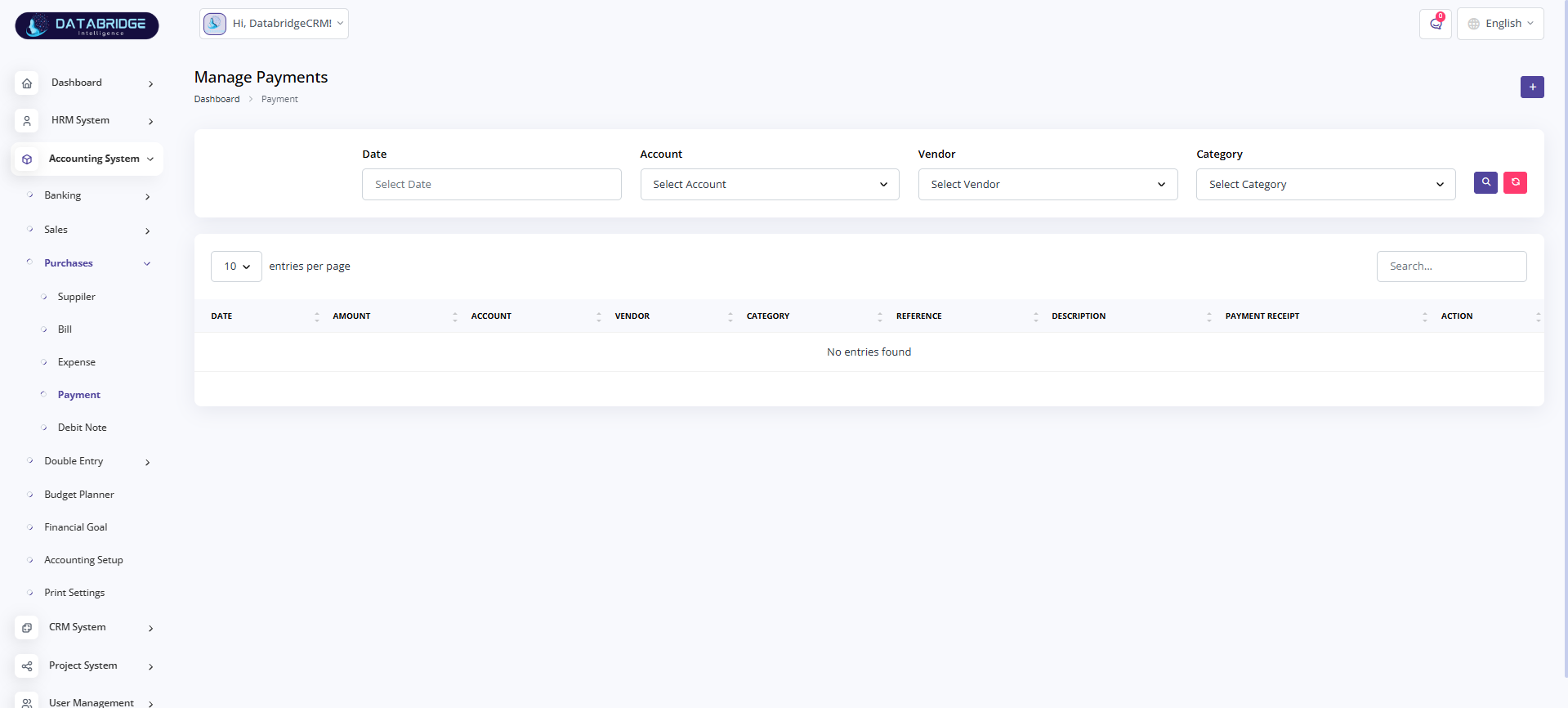
Manage Payments:
This screen is used to manage payments made to vendors or expenses.
It helps maintain records of outgoing transactions.
Features:
-Payment listing
-Date, account, and vendor selection
-Category selection
-Reference and description fields
-Payment receipt upload
-Search and filter options
Functionality:
-Records outgoing payments
-Links payments to vendors and accounts
-Stores transaction references
-Tracks payment history
This screen is used to manage payments made to vendors or expenses.
It helps maintain records of outgoing transactions.
Features:
-Payment listing
-Date, account, and vendor selection
-Category selection
-Reference and description fields
-Payment receipt upload
-Search and filter options
Functionality:
-Records outgoing payments
-Links payments to vendors and accounts
-Stores transaction references
-Tracks payment history
1
Accounting System
2
Purchase
3
Payment
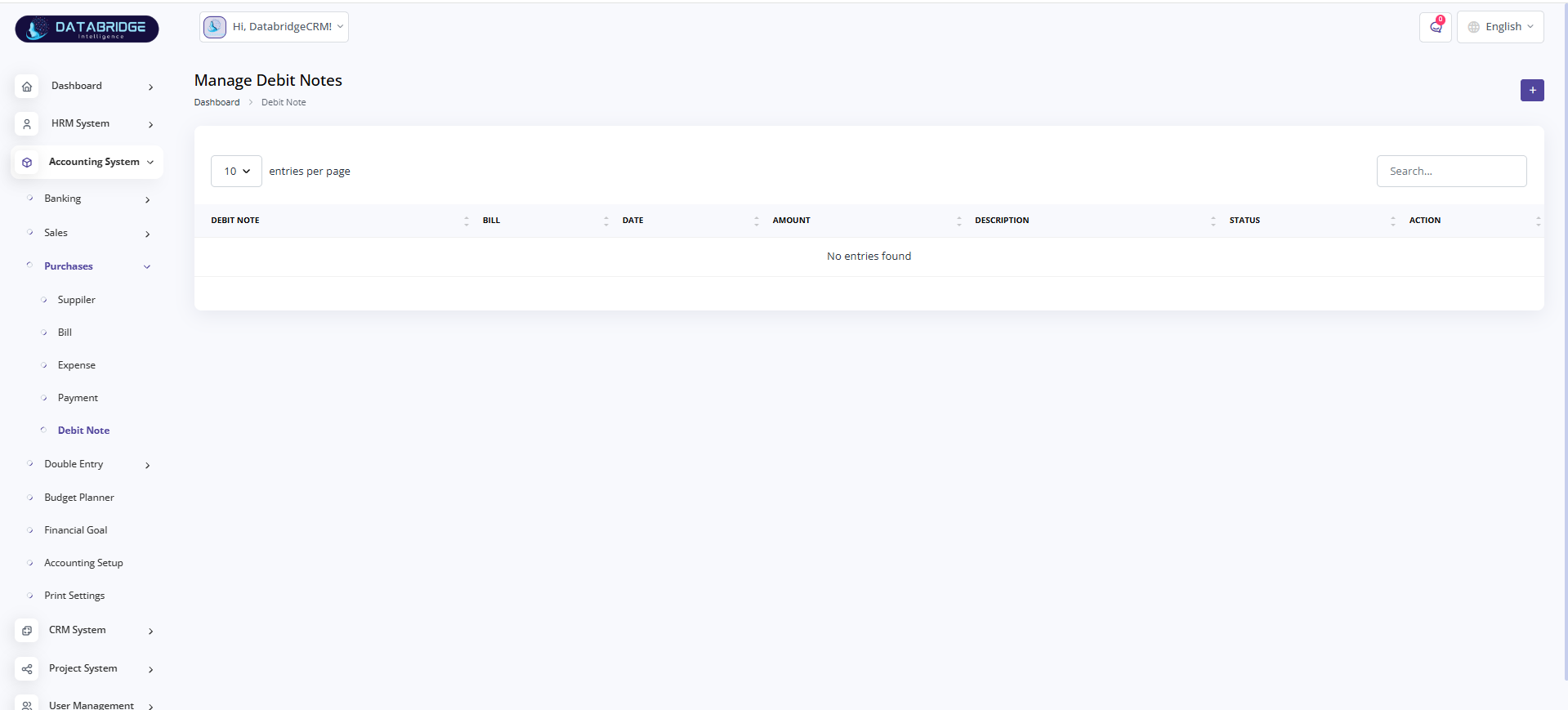
Manage Debit Notes:
This screen is used to manage debit notes issued to vendors for returns or adjustments.
It helps maintain accurate financial records in purchase transactions.
Features:
-Debit note listing
-Bill reference
-Date and amount
-Status tracking
-Search functionality
-Add new debit note option
Functionality:
-Creates debit notes against vendor bills
-Adjusts payable balances
-Tracks purchase returns or corrections
-Ensures financial accuracy
This screen is used to manage debit notes issued to vendors for returns or adjustments.
It helps maintain accurate financial records in purchase transactions.
Features:
-Debit note listing
-Bill reference
-Date and amount
-Status tracking
-Search functionality
-Add new debit note option
Functionality:
-Creates debit notes against vendor bills
-Adjusts payable balances
-Tracks purchase returns or corrections
-Ensures financial accuracy
1
Accounting System
2
Purchase
3
Debit Note
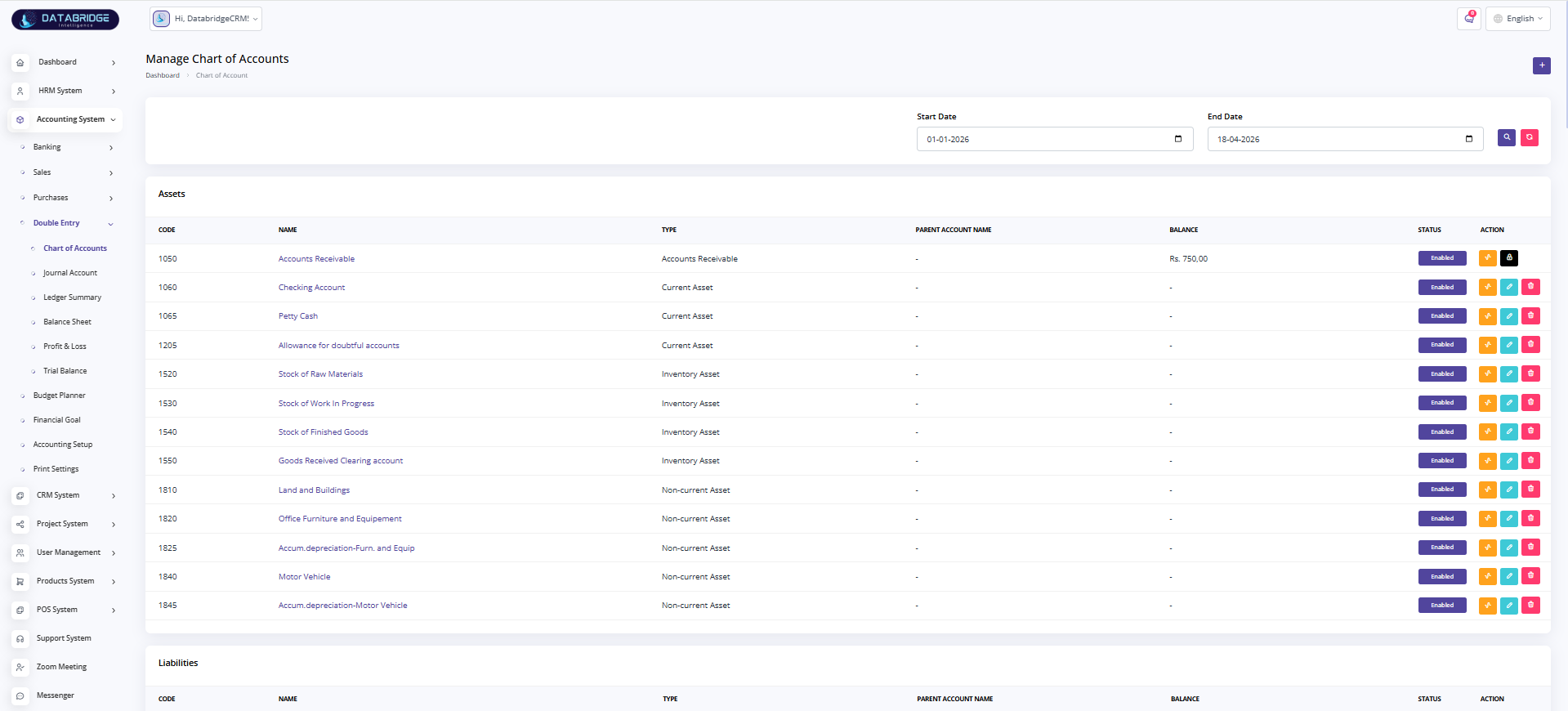
Manage Chart of Accounts:
This screen is used to manage the complete chart of accounts structure of the organization.
It organizes all financial accounts such as assets, liabilities, equity, income, and expenses.
Features:
-Account listing with codes
-Account type classification (Asset, Liability, etc.)
-Parent account hierarchy
-Balance display
-Status toggle (Enable/Disable)
-Date range filter
-Add, edit, delete options
Functionality:
-Creates and manages account structure
-Maintains hierarchical account relationships
-Tracks balances for each account
-Enables/disables accounts as required
This screen is used to manage the complete chart of accounts structure of the organization.
It organizes all financial accounts such as assets, liabilities, equity, income, and expenses.
Features:
-Account listing with codes
-Account type classification (Asset, Liability, etc.)
-Parent account hierarchy
-Balance display
-Status toggle (Enable/Disable)
-Date range filter
-Add, edit, delete options
Functionality:
-Creates and manages account structure
-Maintains hierarchical account relationships
-Tracks balances for each account
-Enables/disables accounts as required
1
Accounting System
2
Double Entry
3
Chart of Accounts
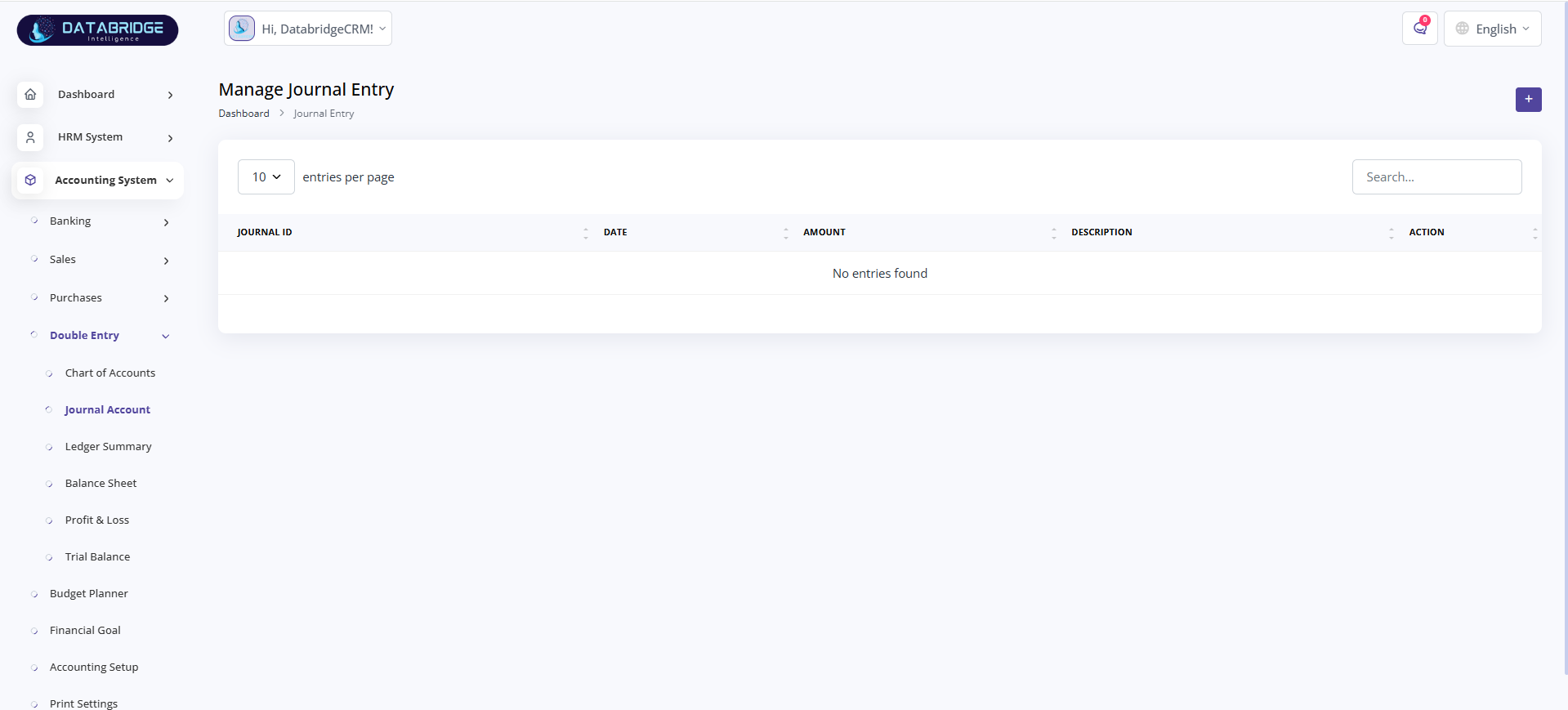
Manage Journal Entry:
This screen is used to record journal entries for double-entry accounting.
It ensures every transaction is recorded with proper debit and credit entries.
Features:
-Journal entry listing
-Date and amount tracking
-Description field
-Search functionality
-Add new journal entry option
Functionality:
-Records debit and credit transactions
-Maintains accounting accuracy
-Supports financial adjustments
-Stores transaction history
This screen is used to record journal entries for double-entry accounting.
It ensures every transaction is recorded with proper debit and credit entries.
Features:
-Journal entry listing
-Date and amount tracking
-Description field
-Search functionality
-Add new journal entry option
Functionality:
-Records debit and credit transactions
-Maintains accounting accuracy
-Supports financial adjustments
-Stores transaction history
1
Accounting System
2
Double Entry
3
Journal Account
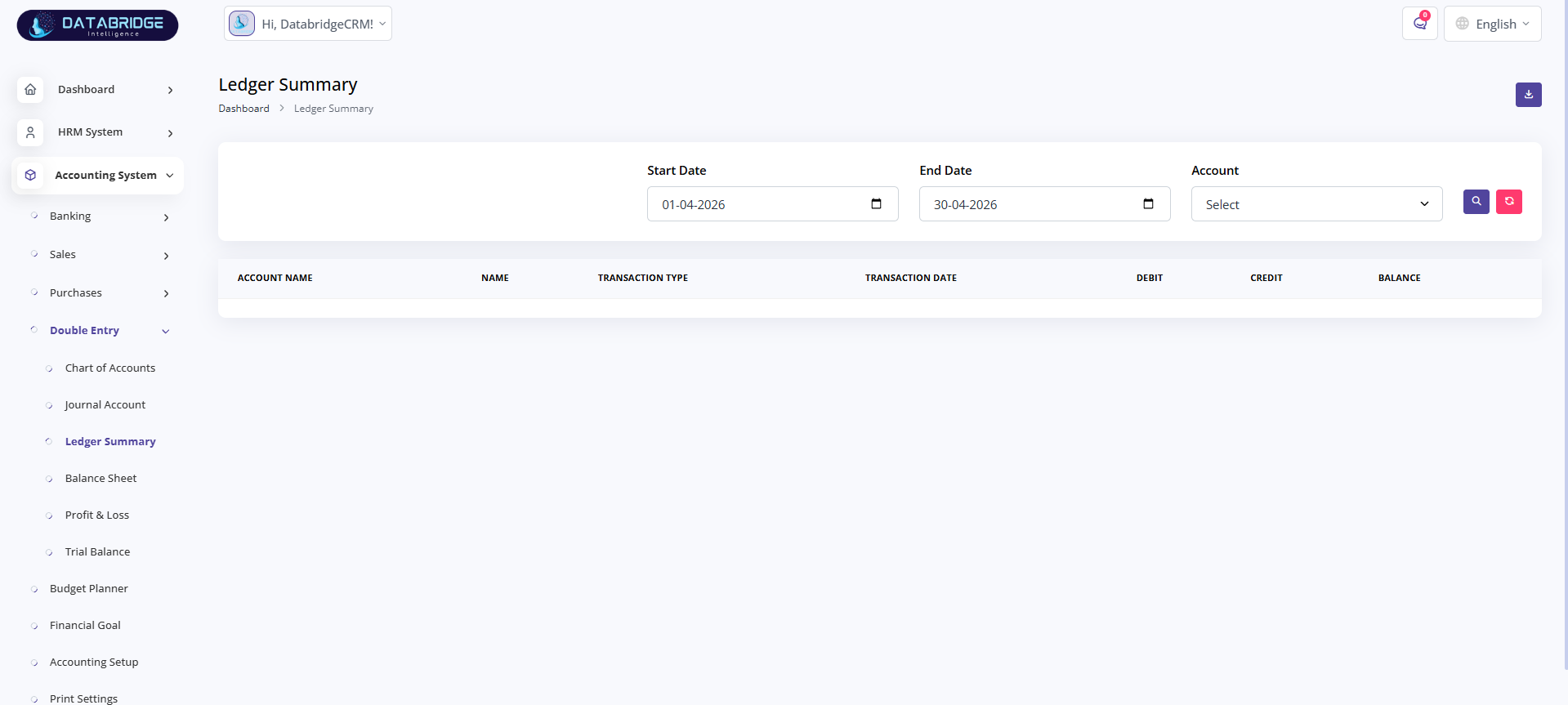
Ledger Summary:
This screen provides a detailed summary of all ledger transactions for selected accounts.
It helps users track account-wise debit, credit, and balance movements.
Features:
-Filter by date range
-Account selection filter
-Transaction type display
-Debit, credit, and balance columns
-Export/download option
Functionality:
-Displays account-wise transaction history
-Calculates running balances
-Helps in account reconciliation
-Supports financial analysis
This screen provides a detailed summary of all ledger transactions for selected accounts.
It helps users track account-wise debit, credit, and balance movements.
Features:
-Filter by date range
-Account selection filter
-Transaction type display
-Debit, credit, and balance columns
-Export/download option
Functionality:
-Displays account-wise transaction history
-Calculates running balances
-Helps in account reconciliation
-Supports financial analysis
1
Accounting System
2
Double Entry
3
Ledger Summary
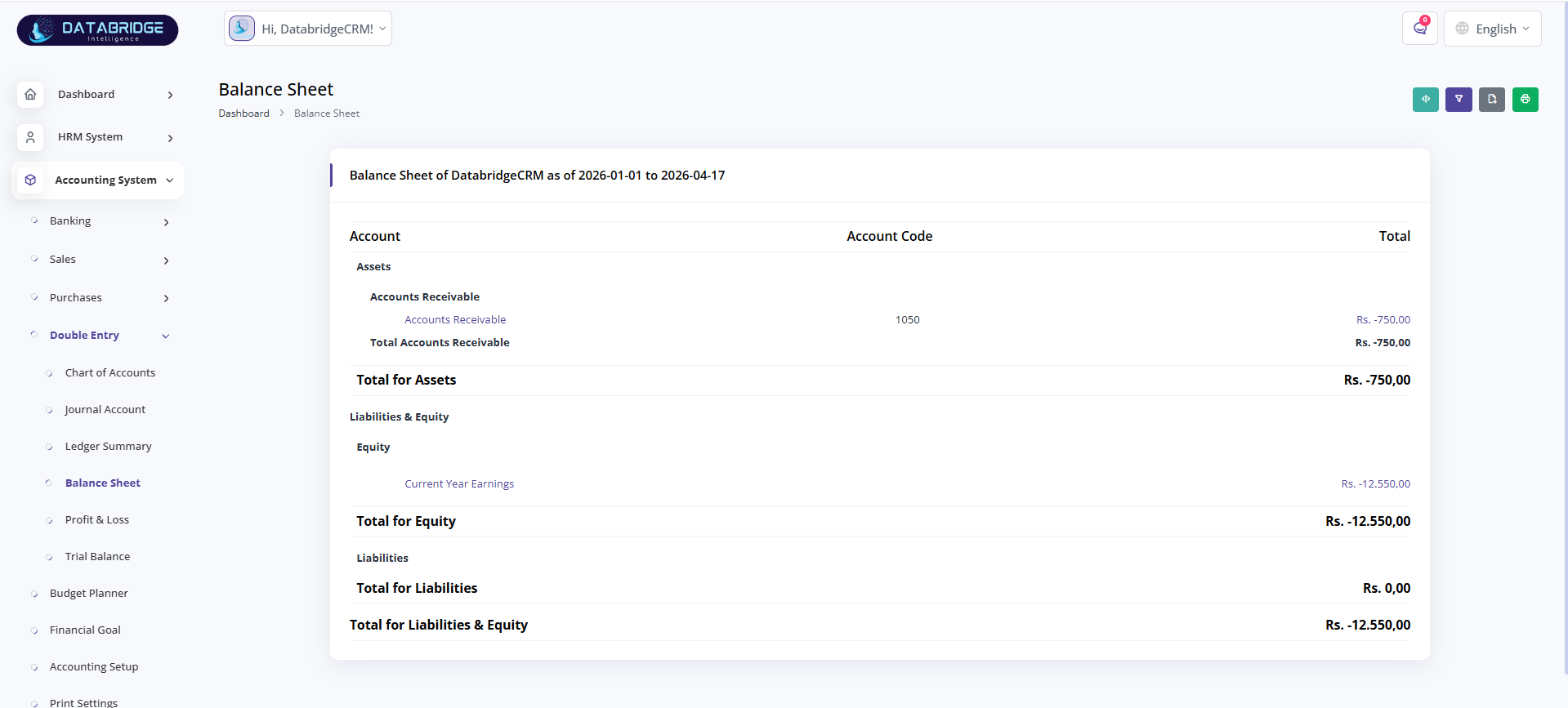
Balance Sheet:
This screen displays the financial position of the organization by showing assets, liabilities, and equity.
It provides a snapshot of what the business owns and owes.
Features:
-Assets and liabilities classification
-Equity calculation
-Account-wise breakdown
-Total calculations
-Export and print options
Functionality:
-Calculates financial position
-Summarizes all accounts
-Ensures balance between assets and liabilities
-Supports financial reporting
This screen displays the financial position of the organization by showing assets, liabilities, and equity.
It provides a snapshot of what the business owns and owes.
Features:
-Assets and liabilities classification
-Equity calculation
-Account-wise breakdown
-Total calculations
-Export and print options
Functionality:
-Calculates financial position
-Summarizes all accounts
-Ensures balance between assets and liabilities
-Supports financial reporting
1
Accounting System
2
Double Entry
3
Balance Sheet
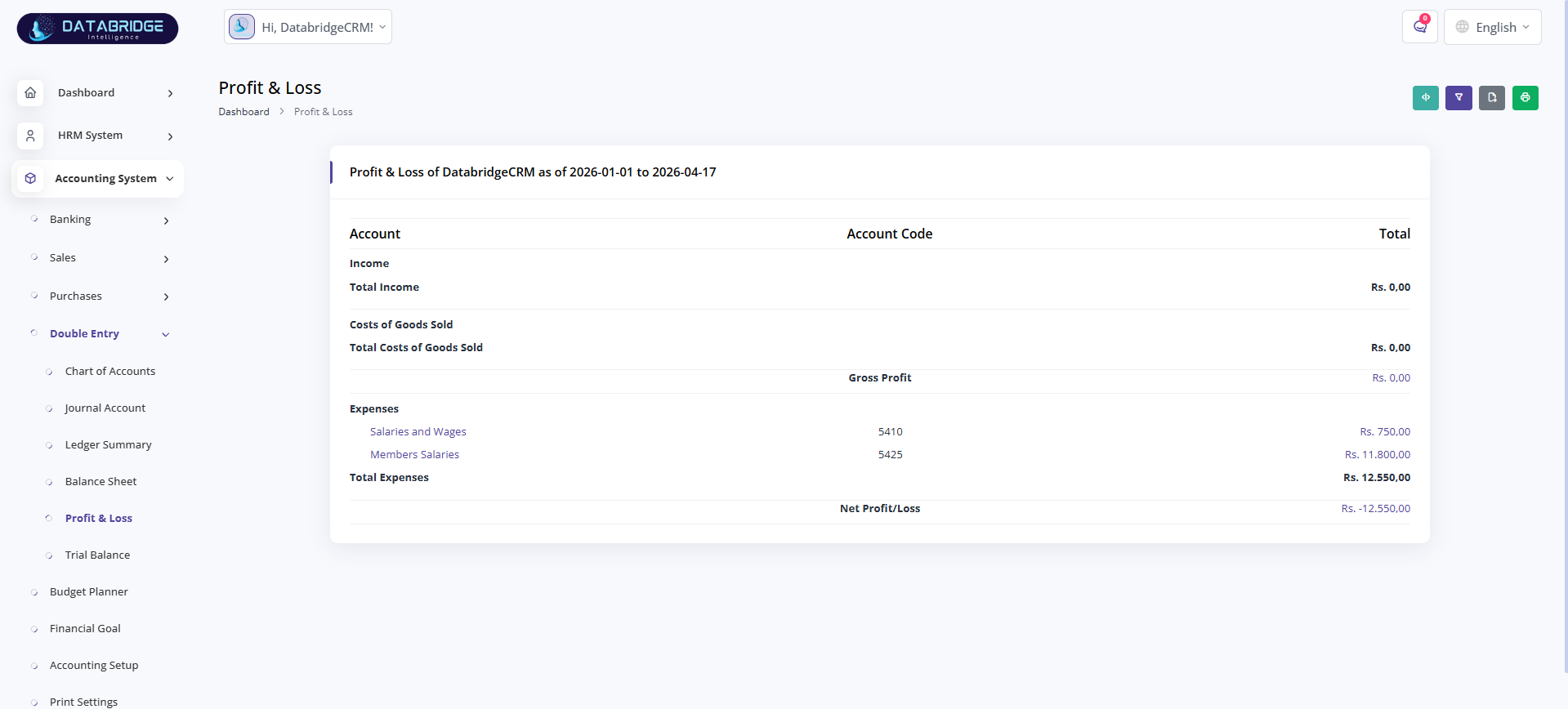
Profit & Loss:
This screen shows the company’s financial performance over a selected period.
It calculates profit or loss based on income and expenses.
Features:
-Income and expense sections
-Gross profit calculation
-Net profit/loss calculation
-Account-wise breakdown
-Export and print options
Functionality:
-Calculates total income and expenses
-Determines profitability
-Tracks financial performance
-Supports decision-making
This screen shows the company’s financial performance over a selected period.
It calculates profit or loss based on income and expenses.
Features:
-Income and expense sections
-Gross profit calculation
-Net profit/loss calculation
-Account-wise breakdown
-Export and print options
Functionality:
-Calculates total income and expenses
-Determines profitability
-Tracks financial performance
-Supports decision-making
1
Accounting System
2
Double Entry
3
Profit & Loss
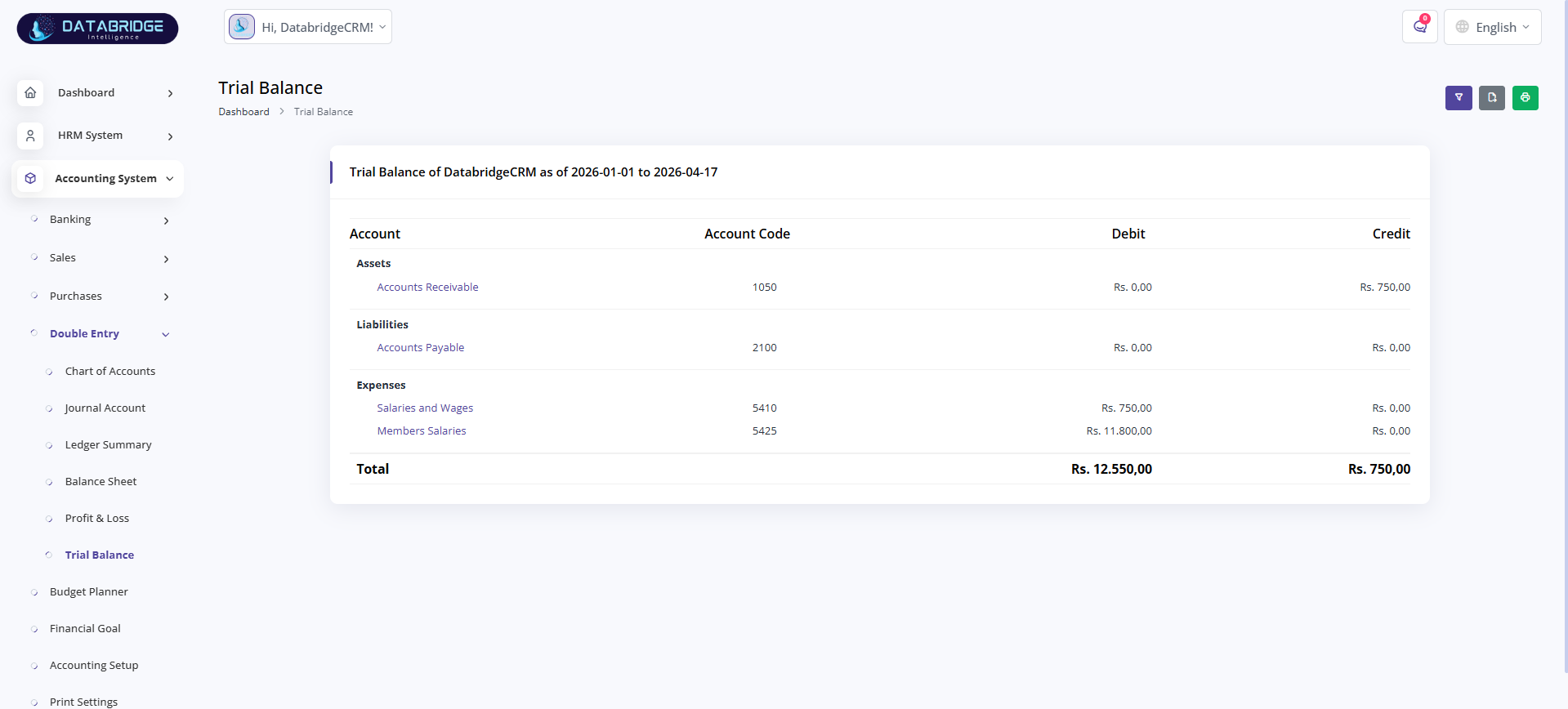
Trial Balance:
This screen displays a summary of all ledger balances to verify accounting accuracy.
It ensures that total debits and credits are equal.
Features:
-Account-wise debit and credit display
-Account codes
-Total calculation
-Date-based reporting
-Export and print options
Functionality:
-Validates double-entry accounting
-Detects discrepancies
-Summarizes all account balances
-Supports audit and verification
This screen displays a summary of all ledger balances to verify accounting accuracy.
It ensures that total debits and credits are equal.
Features:
-Account-wise debit and credit display
-Account codes
-Total calculation
-Date-based reporting
-Export and print options
Functionality:
-Validates double-entry accounting
-Detects discrepancies
-Summarizes all account balances
-Supports audit and verification
1
Accounting System
2
Double Entry
3
Trial Balance
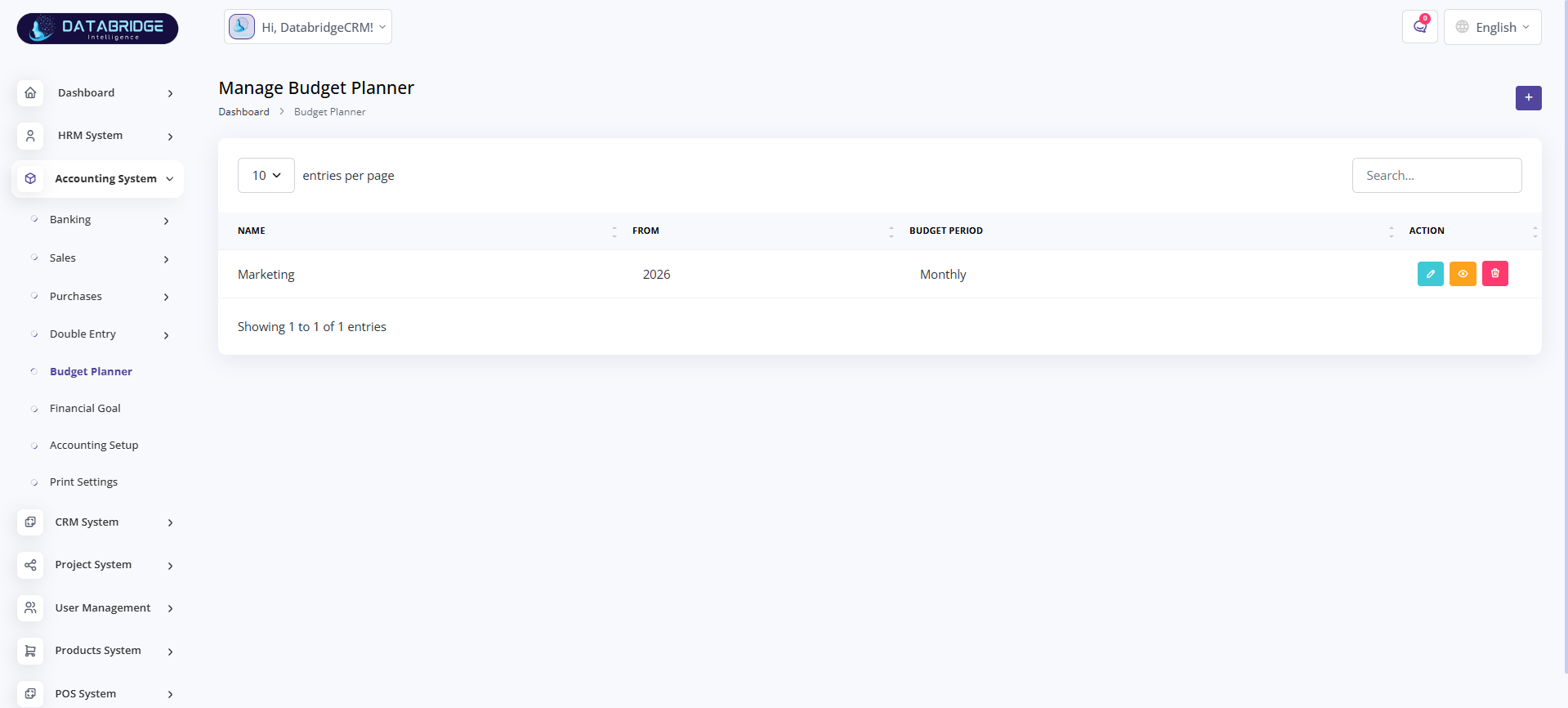
Manage Budget Planner:
This screen is used to manage and track different budget plans for the organization.
It allows users to view, edit, and organize budgets based on defined time periods.
Features:
-Budget list with name and period
-Year-based budget tracking
-Monthly/period-wise categorization
-Search functionality
-Add, edit, delete options
Functionality:
-Stores multiple budget plans
-Tracks budget allocation by period
-Allows updating and managing budgets
-Supports financial planning and control
This screen is used to manage and track different budget plans for the organization.
It allows users to view, edit, and organize budgets based on defined time periods.
Features:
-Budget list with name and period
-Year-based budget tracking
-Monthly/period-wise categorization
-Search functionality
-Add, edit, delete options
Functionality:
-Stores multiple budget plans
-Tracks budget allocation by period
-Allows updating and managing budgets
-Supports financial planning and control
1
Accounting System
2
Budget Planner
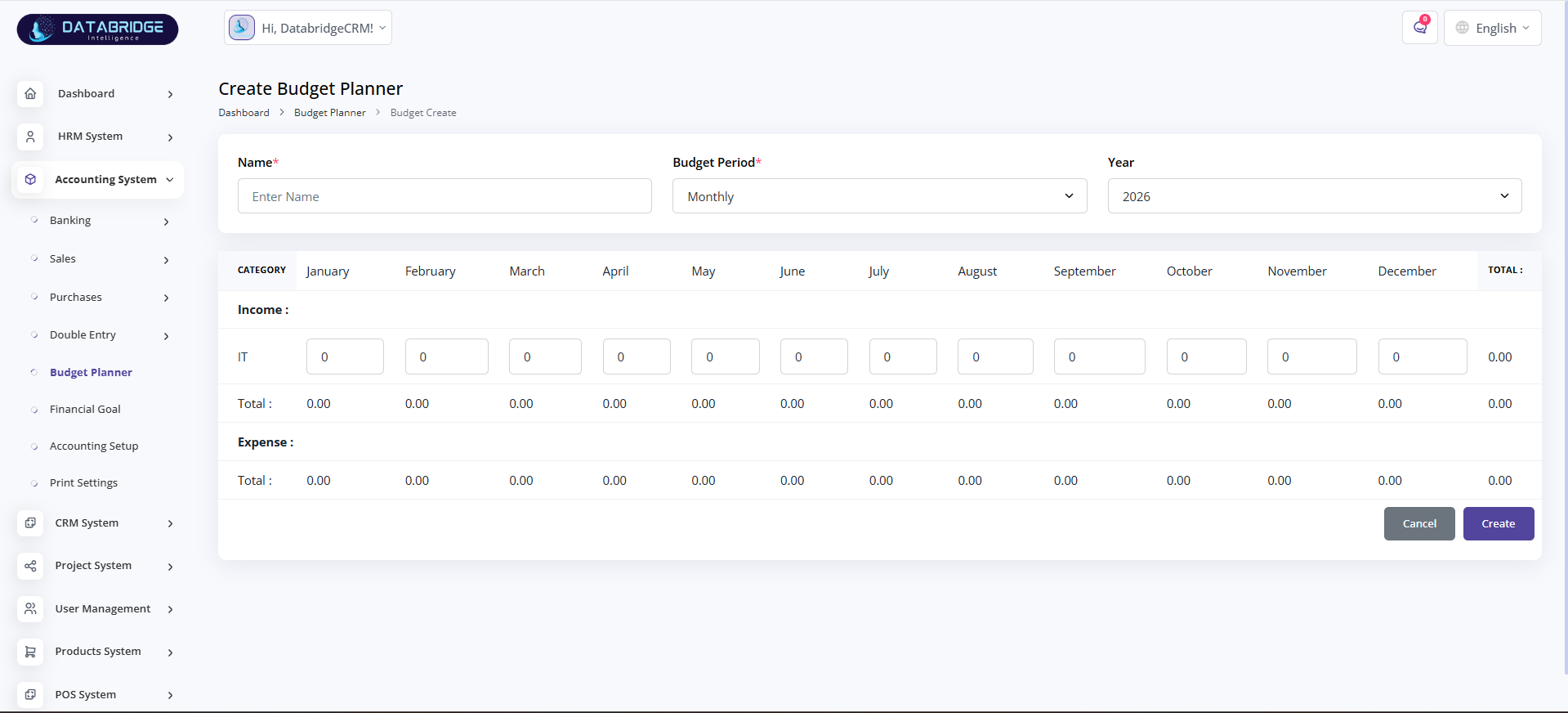
Create Budget Planner:
This screen allows users to create a detailed budget plan by defining income and expenses across months.
It helps in planning financial allocation for the entire year.
Features:
-Budget name and year selection
-Budget period selection (Monthly/Yearly)
-Month-wise input fields
-Income and expense sections
-Auto total calculation
-Create and cancel options
Functionality:
-Captures monthly financial planning data
-Calculates totals automatically
-Separates income and expenses
-Saves structured budget data
This screen allows users to create a detailed budget plan by defining income and expenses across months.
It helps in planning financial allocation for the entire year.
Features:
-Budget name and year selection
-Budget period selection (Monthly/Yearly)
-Month-wise input fields
-Income and expense sections
-Auto total calculation
-Create and cancel options
Functionality:
-Captures monthly financial planning data
-Calculates totals automatically
-Separates income and expenses
-Saves structured budget data
1
Accounting System
2
Budget Planner
3
Right"+"
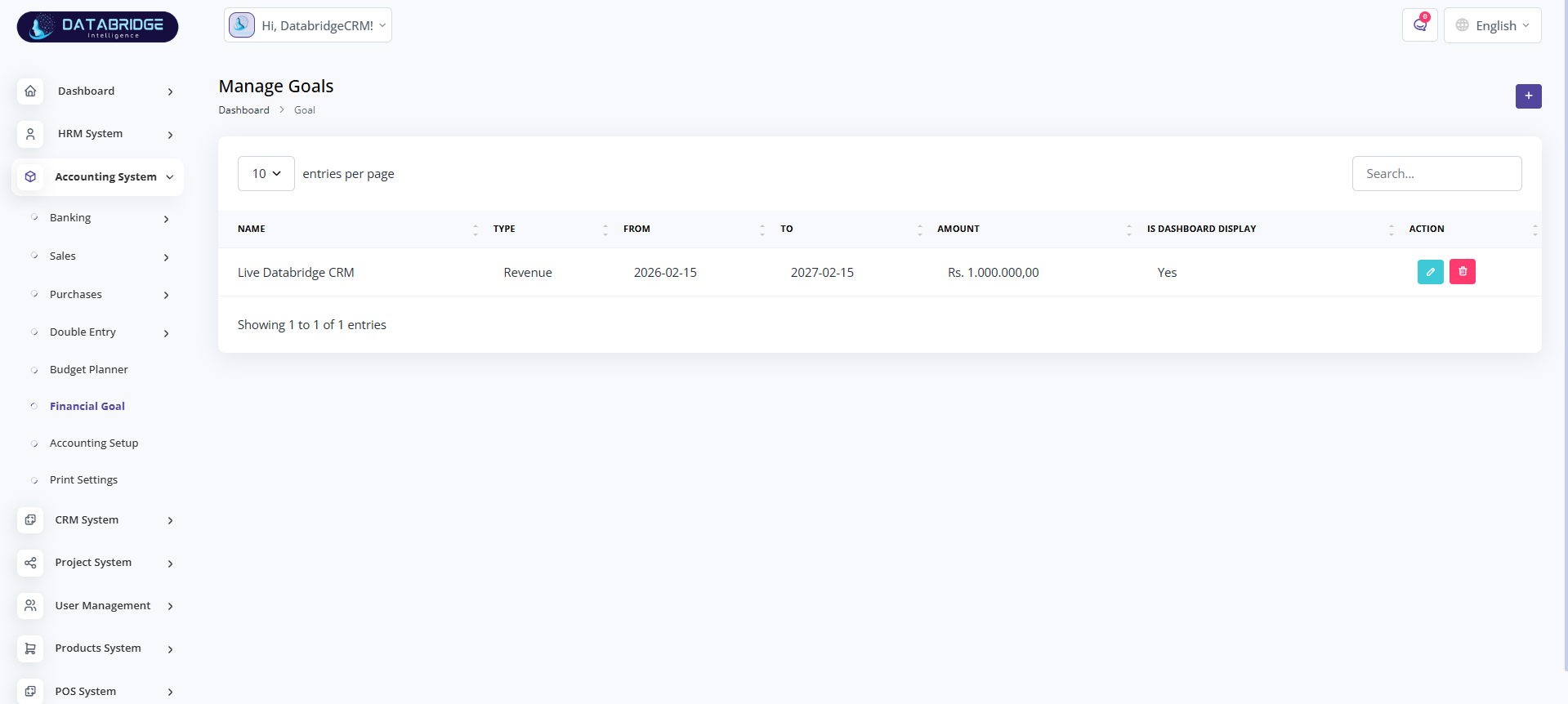
Manage Financial Goals:
This screen is used to manage financial goals such as revenue targets or expense limits.
It helps users track and monitor financial objectives over a period of time.
Features:
-Goal listing with name and type
-Date range (From – To)
-Target amount display
-Dashboard visibility toggle
-Add, edit, delete options
Functionality:
-Defines financial targets
-Tracks goal duration and progress
-Displays selected goals on dashboard
-Helps in performance monitoring
This screen is used to manage financial goals such as revenue targets or expense limits.
It helps users track and monitor financial objectives over a period of time.
Features:
-Goal listing with name and type
-Date range (From – To)
-Target amount display
-Dashboard visibility toggle
-Add, edit, delete options
Functionality:
-Defines financial targets
-Tracks goal duration and progress
-Displays selected goals on dashboard
-Helps in performance monitoring
1
Accounting System
2
Financial Goals
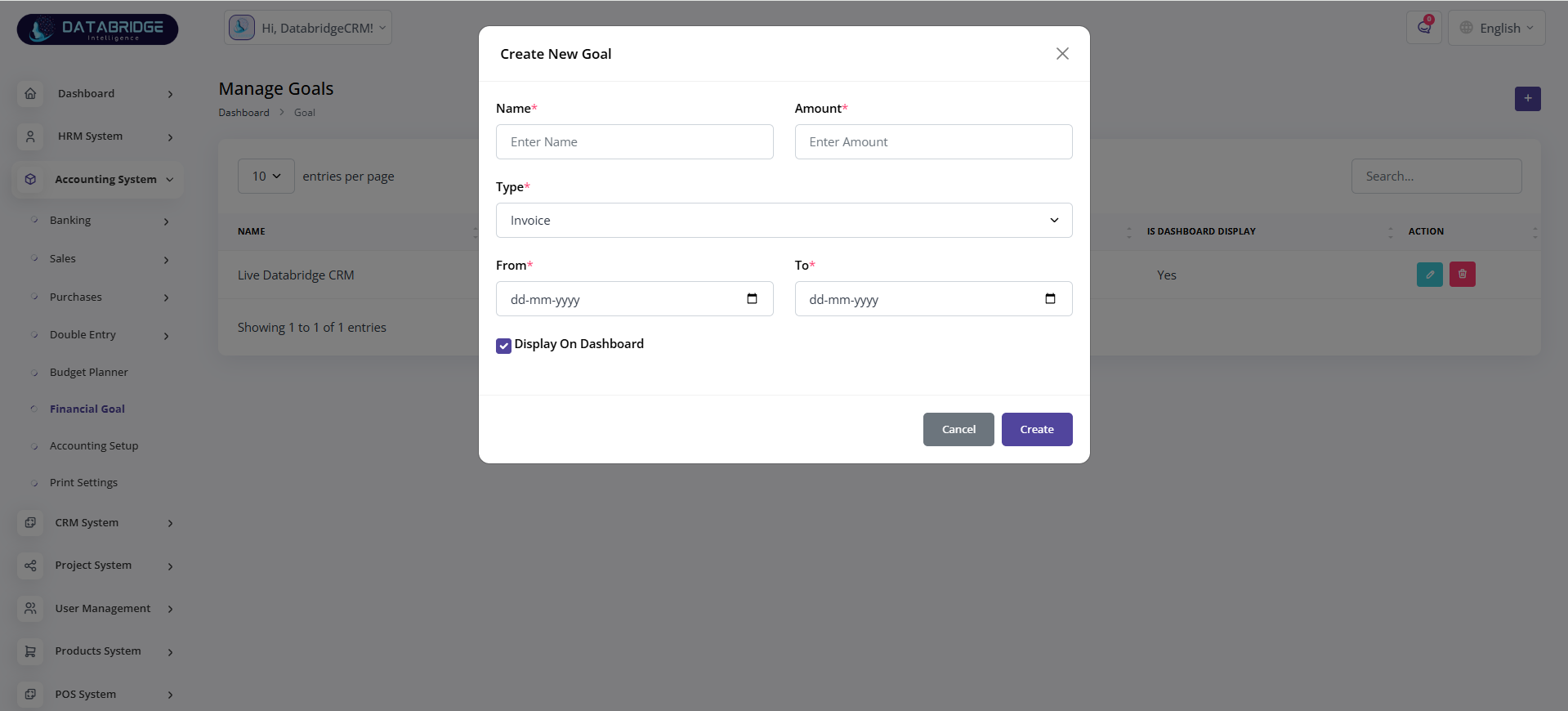
Create Financial Goal (Popup):
This popup screen is used to create a new financial goal with specific details like amount and duration.
It provides a quick and easy way to define business targets.
Features:
-Goal name input
-Amount field
-Goal type selection
-Date range selection
-Display on dashboard option
-Create and cancel buttons
Functionality:
-Captures goal-related data
-Saves goal with timeline
-Enables dashboard visibility
-Supports quick goal creation
This popup screen is used to create a new financial goal with specific details like amount and duration.
It provides a quick and easy way to define business targets.
Features:
-Goal name input
-Amount field
-Goal type selection
-Date range selection
-Display on dashboard option
-Create and cancel buttons
Functionality:
-Captures goal-related data
-Saves goal with timeline
-Enables dashboard visibility
-Supports quick goal creation
1
Accounting System
2
Financial Goals
3
Right"+"
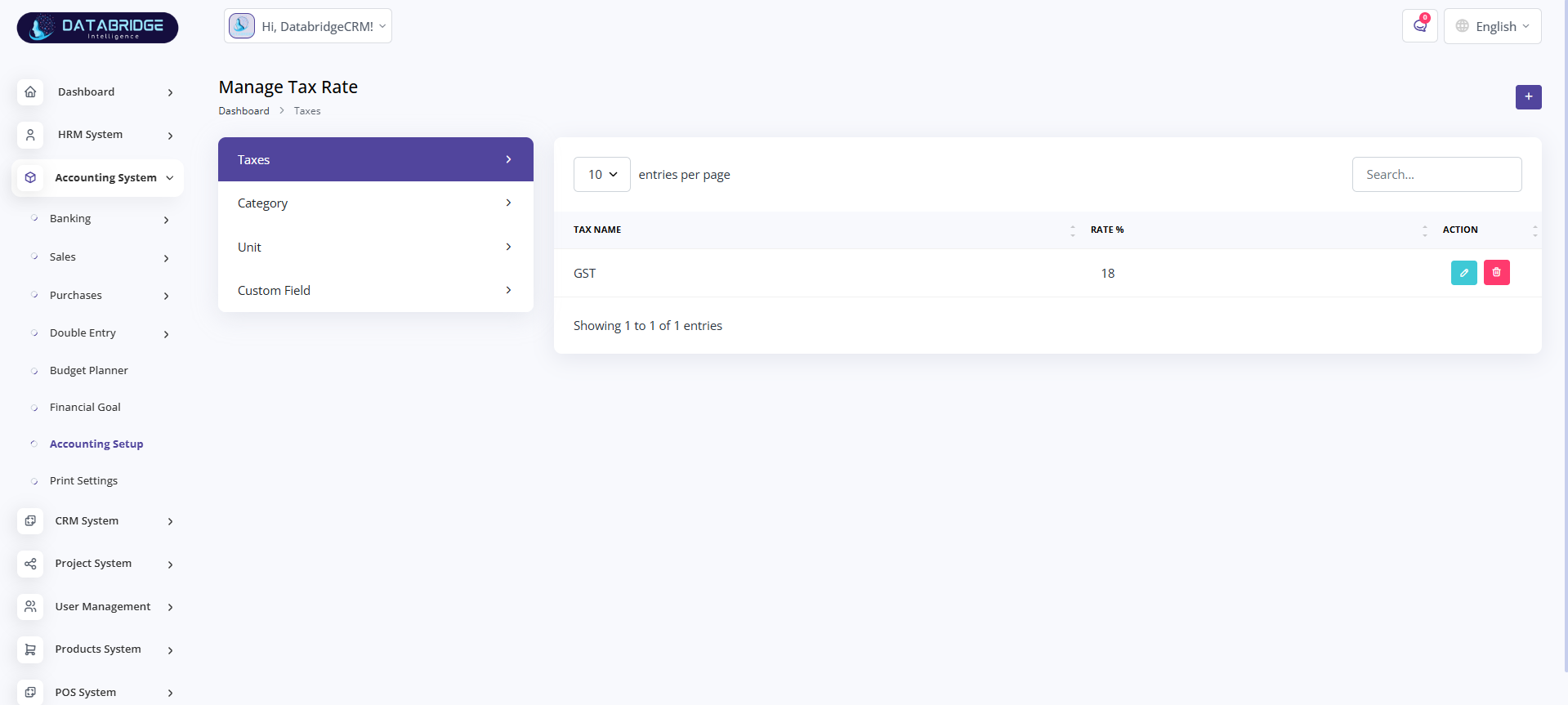
Manage Tax Rate:
This screen is used to manage different tax rates applicable in the system.
It helps in defining and maintaining tax configurations like GST.
Features:
-Tax name and percentage listing
-Search functionality
-Add, edit, delete options
-Category and unit configuration (side panel)
Functionality:
-Stores tax rate details
-Applies tax rates in transactions
-Allows updating tax configurations
-Supports multiple tax types
This screen is used to manage different tax rates applicable in the system.
It helps in defining and maintaining tax configurations like GST.
Features:
-Tax name and percentage listing
-Search functionality
-Add, edit, delete options
-Category and unit configuration (side panel)
Functionality:
-Stores tax rate details
-Applies tax rates in transactions
-Allows updating tax configurations
-Supports multiple tax types
1
Accounting System
2
Accounting Setup
3
Taxes
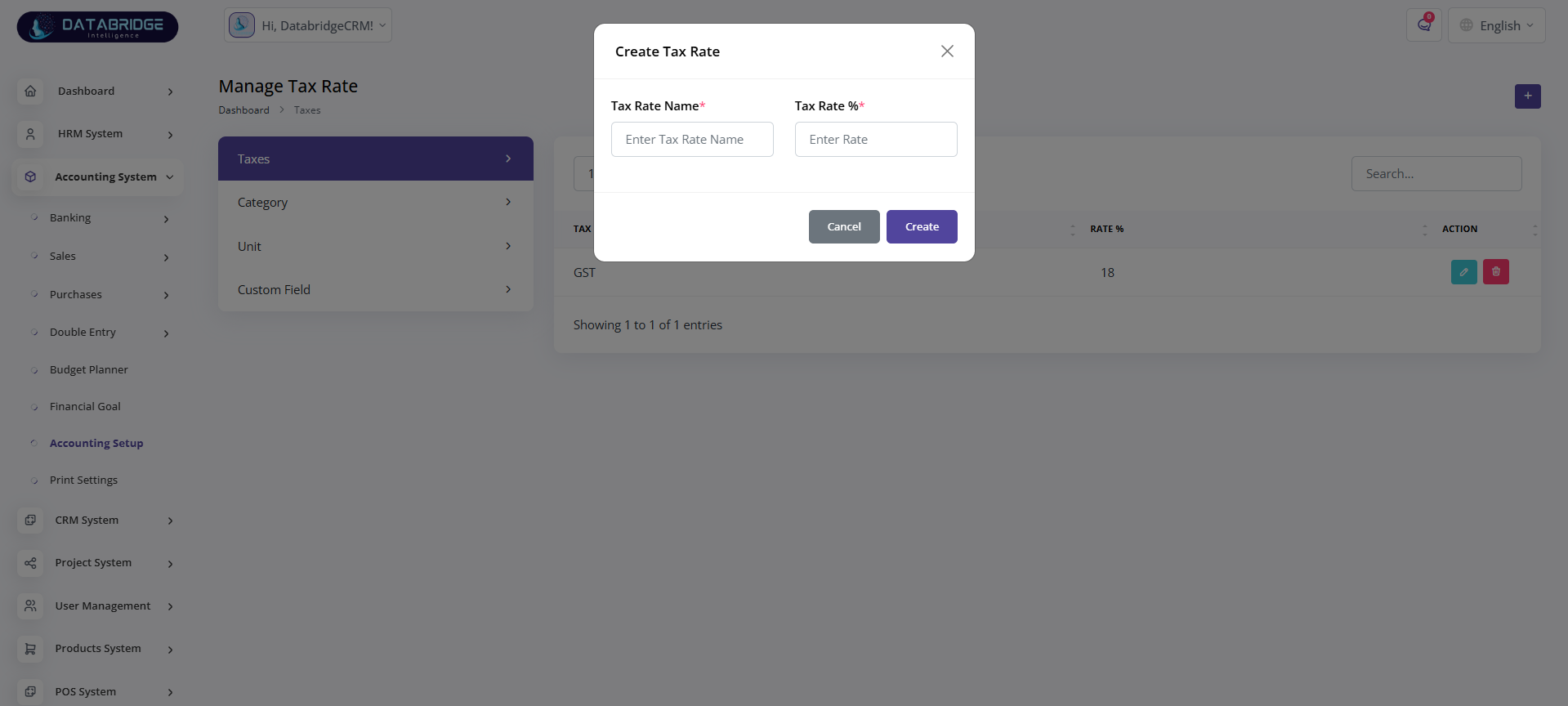
Create Tax Rate (Popup):
This popup allows users to create a new tax rate by specifying its name and percentage.
It ensures proper tax configuration for billing and accounting.
Features:
-Tax name input field
-Tax percentage input
-Create and cancel options
Functionality:
-Adds new tax rates
-Validates input values
-Saves tax configuration
-Makes tax available for transactions
This popup allows users to create a new tax rate by specifying its name and percentage.
It ensures proper tax configuration for billing and accounting.
Features:
-Tax name input field
-Tax percentage input
-Create and cancel options
Functionality:
-Adds new tax rates
-Validates input values
-Saves tax configuration
-Makes tax available for transactions
1
Accounting System
2
Accounting Setup
3
Taxes
4
Right"+"
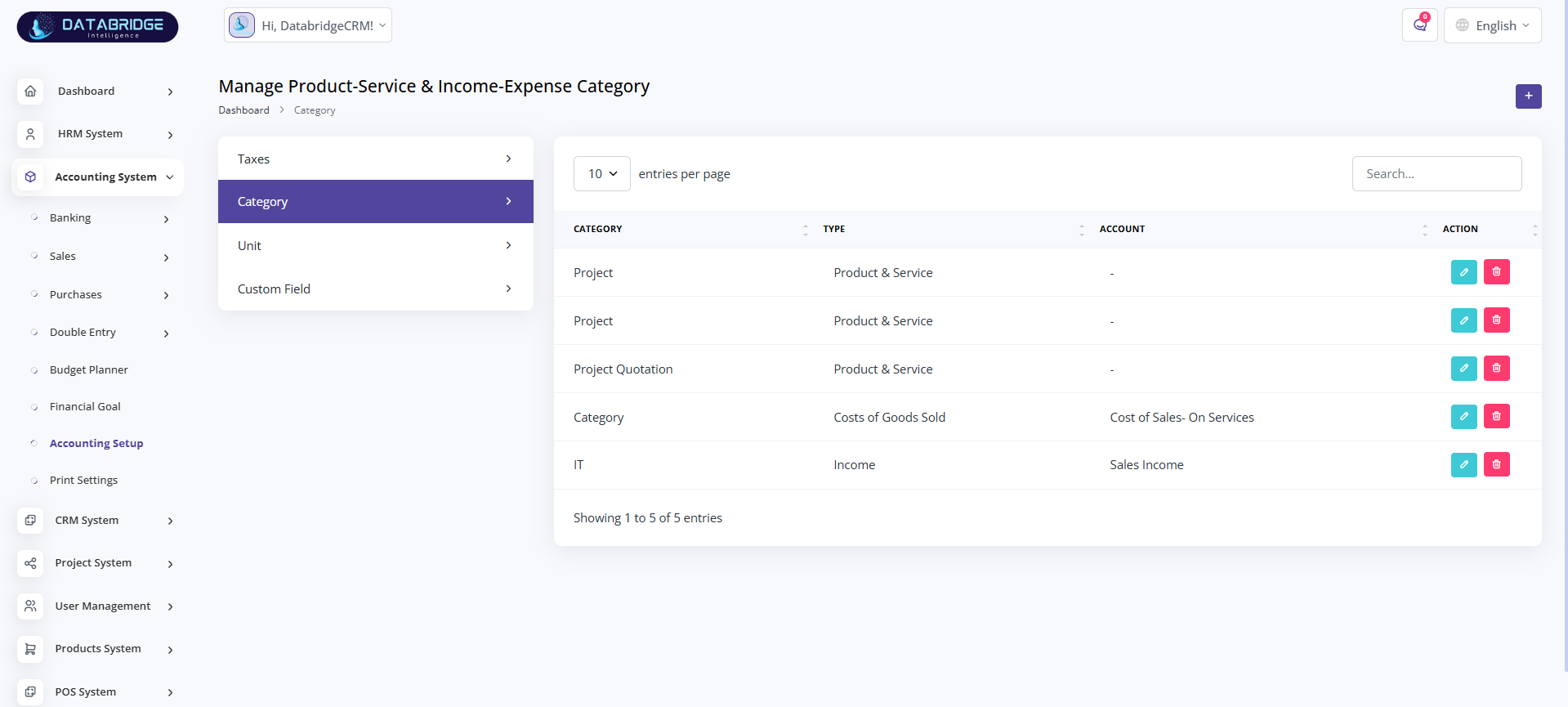
Manage Product-Service & Income-Expense Category:
This screen is used to manage categories for products, services, income, and expenses.
It helps in organizing financial data and linking categories with appropriate accounts.
Features:
-Category listing with type and account
-Multiple category types (Product & Service, Income, Expense, COGS)
-Search functionality
-Add, edit, delete options
-Side navigation (Taxes, Category, Unit, Custom Field)
Functionality:
-Stores and manages category data
-Links categories with accounting heads
-Supports classification of transactions
-Enables structured financial reporting
This screen is used to manage categories for products, services, income, and expenses.
It helps in organizing financial data and linking categories with appropriate accounts.
Features:
-Category listing with type and account
-Multiple category types (Product & Service, Income, Expense, COGS)
-Search functionality
-Add, edit, delete options
-Side navigation (Taxes, Category, Unit, Custom Field)
Functionality:
-Stores and manages category data
-Links categories with accounting heads
-Supports classification of transactions
-Enables structured financial reporting
1
Accounting System
2
Accounting Setup
3
Category
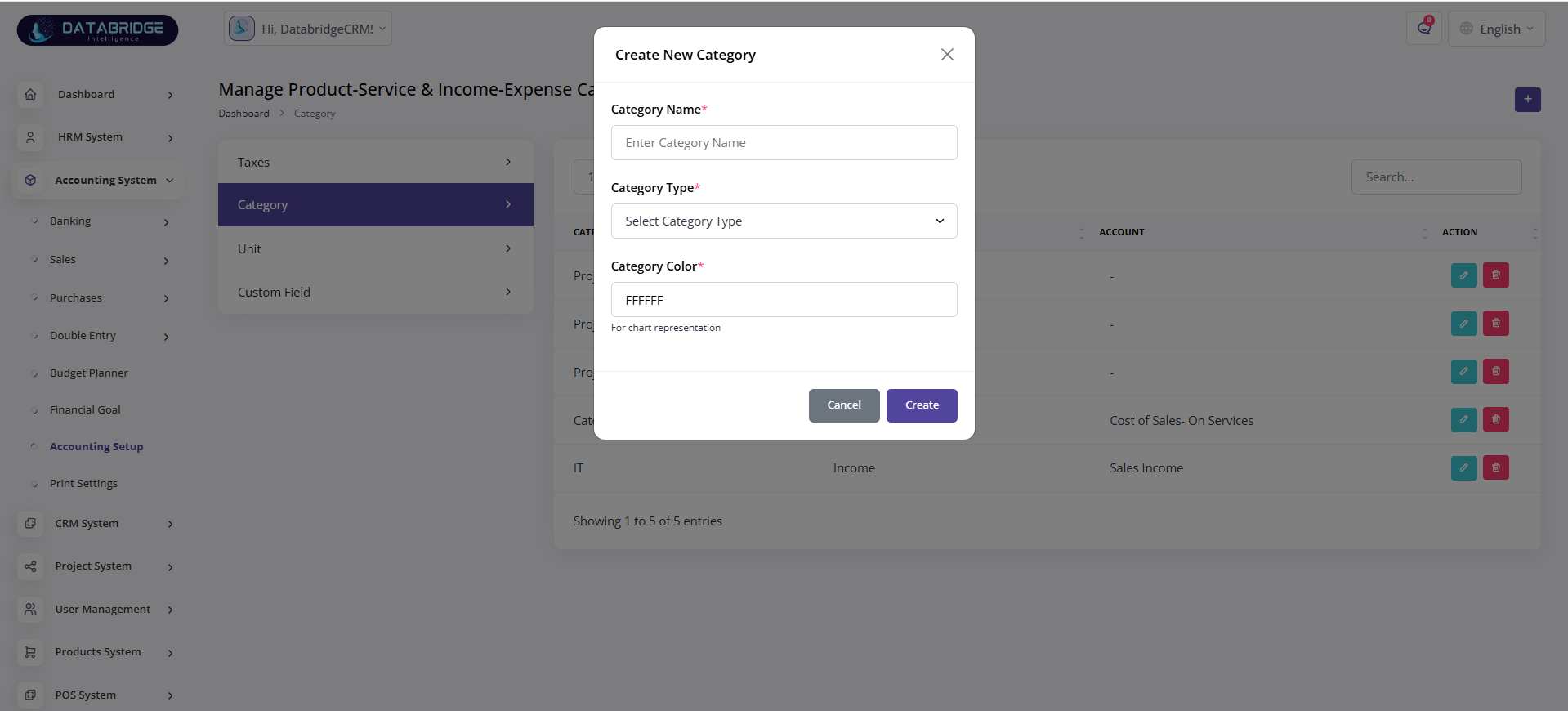
Create Category (Popup):
This popup allows users to create a new category by defining its name, type, and color.
It helps in better classification and visualization of financial data.
Features:
-Category name input
-Category type dropdown
-Color selection (for charts)
-Create and cancel options
Functionality:
-Captures category details
-Assigns category type and color
-Saves category for system-wide usage
-Enhances reporting visualization
This popup allows users to create a new category by defining its name, type, and color.
It helps in better classification and visualization of financial data.
Features:
-Category name input
-Category type dropdown
-Color selection (for charts)
-Create and cancel options
Functionality:
-Captures category details
-Assigns category type and color
-Saves category for system-wide usage
-Enhances reporting visualization
1
Accounting System
2
Accounting Setup
3
Category
4
Right"+"
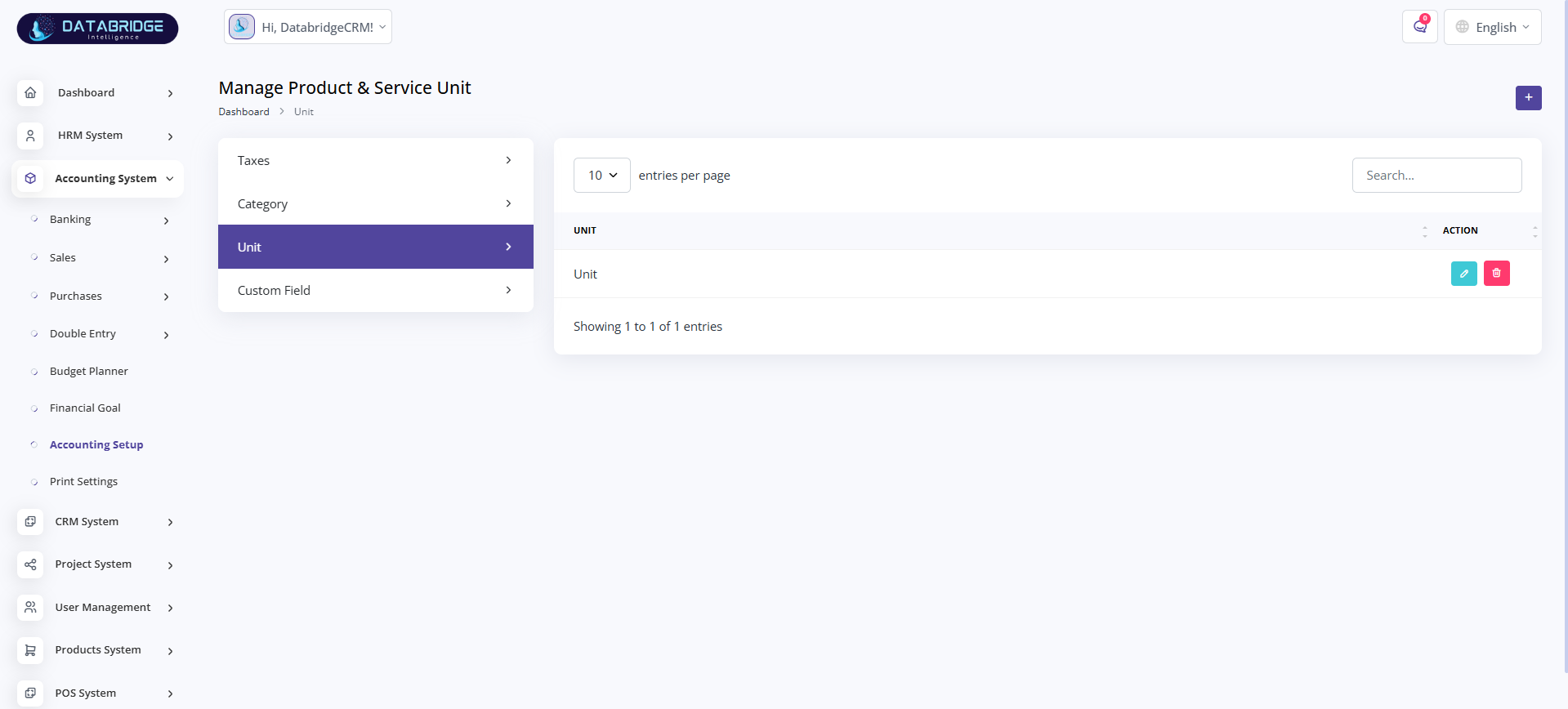
Manage Product & Service Unit:
This screen is used to manage measurement units for products and services.
It ensures consistency in quantity and pricing across the system.
Features:
-Unit listing
-Search functionality
-Add, edit, delete options
-Simple and clean interface
Functionality:
-Stores unit definitions (e.g., pcs, kg, hours)
-Used in product/service creation
-Maintains consistency in transactions
-Supports accurate billing
This screen is used to manage measurement units for products and services.
It ensures consistency in quantity and pricing across the system.
Features:
-Unit listing
-Search functionality
-Add, edit, delete options
-Simple and clean interface
Functionality:
-Stores unit definitions (e.g., pcs, kg, hours)
-Used in product/service creation
-Maintains consistency in transactions
-Supports accurate billing
1
Accounting System
2
Accounting Setup
3
Unit
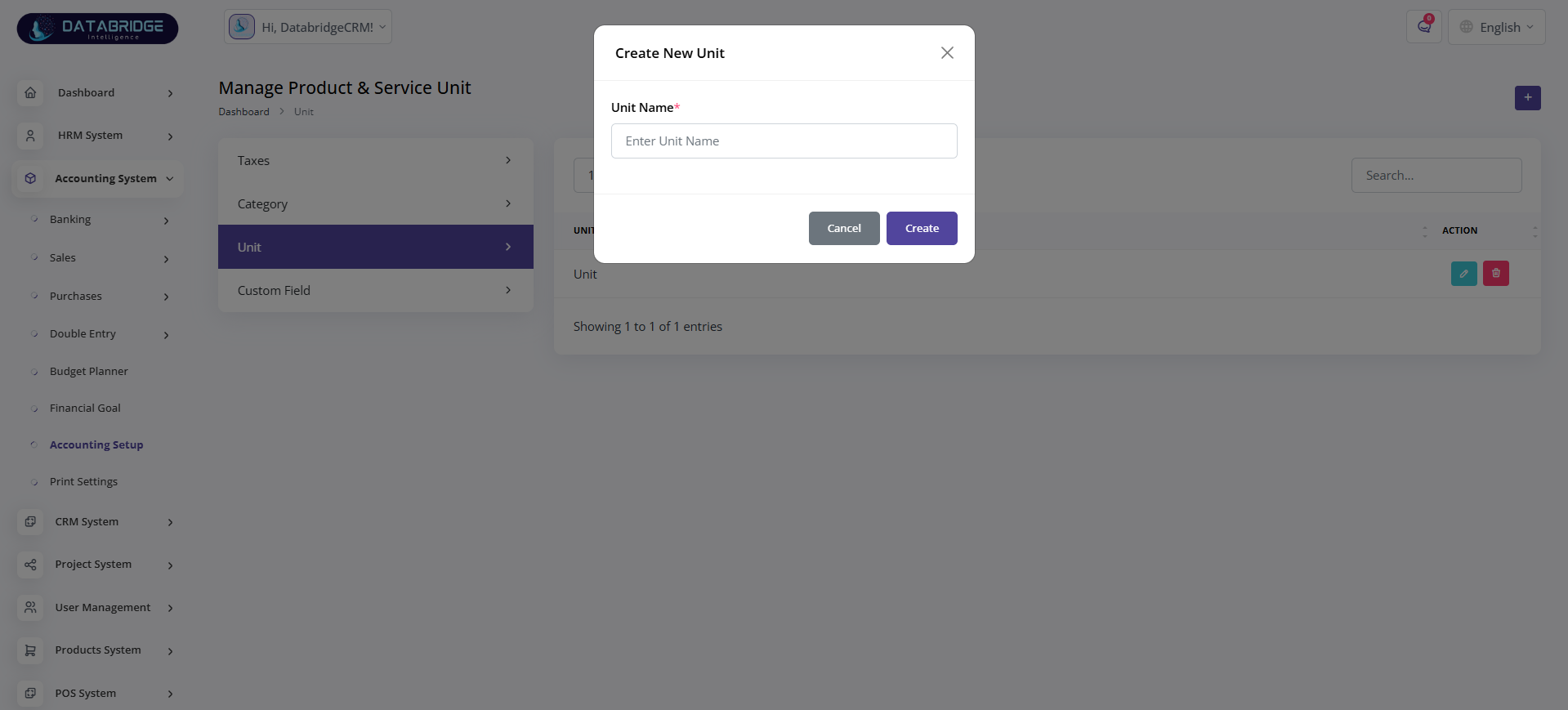
Create Unit (Popup):
This popup screen allows users to create a new unit of measurement.
It simplifies adding units required for products and services.
Features:
-Unit name input field
-Create and cancel options
Functionality:
-Adds new unit records
-Validates input
-Saves unit for system usage
This popup screen allows users to create a new unit of measurement.
It simplifies adding units required for products and services.
Features:
-Unit name input field
-Create and cancel options
Functionality:
-Adds new unit records
-Validates input
-Saves unit for system usage
1
Accounting System
2
Accounting Setup
3
Unit
4
Right"+"
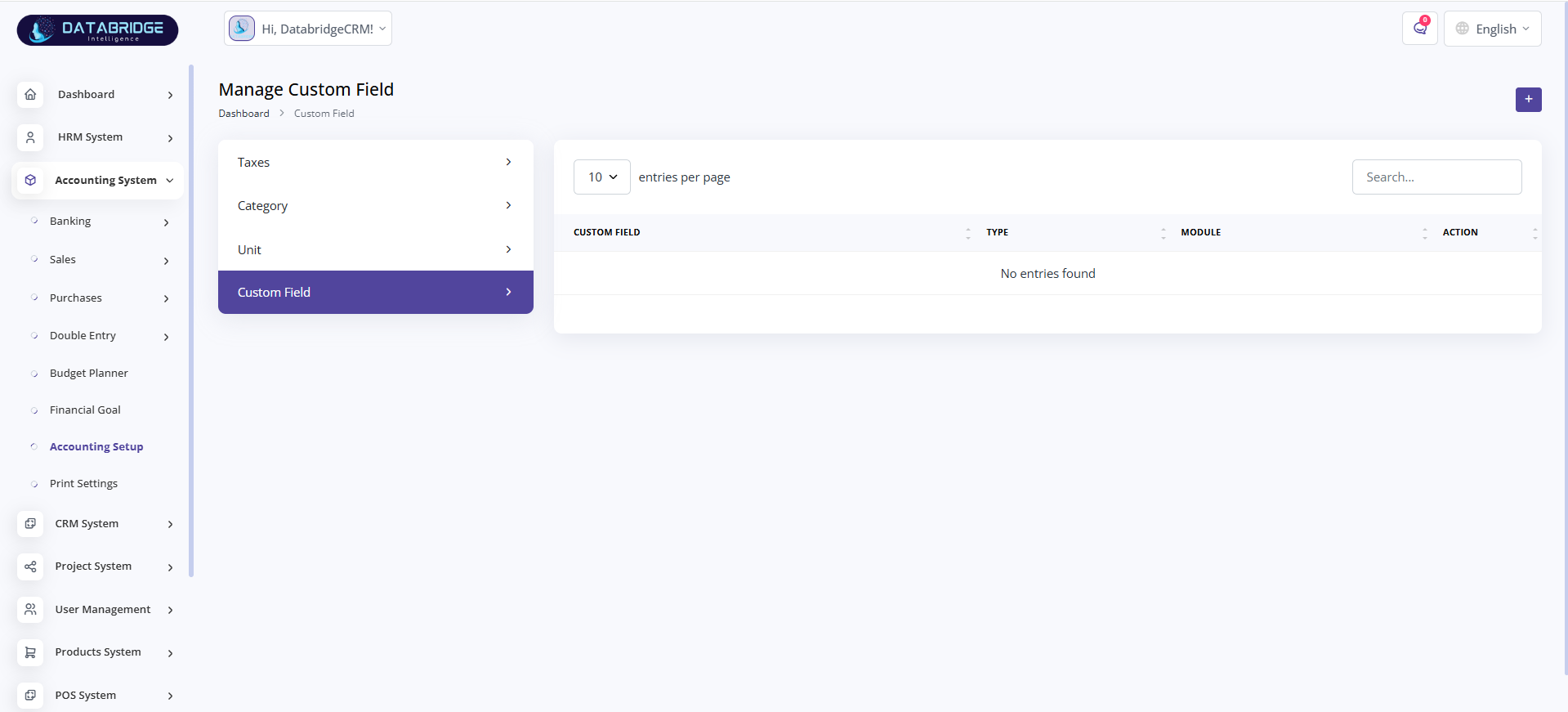
Manage Custom Field:
This screen is used to manage custom fields that can be added to different modules.
It allows system flexibility by enabling additional user-defined data fields.
Features:
-Custom field listing
-Field type display
-Module association
-Search functionality
-Add, edit, delete options
Functionality:
-Stores custom field configurations
-Associates fields with modules (e.g., User, Invoice)
-Enables dynamic data capture
-Enhances system customization
This screen is used to manage custom fields that can be added to different modules.
It allows system flexibility by enabling additional user-defined data fields.
Features:
-Custom field listing
-Field type display
-Module association
-Search functionality
-Add, edit, delete options
Functionality:
-Stores custom field configurations
-Associates fields with modules (e.g., User, Invoice)
-Enables dynamic data capture
-Enhances system customization
1
Accounting System
2
Accounting Setup
3
Custom Field
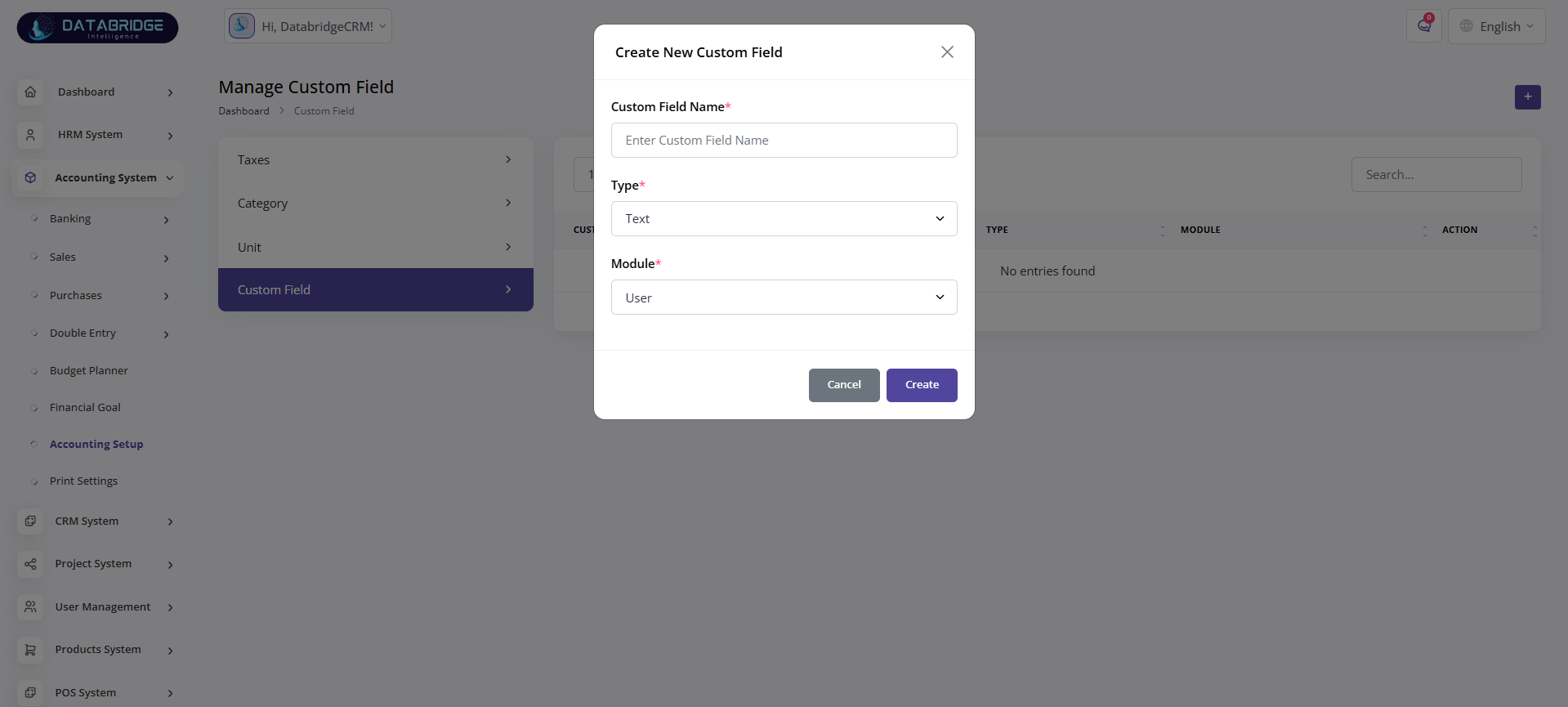
Create Custom Field (Popup):
This popup allows users to create a new custom field with specific type and module mapping.
It helps in extending system capabilities without code changes.
Features:
-Custom field name input
-Field type selection (Text, Number, etc.)
-Module selection dropdown
-Create and cancel options
Functionality:
-Captures custom field details
-Assigns field to selected module
-Saves configuration dynamically
-Enables additional data input fields
This popup allows users to create a new custom field with specific type and module mapping.
It helps in extending system capabilities without code changes.
Features:
-Custom field name input
-Field type selection (Text, Number, etc.)
-Module selection dropdown
-Create and cancel options
Functionality:
-Captures custom field details
-Assigns field to selected module
-Saves configuration dynamically
-Enables additional data input fields
1
Accounting System
2
Accounting Setup
3
Custom Field
4
Right"+"
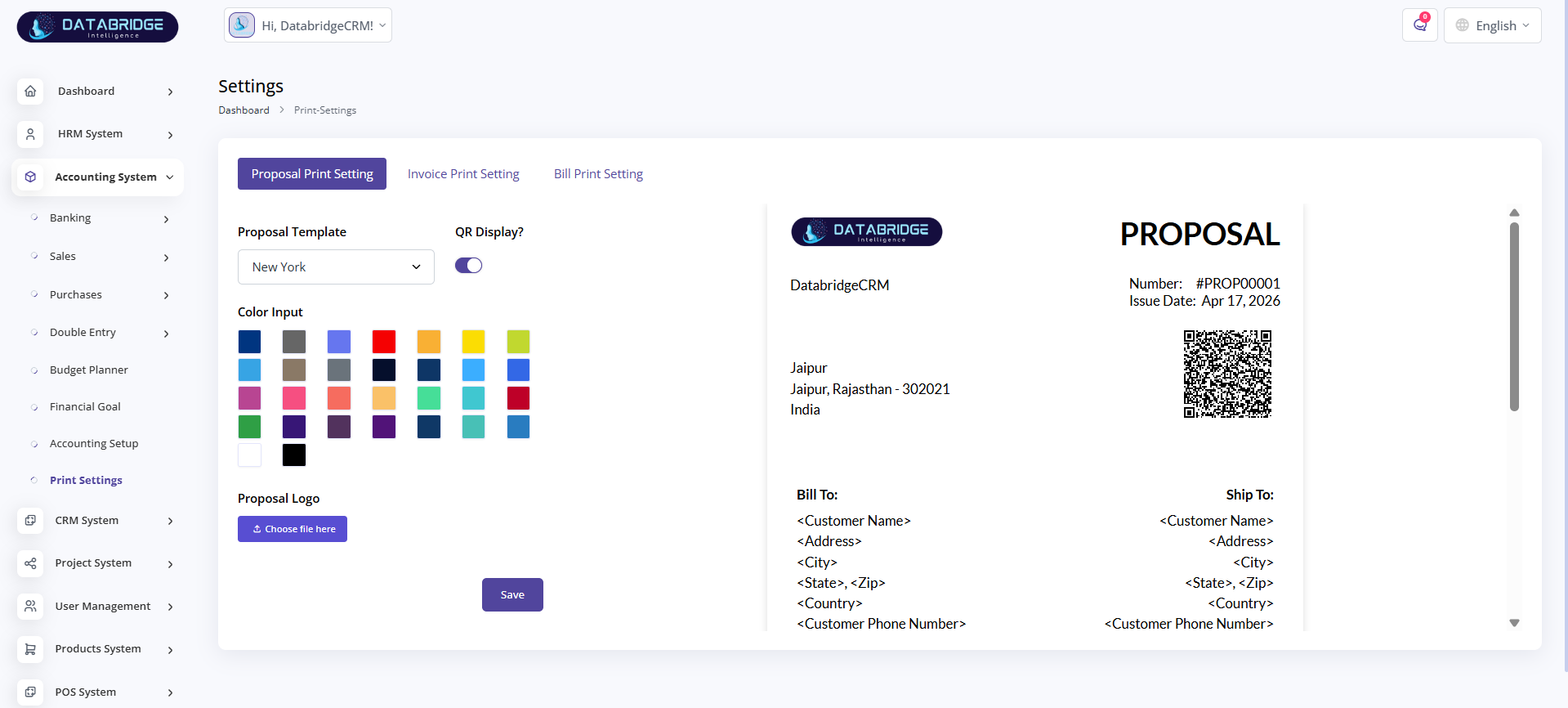
Print Settings:
This screen allows users to configure print templates for proposals, invoices, and bills.
It provides customization options for layout, colors, and branding.
Features:
-Multiple print templates (Proposal, Invoice, Bill)
-QR code toggle option
-Color selection panel
-Logo upload option
-Live preview of template
-Save settings option
Functionality:
-Customizes document appearance
-Applies branding to printed documents
-Enables QR code display
-Saves user-defined print configurations
This screen allows users to configure print templates for proposals, invoices, and bills.
It provides customization options for layout, colors, and branding.
Features:
-Multiple print templates (Proposal, Invoice, Bill)
-QR code toggle option
-Color selection panel
-Logo upload option
-Live preview of template
-Save settings option
Functionality:
-Customizes document appearance
-Applies branding to printed documents
-Enables QR code display
-Saves user-defined print configurations
1
Accounting System
2
Print Setting
CRM System
The CRM System is designed to manage customer relationships, sales activities, and business interactions in a centralized platform.It helps organizations track leads, manage deals, handle client communication, and streamline the overall sales process to improve customer engagement and business growth.
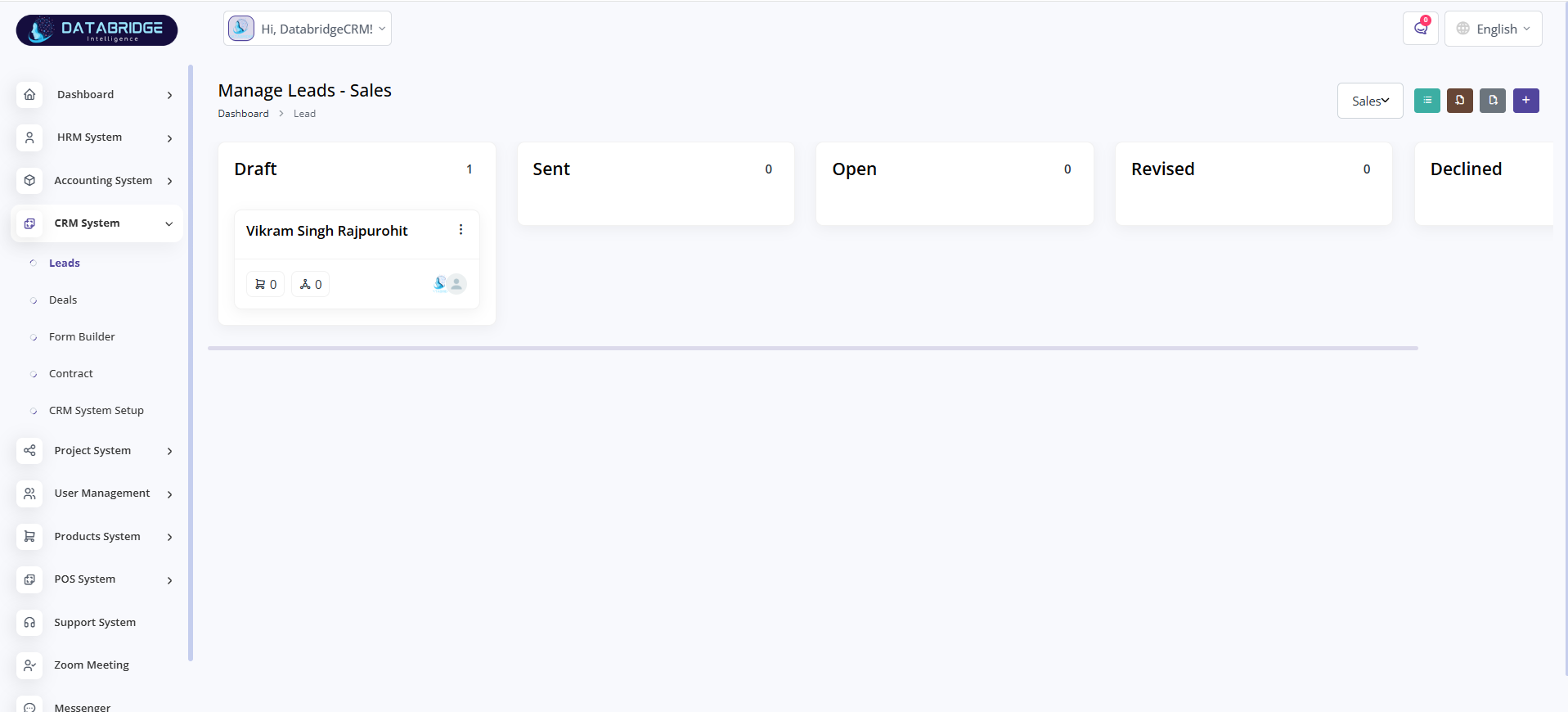
Manage Leads - Sales:
This screen is used to manage and track all sales leads in a pipeline format.
It provides a visual overview of lead stages such as Draft, Sent, Open, Revised, and Declined.
Features:
-Kanban-style lead pipeline view
-Multiple lead stages (Draft, Sent, Open, Revised, Declined)
-Lead cards with basic details
-Quick action options
-Add new lead option
-Sales filter dropdown
Functionality:
-Tracks lead lifecycle from creation to closure
-Allows movement of leads across stages
-Displays lead summary and interaction data
-Helps in sales pipeline management
This screen is used to manage and track all sales leads in a pipeline format.
It provides a visual overview of lead stages such as Draft, Sent, Open, Revised, and Declined.
Features:
-Kanban-style lead pipeline view
-Multiple lead stages (Draft, Sent, Open, Revised, Declined)
-Lead cards with basic details
-Quick action options
-Add new lead option
-Sales filter dropdown
Functionality:
-Tracks lead lifecycle from creation to closure
-Allows movement of leads across stages
-Displays lead summary and interaction data
-Helps in sales pipeline management
1
CRM System
2
Leads
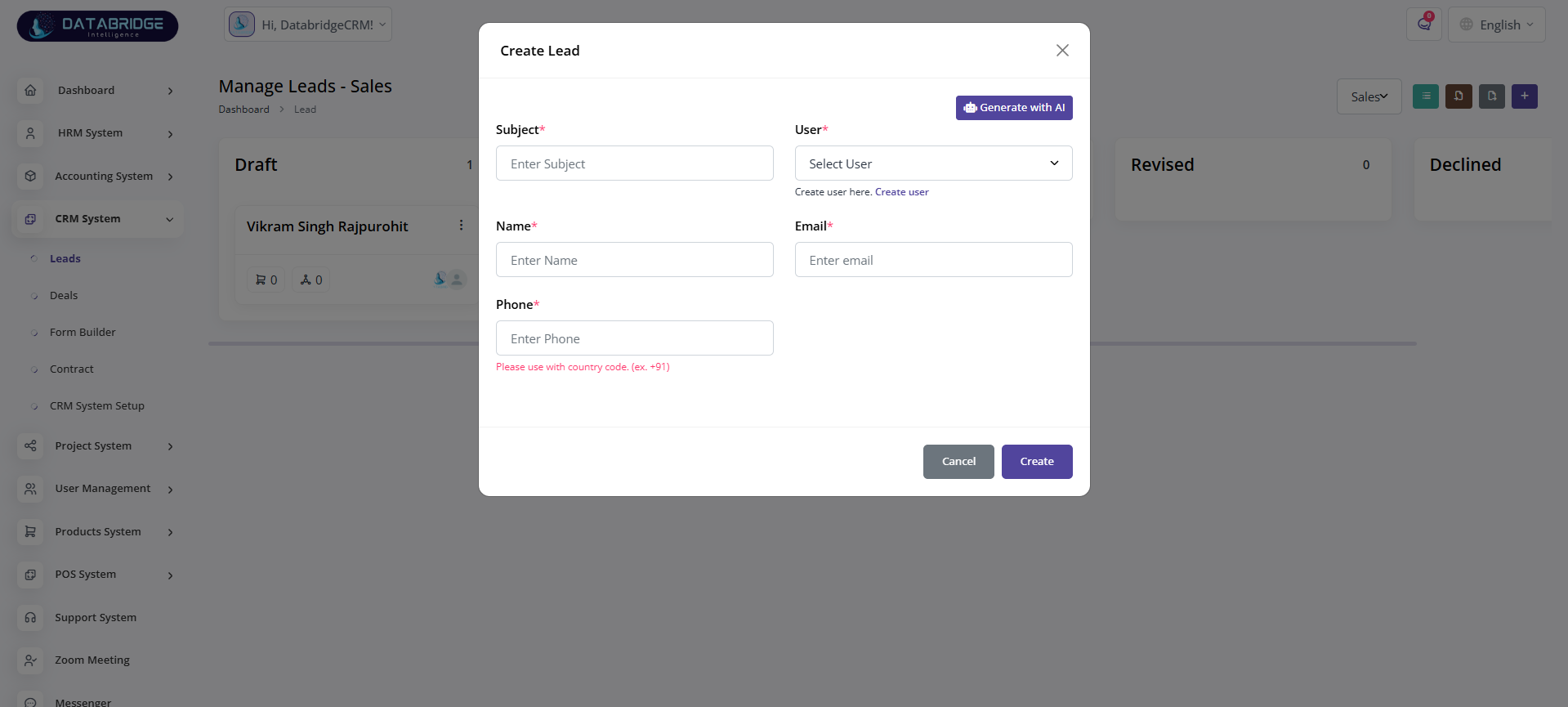
Create Lead (Popup):
This popup allows users to create a new lead by entering contact and subject details.
It simplifies lead creation and supports AI-assisted input generation.
Features:
-Subject input field
-User selection dropdown
-Name, email, phone fields
-AI-based “Generate with AI” option
-Create and cancel buttons
Functionality:
-Captures lead information
-Associates lead with a user
-Validates contact details
-Stores lead for pipeline tracking
This popup allows users to create a new lead by entering contact and subject details.
It simplifies lead creation and supports AI-assisted input generation.
Features:
-Subject input field
-User selection dropdown
-Name, email, phone fields
-AI-based “Generate with AI” option
-Create and cancel buttons
Functionality:
-Captures lead information
-Associates lead with a user
-Validates contact details
-Stores lead for pipeline tracking
1
CRM System
2
Leads
3
Right"+"
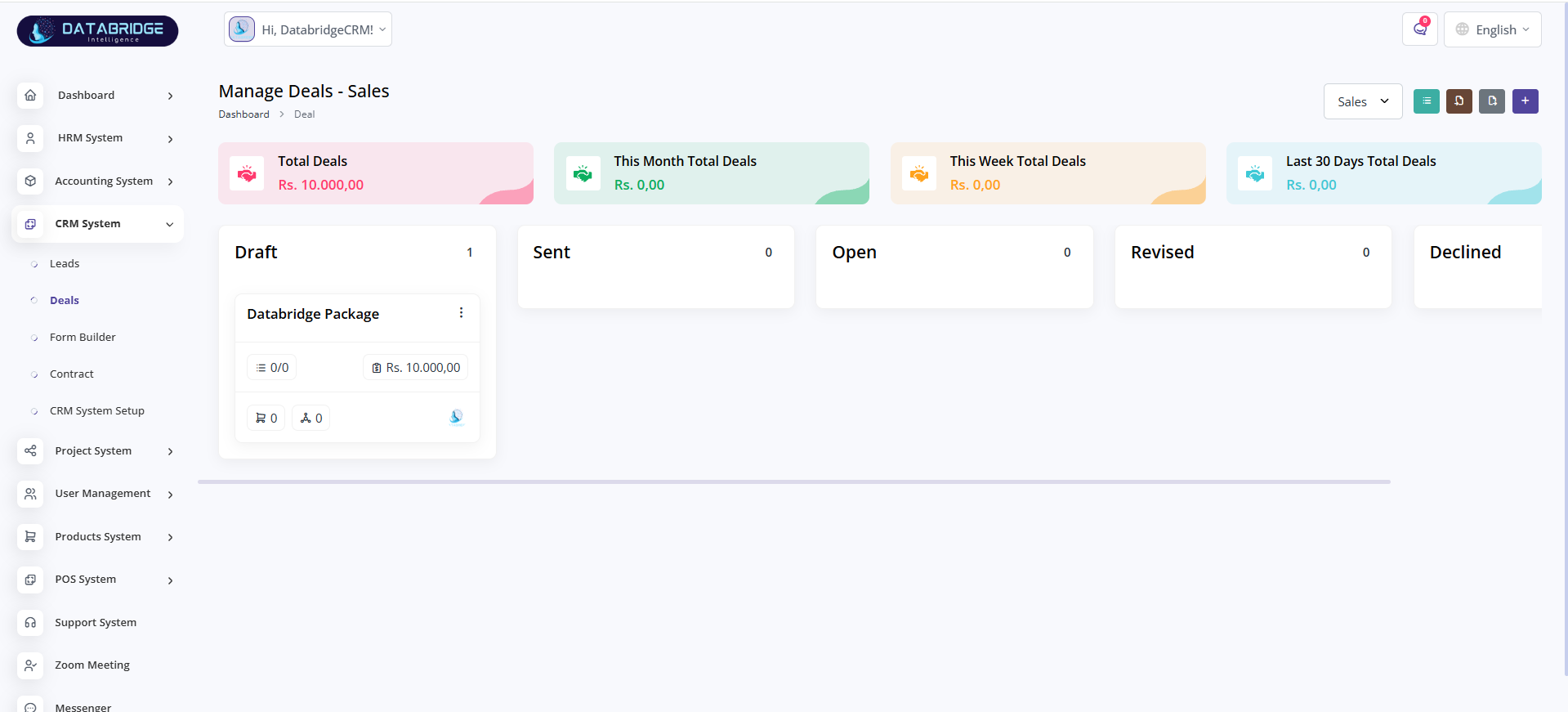
Manage Deals - Sales:
This screen manages all deals generated from leads and tracks their progress and value.
It provides both pipeline view and performance insights for better sales decision-making.
Features:
-Deal pipeline stages (Draft, Sent, Open, Revised, Declined)
-Deal summary cards (Total, Monthly, Weekly, Last 30 Days)
-Deal value display
-Add, edit, delete options
-Sales filter dropdown
Functionality:
-Tracks deal progress and conversion
-Calculates deal value metrics
-Helps monitor sales performance
-Converts leads into revenue-generating deals
This screen manages all deals generated from leads and tracks their progress and value.
It provides both pipeline view and performance insights for better sales decision-making.
Features:
-Deal pipeline stages (Draft, Sent, Open, Revised, Declined)
-Deal summary cards (Total, Monthly, Weekly, Last 30 Days)
-Deal value display
-Add, edit, delete options
-Sales filter dropdown
Functionality:
-Tracks deal progress and conversion
-Calculates deal value metrics
-Helps monitor sales performance
-Converts leads into revenue-generating deals
1
CRM System
2
Deals
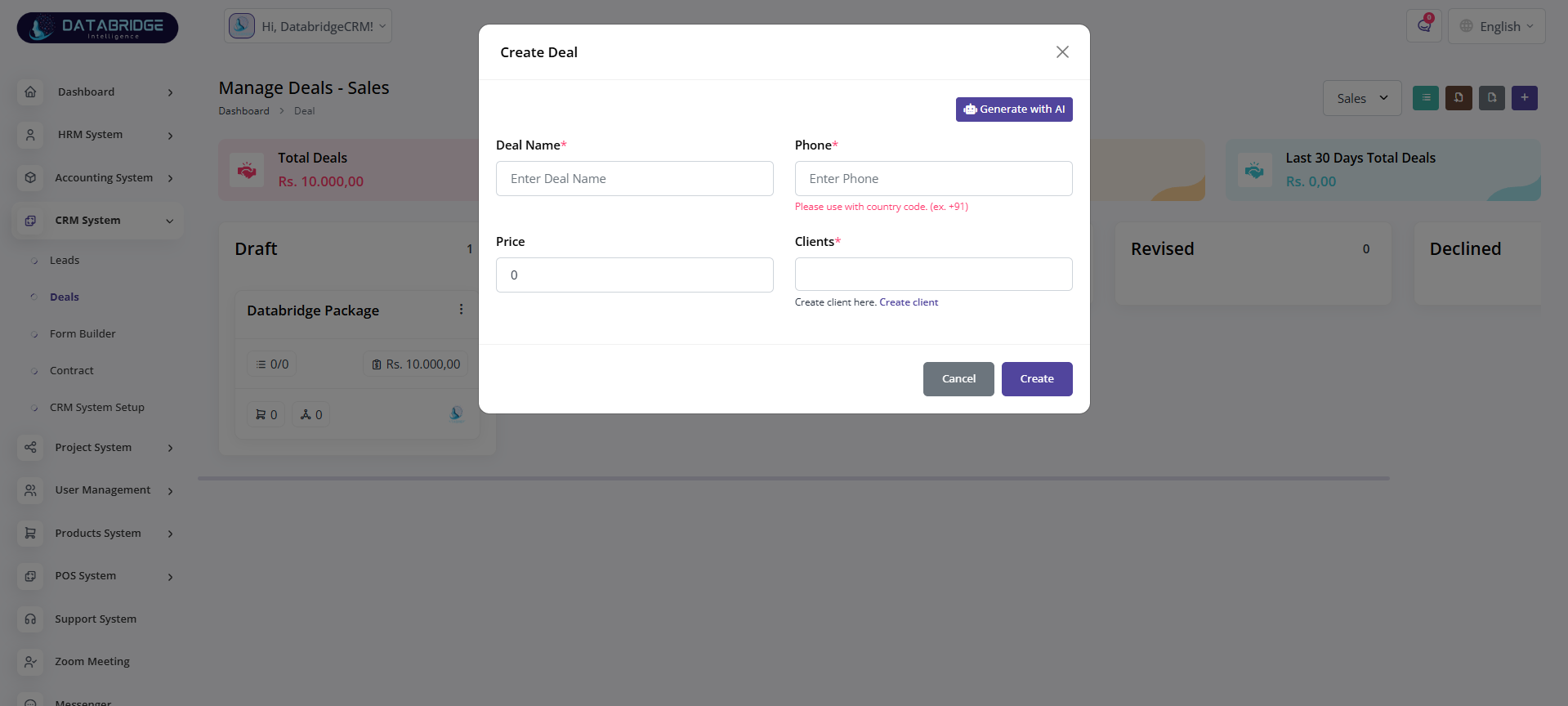
Create Deal (Popup):
This popup allows users to create a new deal with pricing and client details.
It helps in formalizing potential business opportunities.
Features:
-Deal name input
-Phone field
-Price input
-Client selection
-AI-based generation option
-Create and cancel buttons
Functionality:
-Converts opportunity into a deal
-Links deal with client
-Stores deal value
-Enables deal tracking in pipeline
This popup allows users to create a new deal with pricing and client details.
It helps in formalizing potential business opportunities.
Features:
-Deal name input
-Phone field
-Price input
-Client selection
-AI-based generation option
-Create and cancel buttons
Functionality:
-Converts opportunity into a deal
-Links deal with client
-Stores deal value
-Enables deal tracking in pipeline
1
CRM System
2
Deals
3
Right"+"
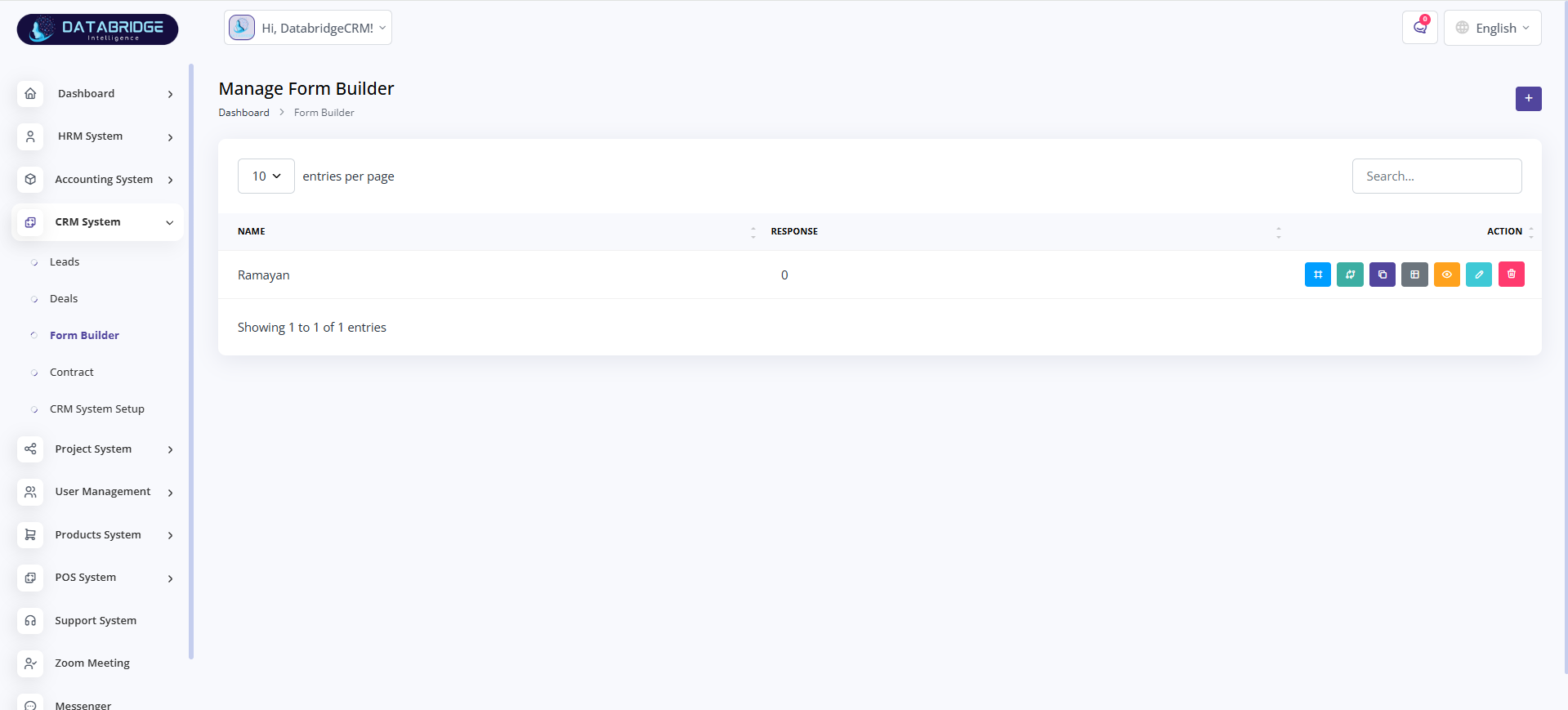
Manage Form Builder:
This screen is used to create and manage dynamic forms for data collection.
It allows users to design custom forms for leads, surveys, or other modules.
Features:
-Form listing with response count
-Search functionality
-Add new form option
-Multiple action buttons (edit, view, duplicate, delete)
Functionality:
-Stores custom form configurations
-Tracks number of responses
-Enables reusable form templates
-Supports dynamic data collection
This screen is used to create and manage dynamic forms for data collection.
It allows users to design custom forms for leads, surveys, or other modules.
Features:
-Form listing with response count
-Search functionality
-Add new form option
-Multiple action buttons (edit, view, duplicate, delete)
Functionality:
-Stores custom form configurations
-Tracks number of responses
-Enables reusable form templates
-Supports dynamic data collection
1
CRM System
2
Form Builder
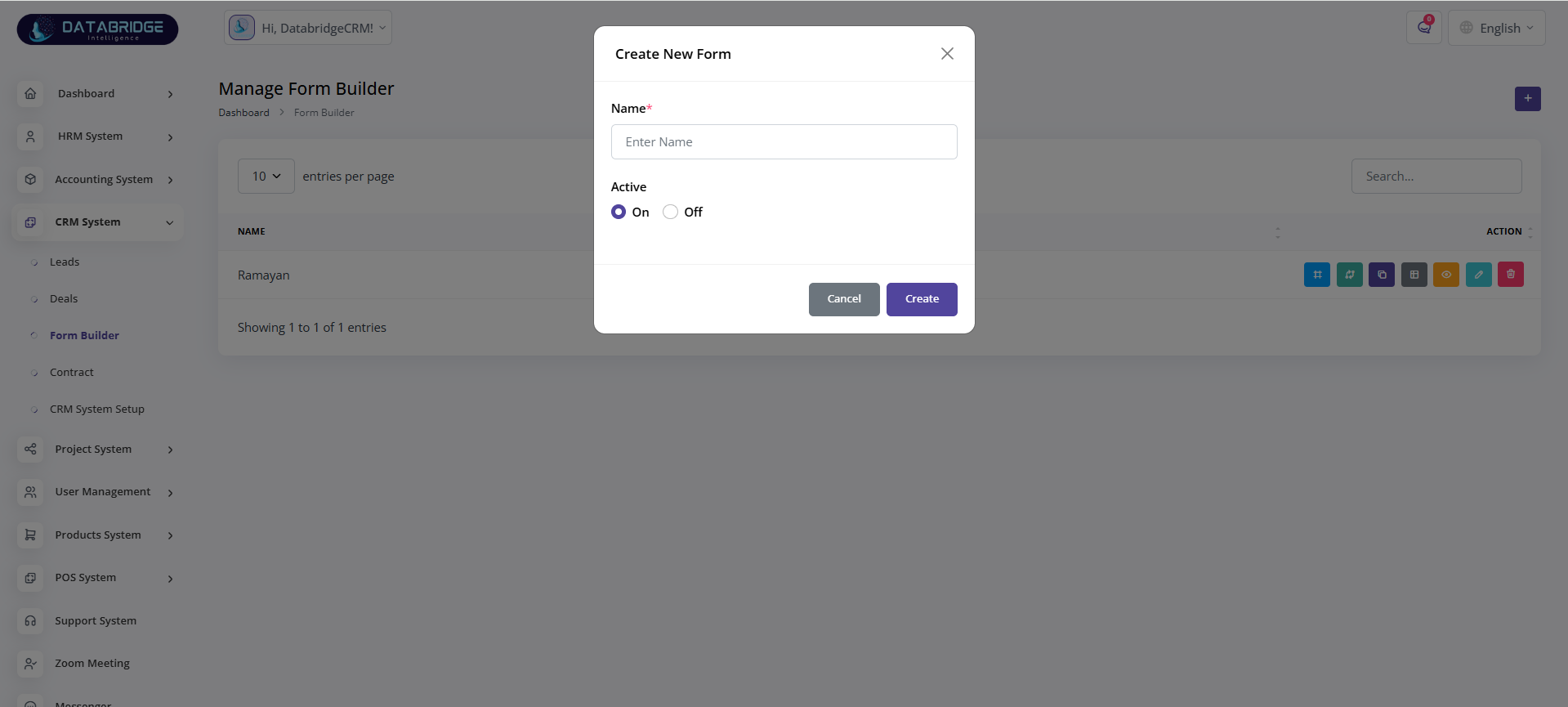
Create New Form (Popup):
This popup allows users to create a new form by defining its name and status.
It helps in quickly setting up forms for various use cases.
Features:
-Form name input
-Active/Inactive toggle
-Create and cancel options
Functionality:
-Creates new form structure
-Sets form availability status
-Saves form for further customization
This popup allows users to create a new form by defining its name and status.
It helps in quickly setting up forms for various use cases.
Features:
-Form name input
-Active/Inactive toggle
-Create and cancel options
Functionality:
-Creates new form structure
-Sets form availability status
-Saves form for further customization
1
CRM System
2
Form Builder
3
Right"+"
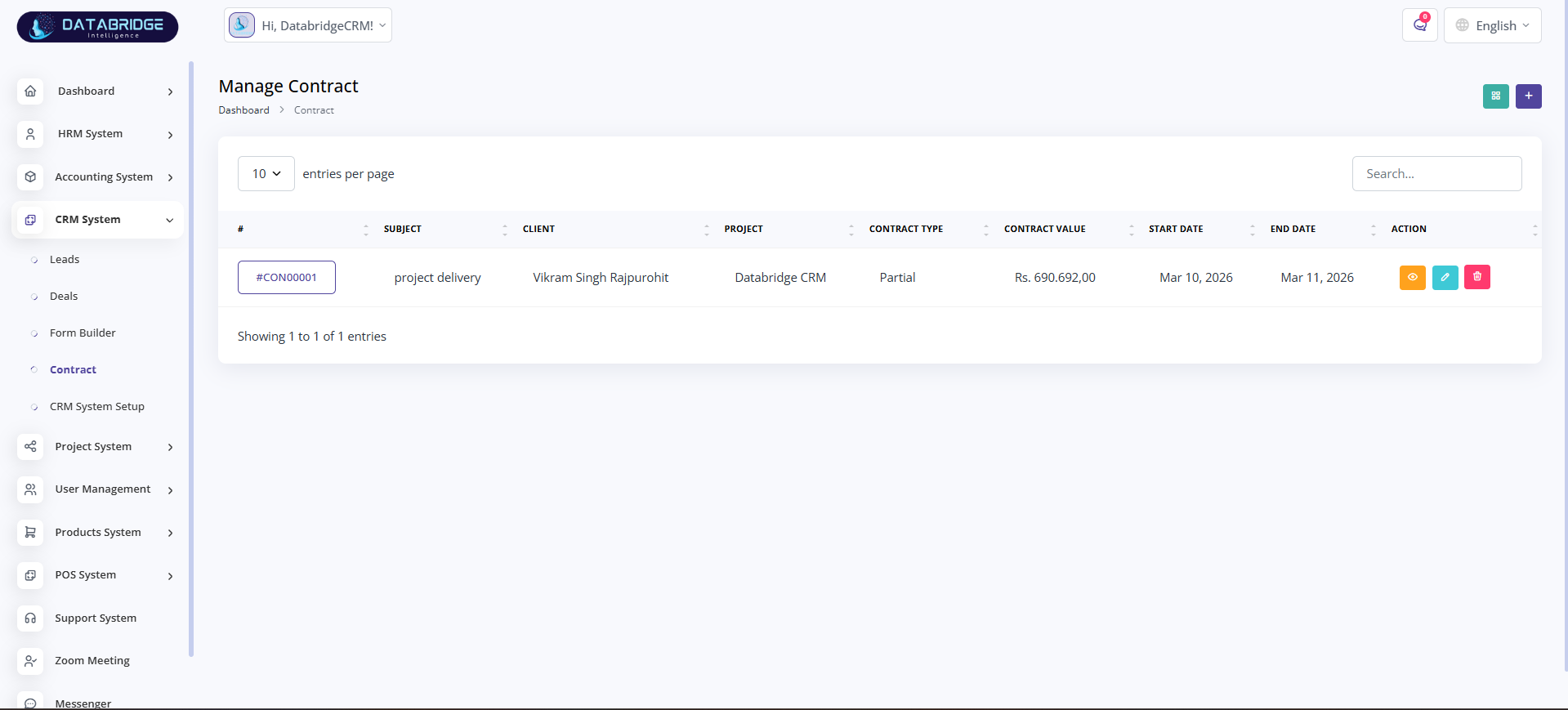
Manage Contract:
This screen is used to manage contracts between the company and clients.
It provides a structured view of contract details such as value, duration, and project.
Features:
-Contract listing with key details
-Columns for client, project, value, dates
-Search functionality
-Add, edit, delete, view options
Functionality:
-Stores contract records
-Tracks contract lifecycle
-Links contracts with clients and projects
-Helps in legal and financial tracking
This screen is used to manage contracts between the company and clients.
It provides a structured view of contract details such as value, duration, and project.
Features:
-Contract listing with key details
-Columns for client, project, value, dates
-Search functionality
-Add, edit, delete, view options
Functionality:
-Stores contract records
-Tracks contract lifecycle
-Links contracts with clients and projects
-Helps in legal and financial tracking
1
CRM System
2
Contract
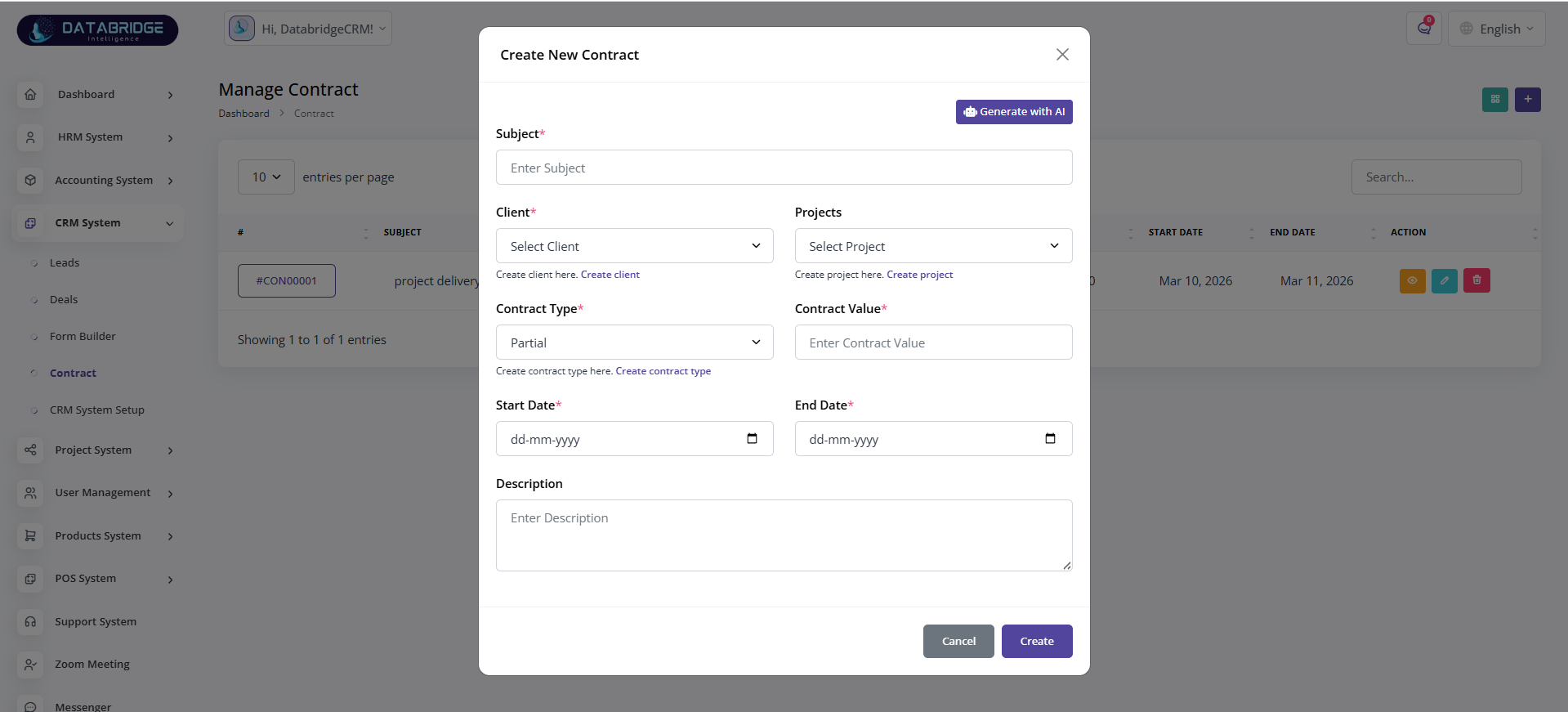
Create New Contract (Popup):
This popup allows users to create a new contract by entering all required details.
It ensures proper documentation of agreements with clients.
Features:
-Subject input
-Client and project selection
-Contract type dropdown
-Contract value input
-Start and end date selection
-Description field
-AI generation option
-Create and cancel buttons
Functionality:
-Captures complete contract information
-Associates contract with client and project
-Validates required fields
-Stores contract for tracking and reporting
This popup allows users to create a new contract by entering all required details.
It ensures proper documentation of agreements with clients.
Features:
-Subject input
-Client and project selection
-Contract type dropdown
-Contract value input
-Start and end date selection
-Description field
-AI generation option
-Create and cancel buttons
Functionality:
-Captures complete contract information
-Associates contract with client and project
-Validates required fields
-Stores contract for tracking and reporting
1
CRM System
2
Contract
3
Right"+"
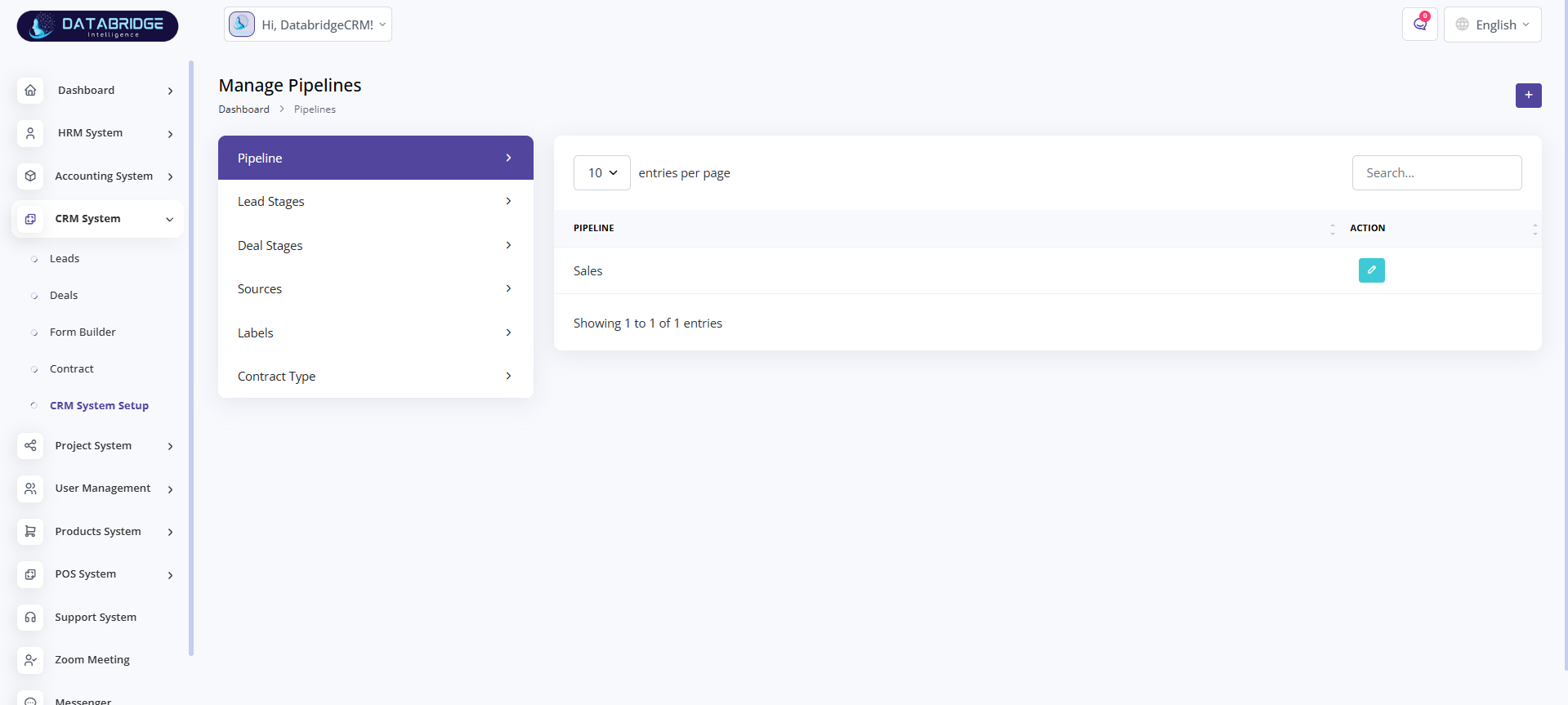
Manage Pipelines:
This screen is used to manage different sales pipelines within the CRM system. It allows users to define and organize multiple pipelines based on business processes or departments.
Features:
-View list of all pipelines
-Add new pipeline using “+” button
-Edit existing pipelines
-Search functionality for quick access
-Pagination support
Functionality:
-Users can create pipelines by entering a pipeline name
-Existing pipelines can be modified or updated
-Pipelines act as a base structure for lead and deal stages
-Data is displayed in a tabular format for easy management
This screen is used to manage different sales pipelines within the CRM system. It allows users to define and organize multiple pipelines based on business processes or departments.
Features:
-View list of all pipelines
-Add new pipeline using “+” button
-Edit existing pipelines
-Search functionality for quick access
-Pagination support
Functionality:
-Users can create pipelines by entering a pipeline name
-Existing pipelines can be modified or updated
-Pipelines act as a base structure for lead and deal stages
-Data is displayed in a tabular format for easy management
1
CRM System
2
CRM System Setup
3
Pipeline
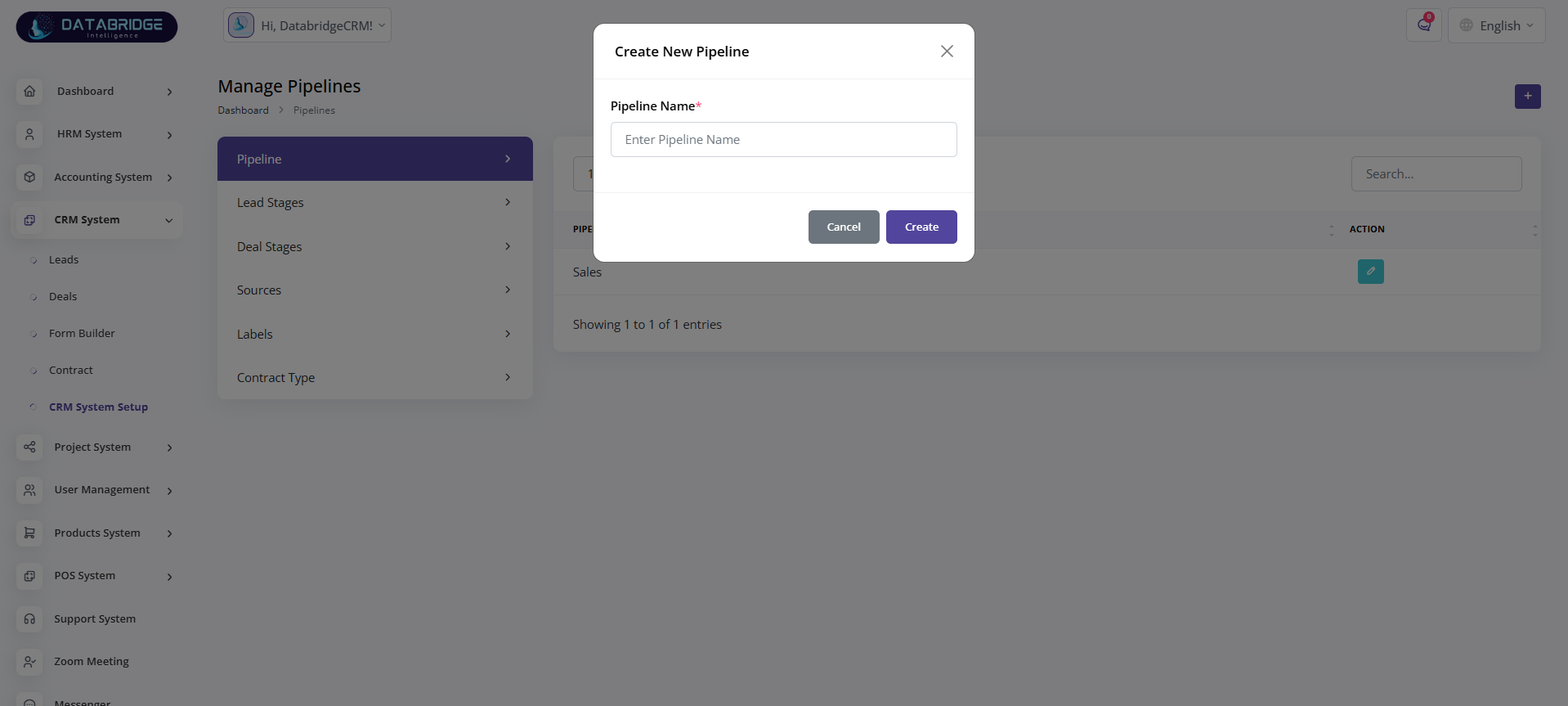
Create New Pipeline (Modal):
This modal allows users to create a new pipeline by entering basic pipeline details.
Features:
-Input field for pipeline name
-Validation for required fields
-Cancel and Create actions
Functionality
-User enters pipeline name and submits
-System validates input and creates pipeline
-Newly created pipeline is added to the list
This modal allows users to create a new pipeline by entering basic pipeline details.
Features:
-Input field for pipeline name
-Validation for required fields
-Cancel and Create actions
Functionality
-User enters pipeline name and submits
-System validates input and creates pipeline
-Newly created pipeline is added to the list
1
CRM System
2
CRM System Setup
3
Pipeline
4
Right"+"
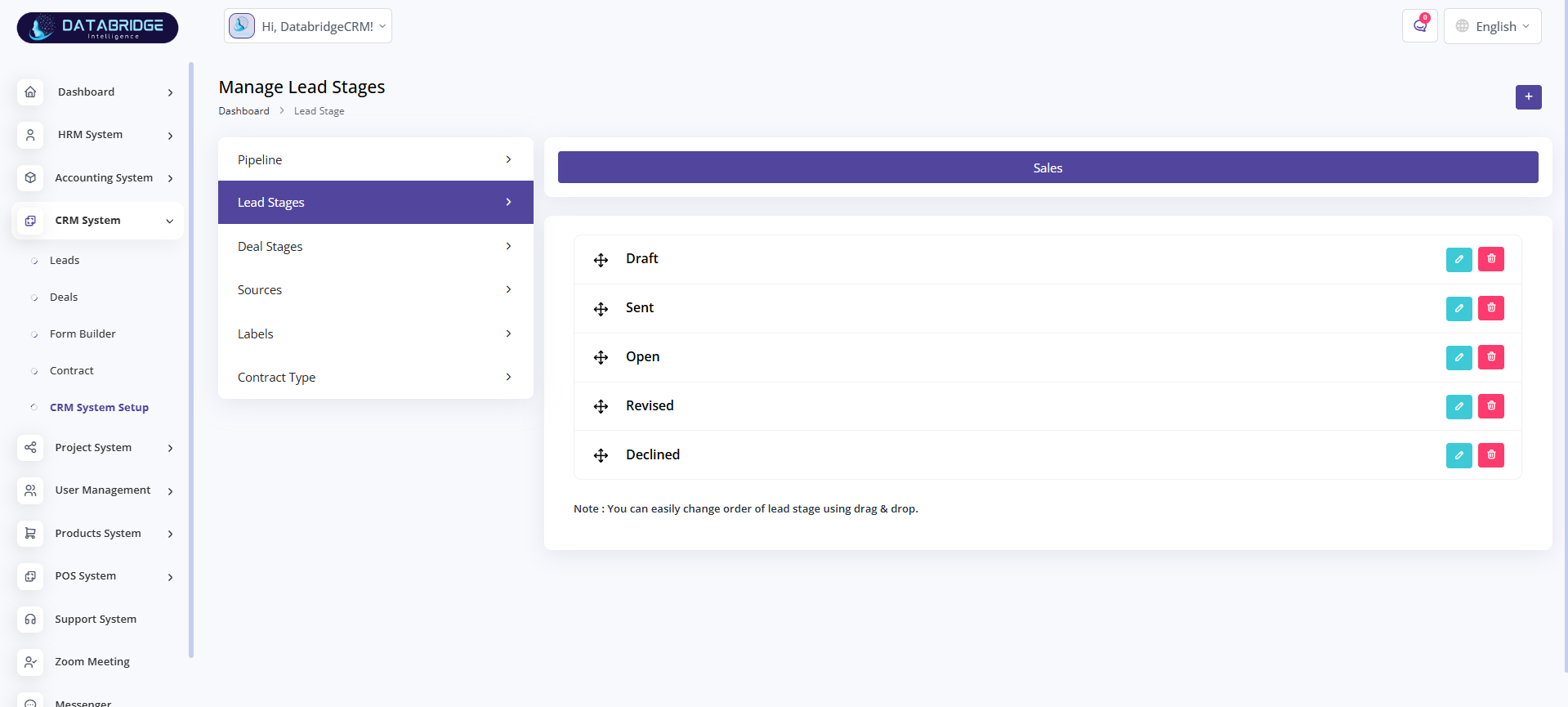
Manage Lead Stages:
This screen is used to manage different stages of leads within a selected pipeline. It helps track lead progress from initial contact to conversion.
Features:
-View all lead stages under a pipeline
-Drag & drop to reorder stages
-Edit and delete options for each stage
-Pipeline-wise stage management
Functionality:
-Users can rearrange stages using drag & drop
-Each stage represents a step in lead lifecycle
-Changes reflect immediately in lead tracking flow
This screen is used to manage different stages of leads within a selected pipeline. It helps track lead progress from initial contact to conversion.
Features:
-View all lead stages under a pipeline
-Drag & drop to reorder stages
-Edit and delete options for each stage
-Pipeline-wise stage management
Functionality:
-Users can rearrange stages using drag & drop
-Each stage represents a step in lead lifecycle
-Changes reflect immediately in lead tracking flow
1
CRM System
2
CRM System Setup
3
Lead Stages
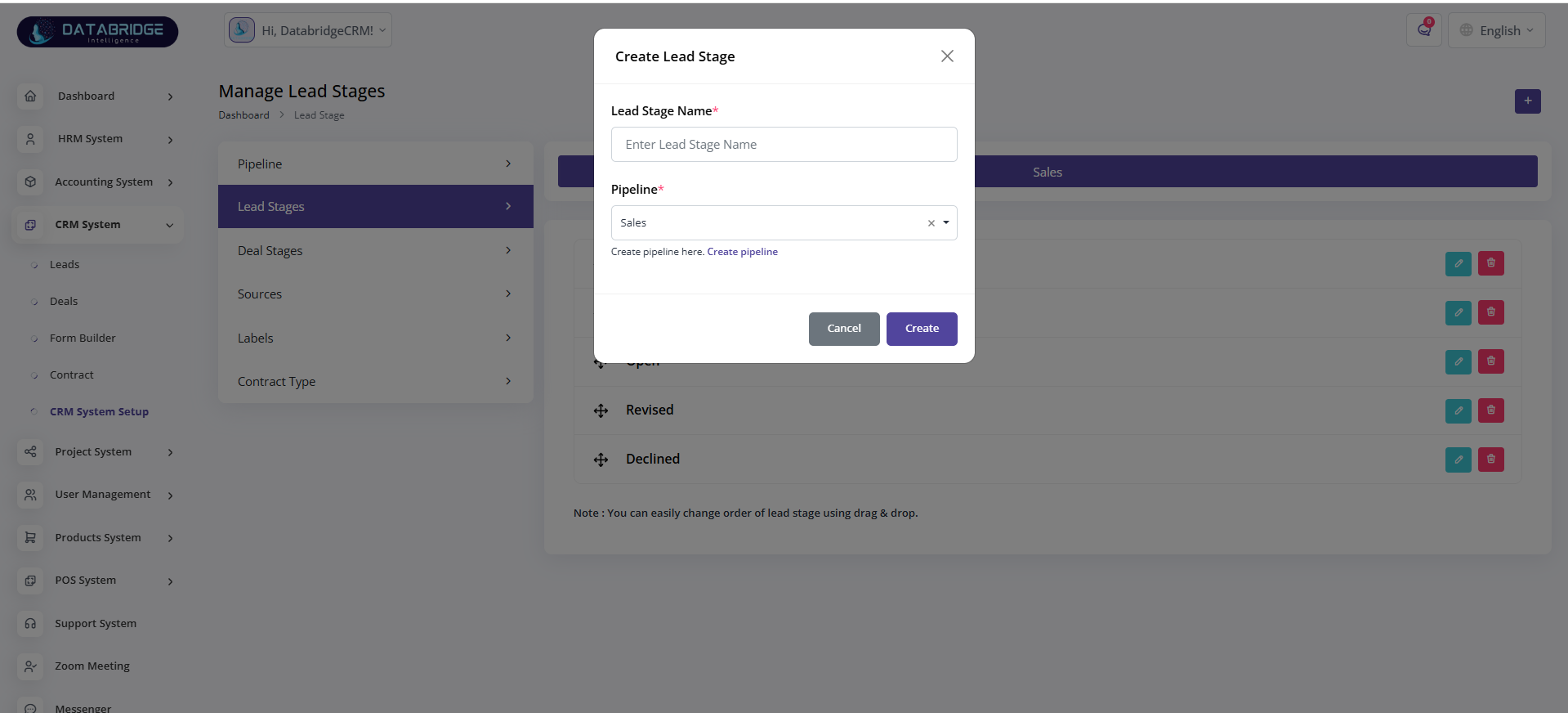
Create Lead Stage (Modal):
This modal enables users to create a new lead stage and assign it to a specific pipeline.
Features:
-Lead stage name input
-Pipeline selection dropdown
-Required field validation
Functionality:
-User enters stage name and selects pipeline
-System saves and assigns stage to selected pipeline
-Stage appears in stage list and workflow
This modal enables users to create a new lead stage and assign it to a specific pipeline.
Features:
-Lead stage name input
-Pipeline selection dropdown
-Required field validation
Functionality:
-User enters stage name and selects pipeline
-System saves and assigns stage to selected pipeline
-Stage appears in stage list and workflow
1
CRM System
2
CRM System Setup
3
Lead Stages
4
Right"+"
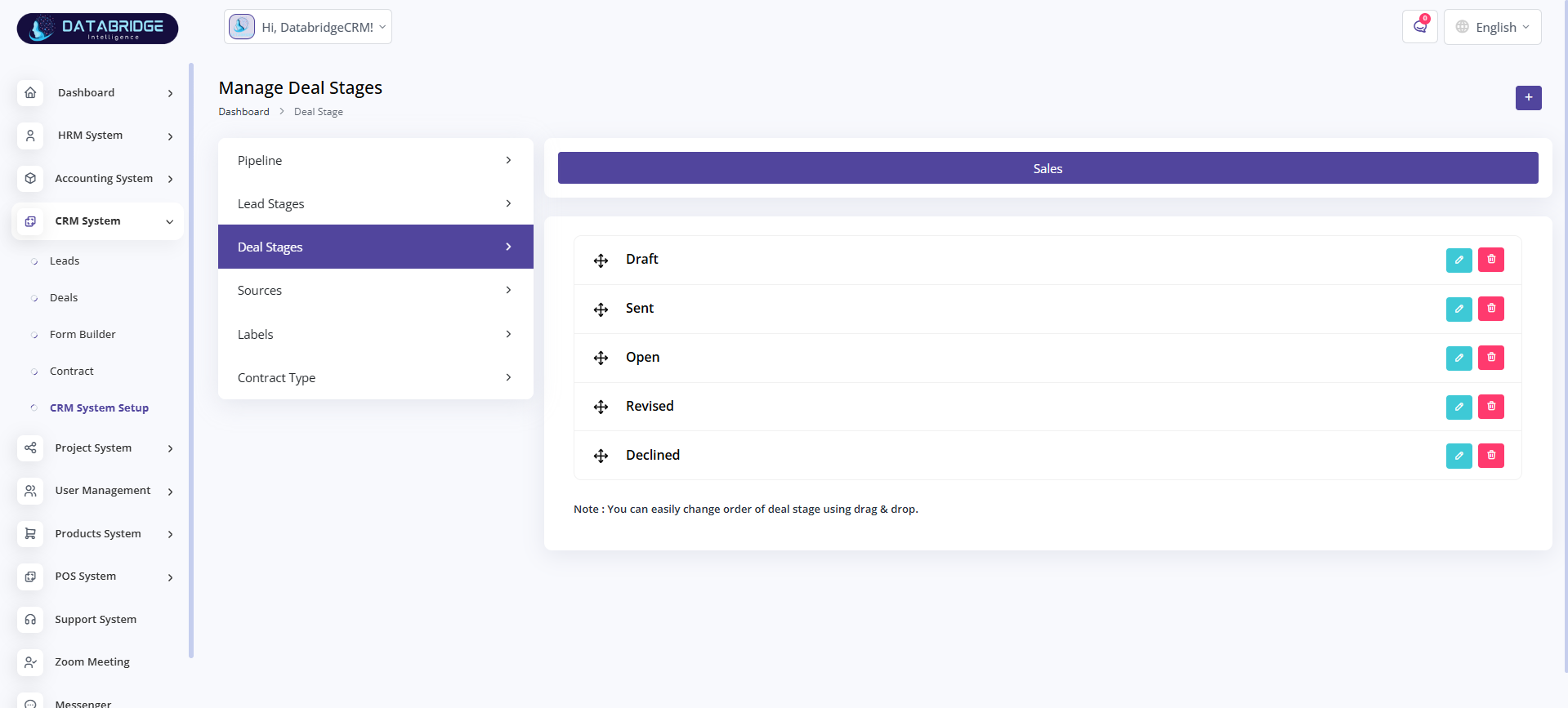
Manage Deal Stages:
This screen is used to define and manage deal stages within a pipeline, representing the progress of deals.
Features:
-List of deal stages
-Drag & drop reordering
-Edit and delete options
-Pipeline-based filtering
Functionality:
-Users can customize deal workflow stages
-Stages help track deal progress visually
-Order of stages determines deal lifecycle flow
This screen is used to define and manage deal stages within a pipeline, representing the progress of deals.
Features:
-List of deal stages
-Drag & drop reordering
-Edit and delete options
-Pipeline-based filtering
Functionality:
-Users can customize deal workflow stages
-Stages help track deal progress visually
-Order of stages determines deal lifecycle flow
1
CRM System
2
CRM System Setup
3
Deal Stages
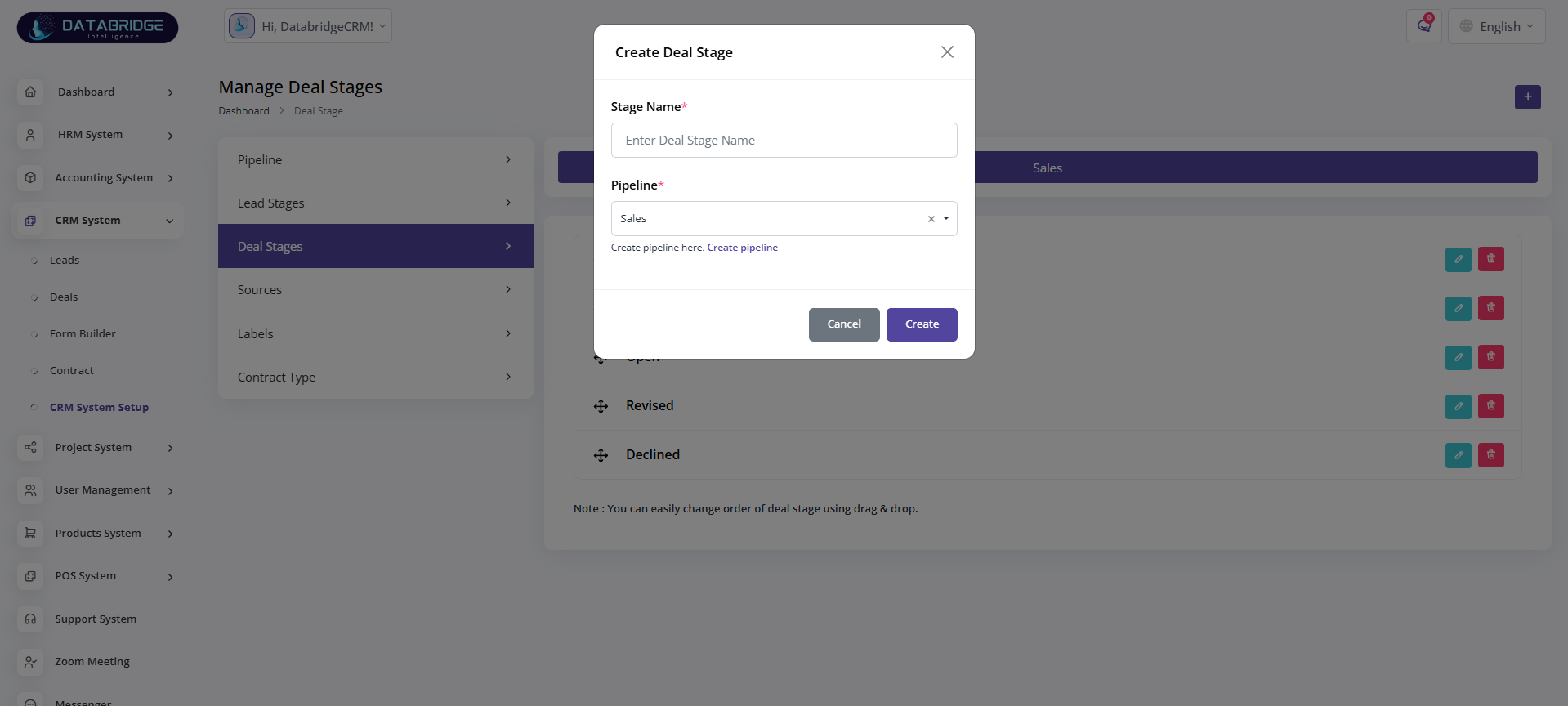
Create Deal Stage (Modal):
This modal allows users to create a new deal stage for a selected pipeline.
Features:
-Stage name input field
-Pipeline selection
-Form validation
Functionality:
-User inputs stage details and submits
-System assigns stage to pipeline
-Stage becomes part of deal workflow
This modal allows users to create a new deal stage for a selected pipeline.
Features:
-Stage name input field
-Pipeline selection
-Form validation
Functionality:
-User inputs stage details and submits
-System assigns stage to pipeline
-Stage becomes part of deal workflow
1
CRM System
2
CRM System Setup
3
Deal Stages
4
Right "+"
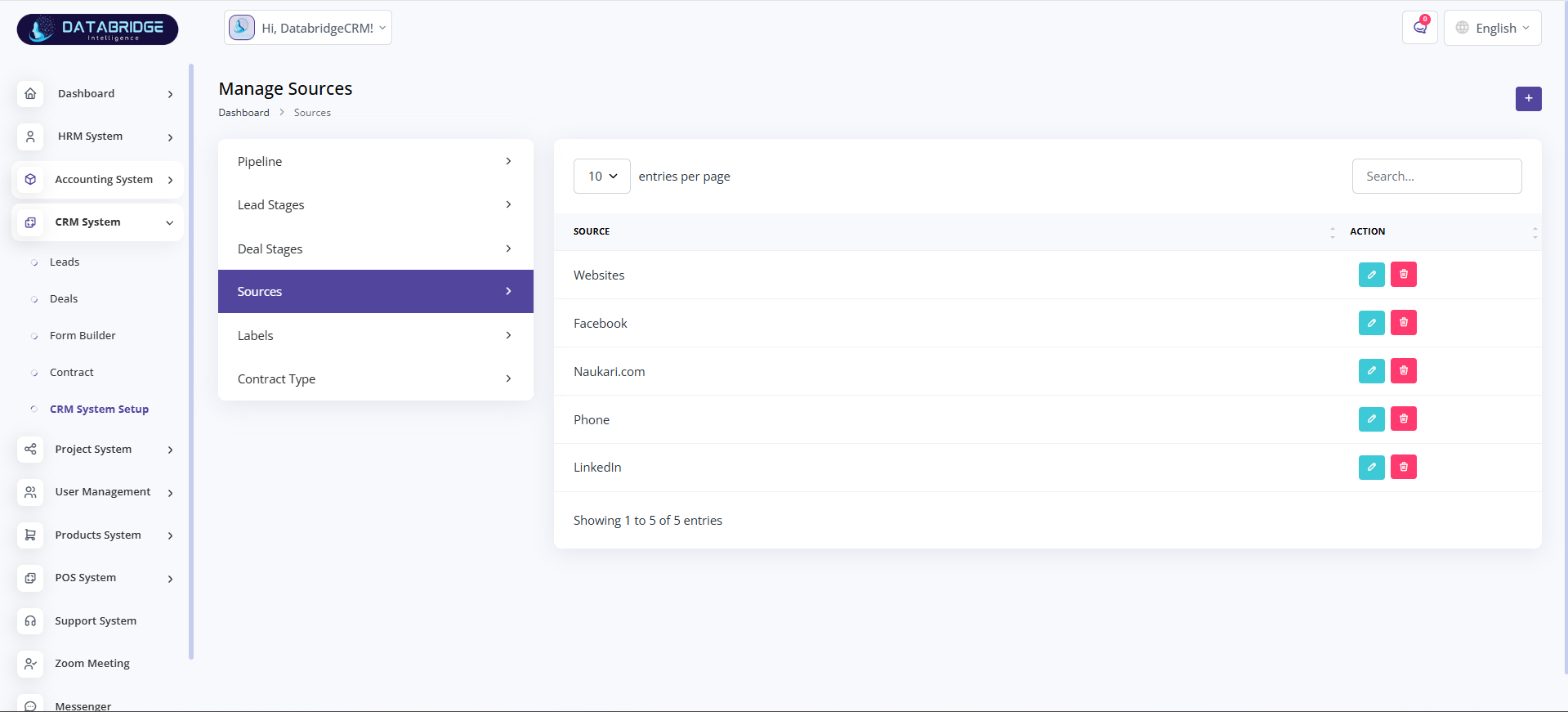
Manage Sources:
This screen is used to manage lead sources, helping track where leads are coming from (e.g., Website, Facebook).
Features:
-List of all sources
-Add, edit, delete options
-Search functionality
-Pagination support
Functionality:
-Users can create and manage multiple lead sources
-Sources can be assigned while creating leads
-Helps in analytics and lead tracking
This screen is used to manage lead sources, helping track where leads are coming from (e.g., Website, Facebook).
Features:
-List of all sources
-Add, edit, delete options
-Search functionality
-Pagination support
Functionality:
-Users can create and manage multiple lead sources
-Sources can be assigned while creating leads
-Helps in analytics and lead tracking
1
CRM System
2
CRM System Setup
3
Sources
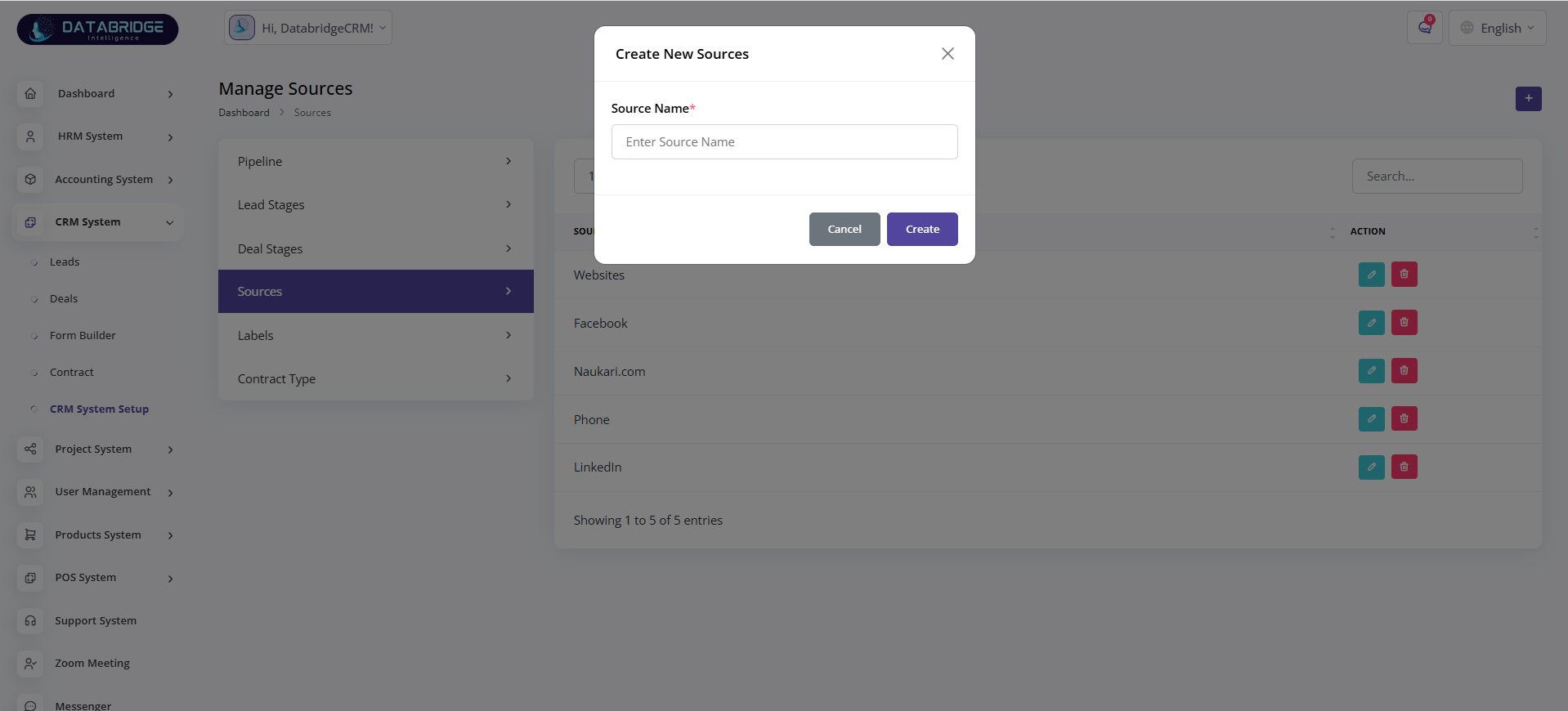
Create New Source (Modal):
This modal allows users to add a new lead source to the system.
Features:
-Source name input
-Required validation
-Cancel and Create buttons
Functionality:
-User enters source name and submits
-System saves and displays it in source list
This modal allows users to add a new lead source to the system.
Features:
-Source name input
-Required validation
-Cancel and Create buttons
Functionality:
-User enters source name and submits
-System saves and displays it in source list
1
CRM System
2
CRM System Setup
3
Sources
4
Right"+"
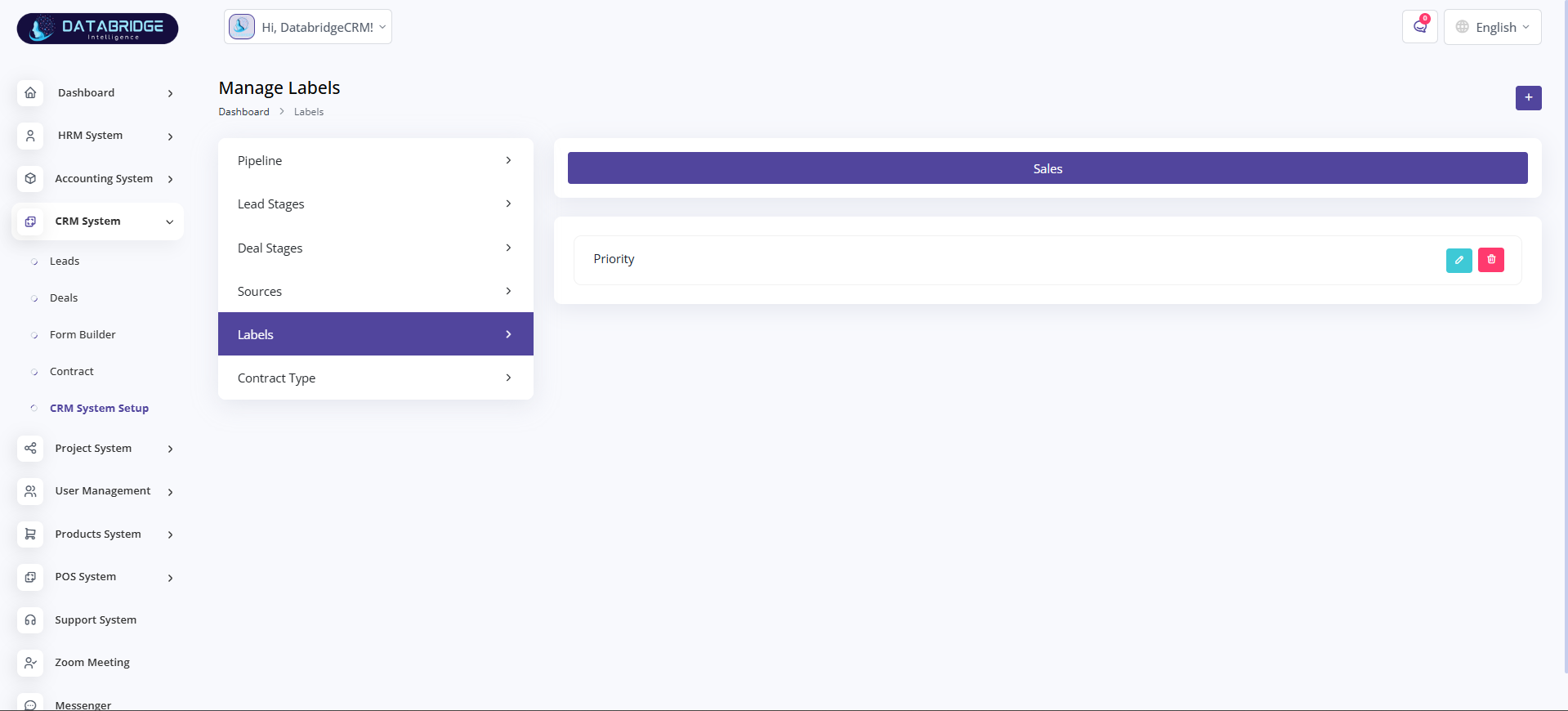
Manage Labels:
This screen is used to manage labels that help categorize and prioritize leads or deals.
Features:
-View labels under pipeline
-Edit and delete options
-Color-coded labels
Functionality:
-Labels can be assigned to leads/deals
-Helps in quick identification and filtering
-Organized categorization of records
This screen is used to manage labels that help categorize and prioritize leads or deals.
Features:
-View labels under pipeline
-Edit and delete options
-Color-coded labels
Functionality:
-Labels can be assigned to leads/deals
-Helps in quick identification and filtering
-Organized categorization of records
1
CRM System
2
CRM System Setup
3
Labels
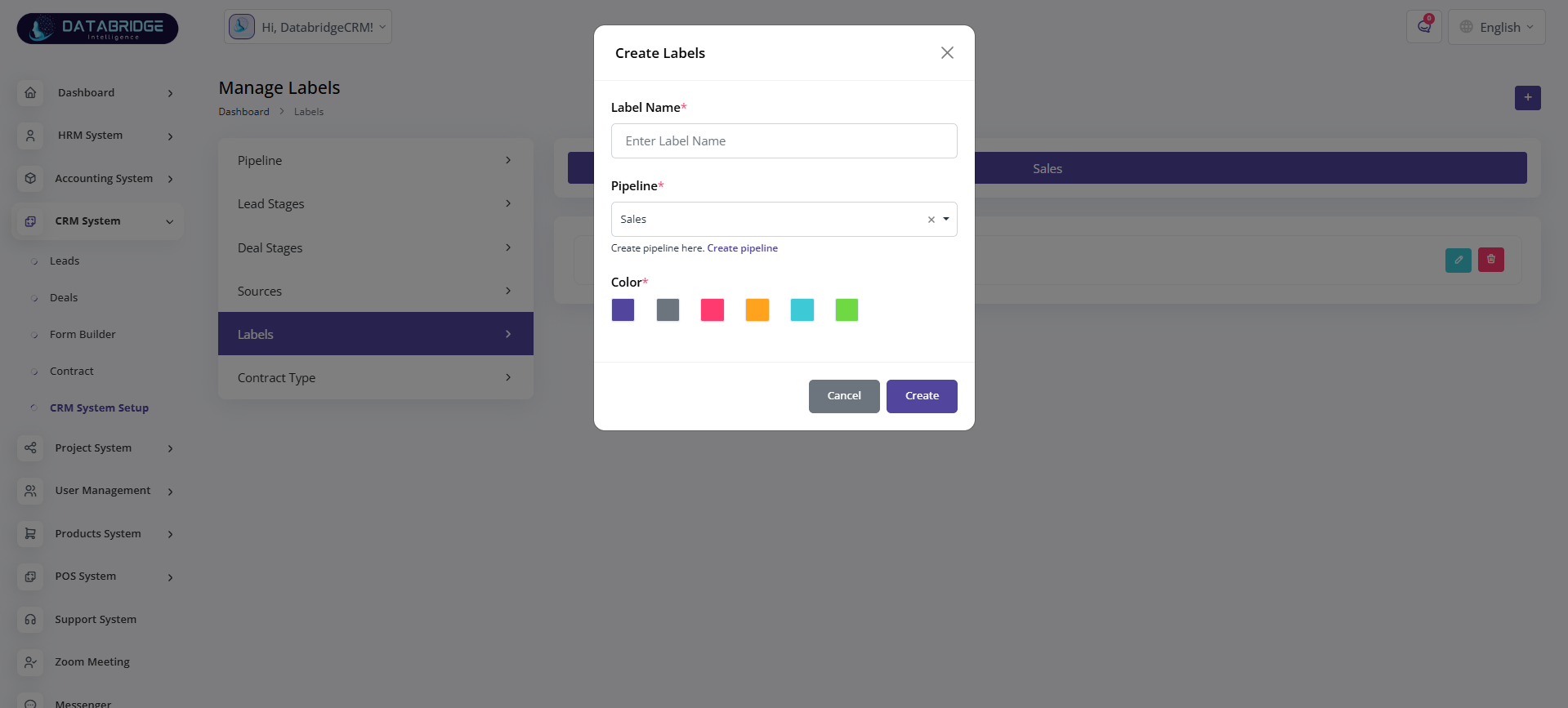
Create Label (Modal):
This modal enables users to create a new label with a specific color and assign it to a pipeline.
Features:
-Label name input
-Pipeline selection
-Color selection options
Functionality:
-User selects label color and assigns pipeline
-Label is created and available for tagging
-Helps visually differentiate records
This modal enables users to create a new label with a specific color and assign it to a pipeline.
Features:
-Label name input
-Pipeline selection
-Color selection options
Functionality:
-User selects label color and assigns pipeline
-Label is created and available for tagging
-Helps visually differentiate records
1
CRM System
2
CRM System Setup
3
Labels
4
Right"+"
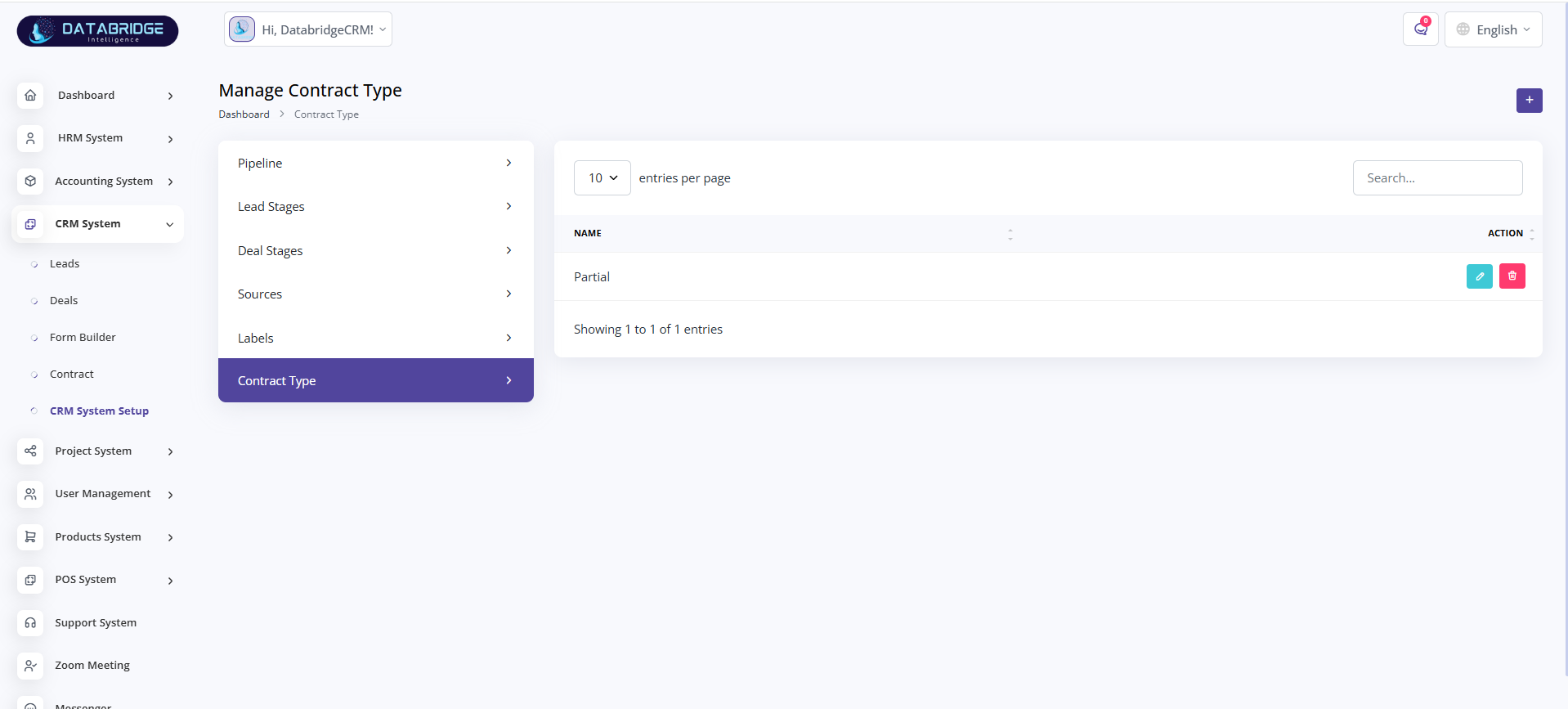
Manage Contract Type:
This screen is used to manage different types of contracts within the CRM system.
Features:
-List of contract types
-Add, edit, delete functionality
-Search and pagination
Functionality:
-Users can define contract categories (e.g., Partial, Full)
-Contract types are used while creating contracts
-Helps standardize contract classification
This screen is used to manage different types of contracts within the CRM system.
Features:
-List of contract types
-Add, edit, delete functionality
-Search and pagination
Functionality:
-Users can define contract categories (e.g., Partial, Full)
-Contract types are used while creating contracts
-Helps standardize contract classification
1
CRM System
2
CRM System Setup
3
Contract Type
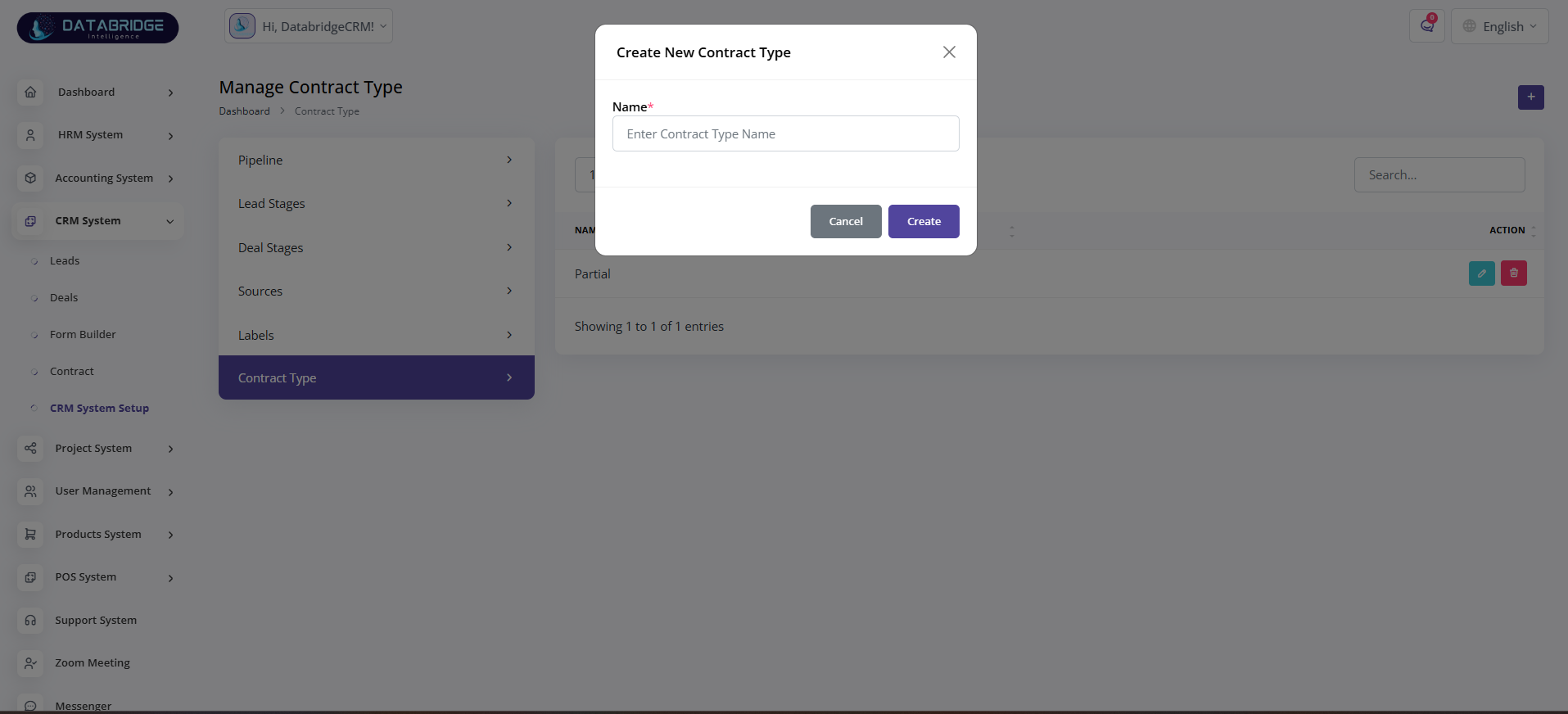
Create Contract Type (Modal):
This modal allows users to create a new contract type for use in the system.
Features:
-Contract type name input
-Required field validation
-Cancel and Create actions
Functionality:
-User inputs contract type and submits
-System saves and makes it available in contract module
This modal allows users to create a new contract type for use in the system.
Features:
-Contract type name input
-Required field validation
-Cancel and Create actions
Functionality:
-User inputs contract type and submits
-System saves and makes it available in contract module
1
CRM System
2
CRM System Setup
3
Contract Type
4
Right"+"
Project System
The Project System module is designed to manage and streamline all project-related activities within the application. It enables users to create projects, assign tasks, track progress, manage timelines, and monitor team performance in a centralized environment. This module also integrates features like task management, timesheets, bug tracking, and reporting to ensure efficient project execution and better productivity.
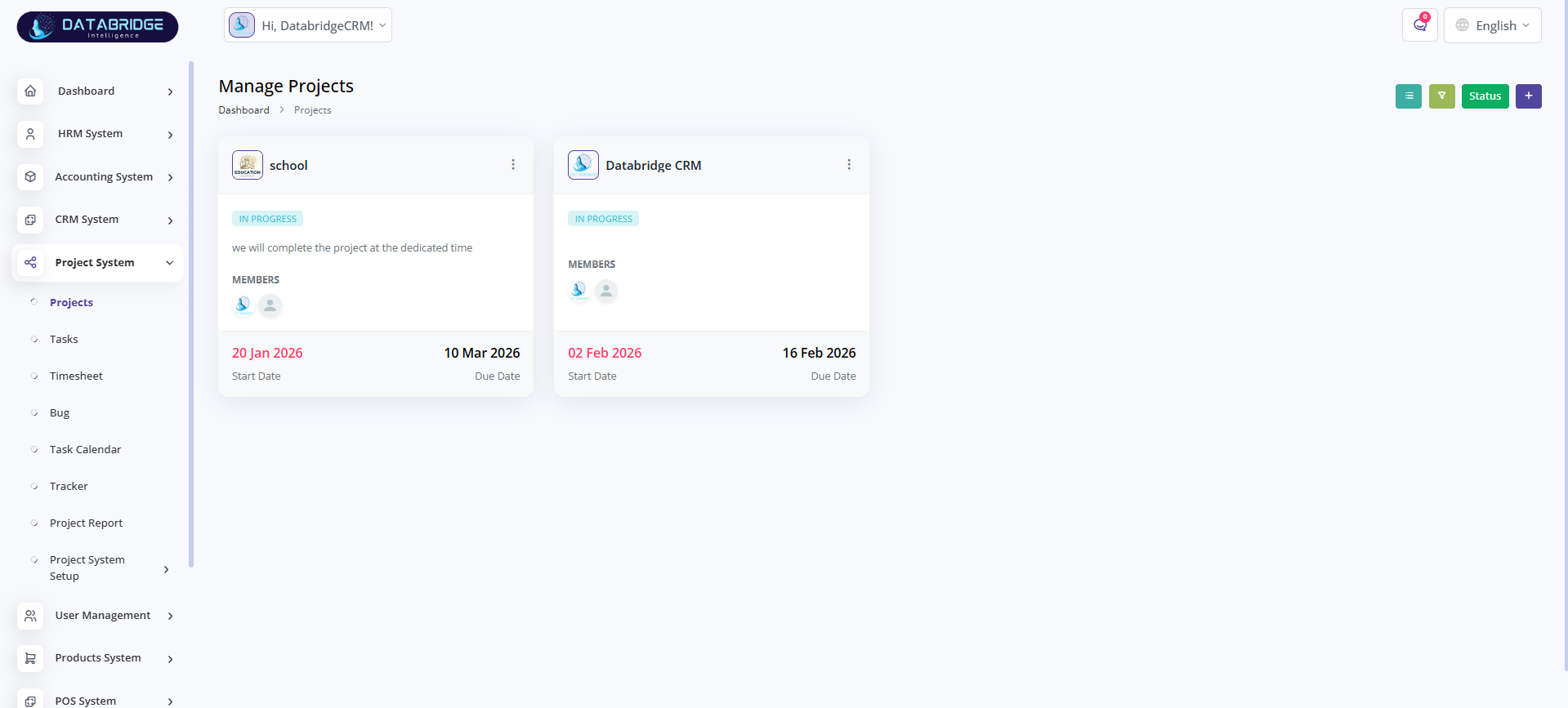
Manage Projects Screen:
This screen allows users to view and manage all projects within the system in a card-based layout. It provides a quick overview of project status, members, and timelines for efficient project tracking.
Features:
-Project cards with name, status, and description
-Display of assigned members
-Start date and due date visibility
-Status indicator (e.g., In Progress)
-Quick action menu for each project
Functionality:
-Users can view all available projects in a structured format
-Projects can be accessed for detailed operations
-Status helps track project progress instantly
-Members section shows team involvement
-Action menu allows edit/delete operations
This screen allows users to view and manage all projects within the system in a card-based layout. It provides a quick overview of project status, members, and timelines for efficient project tracking.
Features:
-Project cards with name, status, and description
-Display of assigned members
-Start date and due date visibility
-Status indicator (e.g., In Progress)
-Quick action menu for each project
Functionality:
-Users can view all available projects in a structured format
-Projects can be accessed for detailed operations
-Status helps track project progress instantly
-Members section shows team involvement
-Action menu allows edit/delete operations
1
Project System
2
Project
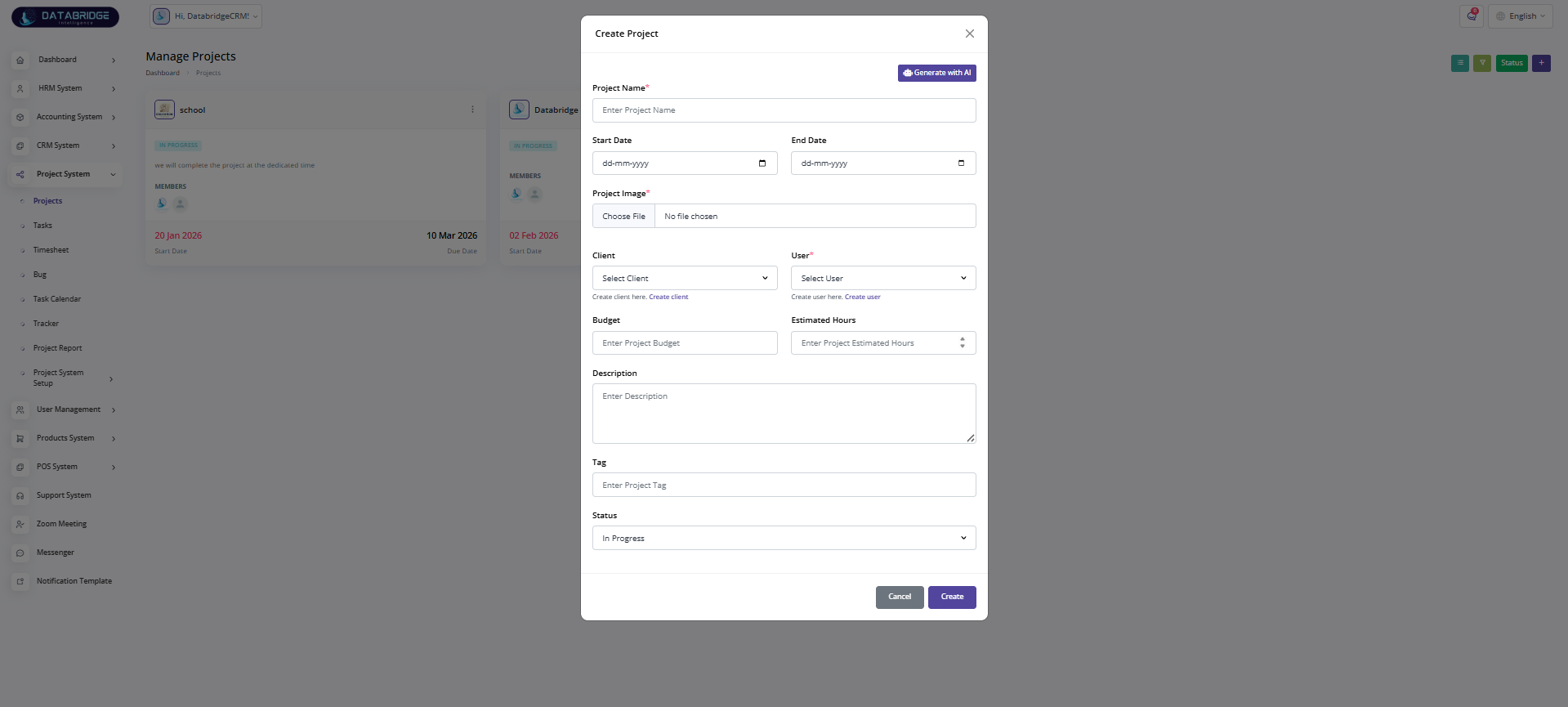
Create Project (Popup Modal):
This screen provides a form interface for creating a new project by entering all necessary details such as name, timeline, client, and budget.
Features:
-Input fields for project details (name, dates, budget, etc.)
-File upload option for project image
-Dropdowns for client and user selection
-AI-based project generation option
-Status selection and tagging system
Functionality:
-Users can create a new project by filling required fields
-Start and end dates define project timeline
-Assign users and clients to the project
-Upload image for project identification
-Submit button saves the project into the system
This screen provides a form interface for creating a new project by entering all necessary details such as name, timeline, client, and budget.
Features:
-Input fields for project details (name, dates, budget, etc.)
-File upload option for project image
-Dropdowns for client and user selection
-AI-based project generation option
-Status selection and tagging system
Functionality:
-Users can create a new project by filling required fields
-Start and end dates define project timeline
-Assign users and clients to the project
-Upload image for project identification
-Submit button saves the project into the system
1
Project System
2
Project
3
Right"+"
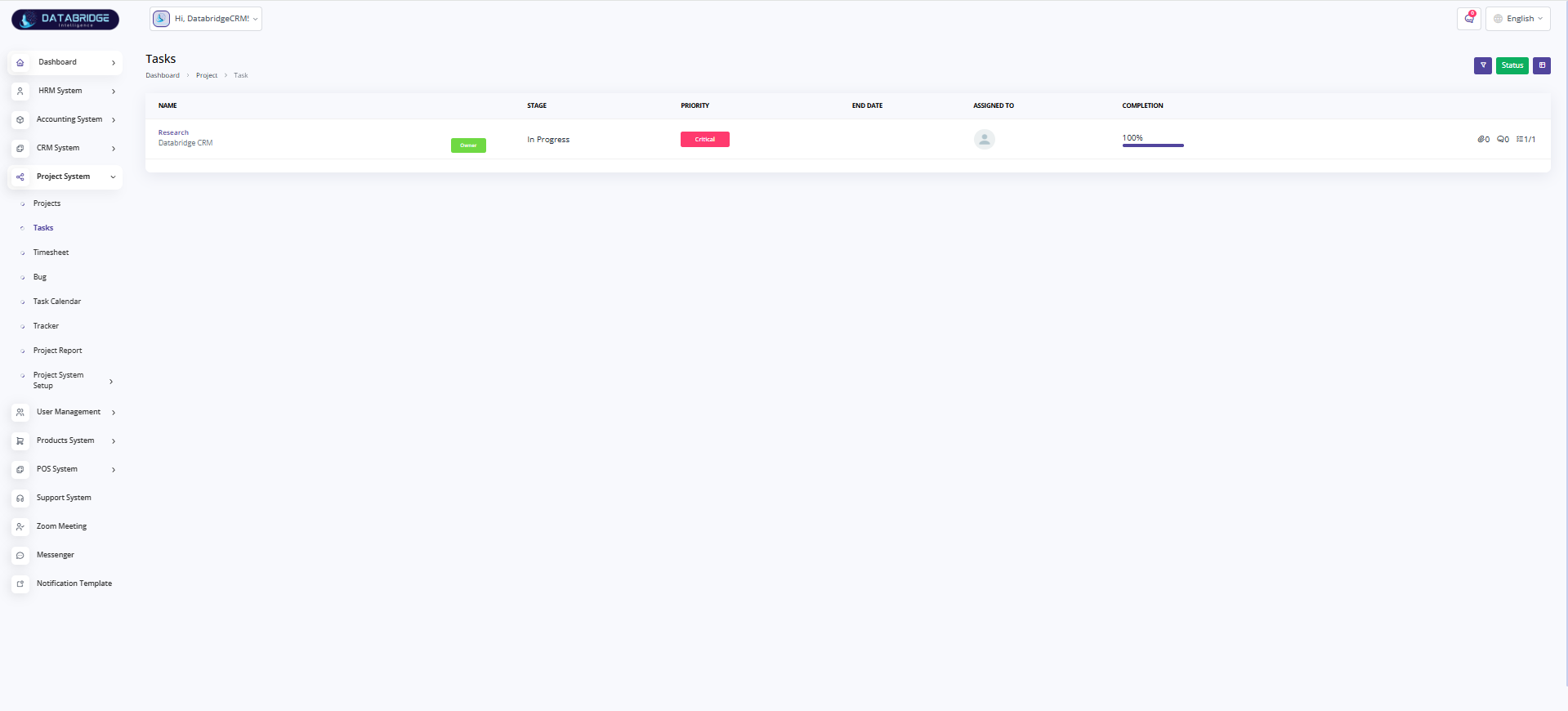
Tasks Screen:
This screen displays all tasks related to projects in a tabular format, helping users track task progress, priority, and assignment.
Features:
-Task name with associated project
-Stage indicator (e.g., In Progress)
-Priority levels (e.g., Critical)
-Assigned user details
-Completion progress bar
Functionality:
-Users can monitor task status and completion percentage
-Tasks are categorized by stage and priority
-Helps in tracking deadlines and ownership
-Provides quick overview of task performance
This screen displays all tasks related to projects in a tabular format, helping users track task progress, priority, and assignment.
Features:
-Task name with associated project
-Stage indicator (e.g., In Progress)
-Priority levels (e.g., Critical)
-Assigned user details
-Completion progress bar
Functionality:
-Users can monitor task status and completion percentage
-Tasks are categorized by stage and priority
-Helps in tracking deadlines and ownership
-Provides quick overview of task performance
1
Project System
2
Tasks
Timesheet List Screen:
This screen shows timesheet records for tracking time spent on projects and tasks within a selected date range.
Features:
-Weekly date range selector
-Empty state message when no data available
-Navigation for switching between weeks
Functionality:
-Users can view time logs for selected dates
-Displays message if no timesheet is recorded
-Helps in tracking employee productivity
-Redirect option to projects for adding timesheets
This screen shows timesheet records for tracking time spent on projects and tasks within a selected date range.
Features:
-Weekly date range selector
-Empty state message when no data available
-Navigation for switching between weeks
Functionality:
-Users can view time logs for selected dates
-Displays message if no timesheet is recorded
-Helps in tracking employee productivity
-Redirect option to projects for adding timesheets
1
Project System
2
Timesheet
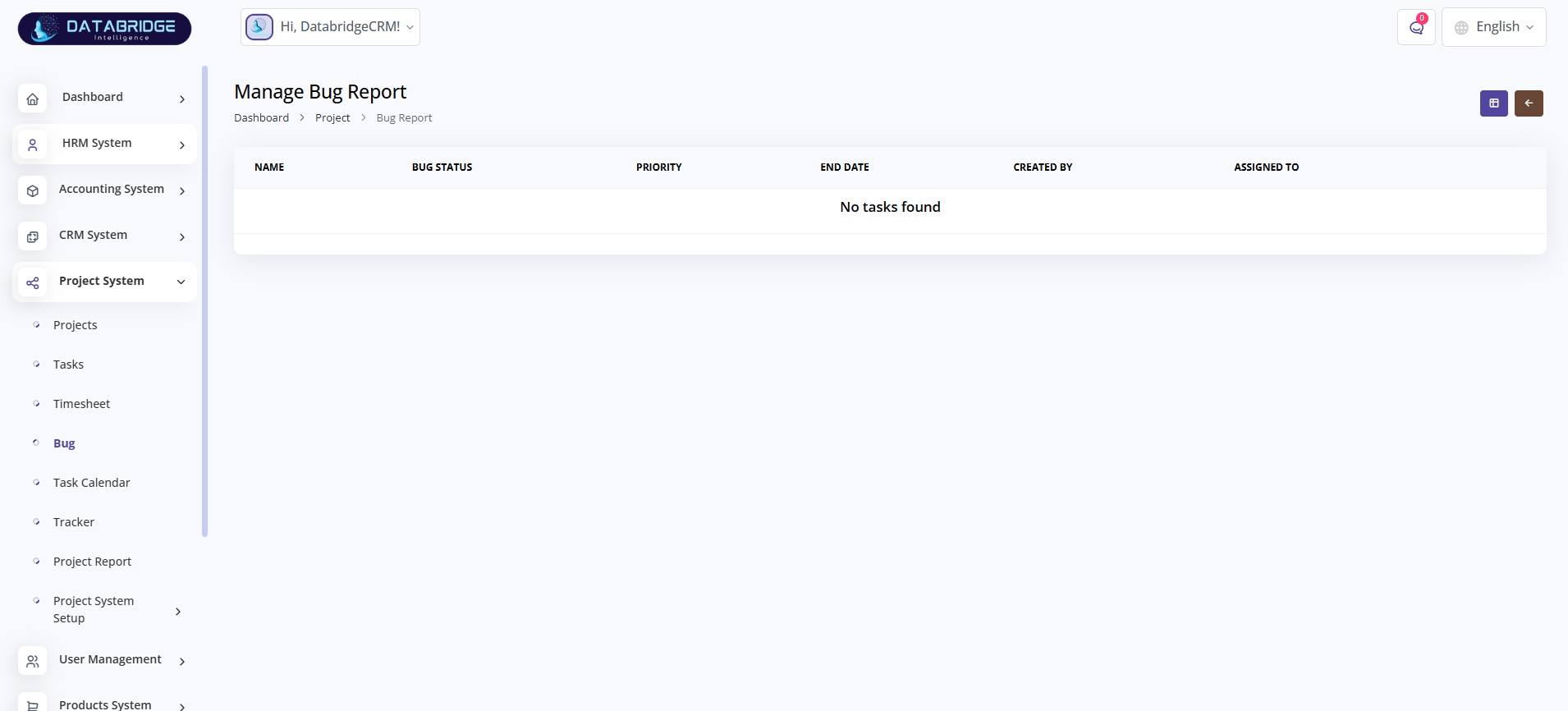
Manage Bug Report Screen:
This screen allows users to view and manage bug reports associated with projects, including their status and assignment.
Features:
-Table layout for bug listing
-Columns for bug status, priority, and assignment
-Empty state when no bugs are present
Functionality:
-Users can track all reported bugs
-Helps in identifying pending issues
-Allows management of bug lifecycle
-Displays assignment and ownership
This screen allows users to view and manage bug reports associated with projects, including their status and assignment.
Features:
-Table layout for bug listing
-Columns for bug status, priority, and assignment
-Empty state when no bugs are present
Functionality:
-Users can track all reported bugs
-Helps in identifying pending issues
-Allows management of bug lifecycle
-Displays assignment and ownership
1
Project System
2
Bug
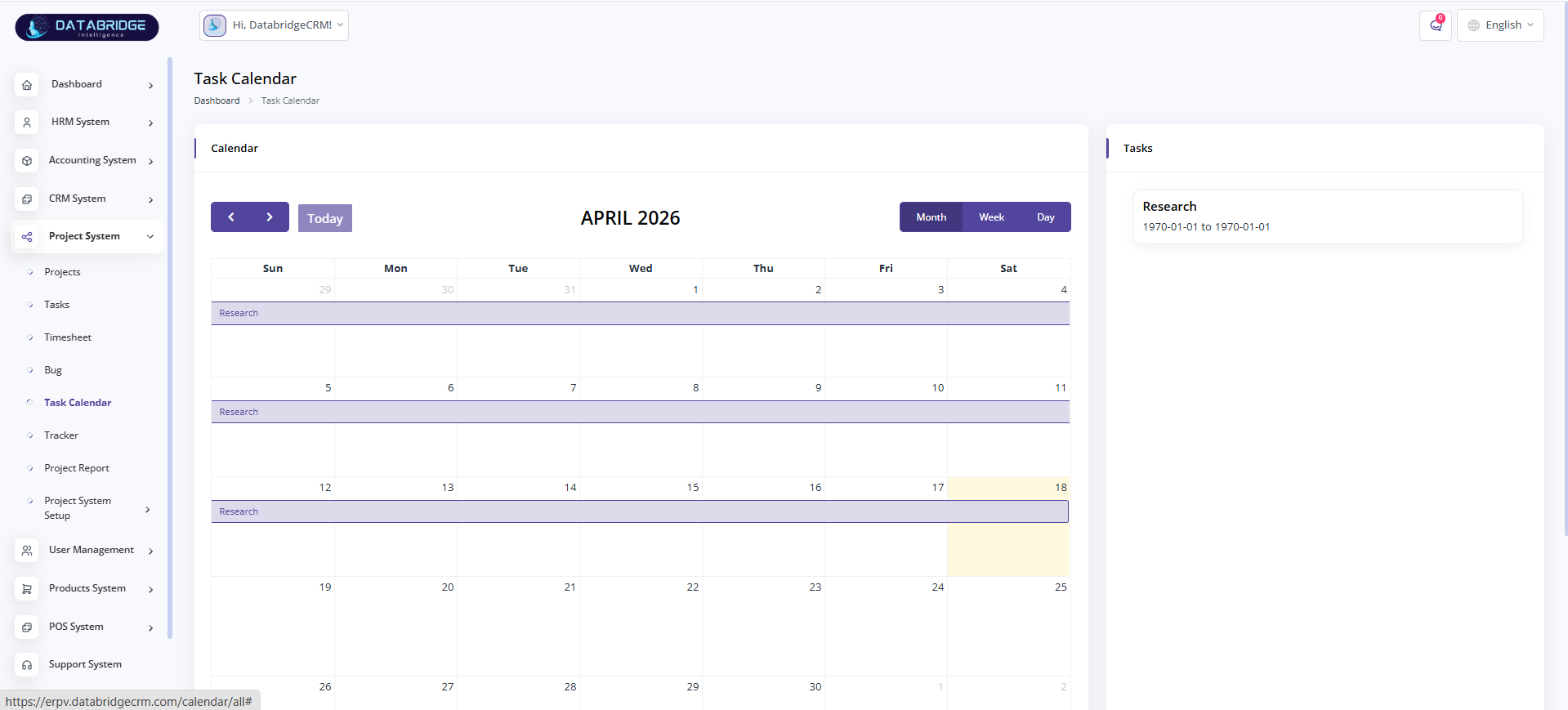
Task Calendar Screen:
This screen provides a calendar view of tasks, allowing users to visualize task schedules and deadlines over time.
Features:
-Monthly, weekly, and daily view options
-Task display within calendar dates
-Sidebar showing task list
-Navigation controls (previous, next, today)
Functionality:
-Users can track tasks based on dates
-Calendar helps in planning and scheduling
-Tasks are mapped visually to timeline
-Switching views improves usability
This screen provides a calendar view of tasks, allowing users to visualize task schedules and deadlines over time.
Features:
-Monthly, weekly, and daily view options
-Task display within calendar dates
-Sidebar showing task list
-Navigation controls (previous, next, today)
Functionality:
-Users can track tasks based on dates
-Calendar helps in planning and scheduling
-Tasks are mapped visually to timeline
-Switching views improves usability
1
Project System
2
Task Calendar
Manage Tracker Screen:
This screen is used to track time logs and activity records related to tasks and projects.
Features:
-Table with task, project, and time details
-Search functionality
-Pagination control
-Columns for start time, end time, total time
Functionality:
-Users can monitor time spent on tasks
-Helps in productivity tracking
-Displays detailed time entries
-Supports filtering and searching records
This screen is used to track time logs and activity records related to tasks and projects.
Features:
-Table with task, project, and time details
-Search functionality
-Pagination control
-Columns for start time, end time, total time
Functionality:
-Users can monitor time spent on tasks
-Helps in productivity tracking
-Displays detailed time entries
-Supports filtering and searching records
1
Project System
2
Tracker
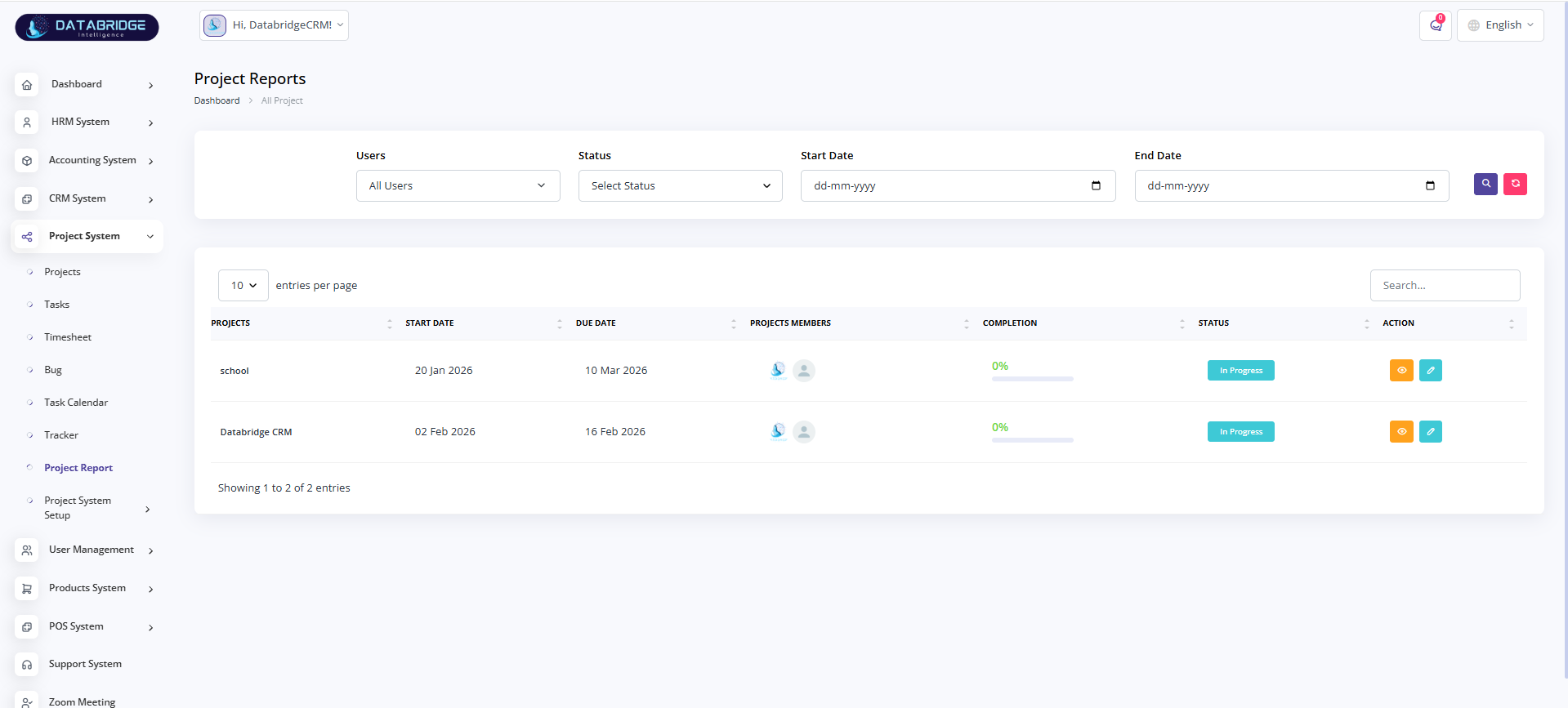
Project Reports Screen:
This screen provides a reporting interface for analyzing project performance based on filters such as user, status, and date range.
Features:
-Filters for users, status, and date range
-Table showing project details
-Progress tracking with completion percentage
-Action buttons for each project
Functionality:
-Users can generate reports using filters
-Helps in analyzing project performance
-Displays project timelines and progress
-Allows quick access to project actions
This screen provides a reporting interface for analyzing project performance based on filters such as user, status, and date range.
Features:
-Filters for users, status, and date range
-Table showing project details
-Progress tracking with completion percentage
-Action buttons for each project
Functionality:
-Users can generate reports using filters
-Helps in analyzing project performance
-Displays project timelines and progress
-Allows quick access to project actions
1
Project System
2
Project Reports
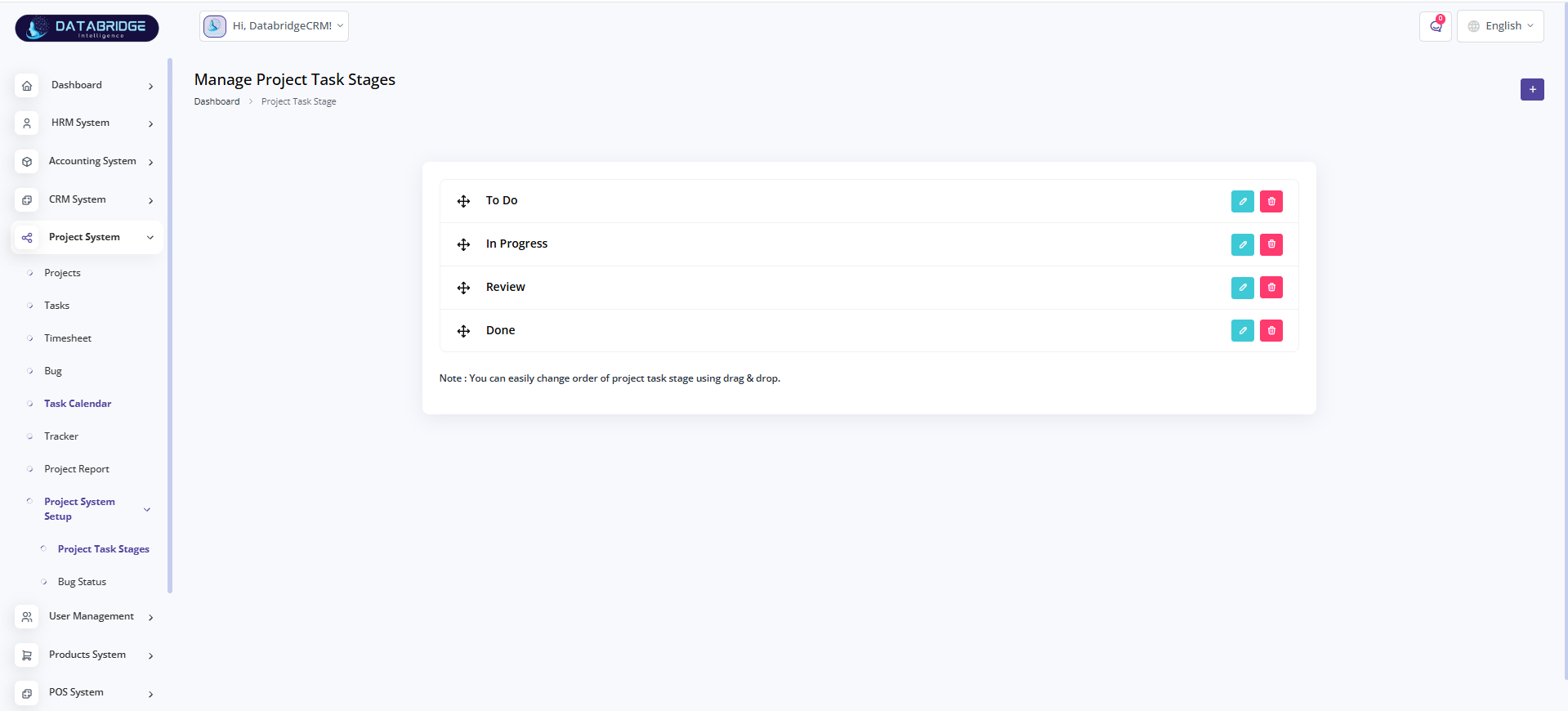
Manage Project Task Stages Screen:
This screen allows users to manage different stages of project tasks such as To Do, In Progress, Review, and Done.
Features:
-List of task stages
-Drag-and-drop reordering
-Edit and delete options
-Add new stage button
Functionality:
-Users can define workflow stages
-Drag-and-drop changes stage order
-Edit or delete existing stages
-Helps in structuring task lifecycle
This screen allows users to manage different stages of project tasks such as To Do, In Progress, Review, and Done.
Features:
-List of task stages
-Drag-and-drop reordering
-Edit and delete options
-Add new stage button
Functionality:
-Users can define workflow stages
-Drag-and-drop changes stage order
-Edit or delete existing stages
-Helps in structuring task lifecycle
1
Project System
2
Project System Setup
3
Project Task Stage
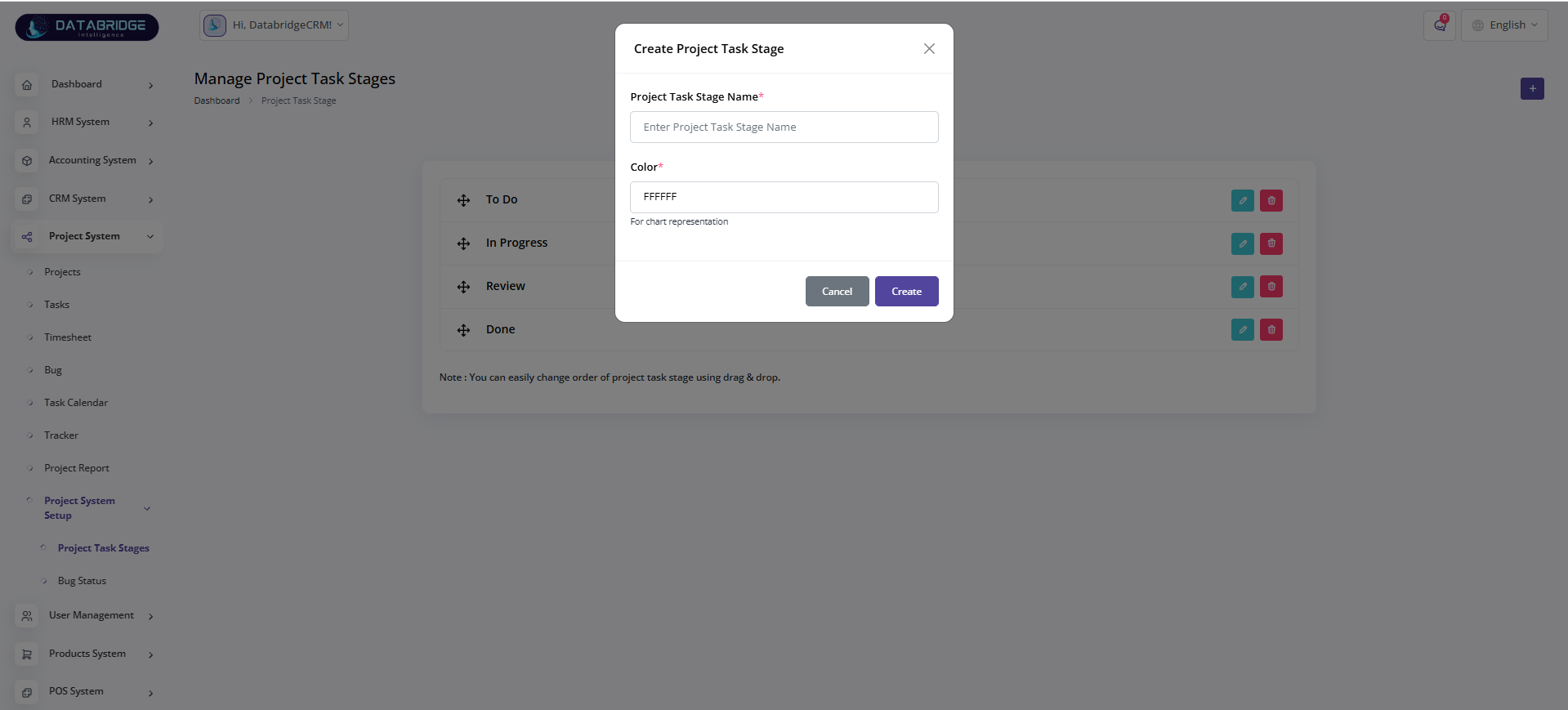
Create Project Task Stage (Popup):
This popup allows users to create a new task stage by providing a name and color for visual identification.
Features:
-Input field for stage name
-Color selection field
-Create and cancel buttons
Functionality:
-Users can add new workflow stages
-Color helps in visual categorization
-Save button adds stage to system
-Cancel closes the popup
This popup allows users to create a new task stage by providing a name and color for visual identification.
Features:
-Input field for stage name
-Color selection field
-Create and cancel buttons
Functionality:
-Users can add new workflow stages
-Color helps in visual categorization
-Save button adds stage to system
-Cancel closes the popup
1
Project System
2
Project System Setup
3
Project Task Stage
4
Right"+"
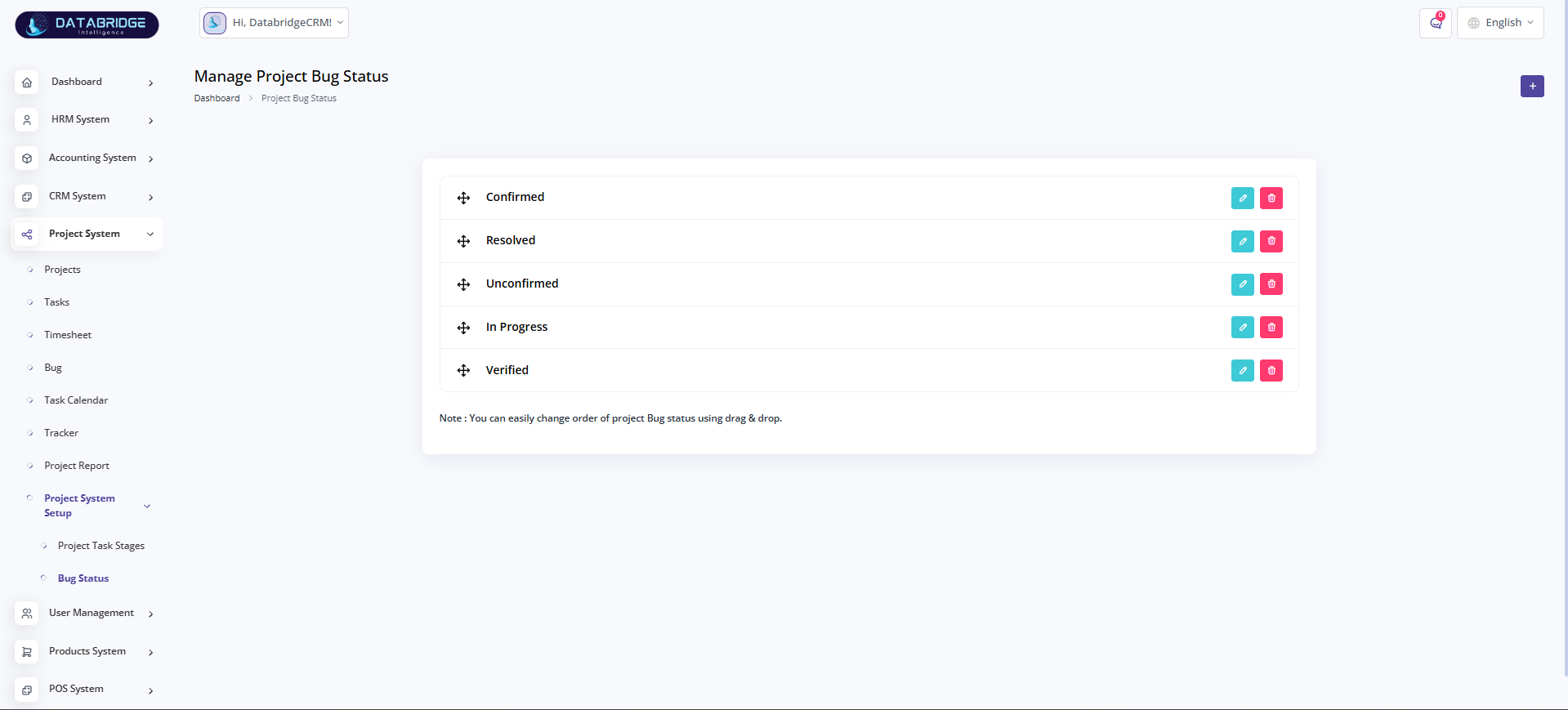
Manage Project Bug Status Screen:
This screen allows users to define and manage different bug statuses used in the bug tracking process.
Features:
-List of bug statuses (Confirmed, Resolved, etc.)
-Drag-and-drop ordering
-Edit and delete options
-Add new status button
Functionality:
-Users can customize bug lifecycle stages
-Reorder statuses using drag-and-drop
-Modify or remove existing statuses
-Helps standardize bug tracking process
This screen allows users to define and manage different bug statuses used in the bug tracking process.
Features:
-List of bug statuses (Confirmed, Resolved, etc.)
-Drag-and-drop ordering
-Edit and delete options
-Add new status button
Functionality:
-Users can customize bug lifecycle stages
-Reorder statuses using drag-and-drop
-Modify or remove existing statuses
-Helps standardize bug tracking process
1
Project System
2
Project System Setup
3
Bug Status
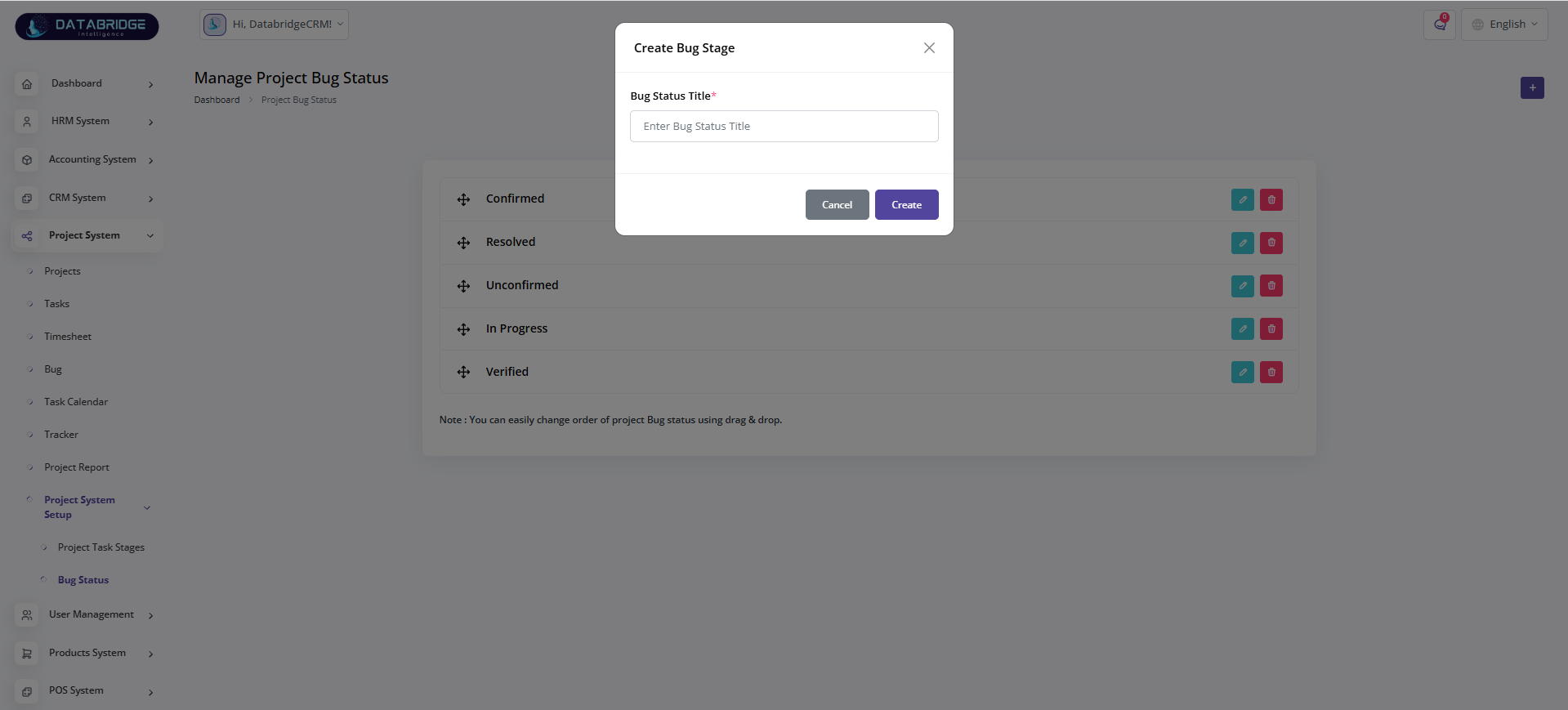
Create Bug Stage (Popup):
This popup allows users to create a new bug status by entering a title.
Features:
-Input field for bug status title
-Create and cancel buttons
Functionality:
-Users can define new bug statuses
-Helps customize bug workflow
-Save button adds new status
-Cancel closes the modal
This popup allows users to create a new bug status by entering a title.
Features:
-Input field for bug status title
-Create and cancel buttons
Functionality:
-Users can define new bug statuses
-Helps customize bug workflow
-Save button adds new status
-Cancel closes the modal
1
Project System
2
Project System Setup
3
Bug Status
4
Right"+"
User Management
The User Management module is designed to efficiently manage users, roles, and client information within the system. It allows administrators to create, update, and organize users while assigning appropriate roles and permissions to control access. The module also supports client management, enabling seamless handling of client records along with their associated projects and activities. Overall, it ensures secure access control, better organization, and smooth administration of system users and clients.
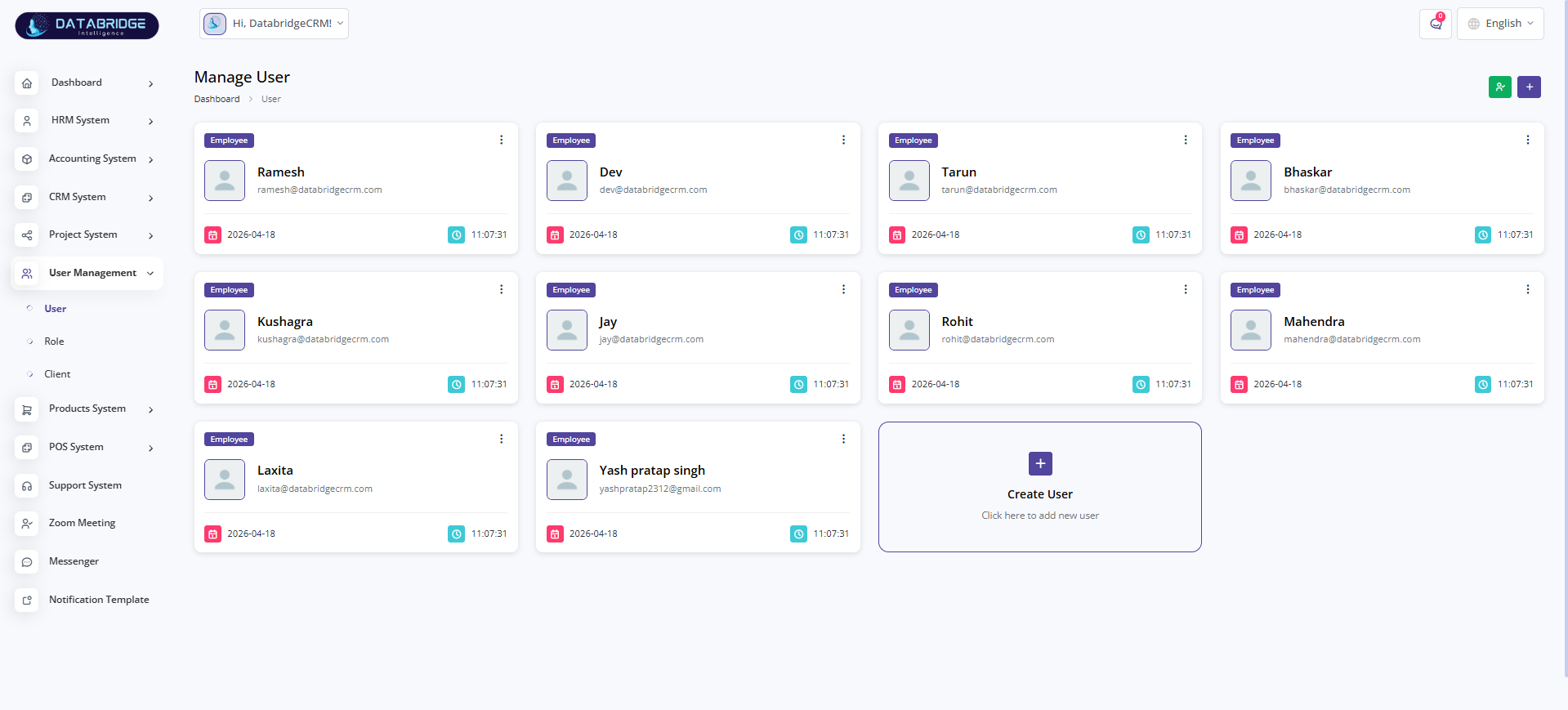
Manage User:
The Manage User screen allows administrators to view, manage, and organize all system users in a centralized interface. It provides a card-based layout displaying user details such as name, email, role, and activity timestamps for quick access and monitoring.
Features:
-Card-based user listing with profile details
-Display of user role (e.g., Employee)
-Quick access to user information (email, date, time)
-Option to create new users
-Action menu for each user (edit/delete options)
Functionality:
-Users can view all registered users in one place
-Admin can add a new user using the “Create User” option
-Existing users can be managed via action controls
-System maintains timestamps for tracking user creation/activity
The Manage User screen allows administrators to view, manage, and organize all system users in a centralized interface. It provides a card-based layout displaying user details such as name, email, role, and activity timestamps for quick access and monitoring.
Features:
-Card-based user listing with profile details
-Display of user role (e.g., Employee)
-Quick access to user information (email, date, time)
-Option to create new users
-Action menu for each user (edit/delete options)
Functionality:
-Users can view all registered users in one place
-Admin can add a new user using the “Create User” option
-Existing users can be managed via action controls
-System maintains timestamps for tracking user creation/activity
1
User Management
2
User
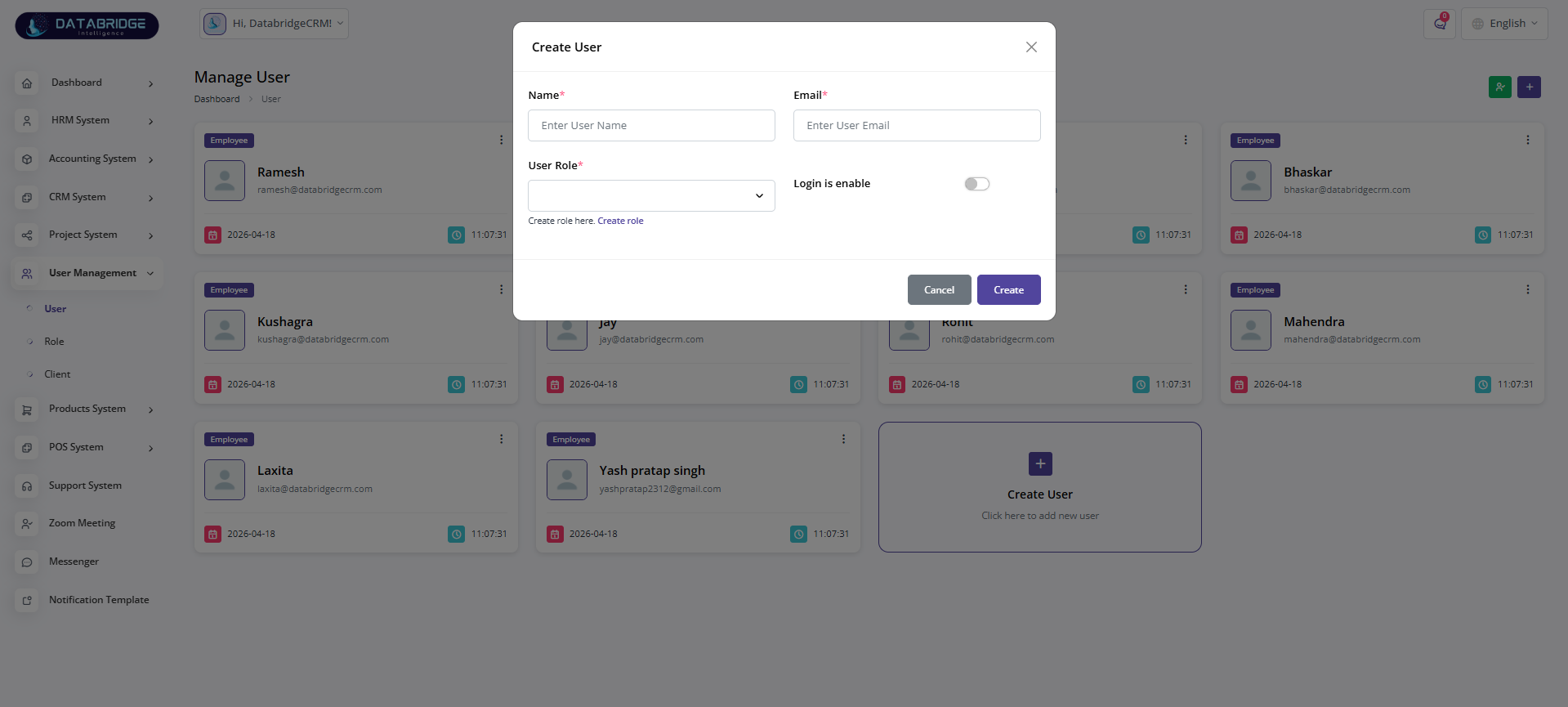
Create User (Popup):
The Create User screen enables administrators to add new users by entering essential details such as name, email, and role. It also includes an option to enable or disable login access for the user.
Features:
-Input fields for Name and Email
-Role selection dropdown
-Toggle option for login access
-Create and Cancel action buttons
Functionality:
-Admin enters user details and assigns a role
-Login access can be enabled/disabled during creation
-On submission, user is added to the system
-Validation ensures required fields are filled
The Create User screen enables administrators to add new users by entering essential details such as name, email, and role. It also includes an option to enable or disable login access for the user.
Features:
-Input fields for Name and Email
-Role selection dropdown
-Toggle option for login access
-Create and Cancel action buttons
Functionality:
-Admin enters user details and assigns a role
-Login access can be enabled/disabled during creation
-On submission, user is added to the system
-Validation ensures required fields are filled
1
User Management
2
User
3
Right"+"
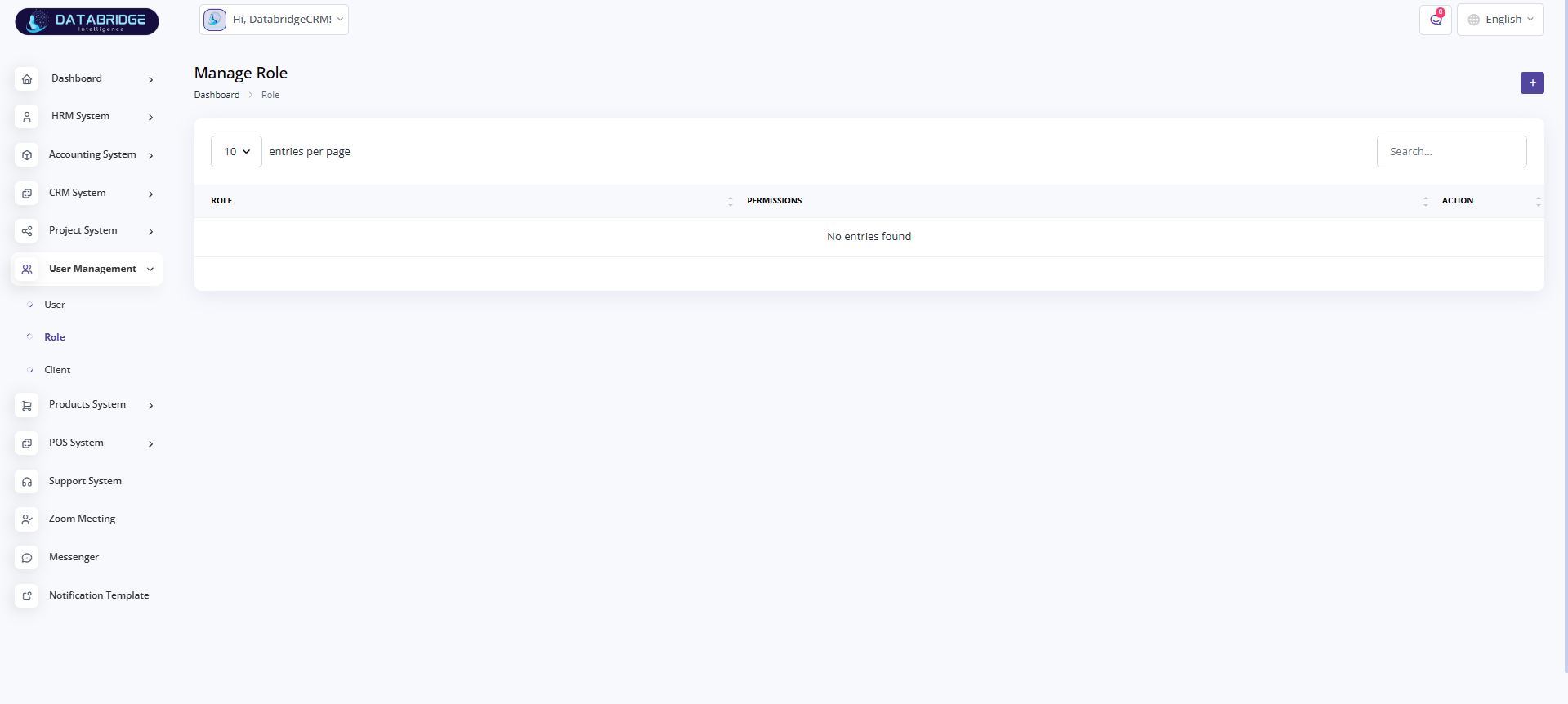
Manage Role:
The Manage Role screen is used to define and manage user roles within the system. It helps administrators control access levels and permissions by organizing roles in a structured list.
Features:
-Tabular view of roles and permissions
-Search and pagination support
-Option to create new roles
-Action controls for role management
Functionality:
-Admin can view all existing roles
-Roles can be created, edited, or deleted
-Permissions are associated with each role
-Search helps quickly find specific roles
The Manage Role screen is used to define and manage user roles within the system. It helps administrators control access levels and permissions by organizing roles in a structured list.
Features:
-Tabular view of roles and permissions
-Search and pagination support
-Option to create new roles
-Action controls for role management
Functionality:
-Admin can view all existing roles
-Roles can be created, edited, or deleted
-Permissions are associated with each role
-Search helps quickly find specific roles
1
User Management
2
Role
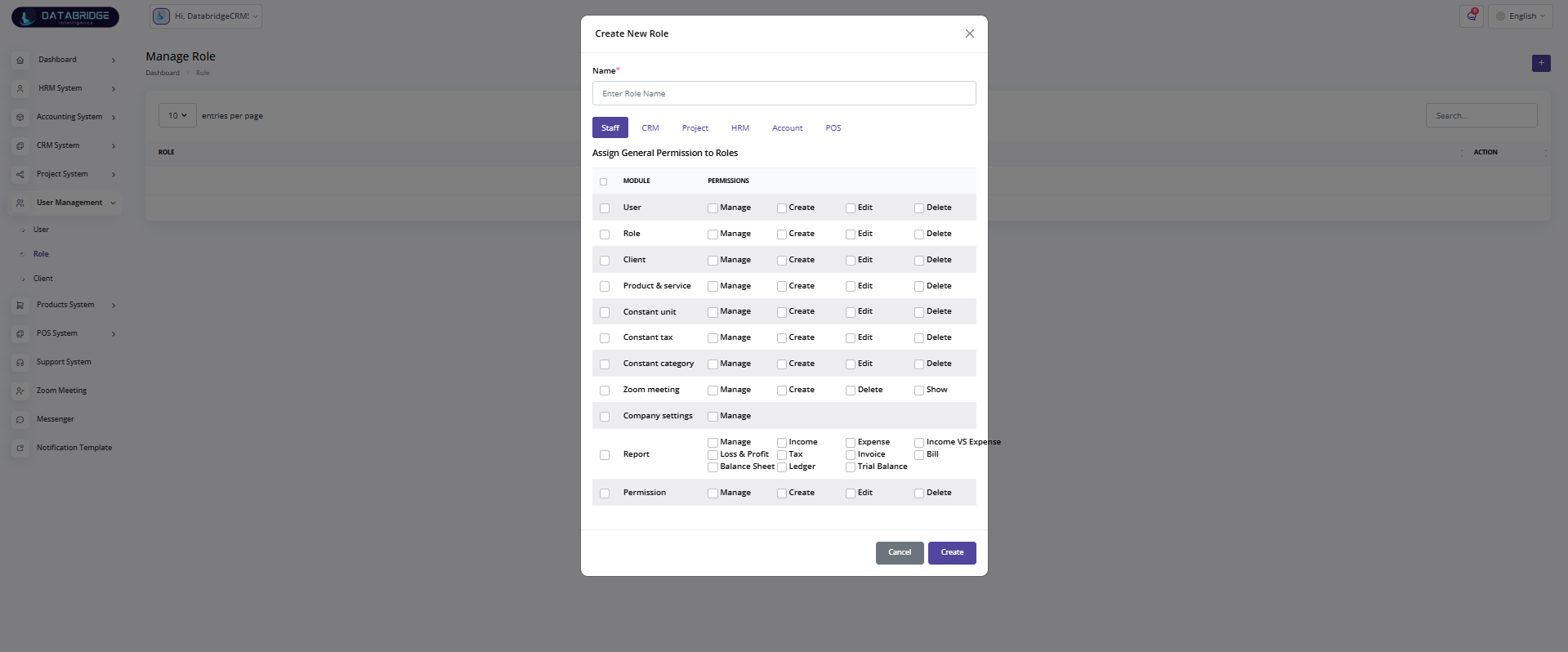
Create Role (Popup):
The Create Role screen allows administrators to define new roles and assign module-wise permissions. It provides a detailed permission matrix for fine-grained access control.
Features:
-Role name input field
-Module-based permission tabs (Staff, CRM, Project, HRM, etc.)
-Checkbox-based permission controls (Create, Edit, Delete, Manage)
-Multiple permission categories (Reports, Settings, etc.)
Functionality:
-Admin defines a role name
-Selects permissions for each module
-Role is saved with assigned access rights
-Permissions control user actions across the system
The Create Role screen allows administrators to define new roles and assign module-wise permissions. It provides a detailed permission matrix for fine-grained access control.
Features:
-Role name input field
-Module-based permission tabs (Staff, CRM, Project, HRM, etc.)
-Checkbox-based permission controls (Create, Edit, Delete, Manage)
-Multiple permission categories (Reports, Settings, etc.)
Functionality:
-Admin defines a role name
-Selects permissions for each module
-Role is saved with assigned access rights
-Permissions control user actions across the system
1
User Management
2
Role
3
Right"+"
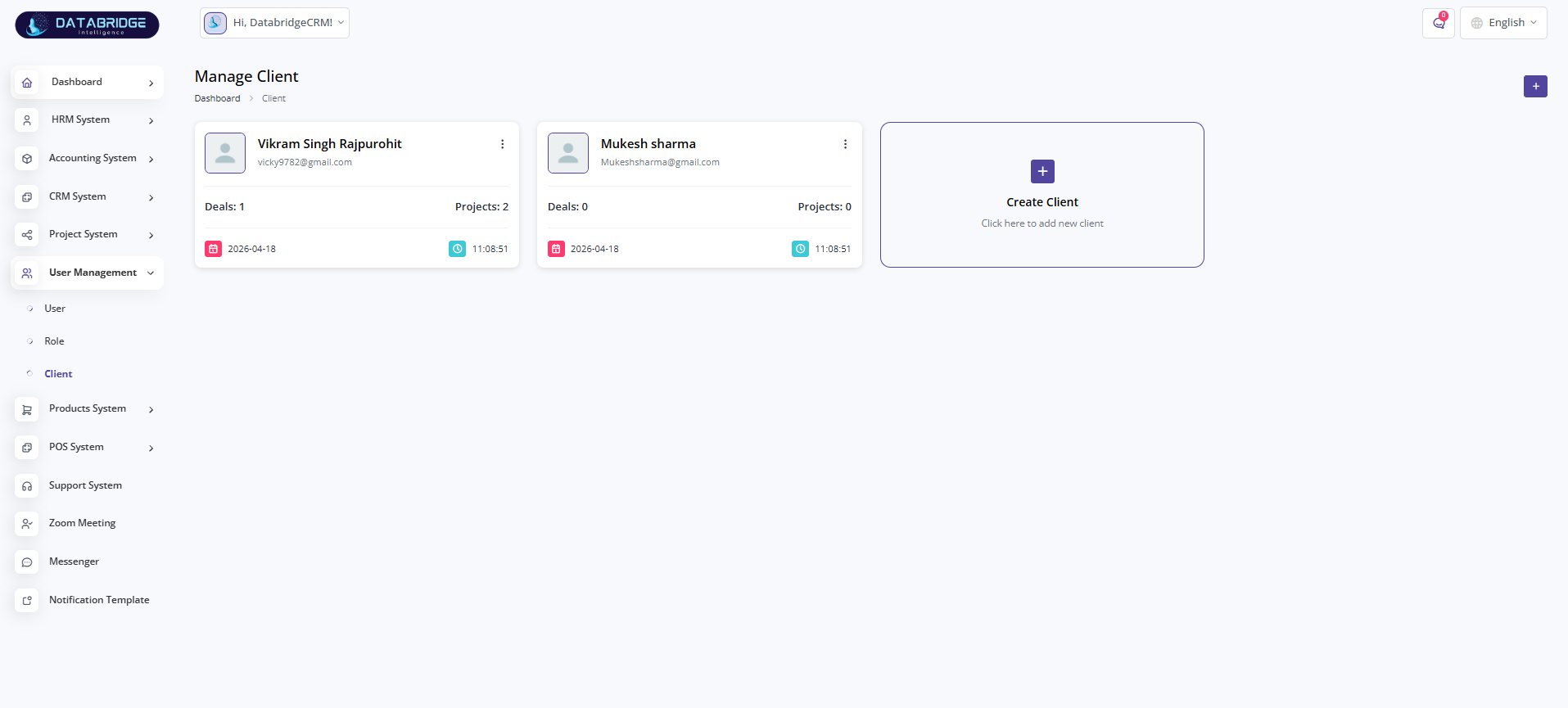
Manage Client:
The Manage Client screen enables administrators to manage all client records in the system. It provides a simple card-based view displaying client details along with associated deals and projects.
Features:
-Client cards with name and email
-Display of deals and project count
-Timestamp information
-Option to create new clients
-Action menu for each client
Functionality:
-Admin can view all clients in one place
-New clients can be added via “Create Client”
-Existing client records can be managed
-System tracks associated deals and projects
The Manage Client screen enables administrators to manage all client records in the system. It provides a simple card-based view displaying client details along with associated deals and projects.
Features:
-Client cards with name and email
-Display of deals and project count
-Timestamp information
-Option to create new clients
-Action menu for each client
Functionality:
-Admin can view all clients in one place
-New clients can be added via “Create Client”
-Existing client records can be managed
-System tracks associated deals and projects
1
User Management
2
Clients
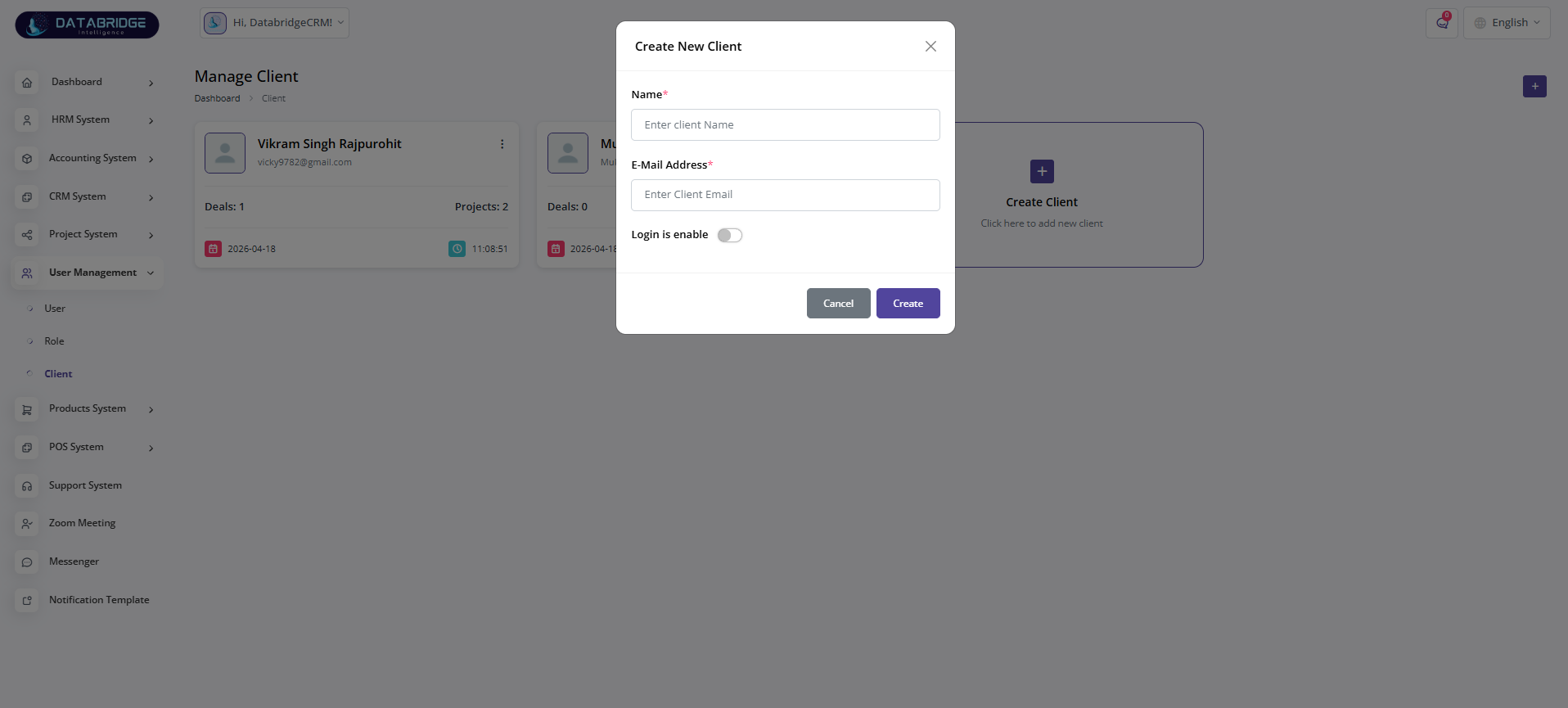
Create Client (Popup):
The Create Client screen allows administrators to add new clients by entering basic details like name and email. It also includes an option to enable login access for clients.
Features:
-Input fields for client name and email
-Toggle for login access
-Create and Cancel buttons
Functionality:
-Admin enters client details
-Optional login access can be enabled
-Client record is saved into the system
-Validation ensures required information is provided
The Create Client screen allows administrators to add new clients by entering basic details like name and email. It also includes an option to enable login access for clients.
Features:
-Input fields for client name and email
-Toggle for login access
-Create and Cancel buttons
Functionality:
-Admin enters client details
-Optional login access can be enabled
-Client record is saved into the system
-Validation ensures required information is provided
1
User Management
2
Clients
3
Create Client
Products System
The Products System module is designed to manage products, services, and inventory within the application. It enables users to create, update, and organize product and service records along with pricing, tax, and category details. The module also provides stock management functionality to track product availability and quantities. Overall, it ensures efficient inventory control and smooth handling of product-related operations across the system.
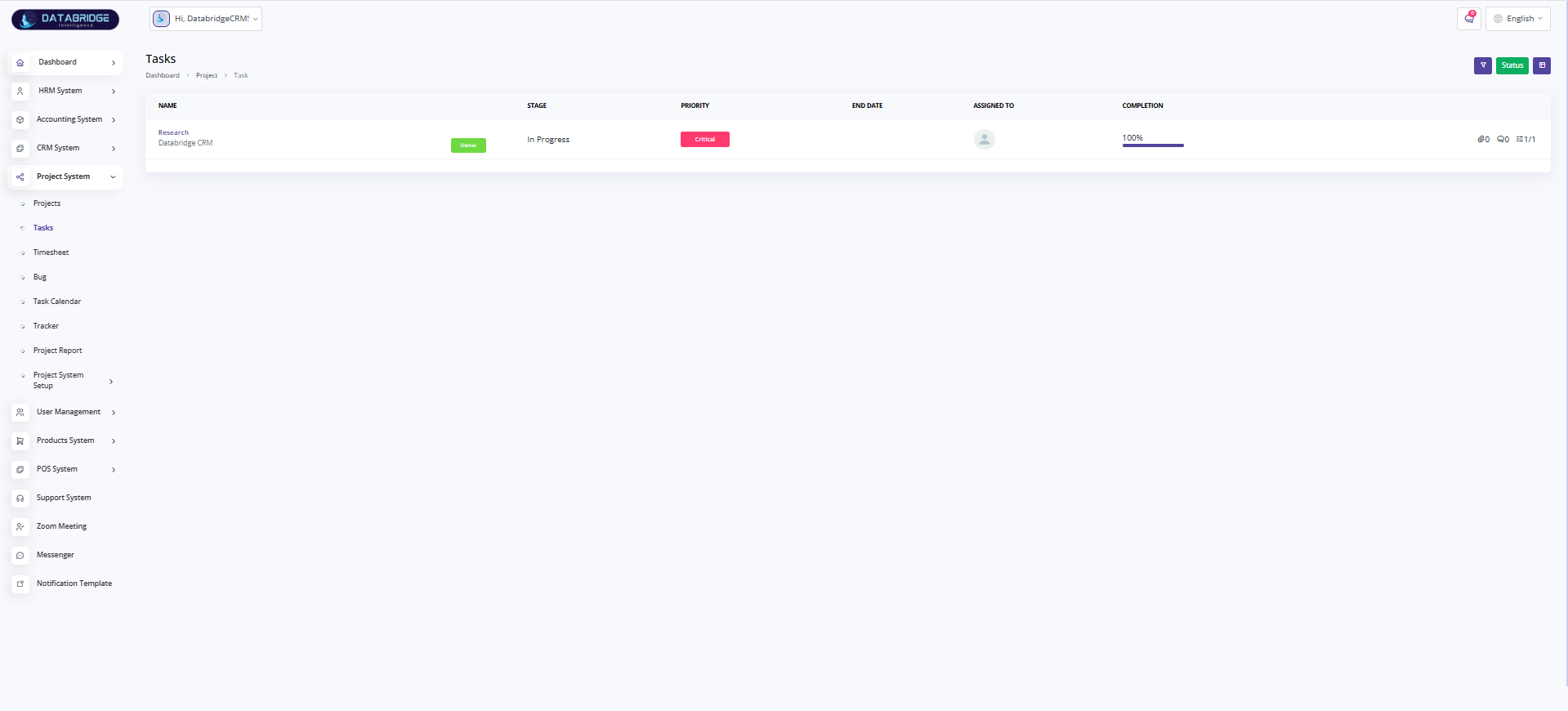
Manage Product & Services:
The Manage Product & Services screen allows users to view, organize, and manage all products and services available in the system. It provides a structured table with detailed information such as pricing, tax, category, and type for better inventory and service tracking.
Features:
-Tabular listing of products and services
-Display of SKU, sale price, purchase price, and tax details
-Category-based filtering option
-Search and pagination support
-Action buttons for view, edit, and delete
-Option to add new product/service
Functionality:
-Users can view all products and services in one place
-Filter data based on category for quick access
-Perform actions like edit or delete existing entries
-Add new products/services using the create option
-System maintains structured pricing and tax information
The Manage Product & Services screen allows users to view, organize, and manage all products and services available in the system. It provides a structured table with detailed information such as pricing, tax, category, and type for better inventory and service tracking.
Features:
-Tabular listing of products and services
-Display of SKU, sale price, purchase price, and tax details
-Category-based filtering option
-Search and pagination support
-Action buttons for view, edit, and delete
-Option to add new product/service
Functionality:
-Users can view all products and services in one place
-Filter data based on category for quick access
-Perform actions like edit or delete existing entries
-Add new products/services using the create option
-System maintains structured pricing and tax information
1
Products System
2
Product & Services
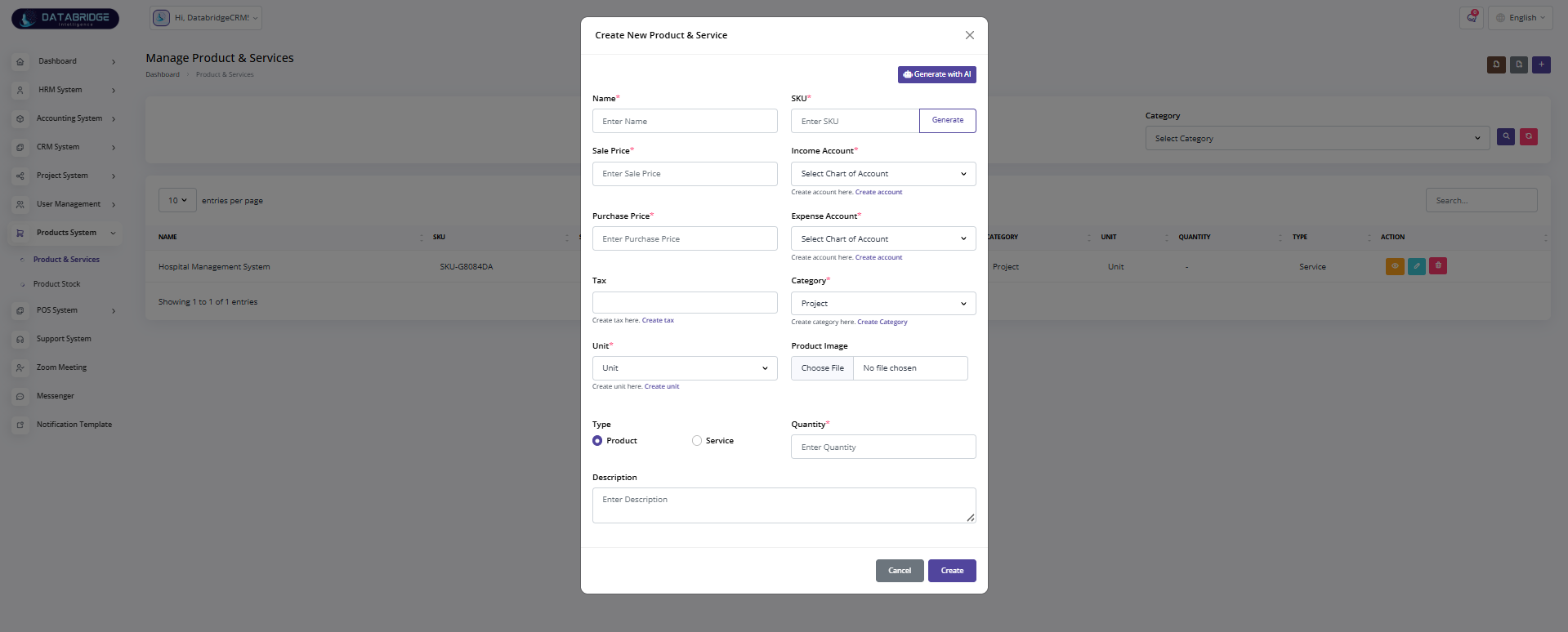
Create Product & Service (Popup):
The Create Product & Service screen enables users to add new products or services by entering detailed information such as pricing, category, tax, and quantity. It also supports AI-based assistance for generating product details.
Features:
-Input fields for Name, SKU, Sale Price, and Purchase Price
-AI-based “Generate with AI” option
-Category, Unit, and Tax selection
-Product image upload option
-Type selection (Product or Service)
-Quantity and description fields
-Account mapping (Income & Expense accounts)
Functionality:
-Users enter product/service details and select type
-Assign financial accounts for tracking income and expenses
-Upload product image if required
-Add quantity for inventory items
-Save the record to make it available across the system
-Validation ensures all required fields are completed
The Create Product & Service screen enables users to add new products or services by entering detailed information such as pricing, category, tax, and quantity. It also supports AI-based assistance for generating product details.
Features:
-Input fields for Name, SKU, Sale Price, and Purchase Price
-AI-based “Generate with AI” option
-Category, Unit, and Tax selection
-Product image upload option
-Type selection (Product or Service)
-Quantity and description fields
-Account mapping (Income & Expense accounts)
Functionality:
-Users enter product/service details and select type
-Assign financial accounts for tracking income and expenses
-Upload product image if required
-Add quantity for inventory items
-Save the record to make it available across the system
-Validation ensures all required fields are completed
1
Products System
2
Product & Services
3
Right"+"
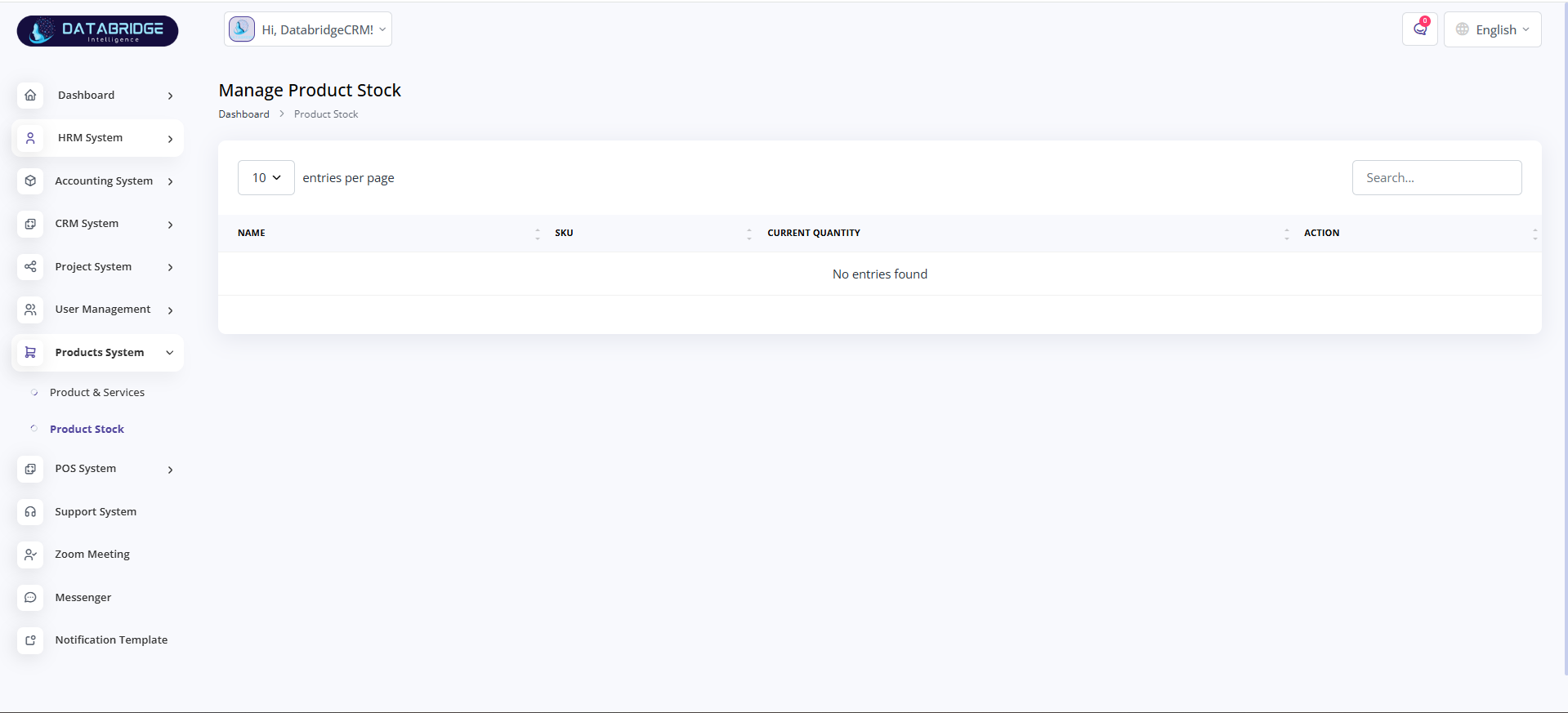
Manage Product Stock:
The Manage Product Stock screen provides an overview of available inventory by displaying product stock details such as SKU and current quantity. It helps in monitoring stock levels efficiently.
Features:
-Tabular display of product stock details
-Columns for product name, SKU, and current quantity
-Search and pagination functionality
-Action column for stock-related operations
Functionality:
-Users can view current stock levels of all products
-Search helps locate specific products quickly
-Enables tracking of inventory availability
-Supports stock management operations (view/update based on system flow)
The Manage Product Stock screen provides an overview of available inventory by displaying product stock details such as SKU and current quantity. It helps in monitoring stock levels efficiently.
Features:
-Tabular display of product stock details
-Columns for product name, SKU, and current quantity
-Search and pagination functionality
-Action column for stock-related operations
Functionality:
-Users can view current stock levels of all products
-Search helps locate specific products quickly
-Enables tracking of inventory availability
-Supports stock management operations (view/update based on system flow)
1
Products System
2
Product Stock
POS System
The POS (Point of Sale) System is designed to handle real-time sales transactions efficiently. It allows users to quickly search products, scan barcodes, add items to a cart, and generate bills with automatic calculations. The system supports both walk-in and registered customers, ensuring a smooth and fast checkout experience while maintaining accurate sales and inventory records.
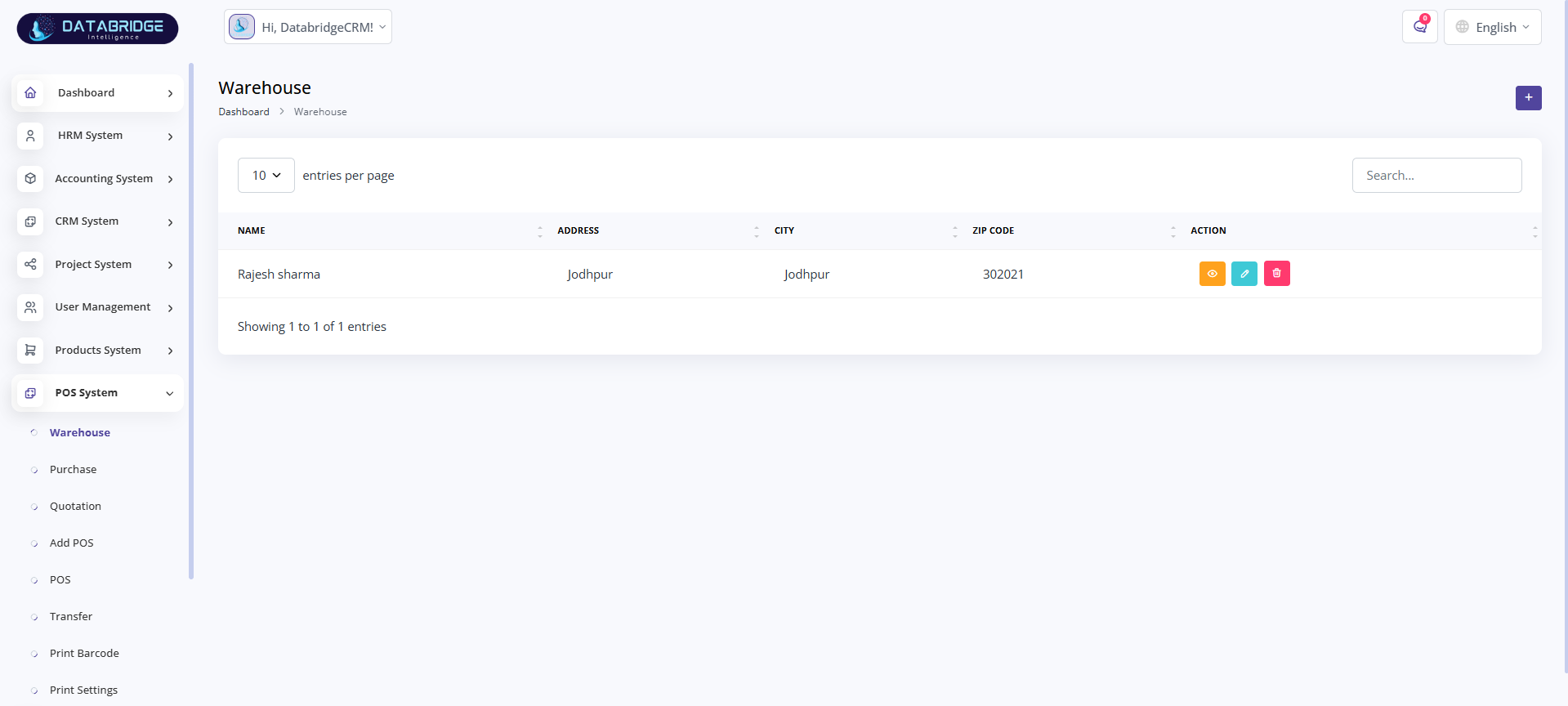
Warehouse:
This screen is used to manage warehouse locations where products are stored. It allows users to maintain warehouse details such as name, address, city, and zip code. The module helps in organizing inventory across multiple storage locations.
Features:
-View list of all warehouses
-Add, edit, and delete warehouse details
-Search and pagination support
-Structured table with location information
Functionality:
-Users can create a new warehouse using the “Create Warehouse” form
-Existing warehouse details can be updated or removed
-Data is displayed in a tabular format with action controls
-Enables linking warehouses with inventory and transactions
This screen is used to manage warehouse locations where products are stored. It allows users to maintain warehouse details such as name, address, city, and zip code. The module helps in organizing inventory across multiple storage locations.
Features:
-View list of all warehouses
-Add, edit, and delete warehouse details
-Search and pagination support
-Structured table with location information
Functionality:
-Users can create a new warehouse using the “Create Warehouse” form
-Existing warehouse details can be updated or removed
-Data is displayed in a tabular format with action controls
-Enables linking warehouses with inventory and transactions
1
POS system
2
Warehouse
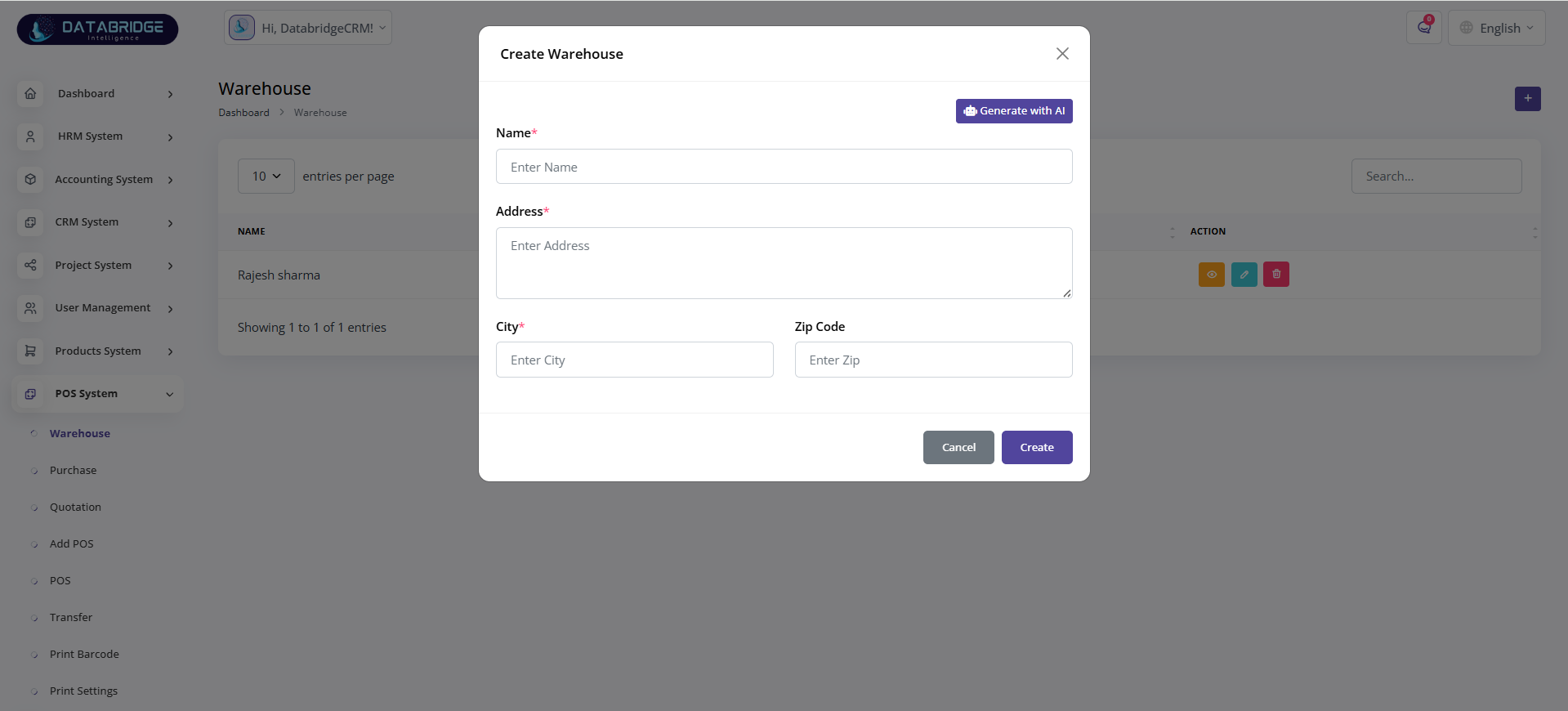
Create Warehouse:
This screen allows users to create and add a new warehouse location into the system. It captures essential details such as warehouse name, address, city, and zip code to ensure proper inventory management across locations.
Features:
-Input fields for warehouse details (Name, Address, City, Zip Code)
-AI-assisted name generation option
-Simple and user-friendly modal interface
-Form validation for required fields
Functionality:
-Users can enter warehouse details and save them into the system
-Required fields ensure accurate and complete data entry
-“Generate with AI” helps auto-fill or suggest warehouse names
-On submission, the warehouse is added to the warehouse list and becomes available for inventory operations
This screen allows users to create and add a new warehouse location into the system. It captures essential details such as warehouse name, address, city, and zip code to ensure proper inventory management across locations.
Features:
-Input fields for warehouse details (Name, Address, City, Zip Code)
-AI-assisted name generation option
-Simple and user-friendly modal interface
-Form validation for required fields
Functionality:
-Users can enter warehouse details and save them into the system
-Required fields ensure accurate and complete data entry
-“Generate with AI” helps auto-fill or suggest warehouse names
-On submission, the warehouse is added to the warehouse list and becomes available for inventory operations
1
POS system
2
Warehouse
3
Right"+"
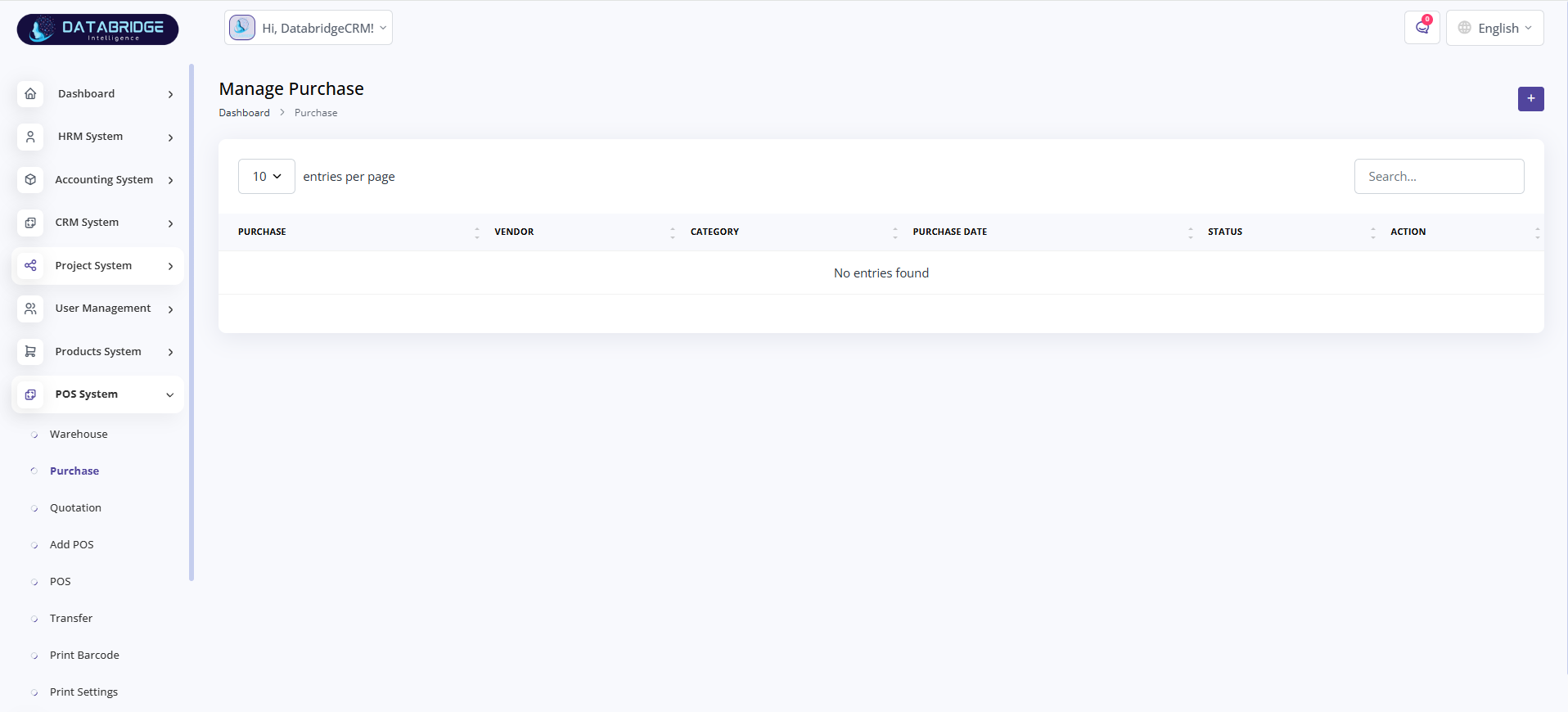
Purchase Management:
This module is used to manage purchase records from vendors. It allows users to track all purchase transactions including vendor details, categories, and purchase dates.
Features:
-List of all purchase entries
-Add new purchase records
-Search and filter options
-Status tracking for purchases
Functionality:
-Users can create purchase entries by selecting vendor, warehouse, and category
-Products/services can be added with quantity, price, tax, and discount
-System automatically calculates totals and subtotals
-Purchase data is stored for reporting and inventory updates
This module is used to manage purchase records from vendors. It allows users to track all purchase transactions including vendor details, categories, and purchase dates.
Features:
-List of all purchase entries
-Add new purchase records
-Search and filter options
-Status tracking for purchases
Functionality:
-Users can create purchase entries by selecting vendor, warehouse, and category
-Products/services can be added with quantity, price, tax, and discount
-System automatically calculates totals and subtotals
-Purchase data is stored for reporting and inventory updates
1
POS system
2
Purchase
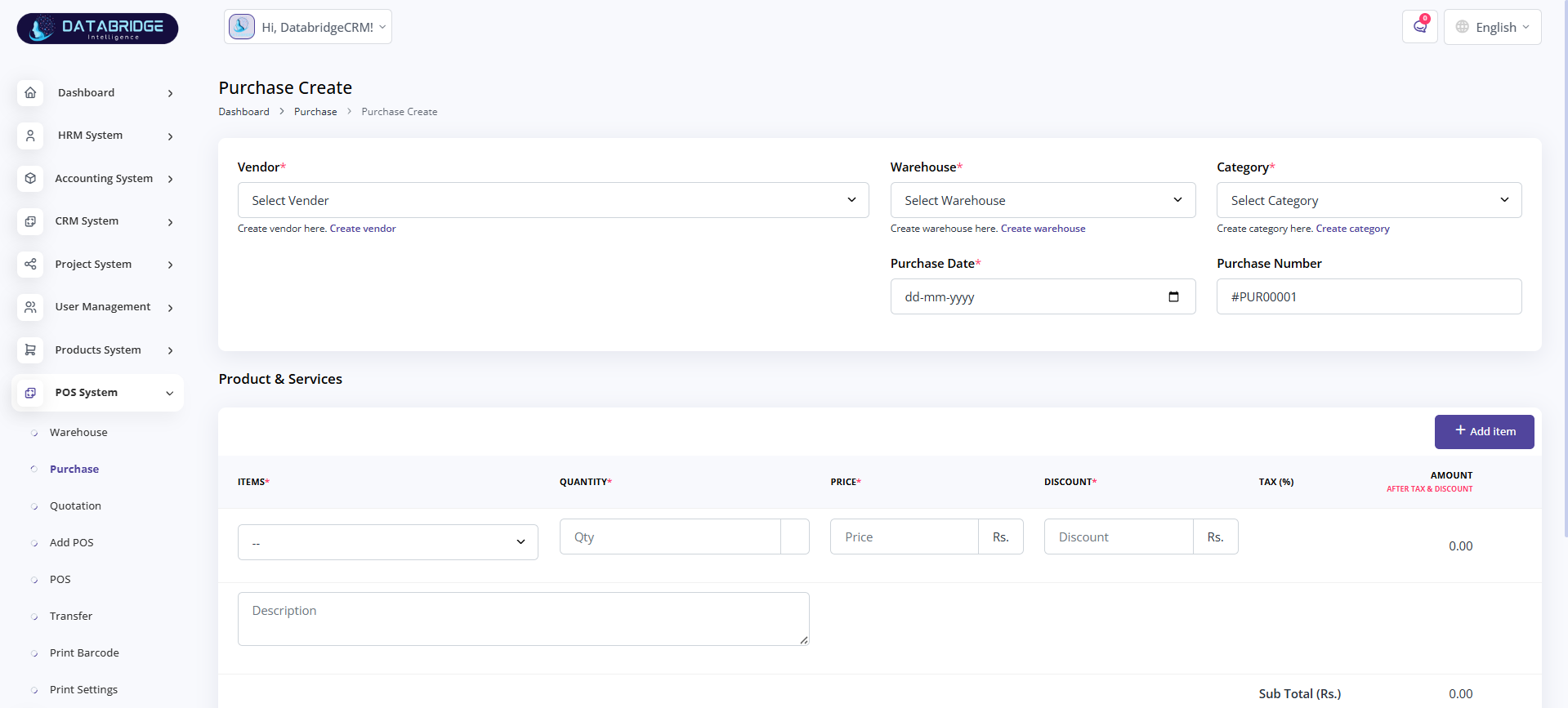
Purchase Create:
This screen allows users to create a new purchase order by entering vendor and product details. It acts as a detailed entry form for recording purchase transactions.
Features:
-Vendor, warehouse, and category selection
-Add multiple items dynamically
-Auto-generated purchase number
-Real-time calculation of totals
Functionality:
-Users input purchase details and add products/services
-System calculates subtotal, tax, discount, and final amount
-Purchase record is saved and linked with inventory
-Updates stock levels automatically after purchase
This screen allows users to create a new purchase order by entering vendor and product details. It acts as a detailed entry form for recording purchase transactions.
Features:
-Vendor, warehouse, and category selection
-Add multiple items dynamically
-Auto-generated purchase number
-Real-time calculation of totals
Functionality:
-Users input purchase details and add products/services
-System calculates subtotal, tax, discount, and final amount
-Purchase record is saved and linked with inventory
-Updates stock levels automatically after purchase
1
POS system
2
Purchase
3
Right"+"
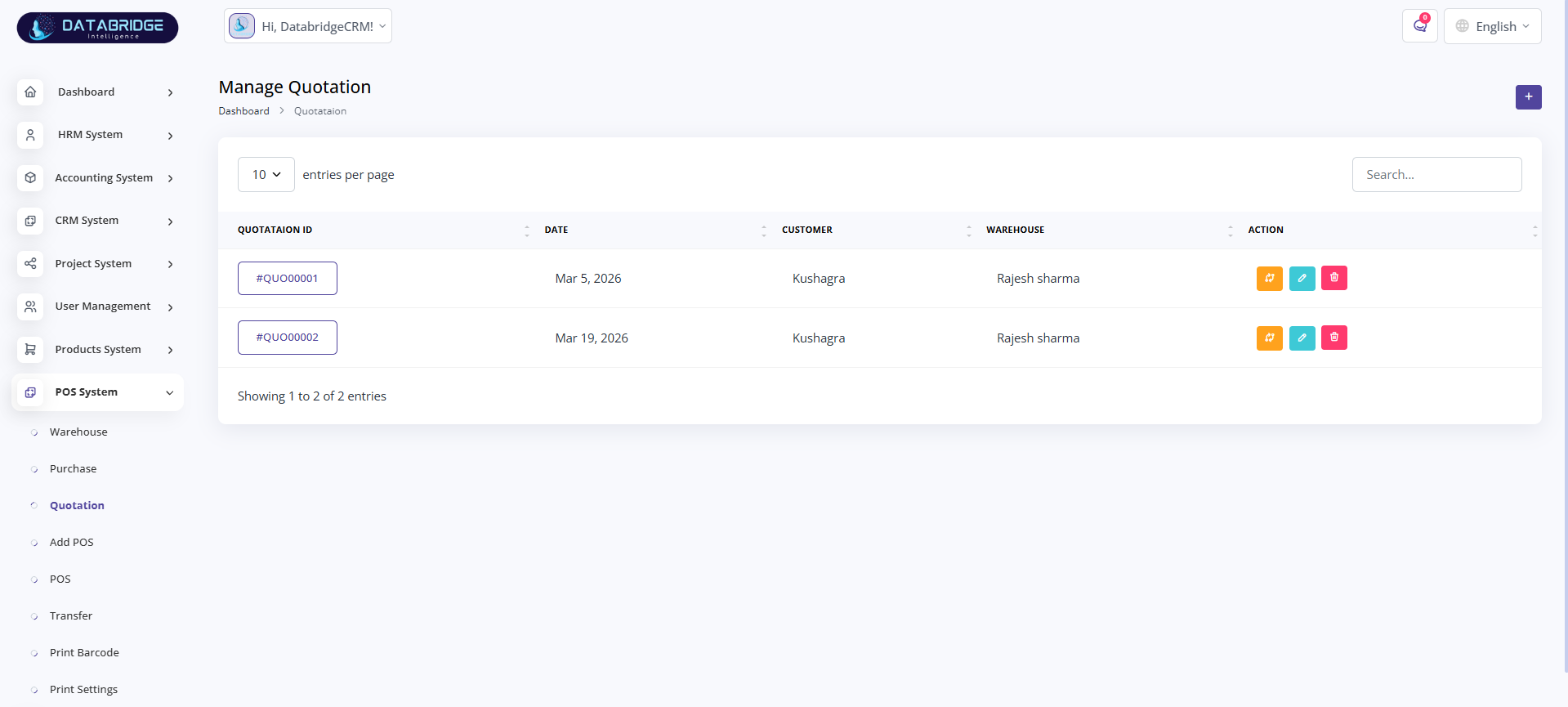
Quotation Management:
This module is used to manage customer quotations. It allows users to create, view, and manage quotations for products or services before finalizing sales.
Features:
-View list of quotations
-Create, edit, and delete quotations
-Customer and warehouse mapping
-Search and pagination
Functionality:
-Users can generate quotations with customer details
-Quotations include product/service pricing and terms
-Records can be modified or reused for sales
-Helps in tracking pre-sales activities
This module is used to manage customer quotations. It allows users to create, view, and manage quotations for products or services before finalizing sales.
Features:
-View list of quotations
-Create, edit, and delete quotations
-Customer and warehouse mapping
-Search and pagination
Functionality:
-Users can generate quotations with customer details
-Quotations include product/service pricing and terms
-Records can be modified or reused for sales
-Helps in tracking pre-sales activities
1
POS system
2
Quotation
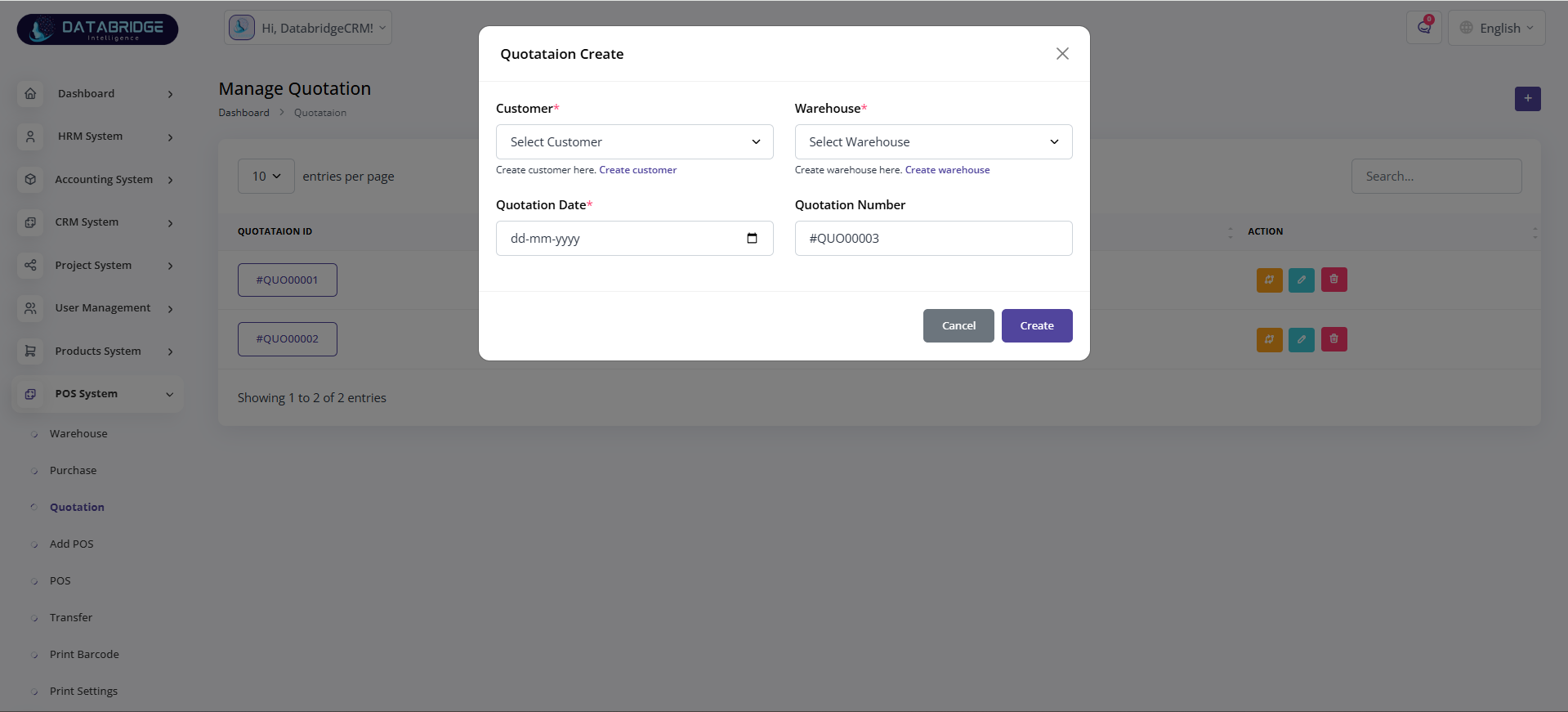
Quotation Create:
This screen allows users to create a new quotation by selecting customer and warehouse details. It simplifies the process of generating professional quotations.
Features:
-Customer and warehouse selection
-Auto-generated quotation number
-Date selection
-Simple form-based input
Functionality:
-Users fill quotation details and save the record
-System generates unique quotation IDs
-Data is stored for future reference or conversion into sales
-Enables quick quotation creation workflow
This screen allows users to create a new quotation by selecting customer and warehouse details. It simplifies the process of generating professional quotations.
Features:
-Customer and warehouse selection
-Auto-generated quotation number
-Date selection
-Simple form-based input
Functionality:
-Users fill quotation details and save the record
-System generates unique quotation IDs
-Data is stored for future reference or conversion into sales
-Enables quick quotation creation workflow
1
POS system
2
Quotation
3
Right"+"
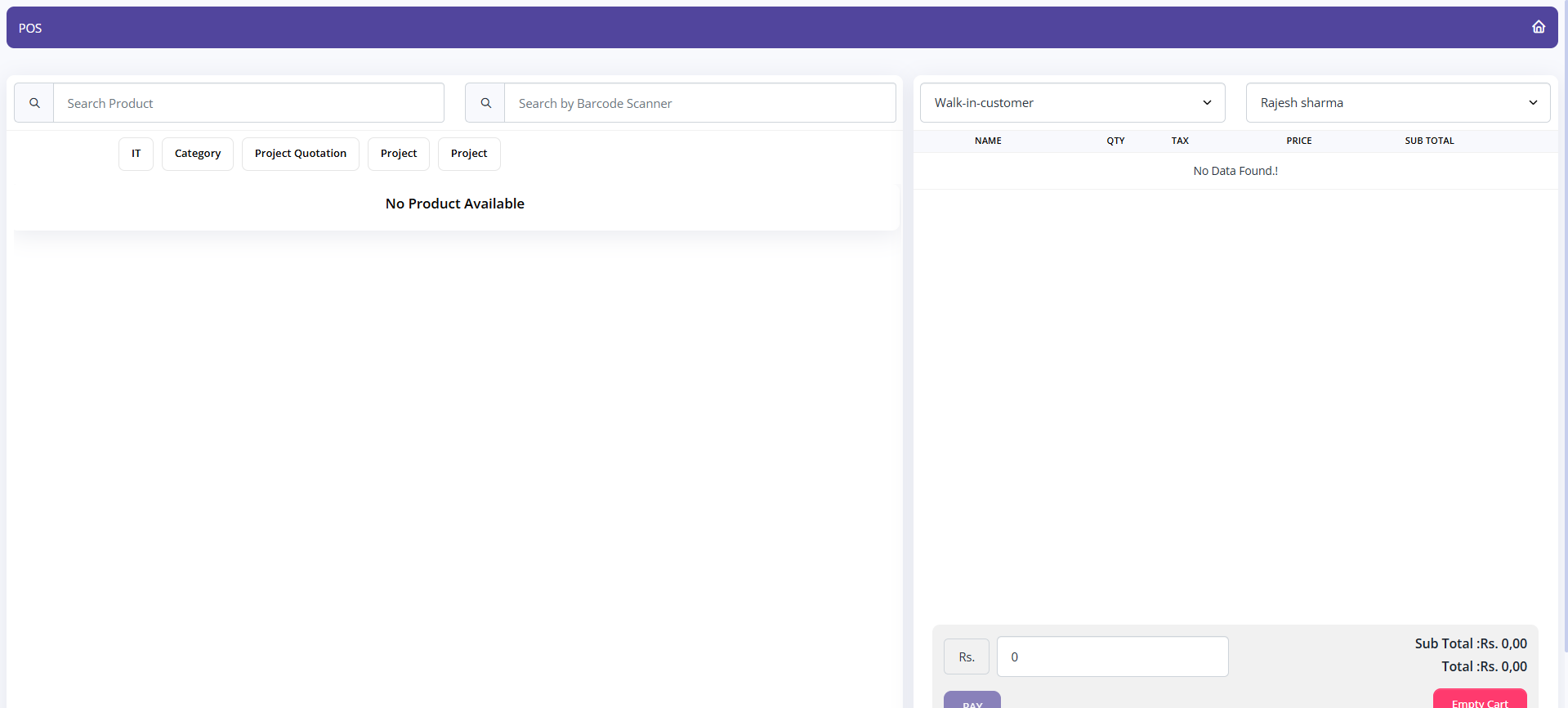
POS (Point of Sale):
The POS screen is used for real-time sales transactions. It provides a fast and user-friendly interface to search products, add them to cart, and process payments.
Features:
-Product search and barcode scanning
-Category-based filtering
-Cart management system
-Real-time billing and total calculation
Functionality:
-Users can add products to the cart using search or barcode
-System calculates subtotal and total automatically
-Supports walk-in customers and predefined clients
-Enables quick checkout and payment processing
The POS screen is used for real-time sales transactions. It provides a fast and user-friendly interface to search products, add them to cart, and process payments.
Features:
-Product search and barcode scanning
-Category-based filtering
-Cart management system
-Real-time billing and total calculation
Functionality:
-Users can add products to the cart using search or barcode
-System calculates subtotal and total automatically
-Supports walk-in customers and predefined clients
-Enables quick checkout and payment processing
1
POS system
2
Add Pos
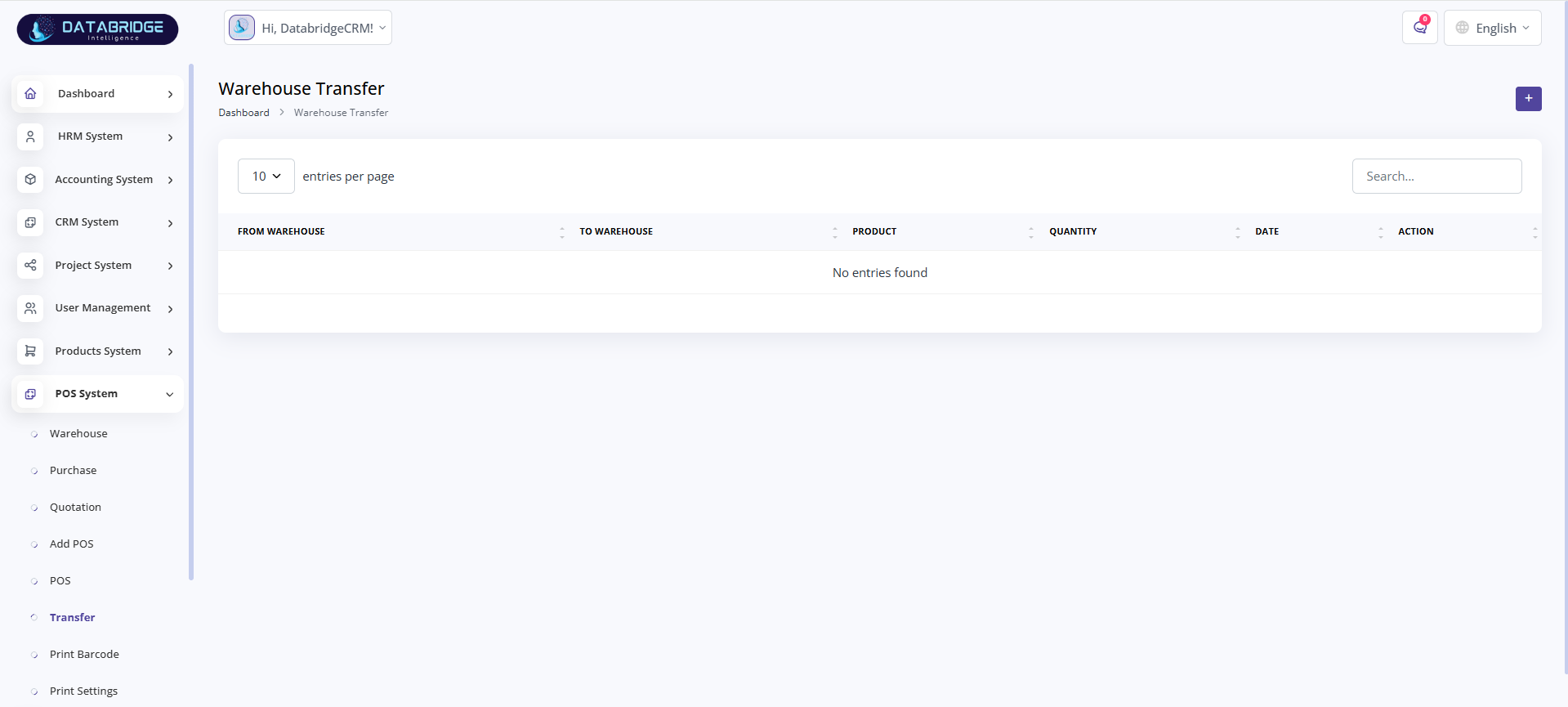
Warehouse Transfer:
This module is used to transfer products between different warehouses. It ensures smooth inventory movement and tracking across locations.
Features:
-Transfer records listing
-Create new transfer entries
-Select source and destination warehouses
-Quantity tracking
Functionality:
-Users select from and to warehouse locations
-Products and quantities are specified for transfer
-Inventory is updated in both warehouses accordingly
-Transfer records are maintained for tracking
This module is used to transfer products between different warehouses. It ensures smooth inventory movement and tracking across locations.
Features:
-Transfer records listing
-Create new transfer entries
-Select source and destination warehouses
-Quantity tracking
Functionality:
-Users select from and to warehouse locations
-Products and quantities are specified for transfer
-Inventory is updated in both warehouses accordingly
-Transfer records are maintained for tracking
1
POS system
2
Warehouse Transfer
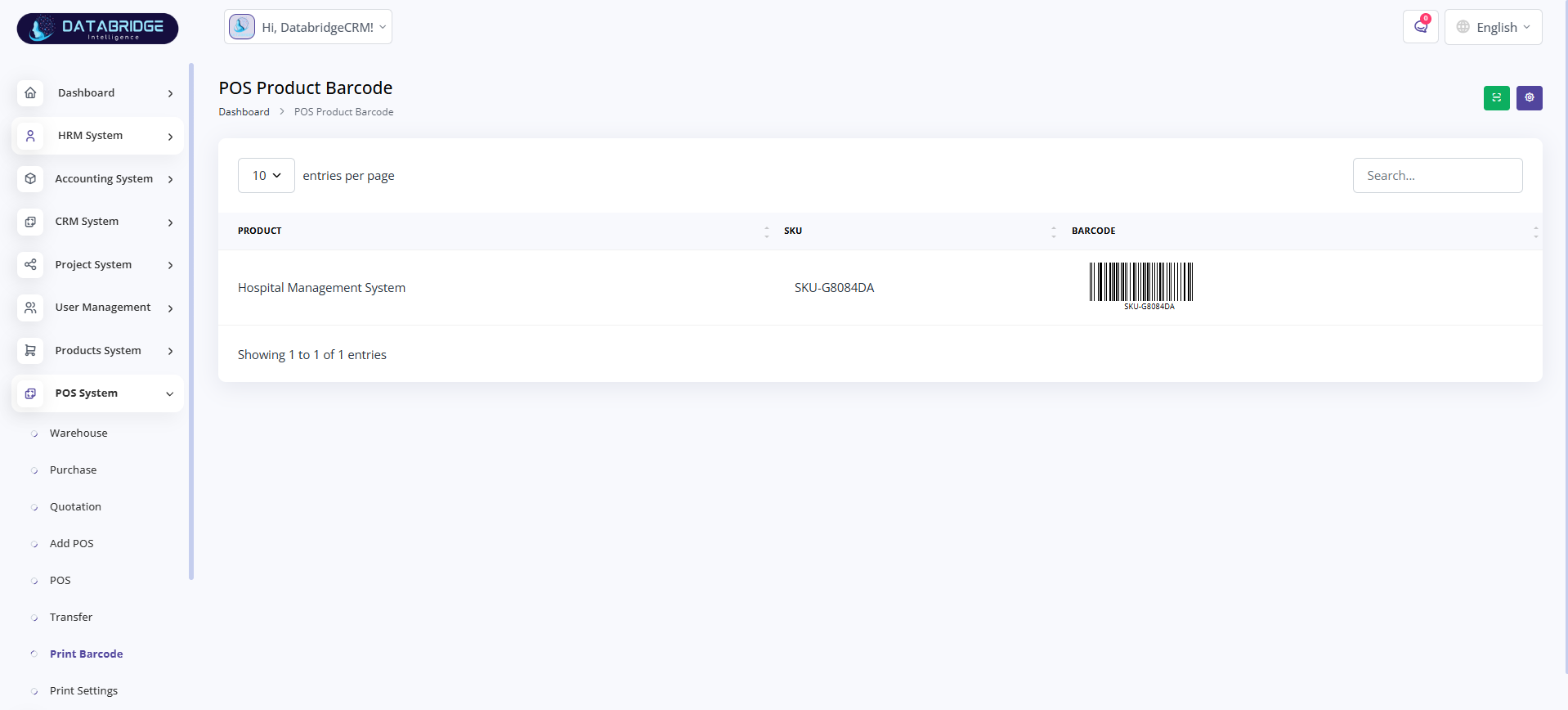
Print Barcode:
This screen is used to generate and print barcodes for products. It helps in simplifying inventory management and POS operations.
Features:
-Barcode generation for products
-SKU-based identification
-Printable barcode format
-Product listing with barcode preview
Functionality:
-System generates barcode based on product SKU
-Users can print barcodes for labeling
-Barcodes can be scanned in POS for quick sales
-Improves inventory tracking efficiency
This screen is used to generate and print barcodes for products. It helps in simplifying inventory management and POS operations.
Features:
-Barcode generation for products
-SKU-based identification
-Printable barcode format
-Product listing with barcode preview
Functionality:
-System generates barcode based on product SKU
-Users can print barcodes for labeling
-Barcodes can be scanned in POS for quick sales
-Improves inventory tracking efficiency
1
POS system
2
Print Barcode
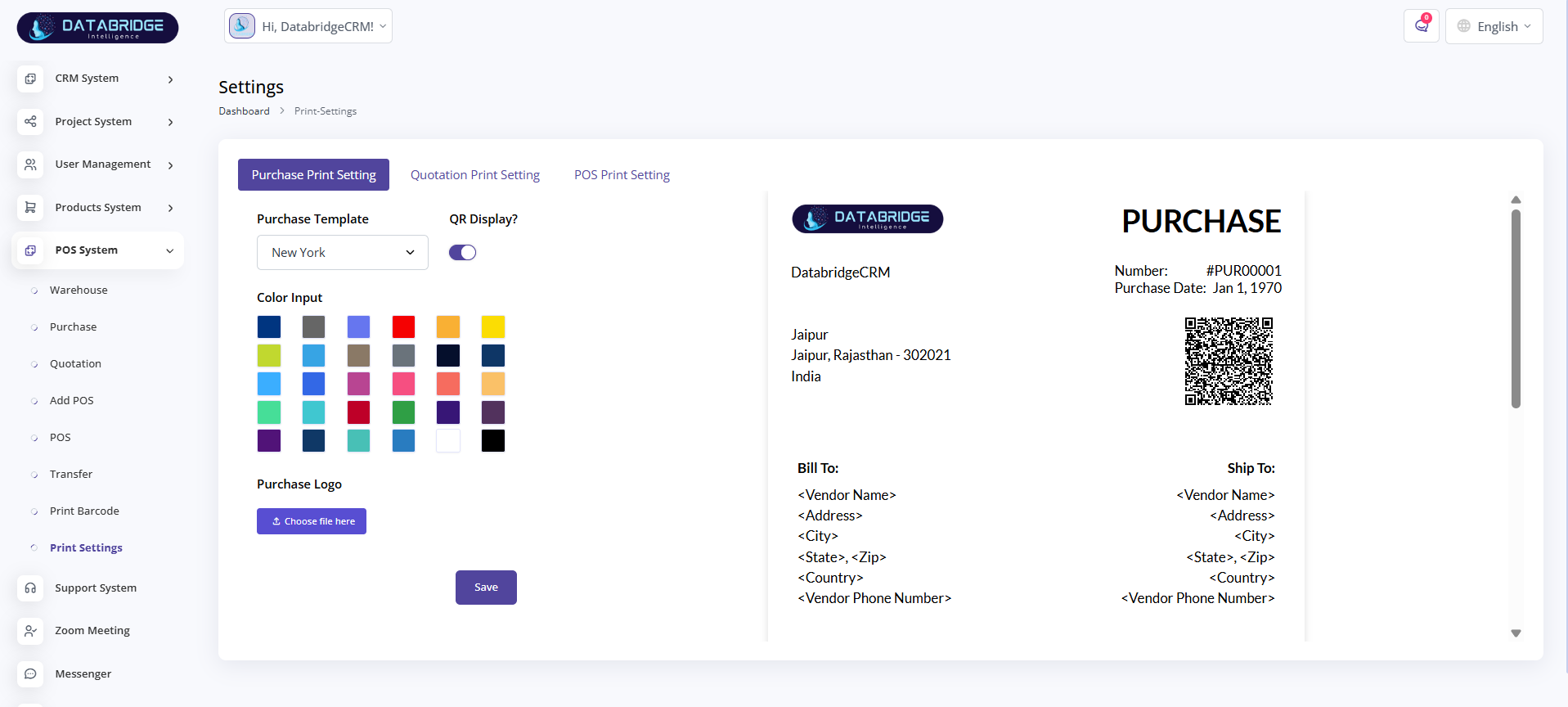
Print Settings:
This module allows users to customize print templates for purchase, quotation, and POS documents. It ensures consistent and professional document formatting.
Features:
-Template selection
-QR code display toggle
-Color customization
-Logo upload option
Functionality:
-Users can configure print layout and design
-Customize document appearance with colors and branding
-Enable/disable QR codes in print
-Settings apply to all generated print documents
This module allows users to customize print templates for purchase, quotation, and POS documents. It ensures consistent and professional document formatting.
Features:
-Template selection
-QR code display toggle
-Color customization
-Logo upload option
Functionality:
-Users can configure print layout and design
-Customize document appearance with colors and branding
-Enable/disable QR codes in print
-Settings apply to all generated print documents
1
POS system
2
Print Settings
Support System
The Support System is designed to manage and track user queries, issues, and service requests efficiently. It allows users to create tickets, assign them to team members, and monitor their status throughout the resolution process. This system ensures timely support, better communication, and organized handling of all support-related activities.
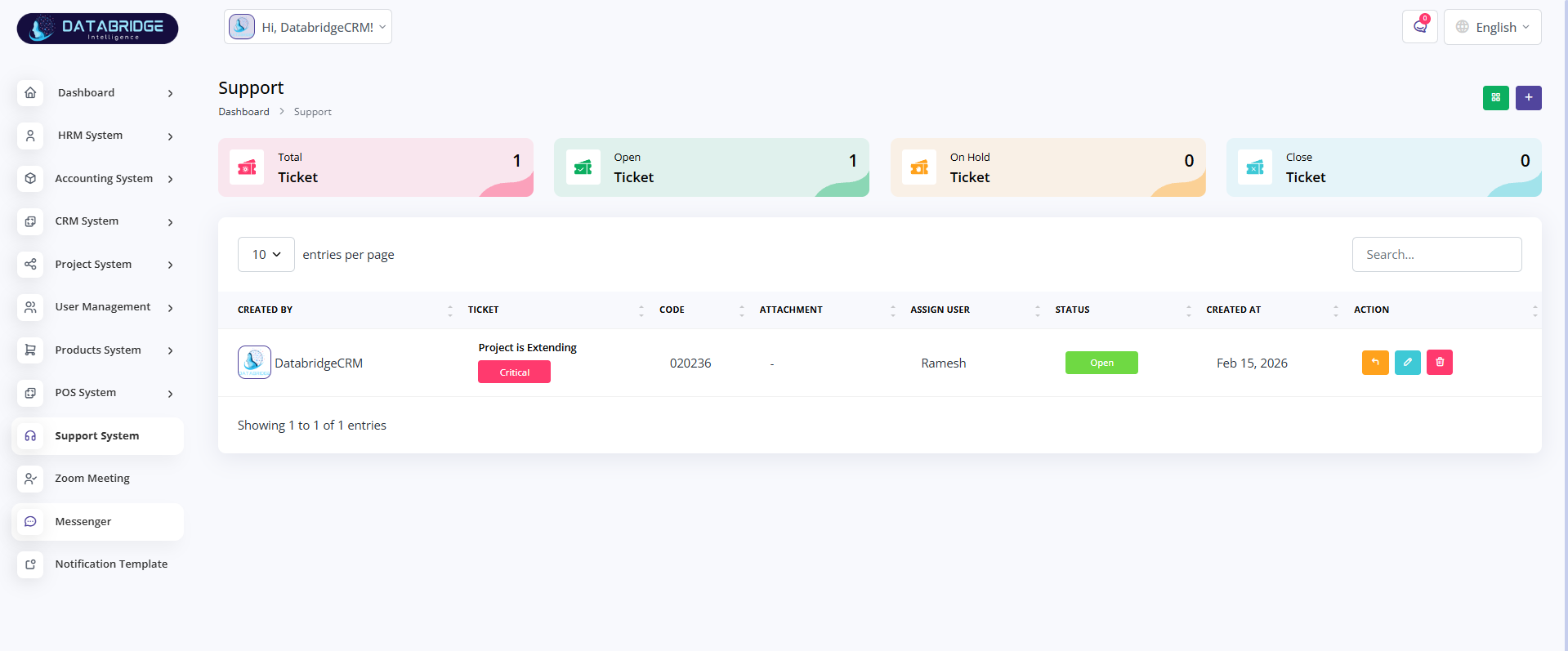
Support System:
This screen is used to manage support tickets within the system. It provides an overview of all tickets along with their status such as open, on hold, and closed, helping teams track and resolve issues efficiently.
Features:
-Dashboard cards showing ticket counts (Total, Open, On Hold, Closed)
-Ticket listing with details like creator, code, assigned user, and status
-Search and pagination functionality
-Action buttons for managing tickets
Functionality:
-Users can view and track all support tickets in one place
-Tickets can be assigned to users and updated based on status
-Helps in monitoring issue resolution progress
-Provides centralized support management
This screen is used to manage support tickets within the system. It provides an overview of all tickets along with their status such as open, on hold, and closed, helping teams track and resolve issues efficiently.
Features:
-Dashboard cards showing ticket counts (Total, Open, On Hold, Closed)
-Ticket listing with details like creator, code, assigned user, and status
-Search and pagination functionality
-Action buttons for managing tickets
Functionality:
-Users can view and track all support tickets in one place
-Tickets can be assigned to users and updated based on status
-Helps in monitoring issue resolution progress
-Provides centralized support management
1
Support System
2
Support System
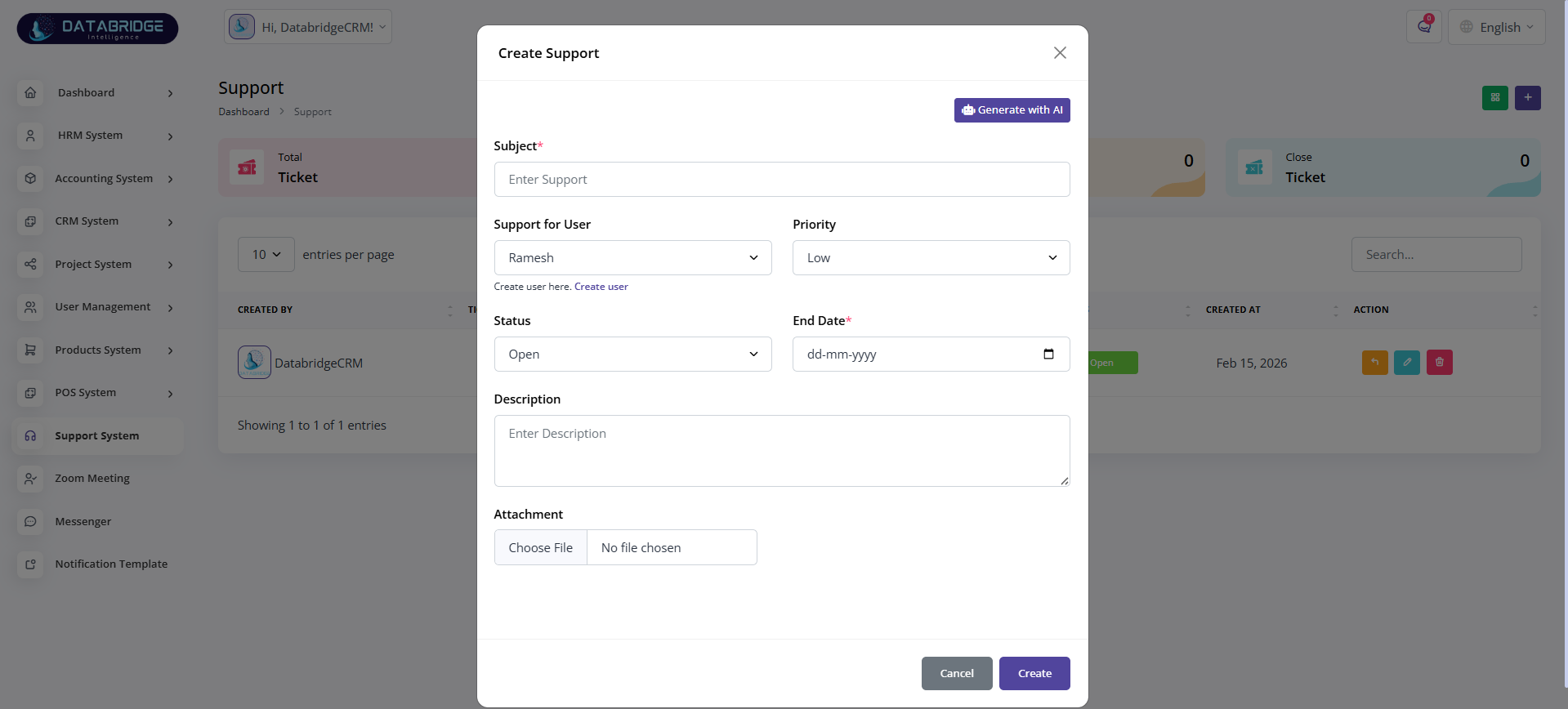
Create Support Ticket:
This screen allows users to create a new support ticket by providing details such as subject, user, priority, status, and description.
Features:
-Input fields for subject, user, priority, and status
-End date selection and file attachment option
-AI-assisted subject generation
-Simple modal-based form
Functionality:
-Users can create and assign tickets to specific users
-Priority and status help in managing urgency
-Attachments can be added for better issue understanding
-Ticket gets added to the support list for tracking
This screen allows users to create a new support ticket by providing details such as subject, user, priority, status, and description.
Features:
-Input fields for subject, user, priority, and status
-End date selection and file attachment option
-AI-assisted subject generation
-Simple modal-based form
Functionality:
-Users can create and assign tickets to specific users
-Priority and status help in managing urgency
-Attachments can be added for better issue understanding
-Ticket gets added to the support list for tracking
1
Support System
2
Right"+"
Zoom Meeting
The Zoom Meetings module enables users to schedule, manage, and track virtual meetings directly within the system. It allows creating meetings with details like date, time, duration, and participants, along with automatic generation of join links. This feature helps streamline communication, improve collaboration, and ensure efficient meeting management.
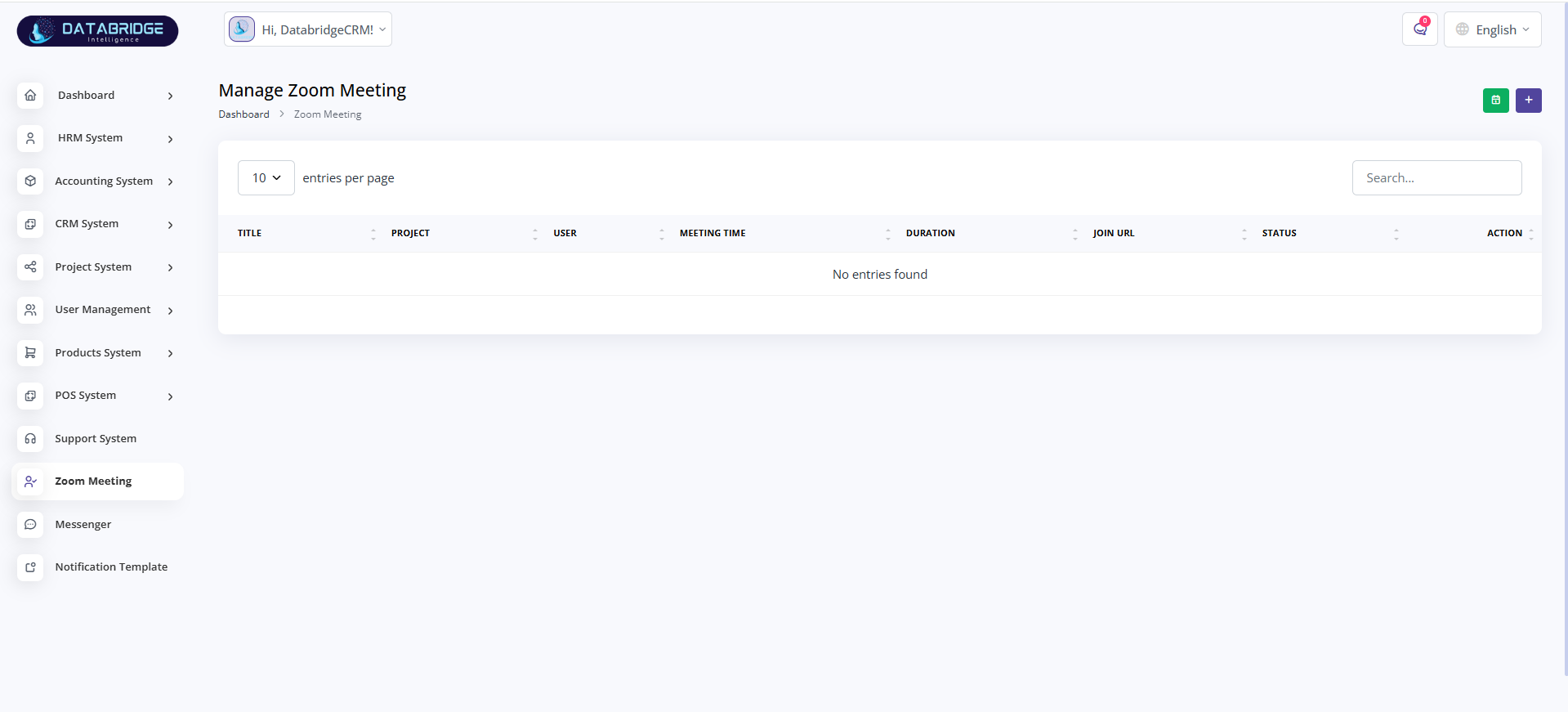
Zoom Meeting Management:
This module is used to manage and schedule Zoom meetings within the system. It helps in organizing virtual meetings linked to projects and users.
Features:
-List of all scheduled meetings
-Meeting details like title, project, user, time, and duration
Search and pagination
-Action controls for managing meetings
Functionality:
-Users can view all scheduled meetings
-Meetings can be created, updated, or deleted
-Join URLs are generated for easy access
-Helps in coordinating team communication
This module is used to manage and schedule Zoom meetings within the system. It helps in organizing virtual meetings linked to projects and users.
Features:
-List of all scheduled meetings
-Meeting details like title, project, user, time, and duration
Search and pagination
-Action controls for managing meetings
Functionality:
-Users can view all scheduled meetings
-Meetings can be created, updated, or deleted
-Join URLs are generated for easy access
-Helps in coordinating team communication
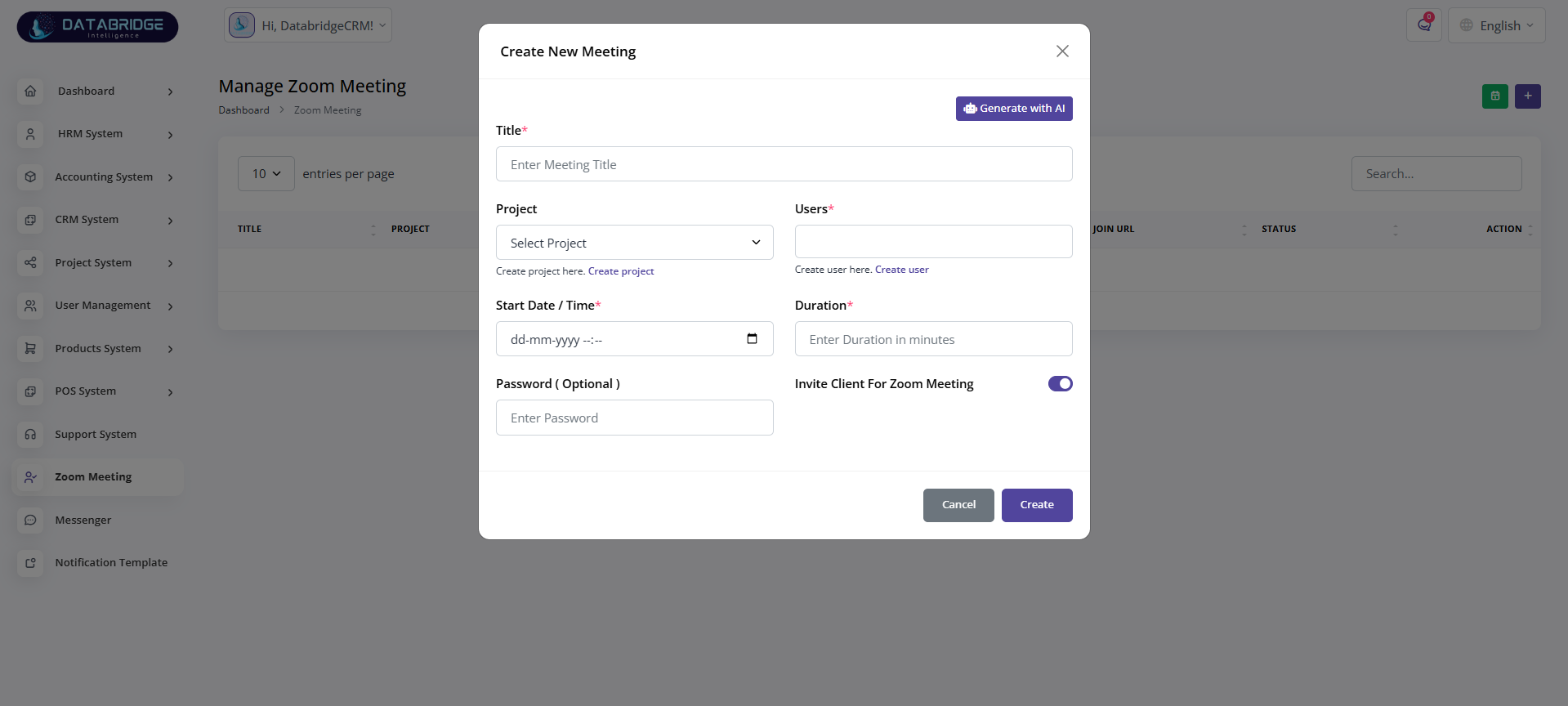
Create Zoom Meeting:
This screen allows users to schedule a new Zoom meeting by entering meeting details such as title, project, participants, date, and duration.
Features:
-Input fields for title, project, users, and timing
-Duration and optional password fields
-Option to invite clients
-AI-assisted meeting title generation
Functionality:
-Users can schedule meetings with selected participants
-Meeting details are saved and linked with projects
-Join link is generated automatically
-Enables seamless virtual collaboration
This screen allows users to schedule a new Zoom meeting by entering meeting details such as title, project, participants, date, and duration.
Features:
-Input fields for title, project, users, and timing
-Duration and optional password fields
-Option to invite clients
-AI-assisted meeting title generation
Functionality:
-Users can schedule meetings with selected participants
-Meeting details are saved and linked with projects
-Join link is generated automatically
-Enables seamless virtual collaboration
1
Zoom Meeting
2
Right"+"
Messenger
The Messenger module provides a real-time communication platform for users within the system. It allows instant messaging, conversation tracking, and quick sharing of information between team members. This feature enhances collaboration, improves response time, and keeps all communications organized in one place.
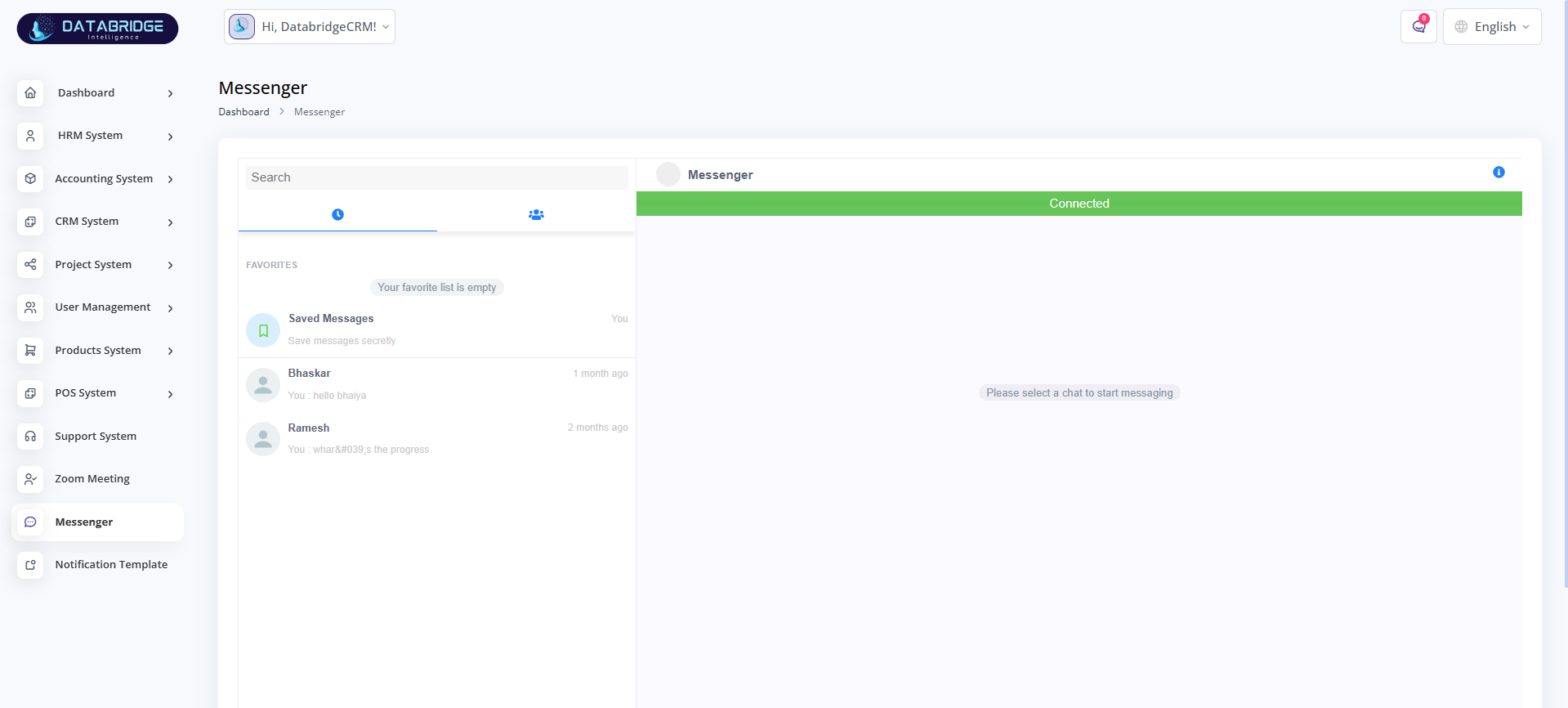
Messenger:
This module provides an internal communication system for users to send and receive messages. It helps in real-time collaboration within the organization.
Features:
-Chat interface with contact list
-Search functionality for conversations
-Favorites and saved messages
-Real-time connection status
Functionality:
-Users can select contacts and start conversations
-Messages are exchanged in real-time
-Conversations are stored for future reference
-Improves team communication and coordination
This module provides an internal communication system for users to send and receive messages. It helps in real-time collaboration within the organization.
Features:
-Chat interface with contact list
-Search functionality for conversations
-Favorites and saved messages
-Real-time connection status
Functionality:
-Users can select contacts and start conversations
-Messages are exchanged in real-time
-Conversations are stored for future reference
-Improves team communication and coordination
Notification Template
The Notification Template module allows users to create and manage predefined message templates for different system events. It helps standardize communication for actions like new leads, deals, tasks, and updates. This ensures consistent messaging, saves time, and improves overall communication efficiency across the platform.
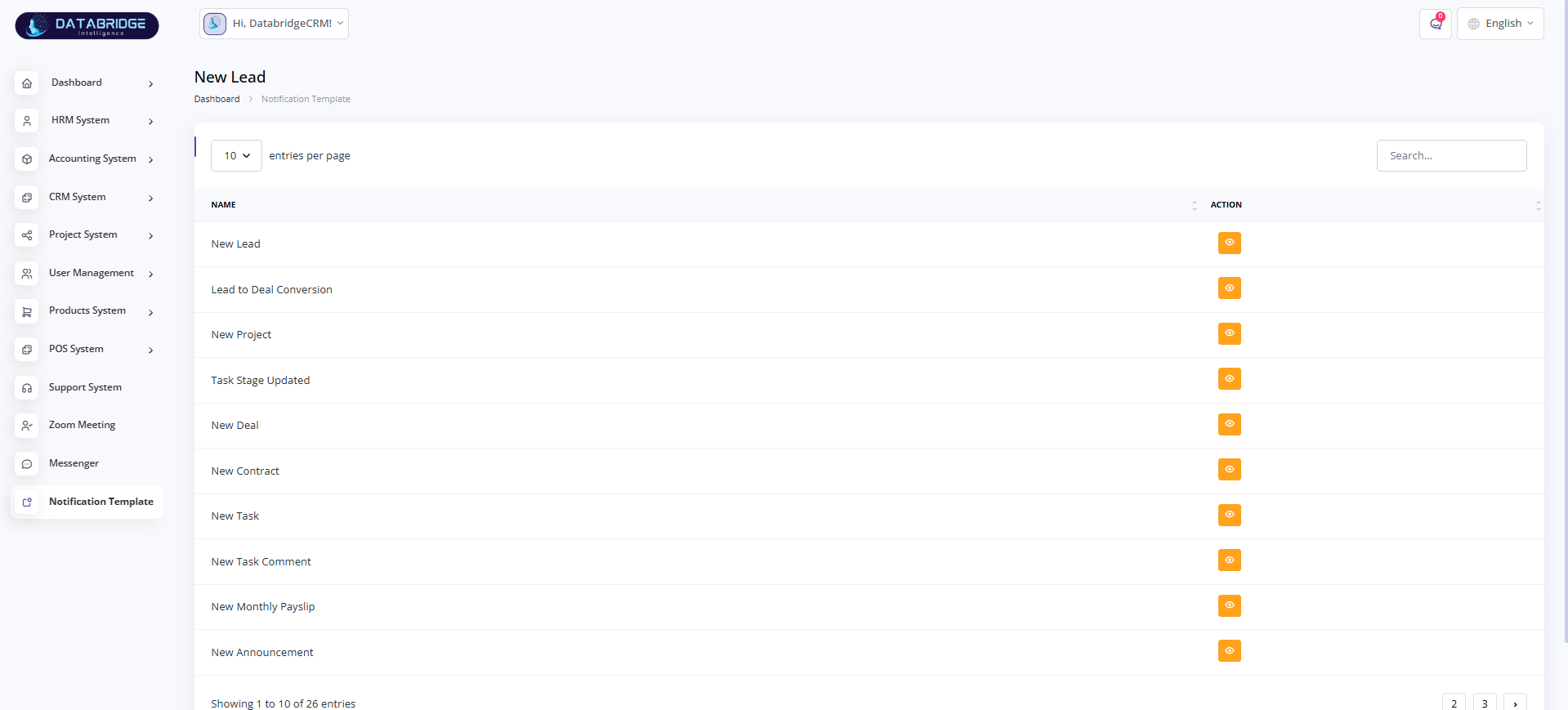
Notification Template:
This screen is used to manage predefined notification templates for various system events such as new leads, deals, tasks, and announcements.
Features:
-List of all notification templates
-Templates for different system events
-Search and pagination support
-View/edit options for templates
Functionality:
-Users can manage and customize notification messages
-Templates are triggered based on system actions
-Ensures consistent communication across the system
-Helps automate s and notifications
This screen is used to manage predefined notification templates for various system events such as new leads, deals, tasks, and announcements.
Features:
-List of all notification templates
-Templates for different system events
-Search and pagination support
-View/edit options for templates
Functionality:
-Users can manage and customize notification messages
-Templates are triggered based on system actions
-Ensures consistent communication across the system
-Helps automate s and notifications